

Pick a review preset instead of tweaking every Display option by hand
Pick a review preset instead of tweaking every Display option by hand
See how risky a PR is at a glance with blast radius labels
See how risky a PR is at a glance with blast radius labels
Chat with Qodo about any finding by starting a comment with 'qodo' or '@qodo'
Chat with Qodo about any finding by starting a comment with 'qodo' or '@qodo'
qodo, @qodo, or /qodo, or open with a greeting like Hey qodo, to chat with Qodo about a finding. Ask it to explain the issue, discuss the suggestion, or ask follow-up questions in natural language. Qodo only responds when addressed, so reviewer discussions are never interrupted.See Chat with Qodo in your pull requests for the full guide.Disagree with a finding? Ask Qodo to dismiss it, with your reason on record
Disagree with a finding? Ask Qodo to dismiss it, with your reason on record
Push back, ask questions, or dig deeper by replying 'qodo' on any finding
Push back, ask questions, or dig deeper by replying 'qodo' on any finding
Choose which labels appear on a finding, and whether they show icons or text
Choose which labels appear on a finding, and whether they show icons or text
Enable the Remediation agent and Qodo fixes findings in a dedicated fix PR
Enable the Remediation agent and Qodo fixes findings in a dedicated fix PR
Land a fix right on your PR by typing 'qodo, fix this' on a finding
Land a fix right on your PR by typing 'qodo, fix this' on a finding
qodo, fix the null pointer issue in this PR and the chat agent applies the fix without you leaving the PR. This is best for targeted fixes where you want control over what changes.See Remediate findings in your pull request for the full guide.Describe a rule in plain language on the Rules page and Qodo drafts it for you
Describe a rule in plain language on the Rules page and Qodo drafts it for you
Turn on the rule miner and Qodo learns your standards from review history
Turn on the rule miner and Qodo learns your standards from review history
Customize every PR review with a REVIEW.md file in your repo root
Customize every PR review with a REVIEW.md file in your repo root
REVIEW.md file at your repository root and Qodo applies the review instructions and guidelines it contains on every PR. It is a simple, repo-local way to customize your review.See Apply REVIEW.md instructions to code review for the full guide.Route each severity your way: inline, summary, both, or drop
Route each severity your way: inline, summary, both, or drop
Keep summaries lean: Findings visible per group tucks the rest behind a View link
Keep summaries lean: Findings visible per group tucks the rest behind a View link
Show, collapse, or hide each part of a finding: code, evidence, and all
Show, collapse, or hide each part of a finding: code, evidence, and all
Every finding has a copy-paste agent prompt: feed it to your IDE agent
Every finding has a copy-paste agent prompt: feed it to your IDE agent
Tweak Display settings with a live preview to see your comment before it ships
Tweak Display settings with a live preview to see your comment before it ships
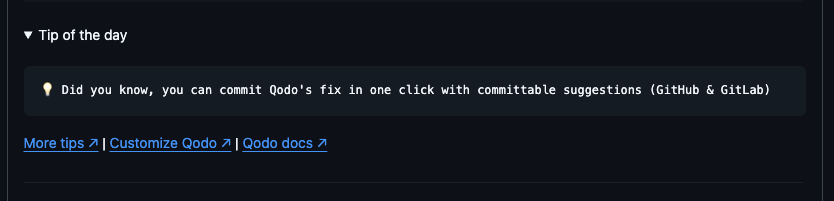
Commit Qodo's fix in one click with committable suggestions (GitHub & GitLab)
Commit Qodo's fix in one click with committable suggestions (GitHub & GitLab)
Not a fan of tips? Turn them off under Display > Comment parts
Not a fan of tips? Turn them off under Display > Comment parts
Switch off images and animations for a plain-text comment
Switch off images and animations for a plain-text comment
Hide the parts of a finding you never read, like the evidence or the agent prompt
Hide the parts of a finding you never read, like the evidence or the agent prompt