

Pull request summary
Before presenting individual issues, Qodo provides context to help you understand what changed and why it matters. For more information about how this context is generated and configured, see Generate a PR summary.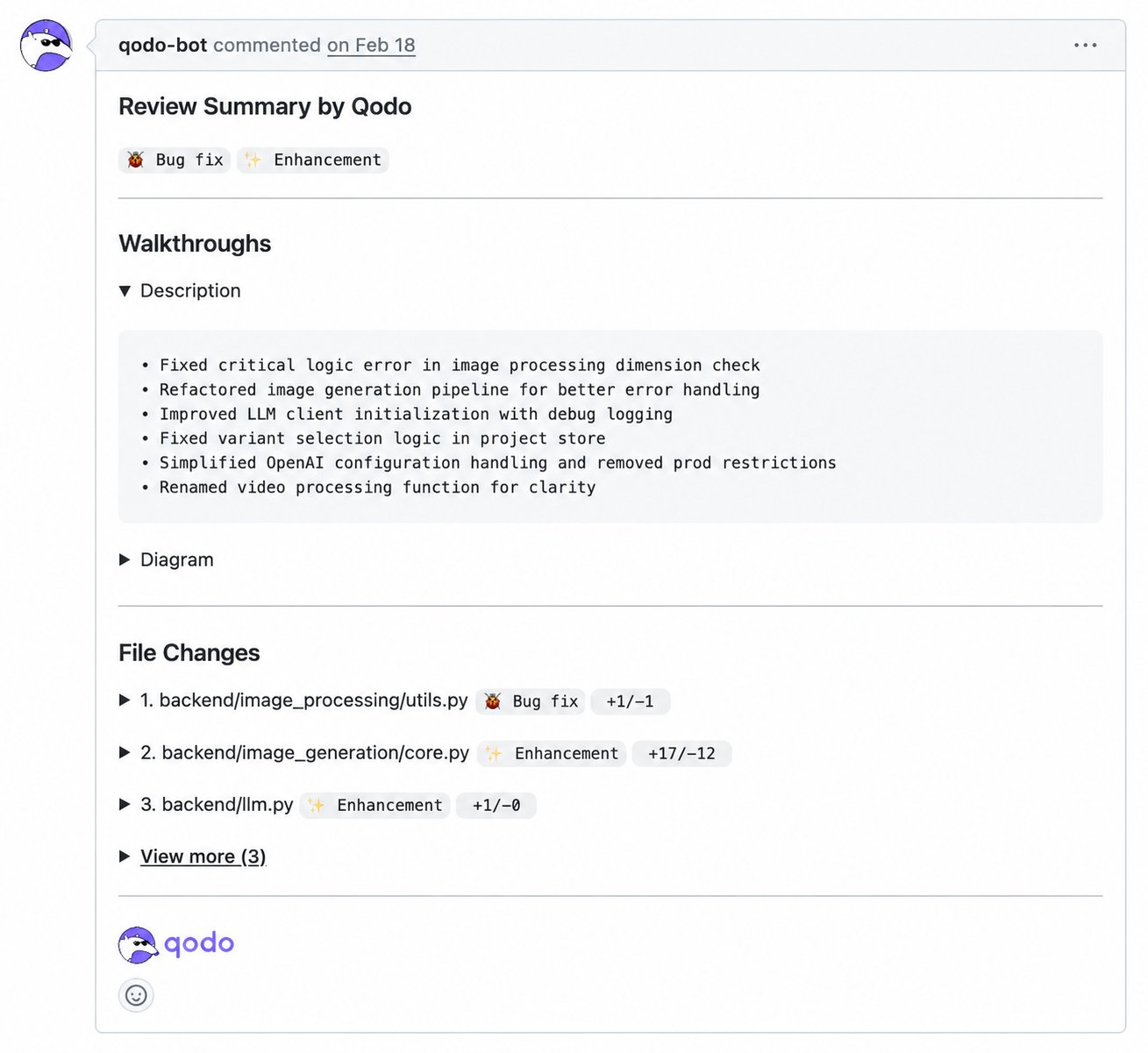
AI-generated description
AI-generated description
Qodo adds an AI-generated summary of the pull request’s intent and impact.
- By default, the summary is posted as a standalone comment and your original pull request description stays unchanged.
- You can also configure Qodo to merge the summary into the native pull request description.
Walkthroughs
Walkthroughs
Qodo breaks down the change in detail: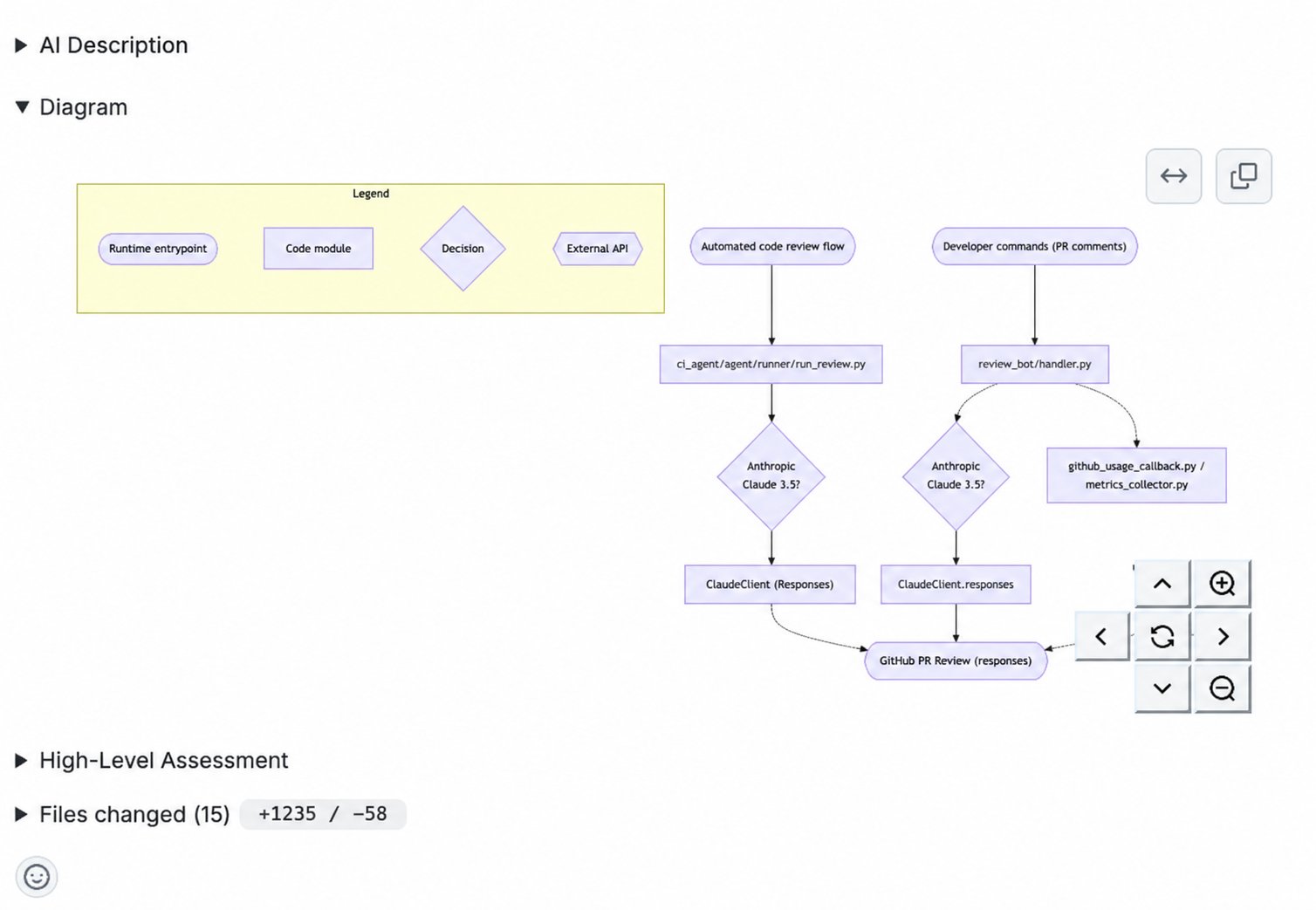
- Description: A plain-language breakdown of what changed and why.
- Diagram: An architecture diagram showing the flow and connections introduced by the change.
- High-Level Assessment: Suggestions and alternatives for the author and reviewer to consider before or during review.
File changes overview
File changes overview
Qodo provides a file-level overview of the pull request.For each modified file, you can see:
- The file path
- The type of change (for example, Bug Fix or Enhancement)
- Lines added and removed
Code review findings overview
After providing context, Qodo presents a findings overview covering category counts, the context behind the review, and each finding’s quality impact and severity.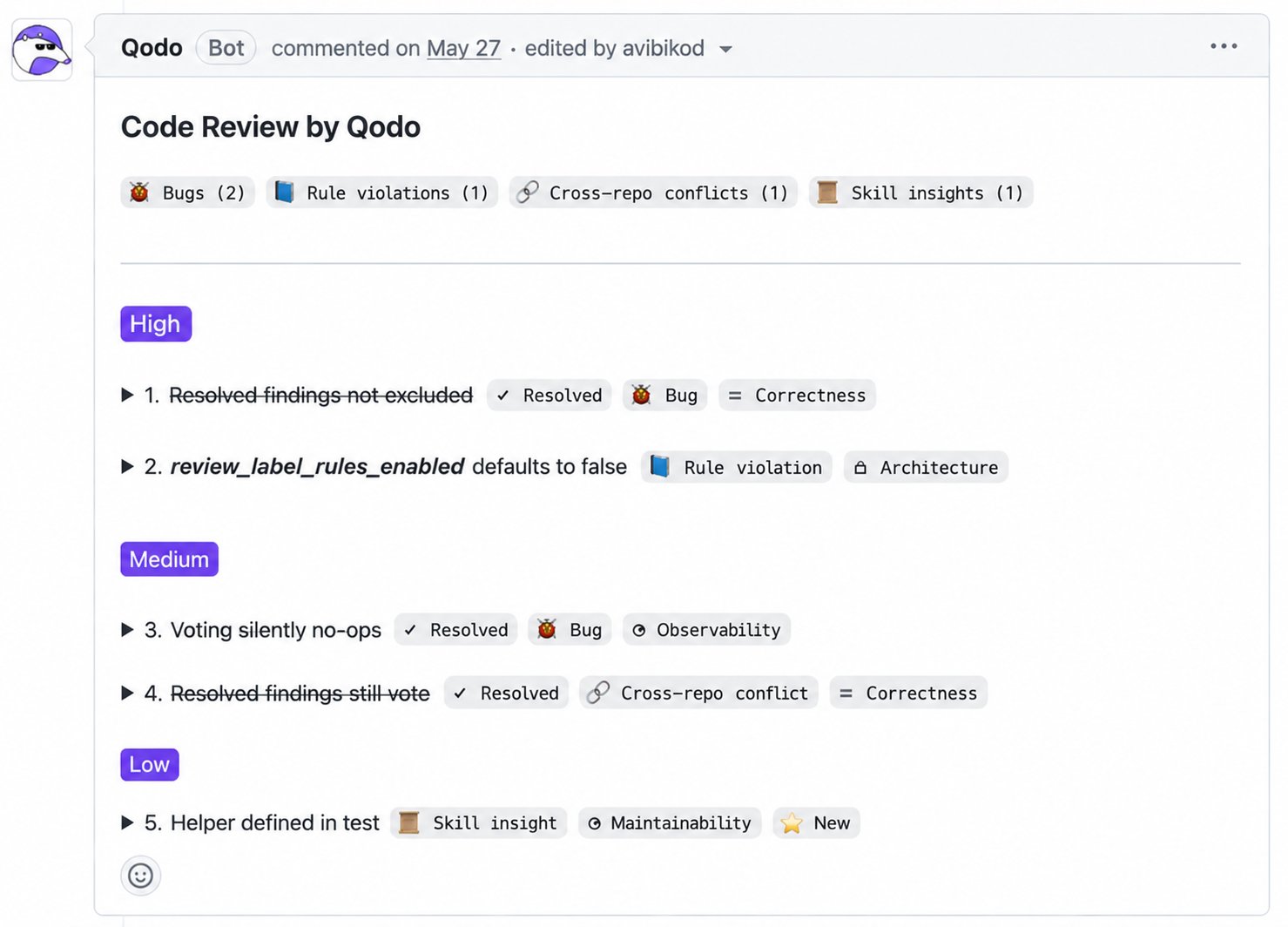
Counts by category
Counts by category
Findings are grouped by category, with counts for each type.
This overview gives you an immediate sense of the review’s focus and severity.
Context sources
Context sources
When a review draws on additional context, such as rules, skills, or cross-repo context, Qodo displays a Context sources section listing exactly what was applied.The section also carries the review’s routing summary: a line such as “2 issues published inline · 3 in summary” showing at a glance how the findings were split between inline comments and the summary. Routing is controlled by the Comments settings.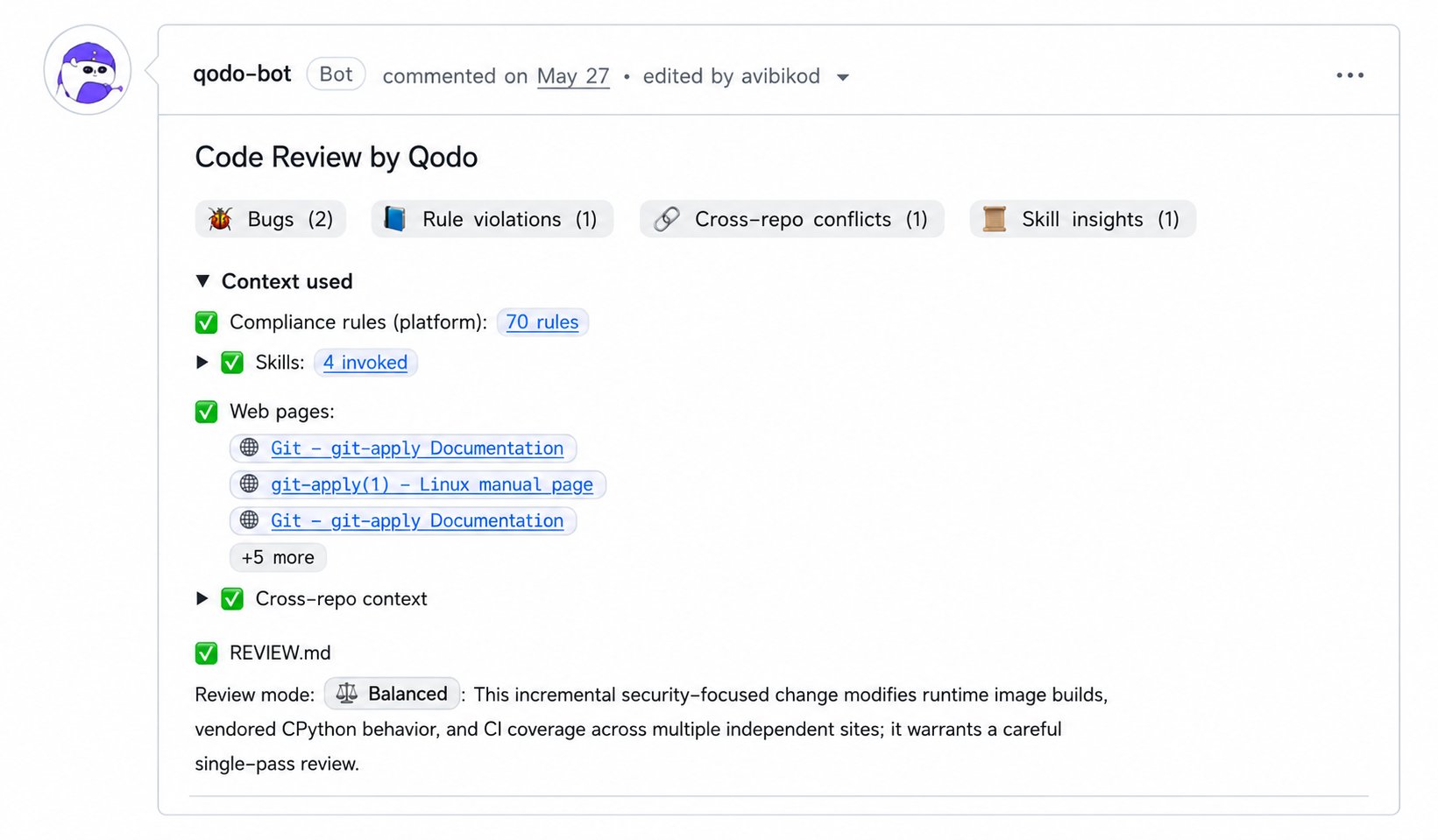
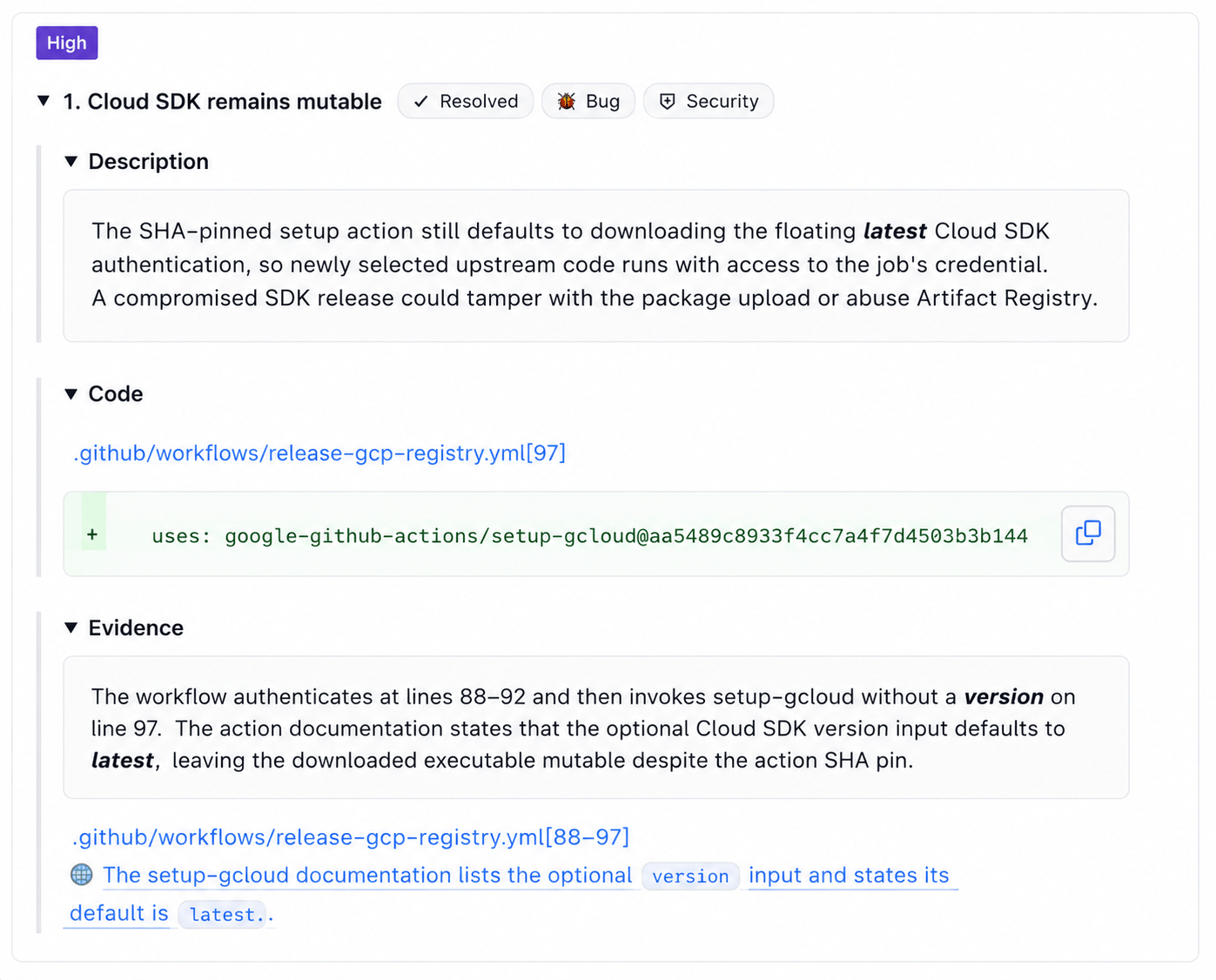
Quality impact labels
Quality impact labels
In addition to categories, each finding includes a quality impact label. This label indicates which quality dimension is affected by the issue.Common labels include:
These labels provide quick semantic context, helping you understand what kind of quality is impacted before diving into the full issue details.
Severity and prioritization
Severity and prioritization
Findings are grouped by severity, making it clear what needs attention first.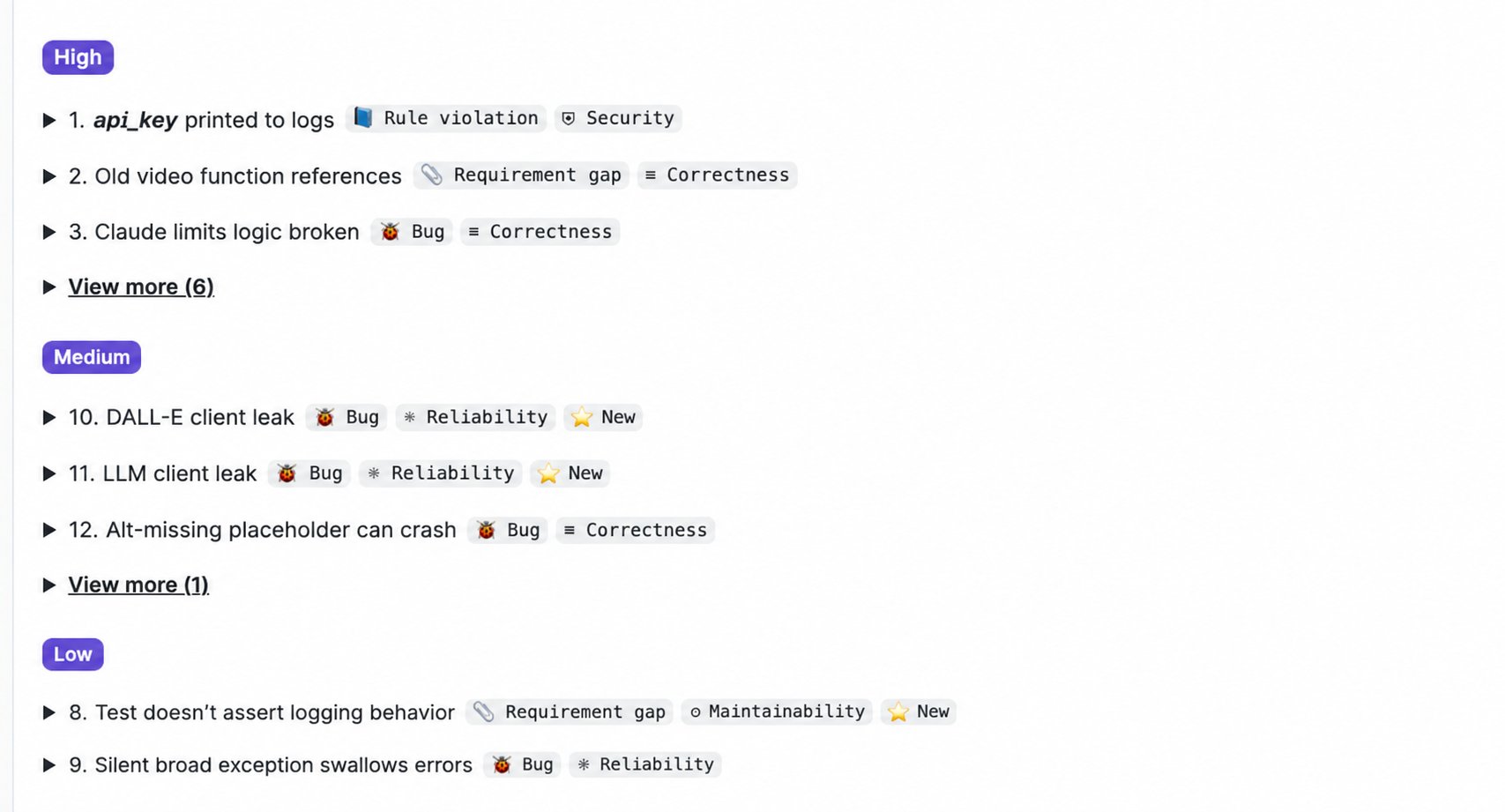
High, Medium, and Low are the default severity labels. You can rename them using the Severity terminology setting. For more information, see Configure Qodo using the portal.This prioritization helps you focus on what matters most without losing visibility into the full set of findings.
Resolved findings
Resolved findings
As you push new commits, Qodo marks the findings that no longer need action. A resolved finding is struck through and shows only its status, which keeps the focus on the open findings. Each resolved finding has one of these statuses:
- ✓ Resolved: A later commit fixed the issue.
- ✗ Dismissed: The finding was dismissed without a fix and no longer needs action.
- ⊖ Outdated: The code the finding referred to was removed or rewritten. The finding no longer applies.
Unpack a code review finding
Each finding can be expanded to reveal full details. You can access findings:- From the prioritized summary list
- Inline, directly in the Files changed view
- Description
- Code references
- Relevance
- Evidence
- Agent prompt
- Committable suggestion
- Dismiss & view
A clear, human-readable explanation of the issue and its potential impact.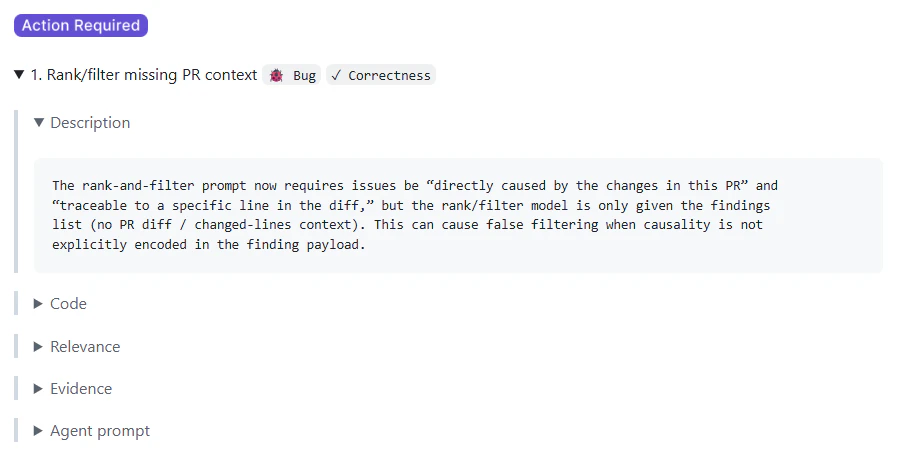
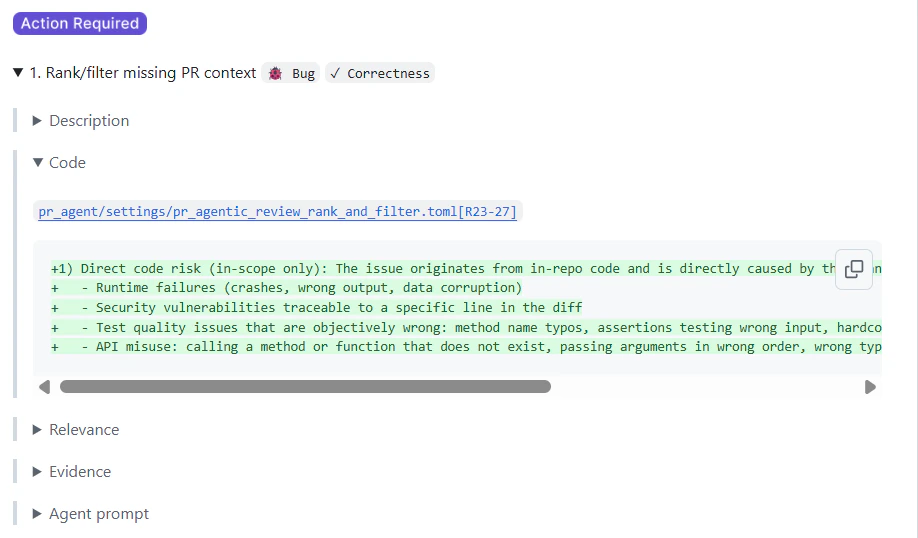
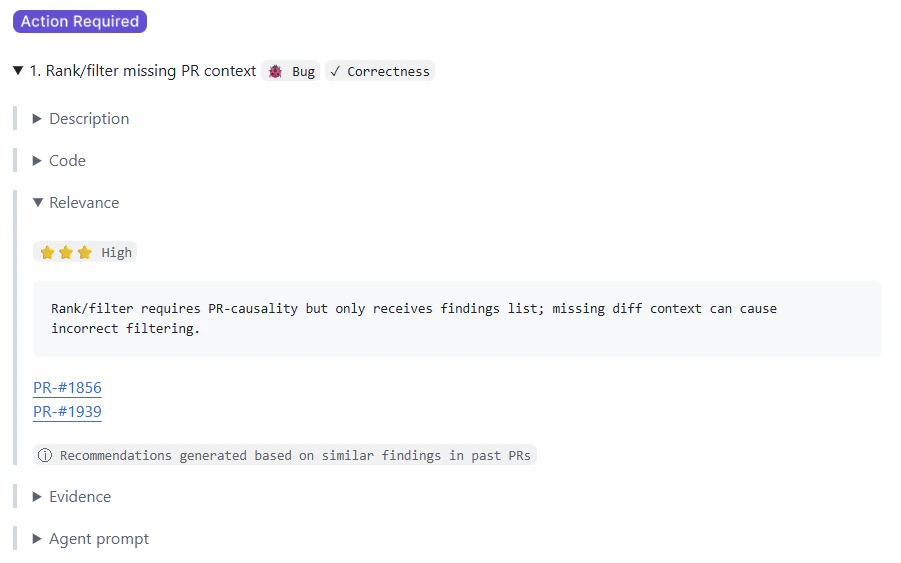
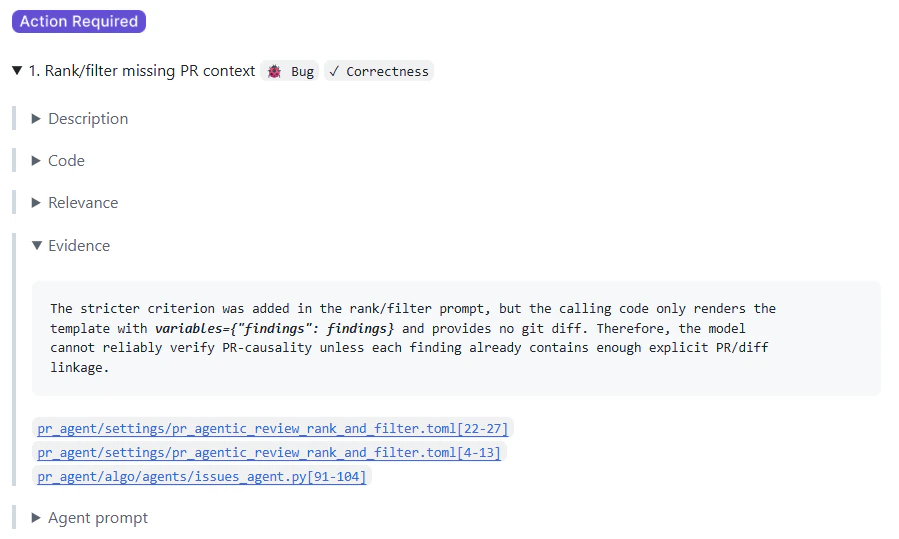
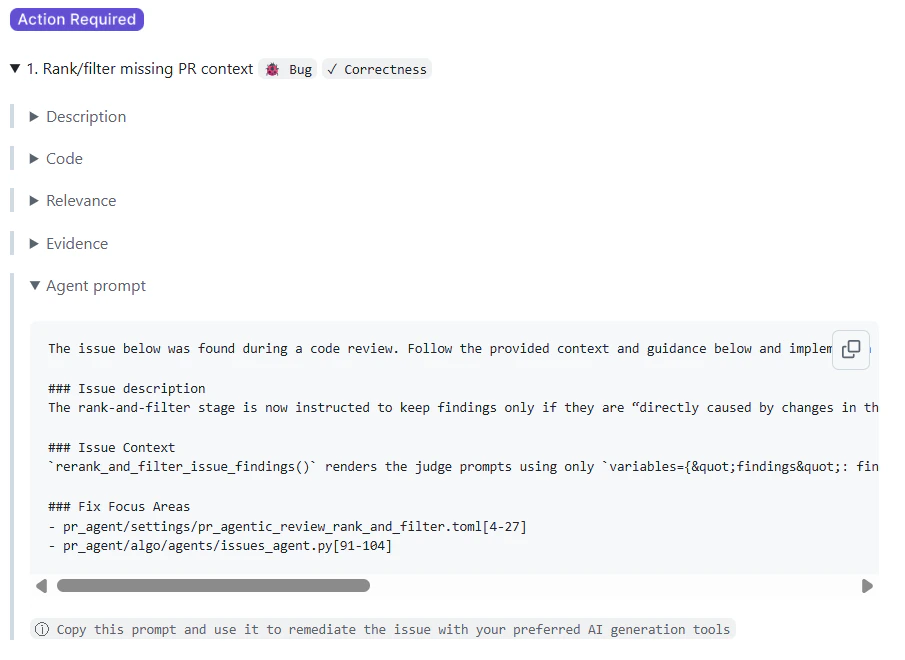
Findings from all pull requests are also tracked centrally in the Qodo portal. For more information about filtering and monitoring findings across all repositories, see Monitor organization-wide pull request findings.
Previous reviews (formerly Audit trail)
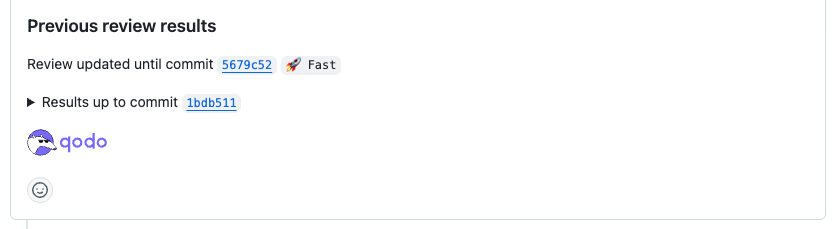
Qodo keeps a collapsible Previous reviews section in the comment, showing the history of past review runs on the pull request. It renders like the comment’s other collapsible parts (Context sources, Tip of the day) and sits between the daily tip and the footer:- A Review updated until commit line links to the commit the current review reflects.
- Each earlier commit has its own collapsible Results up to commit entry.
- A review-mode badge, for example 🚀 Fast or ⚖️ Balanced, shows which mode produced the review.
- Expanding an entry surfaces the full set of findings from that earlier review run. Findings that were later resolved appear struck through with a resolved mark, reflecting the current state of every finding.
Native pull request labels
Beyond the review comment itself, Qodo can publish select signals as native labels directly in your Git provider’s pull request interface, for example in the Labels sidebar or the pull request list.- Review time estimate: See Generate a PR summary.
- Blast radius: See Assess code change risk using blast radius.
Related resources
- Prioritize findings using Relevance: See how likely each finding is to matter, based on your team’s history.
- Assess code change risk using blast radius: Triage pull requests by the risk of the change.
- Dismiss a code review finding: Close a finding without fixing it and record why.
- Customize the code review experience: What you can configure, and where to configure it.