

Beta
Chatting with Qodo makes pull request reviews interactive. Start a conversation by mentioning @qodo, qodo, or /qodo at the beginning of a PR comment, review comment, or inline code comment. You can also address Qodo with a greeting such as Hey qodo.
When chatting with Qodo, you can:
-
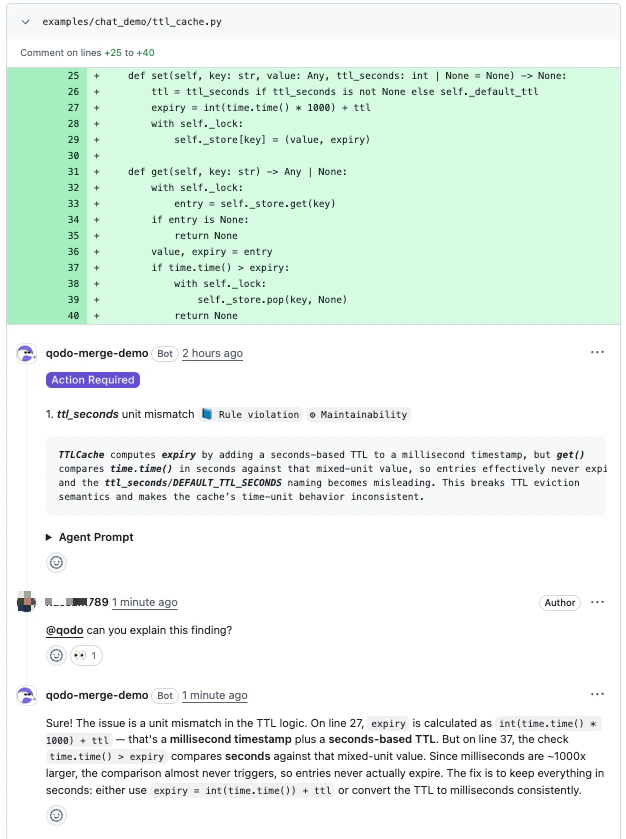
Ask Qodo to explain a finding.
-
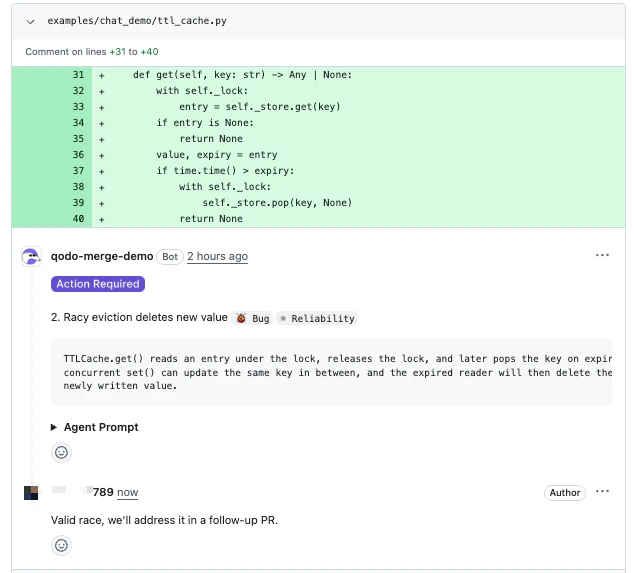
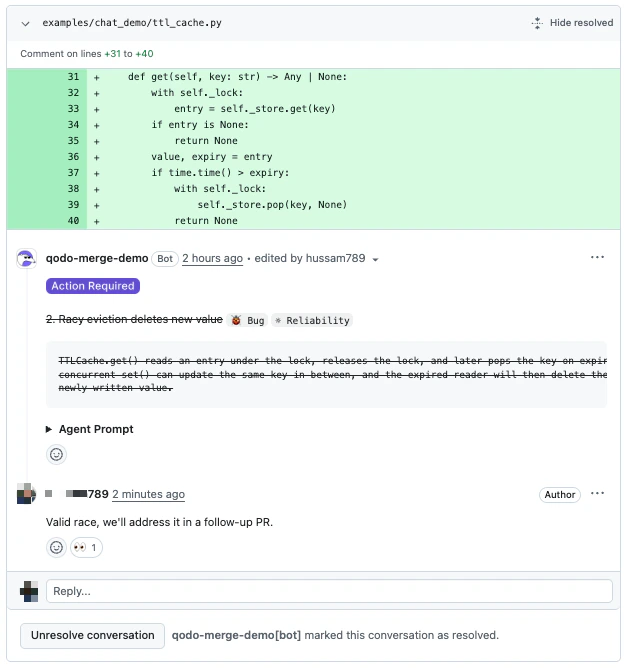
Dismiss a finding with a reason.
-
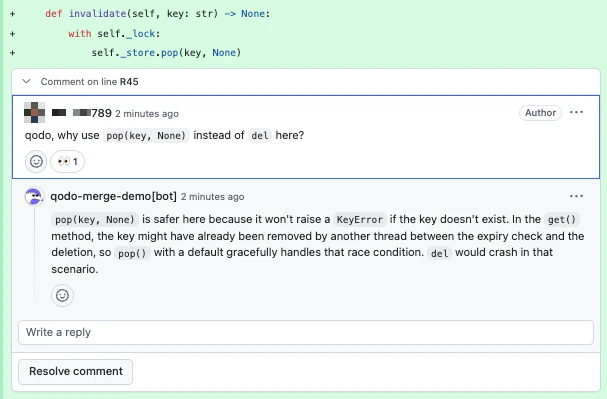
Discuss a suggestion or ask follow-up questions in natural language.
- Tell Qodo that the rule or repository relationship behind a finding is wrong, and get a link to fix it in the Qodo portal.
Start the chat
Mention@qodo in any PR comment, review comment, or inline code comment. Place @qodo, qodo, or /qodo at the beginning of the comment, or precede it with a greeting such as Hey qodo.
Mention @qodo (or /qodo / qodo) each time you want Qodo to respond, including follow-up replies in a thread it has already participated in. Qodo replies only to messages that explicitly address it, so reviewer-to-reviewer discussion in a thread is never interrupted.
Conversation context
Qodo uses the chat location to understand context for:- Inline code finding: Scoped to the specific finding.
- Inline code comment: Scoped to the specific line.
- PR comment: Scoped to the entire PR and all findings.
What you can ask Qodo to do
-
Explain a finding
Ask why a finding was raised or how the suggested fix works. Qodo replies in natural language. -
Dismiss a finding
Tell Qodo a finding does not apply. Qodo marks it as dismissed with one of four reasons:- False positive: The finding is wrong or describes an issue that does not exist.
- Rejected: The finding is incorrect or invalid.
- Deferred: The finding is acknowledged, but will be handled outside this PR.
- Intentional: The flagged behavior is intended (e.g., kept for backwards compatibility).
- The PR summary comment strikes the finding through and tags it
✗ Dismissed, so the open-vs-closed split is visible without scrolling through every thread. - The inline review thread is marked resolved and collapsed. It can be reopened at any time via Unresolve conversation.
- The inline finding comment itself is rendered with strikethrough, signalling that the suggestion was acknowledged and closed without requiring a code change.
-
Discuss in natural language
Ask follow-up questions, request more detail, or push back on a suggestion. Qodo responds conversationally with the PR diff and thread as context. -
Report an incorrect rule or relationship
In the thread of a rule violation or cross-repo conflict finding, tell Qodo that the rule or relationship behind it is wrong. Qodo replies with a link to that rule or relationship in the Qodo portal, where you can correct it so future reviews do not repeat the finding. For more information, see Fix the source of a finding in the portal.
Triggering Qodo
There are no fixed sub-commands inside the Chat. Qodo interprets your message in natural language. To address Qodo, start a message with any of:
Address Qodo in every message you want it to act on, including follow-ups in a thread it has already replied to. Untagged replies are treated as reviewer discussion and left alone.
To dismiss a finding, just tell Qodo in plain language (e.g., “@qodo this is intentional, we want to keep the legacy behavior”). Qodo will record the dismissal with the appropriate reason.
Fix the source of a finding in the portal
Some findings come from context that is configured in the Qodo portal, not only from the code in the pull request. Rule violations come from a rule defined on the Rules page, and cross-repo conflicts come from a repository relationship defined on the Relationships tab. When that context is wrong or outdated, dismissing the finding closes it in this PR, but the next review can raise it again. Qodo points you to the portal so you can fix the source. This applies to inline finding threads only:- Cross-repo conflict: When you say the relationship is wrong or outdated, such as the repositories no longer depending on each other, Qodo dismisses the finding and replies with a link to each relationship behind it. Links are labeled with the two repositories, such as
web-client -> api-server, and open that relationship in the Relationships tab, where you can update or delete it. The thread stays open so the reply remains visible. - Rule violation: When you dismiss the finding as a false positive or reject it, Qodo’s reply includes a View rule link to the rule. On the rule’s page, you can update the rule or its scope, or disable it.
- Questions about the rule or relationship: When you ask about the rule or relationship behind the finding, or question whether it applies, Qodo’s answer includes the same link. Asking a question does not dismiss the finding.
Example conversations
Asking for clarification
Asking for clarification
DeveloperQodo
Dismissing a finding (intentional)
Dismissing a finding (intentional)
DeveloperQodo
Dismissing a finding (deferred)
Dismissing a finding (deferred)
DeveloperQodo
Reporting an outdated relationship
Reporting an outdated relationship
DeveloperQodoIn the PR, the
web-client -> shared-lib link opens that relationship in the Qodo portal.Disputing a rule
Disputing a rule
DeveloperQodoIn the PR, the View rule link opens the rule in the Qodo portal.
Dismissing a finding (rejected)
Dismissing a finding (rejected)
DeveloperQodo
Requesting a re-review
Requesting a re-review
DeveloperQodoQodo runs the review and posts the updated results in the PR.
Guidelines for GitHub users
GitHub does not always update bot responses in real time. After posting a message:- Refresh the page if you do not see the Qodo response indicator.
- Refresh again after a few seconds if the full response does not appear.
Disable Chat with Qodo
Chat with Qodo is enabled by default. To turn it off:Disable Chat with Qodo in the Qodo portal (Recommended)
- Log in to the Qodo portal.
- Navigate to Configurations > Workflow > Chat agent.
- Disable the Chat with Qodo toggle.
Disable Chat with Qodo in .pr_agent.toml
true.
Related resources
- Anatomy of a Qodo Code Review: The parts of the review comment and how to read them.
- Remediate findings in pull requests: Fix findings using chat or the remediation agent.
- Dismiss a code review finding: Close a finding without fixing it and record why.
- Customize the code review experience: What you can configure, and where to configure it.