

Prerequisites
Before you begin, ensure you have:- Access to your Qodo portal.
- A Qodo environment configured for Bitbucket Data Center.
- Bitbucket System Administrator access, or access to an administrator who can create a dedicated Qodo account and webhooks for you.
Access the Bitbucket Data Center integration
1
Log in to your Qodo portal.
2
Start the installation wizard in one of the following ways:
- From the onboarding wizard: If you’re an organization admin signing in for the first time, the onboarding wizard opens automatically. In the Connect Git step, select Bitbucket. See Set up Qodo with the onboarding wizard.
- From the homepage: On the homepage, in the top right-hand side, click the + button next to Git providers. On the selection page, choose Bitbucket.
Install Qodo on Bitbucket Data Center
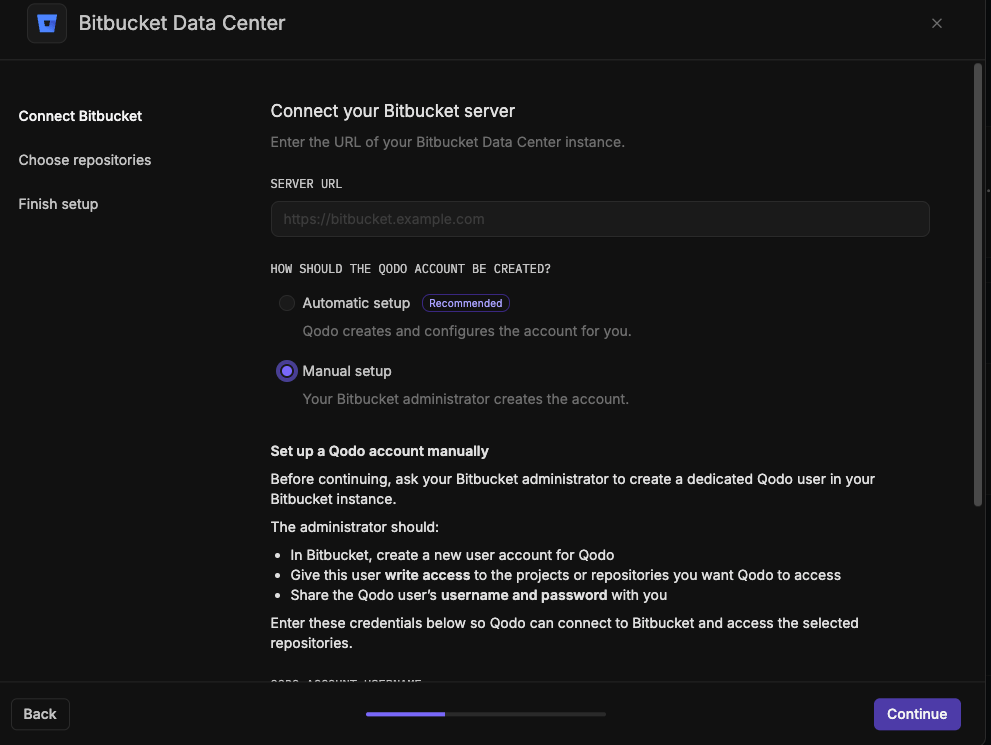
Choose how the Qodo account is created. The rest of the wizard follows from this choice.- Automatic setup (Recommended)
- Manual setup
Qodo creates and configures the account for you.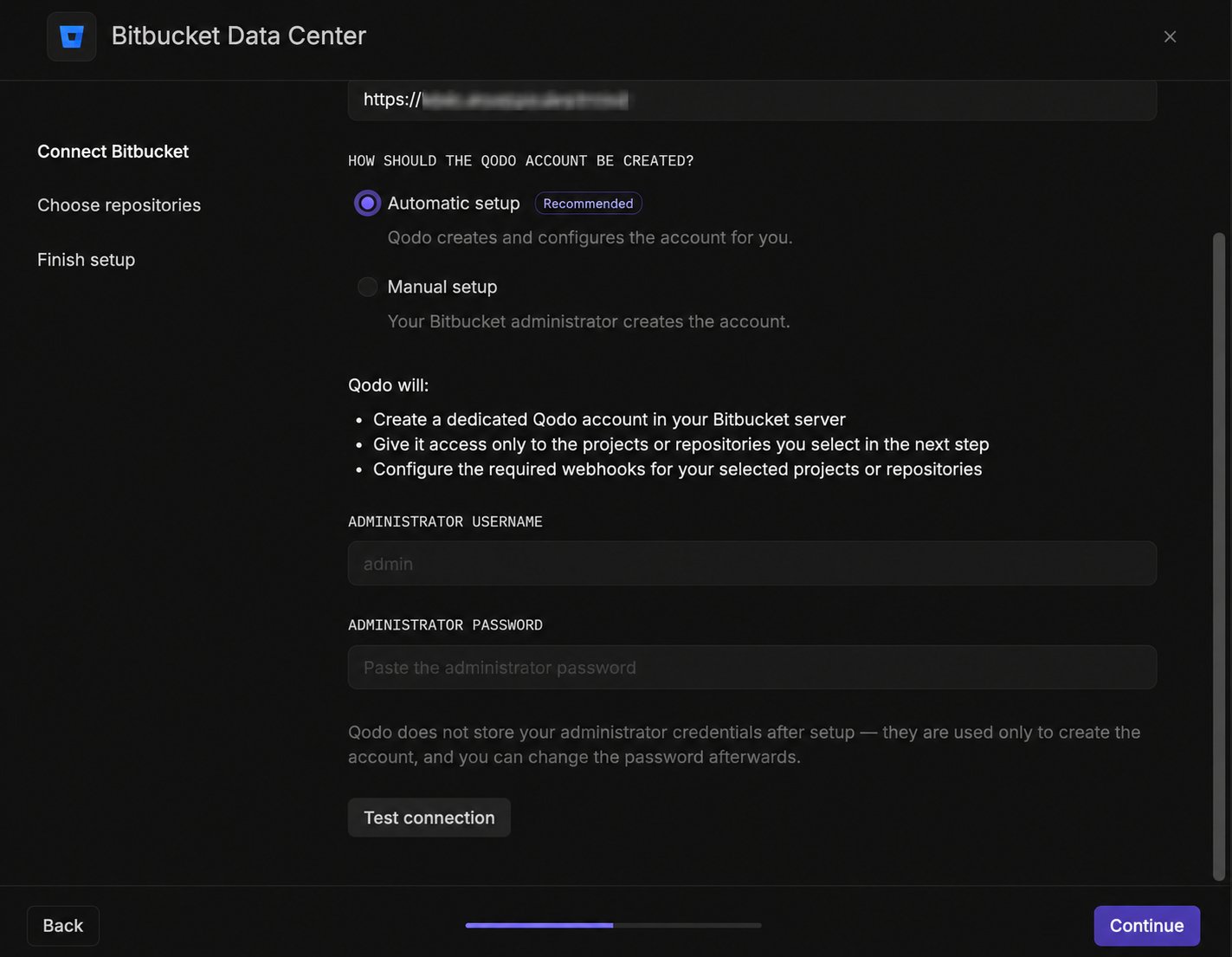
1
Connect Bitbucket
https://bitbucket.example.com.Enter your administrator username and administrator password. Qodo uses them once to:- Create a dedicated Qodo account in your Bitbucket server.
- Give it access only to the projects or repositories you select in the next step.
- Configure the required webhooks for your selected projects or repositories.
Qodo doesn’t store your administrator credentials after setup. They’re used only to create the account and configure webhooks, and you can change the password afterward.
2
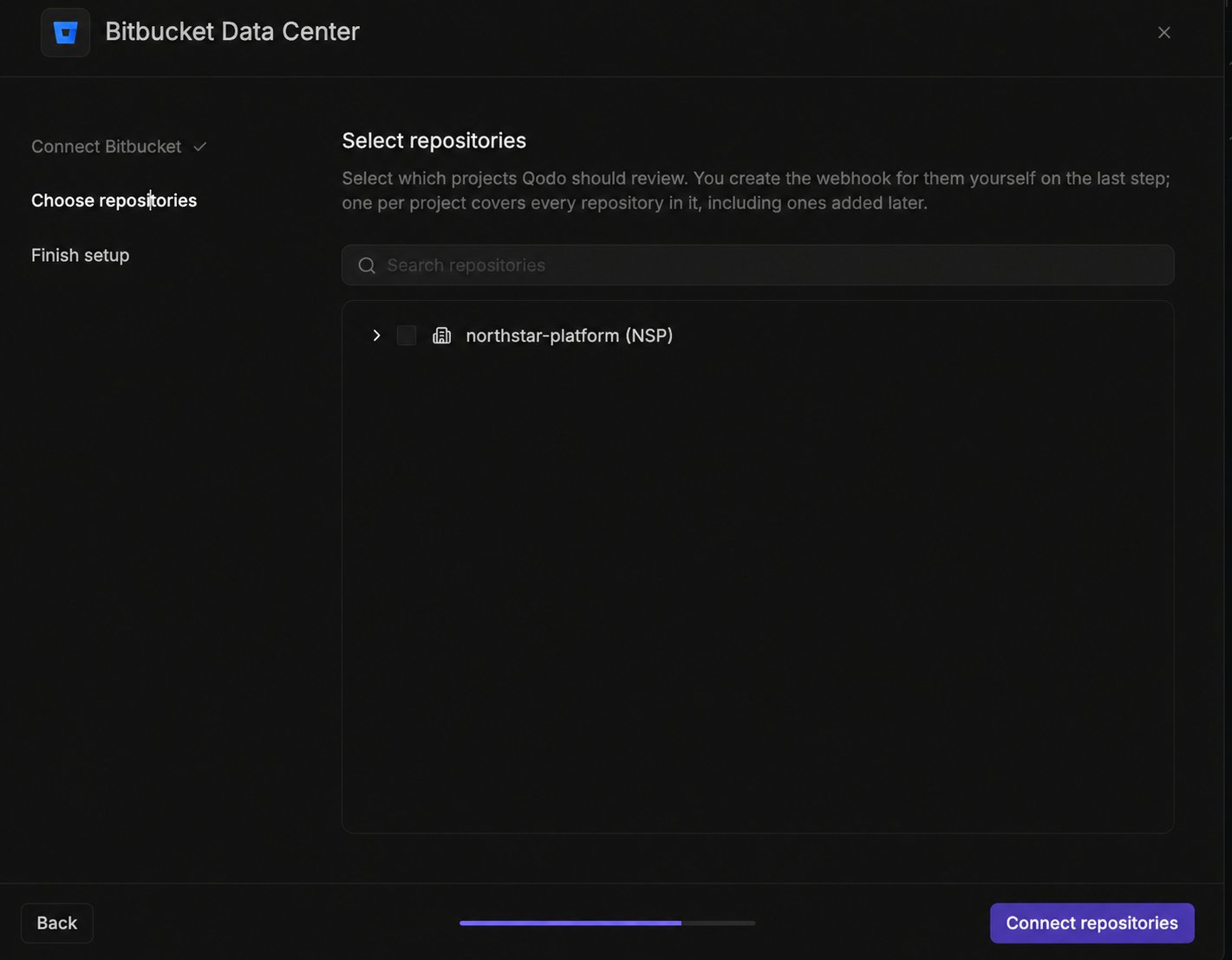
Choose repositories
- Use the search bar to find a specific project or repository, or browse the list of projects on your server.
- Selecting a project includes every repository in it, including ones added later.
- Selecting an individual repository includes only that repository.
3
Finish setup
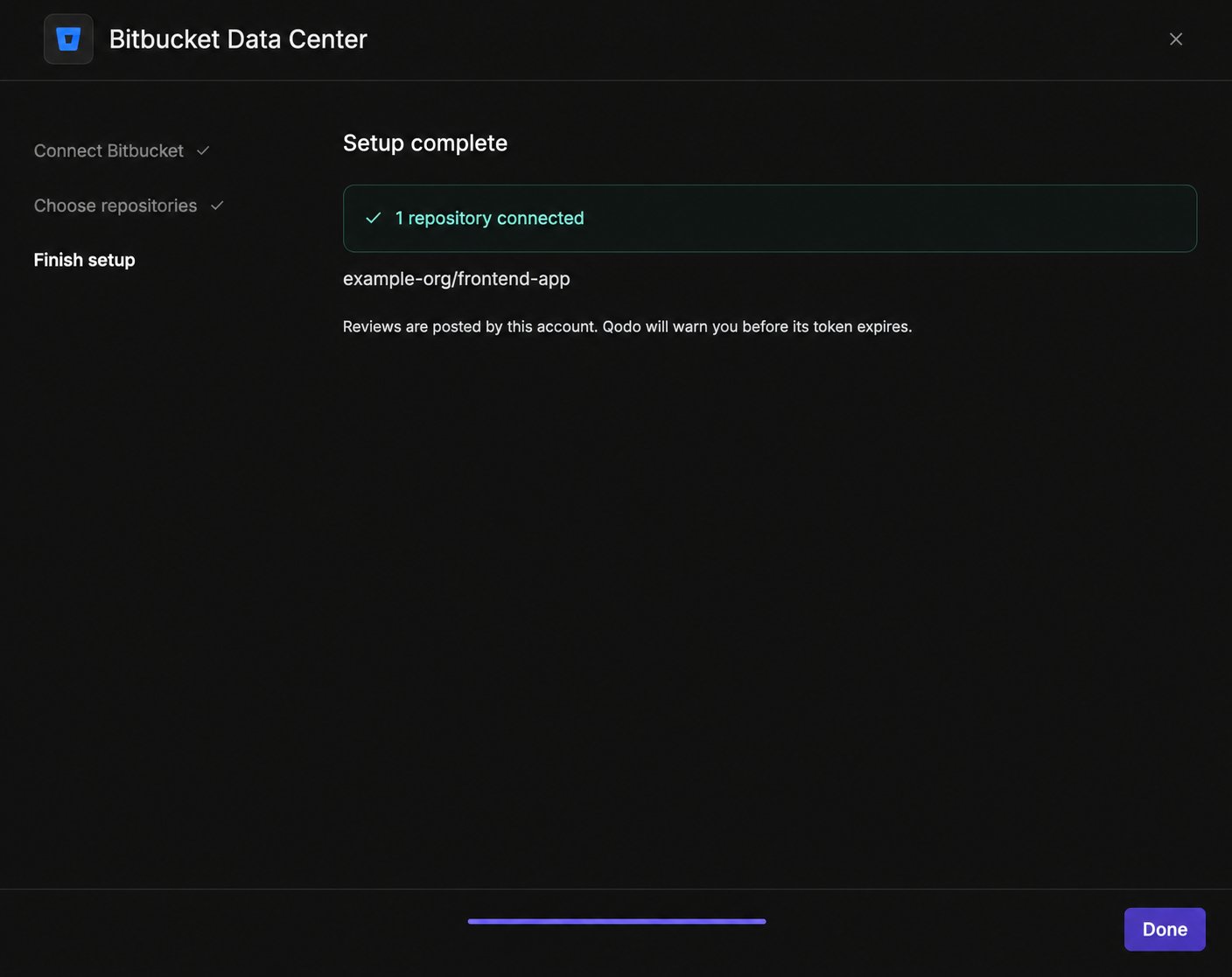
qodo-bot account and registers the required webhooks in Bitbucket.Once setup completes, Qodo confirms the number of repositories connected. Reviews are posted by the qodo-bot account. Qodo warns you before its token expires.- Click Done.
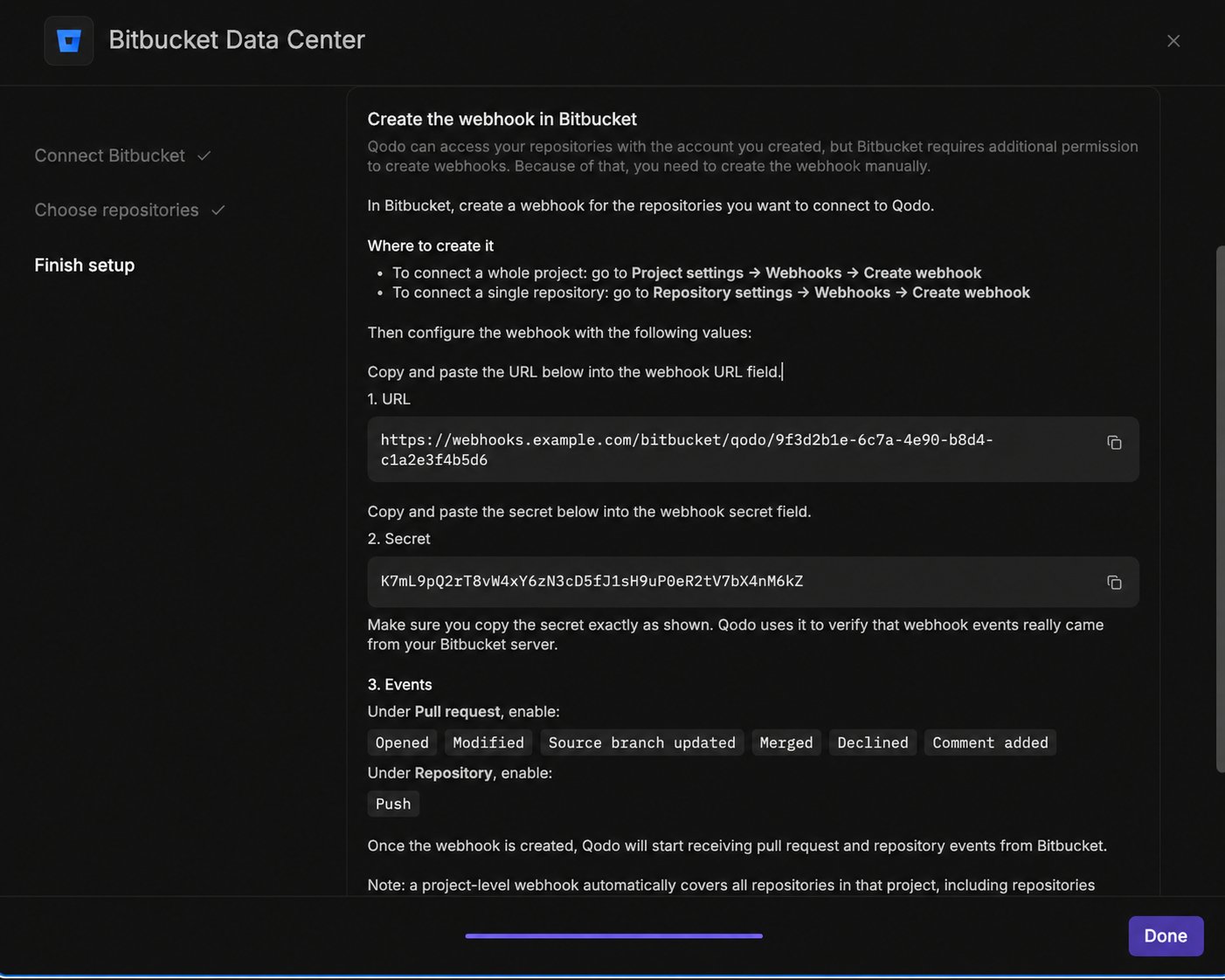
If you’re connecting your Git provider as part of the onboarding wizard, the wizard continues to the next onboarding step once the connection completes. See Set up Qodo with the onboarding wizard.
What happens after you connect
Qodo starts building context for your code reviews, and the following processes run automatically in the background:- Repository sync: Syncs each connected repository with Qodo.
- Pull request indexing: Indexes each repository’s pull request history.
- Cross-repo discovery: Finds relationships between your repositories.
Verify the installation
1
Open a new pull request in one of the connected repositories and confirm Qodo is triggered automatically.
2
Add a comment using one of the supported commands:
/agentic_describe/agentic_review
Next steps
- Repositories page: Manage which repositories Qodo is active on, or remove an installation.
- Trigger a code review: Run a review automatically or on demand.