

Prerequisites
Before you begin, ensure you have:- A Qodo on-premises environment configured for Azure DevOps, including the Qodo webhook endpoint. Azure connection details (tenant ID, client ID, and client secret) are generated as part of the Microsoft Entra ID application registration during setup.
- Permissions to create an app registration in Microsoft Entra ID.
- Permissions to create users in Microsoft Entra ID and add users to the Azure DevOps organization (Microsoft Entra ID User Administrator and Azure DevOps Organization Owner), and access to the Azure DevOps projects that will be integrated with Qodo.
Installation
Step 1: Create an application registration
1
Sign in to the Microsoft Azure portal.
2
Use the search bar to navigate to App registrations.
3
Click New registration and enter the following:
- Application Name: Qodo
- Supported account types: Select Accounts in any organizational directory (Any Microsoft Entra ID tenant – Multitenant)
- Application Logo: https://www.qodo.ai/wp-content/uploads/2025/03/qodo-logo.svg
4
Navigate to Manage → Authentication → Add Redirect URL.In the popup:
- Select Web Applications → Web.
- Enter the callback URL. The webhook URL is unique per customer. For example:
https://admin.<customer-domain>.qodo.ai/api/ado/oauth/callback - Click Configure.
5
Navigate to Manage → Certificates & secrets → New client secret.In the popup: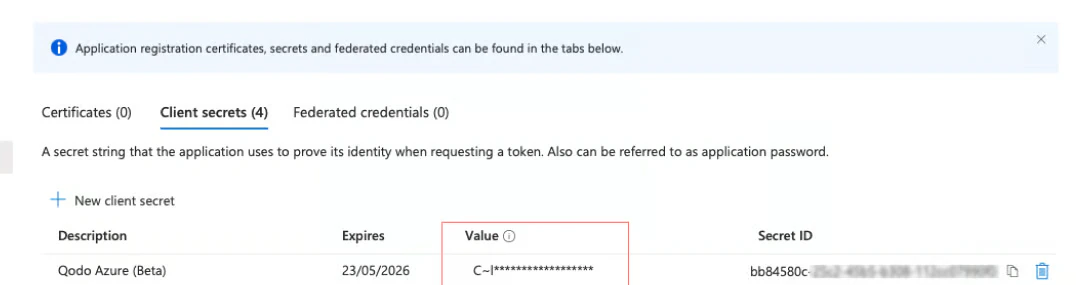
- Add a description and select an expiration.
- Click Add to generate a client secret and save the Value. This will not be visible later.
6
Navigate to Manage → API permissions → Add a permission.In the popup:
- Select the Azure DevOps card.
- Add the Azure DevOps permission (
user_impersonation). - Click Add permissions.
- Click Grant admin consent for the directory.
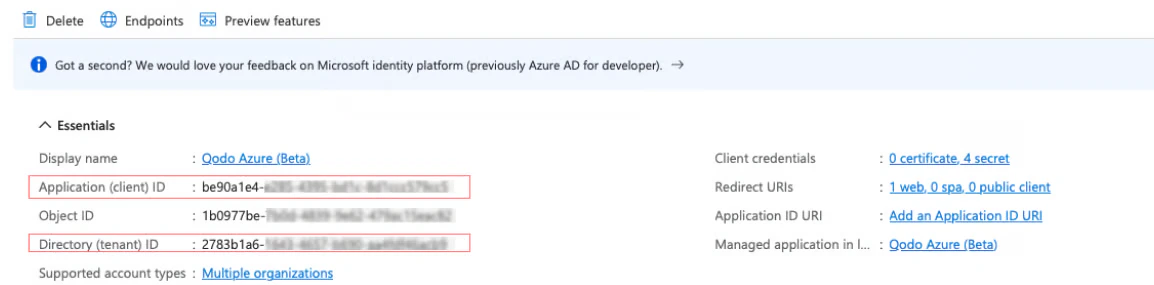
Step 2: Create a new user
1
In the Microsoft Azure portal, create a new user named
Qodo that will be used as a bot (service) account for Qodo.- Navigate to Manage → Users → New user.
- In the popup, enter the user details and assign the Cloud Application Administrator role.
Step 3: Create a service account
The Microsoft Entra ID user that authenticates and creates the OAuth token must be the same user (same email / UPN) that is added to the Azure DevOps organization. If these do not match, the integration will not work.When using non-Azure domains (for example, Gmail), Azure may automatically create an
@onmicrosoft.com user. Ensure that the same identity (email / UPN) is used consistently in both Microsoft Entra ID and Azure DevOps.1
Sign in to the Azure DevOps portal (for example,
https://dev.azure.com/<YOUR_ORGANIZATION>).2
Navigate to Organization settings → Users and add the
Qodo user created in the previous step to the Azure DevOps organization.3
Assign the user Access Level: Basic and add it to the Project Administrators group for the project the bot should access.
Step 4: Register the application with Qodo
This step connects your Microsoft Entra ID application to your Qodo on-premises environment using the Qodo admin portal.1
Open an incognito or private browser window and verify that no Microsoft account is currently signed in. This ensures you authenticate using the correct service account.
2
Sign in to Microsoft Entra ID using the dedicated service account created in Step 2.
3
In the same browser window, navigate to your Qodo admin portal and open the Azure DevOps configuration section.
4
Click Edit and provide the following details from the app registration in the Microsoft Azure portal: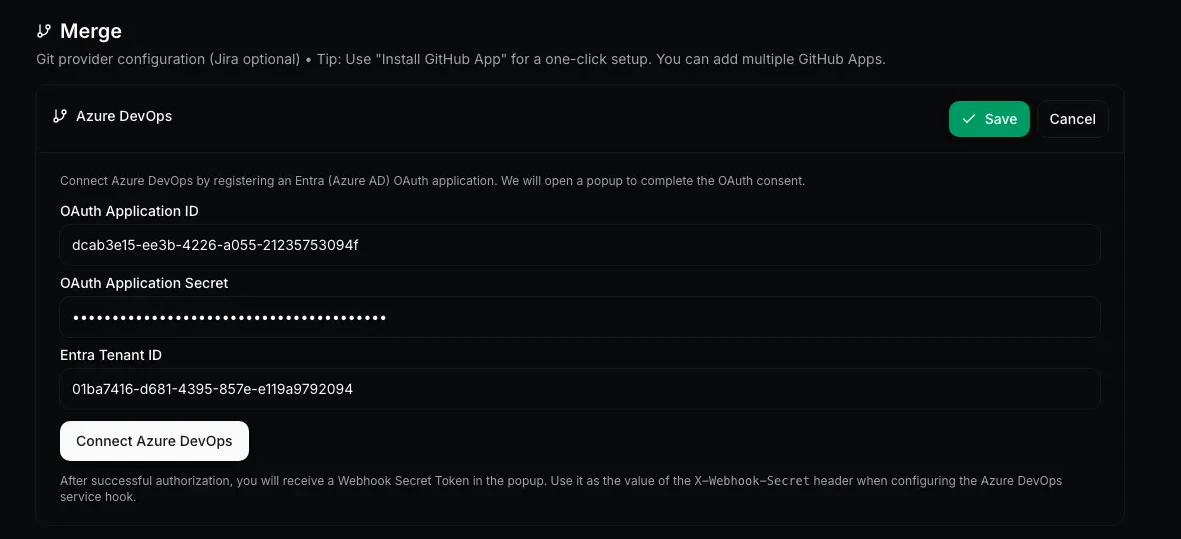
- OAuth Application ID (Application (client) ID from the Overview tab)
- OAuth Application Secret (use the secret value, not the secret ID)
- Entra Tenant ID (Directory (tenant) ID from the Overview tab)
5
Click Connect Azure DevOps and then Save.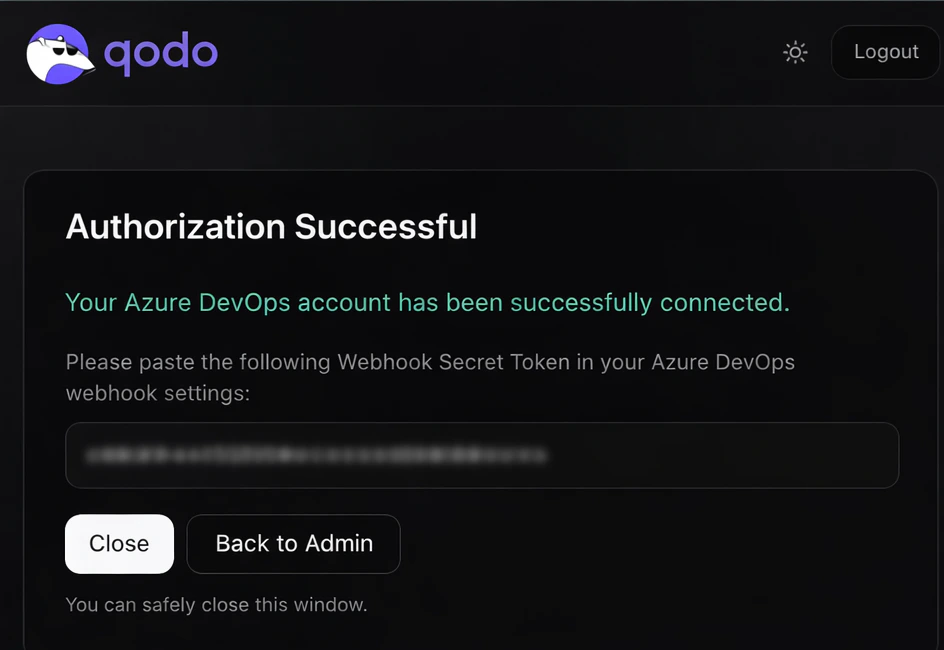
Step 5: Set up webhooks
Webhooks enable two-way communication between Azure DevOps and Qodo.1
Navigate to the Azure DevOps project where you want to install Qodo.
2
Open Project settings → Service hooks.
3
Create a new Web Hook subscription.
4
Configure the webhook to trigger on the following pull request events:
- PR Created
- PR Updated
- PR Commented
- PR Merged
5
Set the URL to your Qodo on-premises endpoint. For example:
https://qodo-merge.<customer-domain>.qodo.ai6
Add the following HTTP header:
7
Click Test to verify that the webhook endpoint is reachable and correctly configured.
8
Click Finish to create the webhook.
Verify the installation
1
Open a new pull request in the configured Azure DevOps project and confirm that Qodo is triggered automatically.
2
Add a comment using one of the supported commands:
/agentic_describe/agentic_review