

Only organization admins see the onboarding wizard. It opens automatically the first time an admin signs in to the Qodo portal. If you aren’t an admin, see Quickstart: From sign-up to your first code review for the steps that apply to every user.
The onboarding journey
1Connect Git
Connect Qodo to the Git provider that hosts your code. Connect Git →
2Configure reviews
Answer questions about your team and apply the Review preset Qodo builds from your answers. Configure reviews →
3Get Agentic Toolbox
Share the Agentic Toolbox with your team and install it on your machine. Get Agentic Toolbox →
Before you begin
Make sure you have:- Admin access to your Git provider: The required permissions differ by Git provider. See Install Qodo in your Git provider to find your provider’s installation guide.
- Node.js 20 or later: Required only if you install the Agentic Toolbox on your machine during setup. See Install Qodo Agentic Toolbox with the CLI.
Step 1: Connect Git
1
Select the Git provider that hosts your code, then click Next. If your Git provider is self-hosted, select the self-hosted option that appears after you select the provider.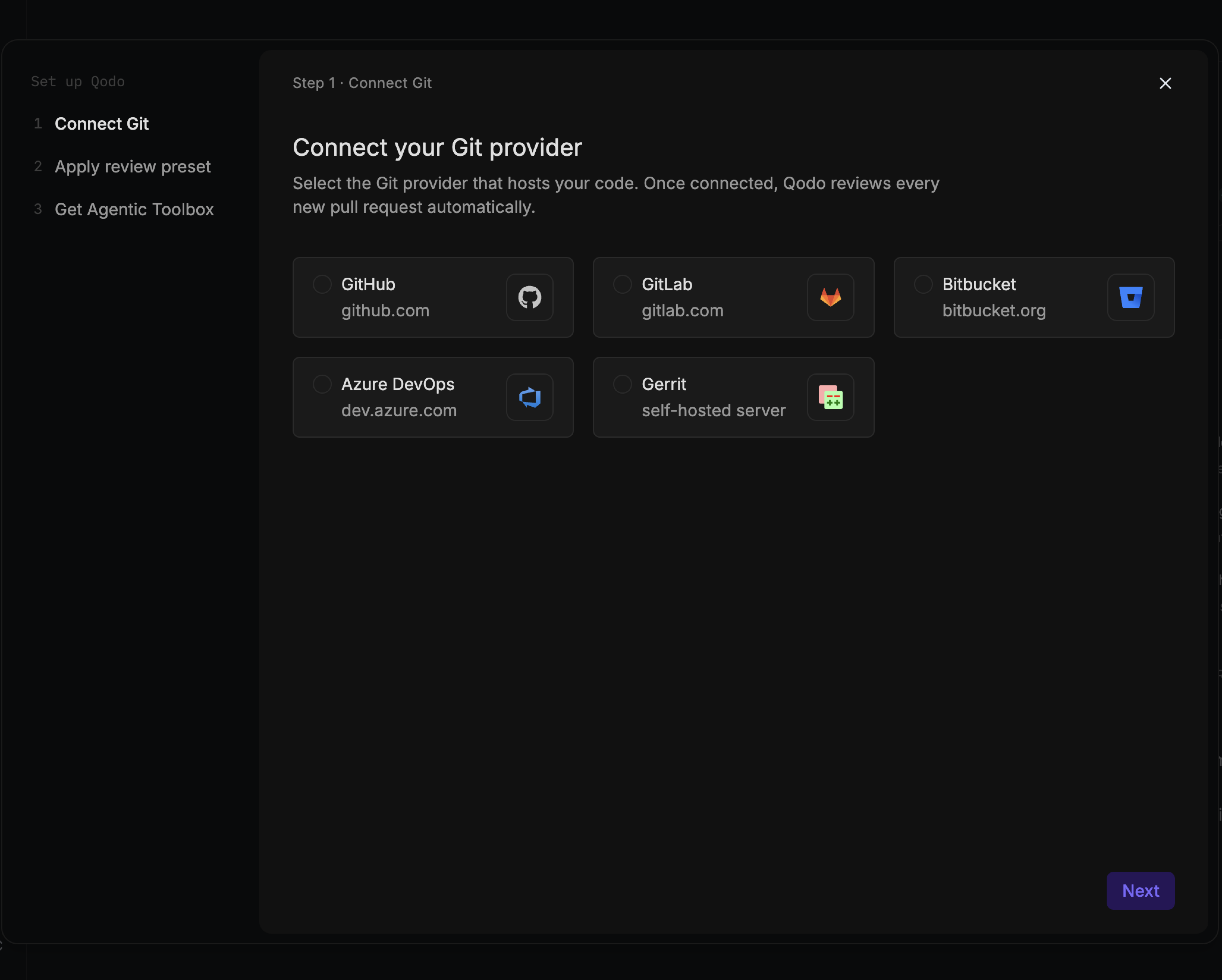
2
Complete the installation wizard for your Git provider. See Install Qodo in your Git provider.
3
On the Verify connection step, Qodo checks the connection to your Git provider. The step shows the connection as loading while Qodo checks it, then as connected or failed. Once connected, it shows how many repositories are connected.
4
Click Next to continue with the wizard.Qodo starts building context for your code reviews, and the following processes run automatically in the background:
- Repository sync: Syncs each connected repository with Qodo.
- Pull request indexing: Indexes each repository’s pull request history.
- Cross-repo discovery: Finds relationships between your repositories.
Step 2: Configure reviews
Qodo builds a Review preset from your answers to a few questions about your team. A Review preset is a set of configuration settings tuned to what your team needs most from code review.1
Answer the questions about your team’s priorities and how your team works. Select as many answers as apply, then click Next.
2
Qodo shows the suggested preset, including what it runs, how it shows findings in pull requests, and what it automates. To use a different preset, select it from the dropdown.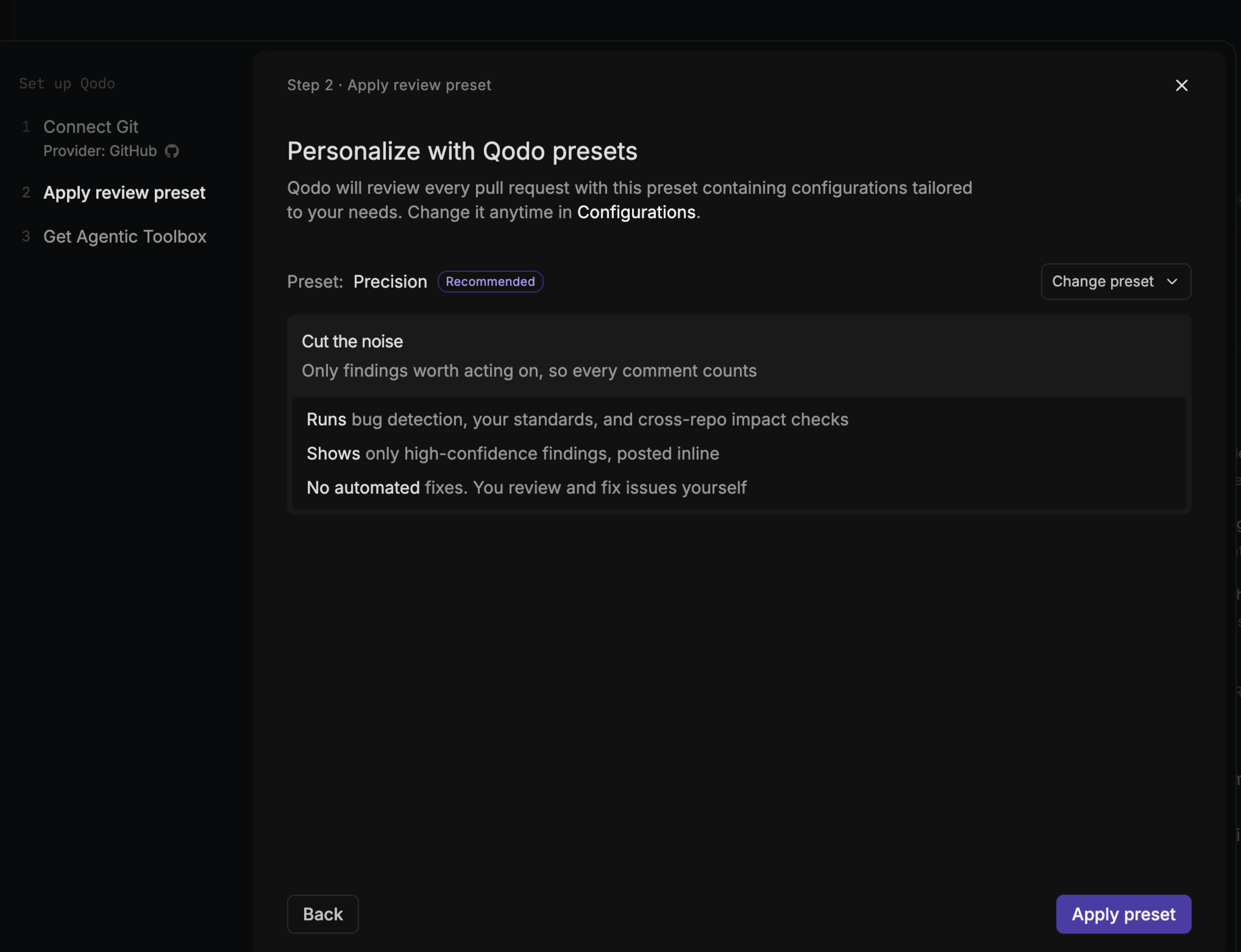
3
Click Apply preset.
Step 3: Get Agentic Toolbox
The Agentic Toolbox brings Qodo’s code understanding, standards, and review capabilities into your coding agent.1
In Set up your team, under Share the install, click Copy message to copy install instructions to send to your team. Each developer installs the Agentic Toolbox on their own machine.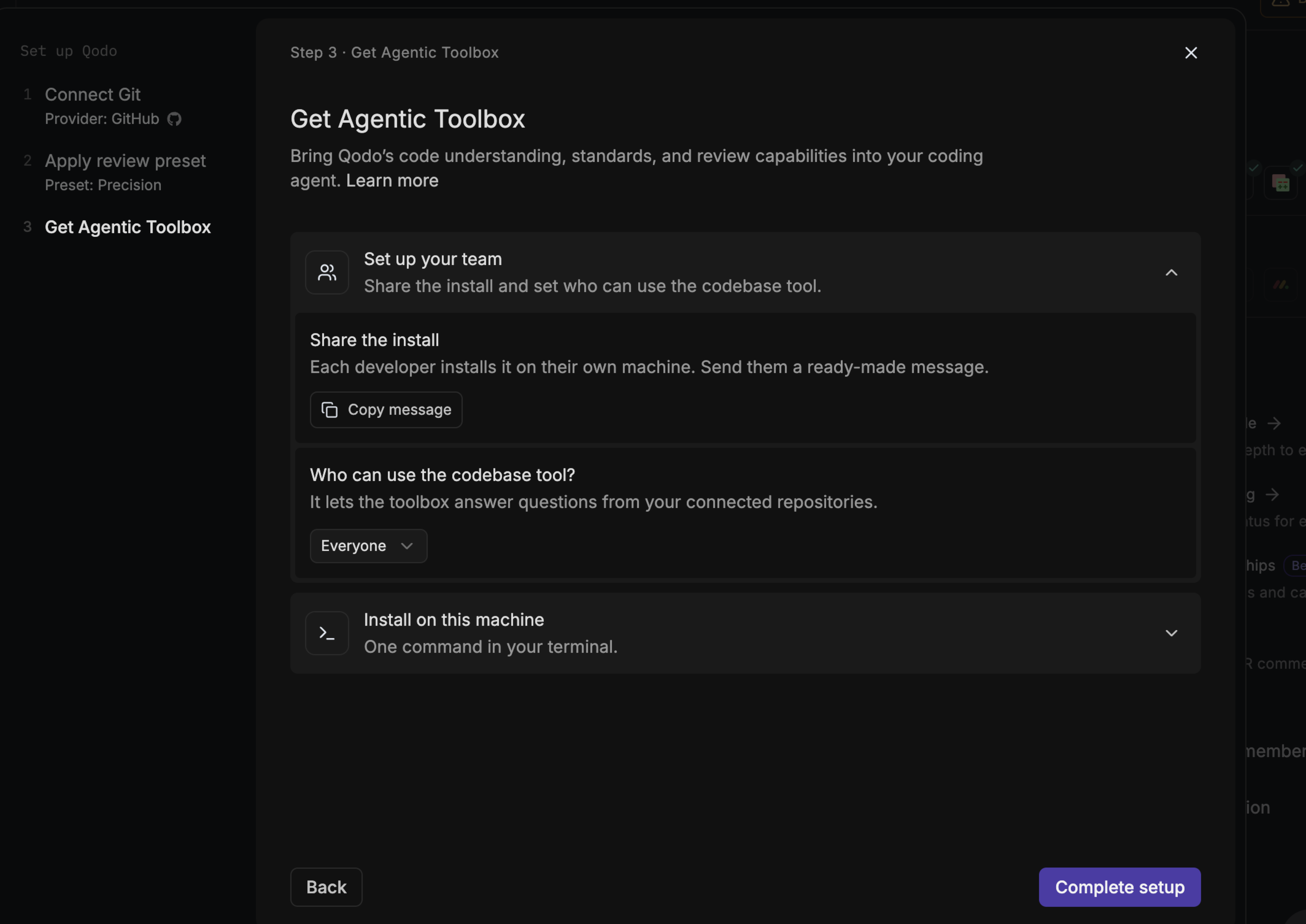
2
Under Who can use the codebase tool?, select who in your organization has access. The codebase tool lets the Agentic Toolbox answer questions from your connected repositories. You can change this later. See Manage access to the Agentic Toolbox.
3
To install the Agentic Toolbox on your own machine, expand Install on this machine, then copy and run the command for your operating system, macOS / Linux or Windows (PowerShell). To connect an MCP client instead, expand the MCP client option below the command. See Install Qodo Agentic Toolbox with the CLI and Connect Qodo Agentic Toolbox with MCP.
4
Click Complete setup.
Complete setup
The final screen confirms that Qodo now reviews every new pull request in your organization. Click Go to Home.Leave and complete setup later
You can close the wizard at any step. Steps you’ve already completed stay saved, and background processes keep running. If you close the wizard before your Git provider connection completes, you start Connect Git from the beginning when you resume.1
Click X in the top-right corner of the wizard.
2
In the Leave setup? dialog, click Leave. To return to the wizard instead, click Continue setup.
Next steps
- Set up your Qodo organization as an admin: Link your Git account, connect task management, and invite your team.
- Qodo portal quick tour: Find your way around the Qodo portal.
- Trigger a code review: Run a review automatically or on demand.