Qodo can be integrated with all versions of GitHub Cloud. GitHub Enterprise Server, and GitHub Enterprise Cloud.
Prerequisites
Before you begin, ensure you have:- Access to your Qodo single-tenant portal
- Sufficient permissions to create GitHub applications
Installation
Step 1: Access the GitHub integration
Log in to your Qodo portal.
Step 2: Organization Details
Enter the homepage URL of the GitHub organization or GitHub Enterprise instance you want to connect.
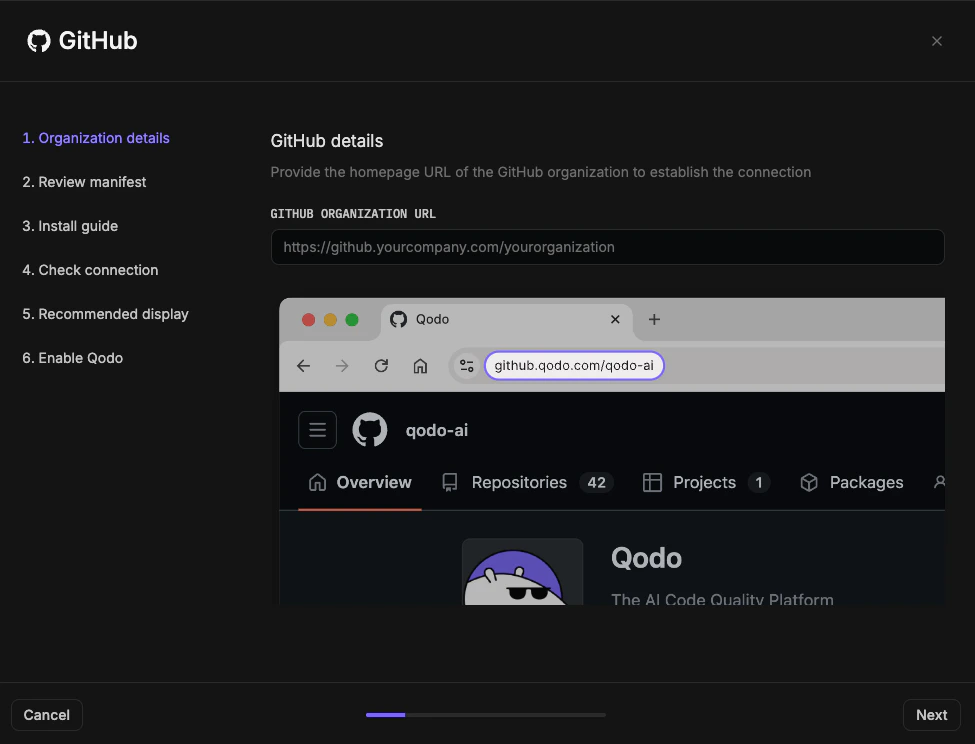
Step 3: Install the GitHub App
The wizard will now guide you through creating and installing the Qodo GitHub App.Review the Installation guide. It consists of steps you will configure in GitHub, including naming your app and selecting which repositories Qodo can access.If you have questions about permissions or need adjustments, contact your Qodo Account Manager before proceeding.
In GitHub
Select the GitHub user account to authorize the app.
- If the displayed account is correct, click Continue.
- Otherwise, sign in with a different account.
Select which repositories Qodo can access: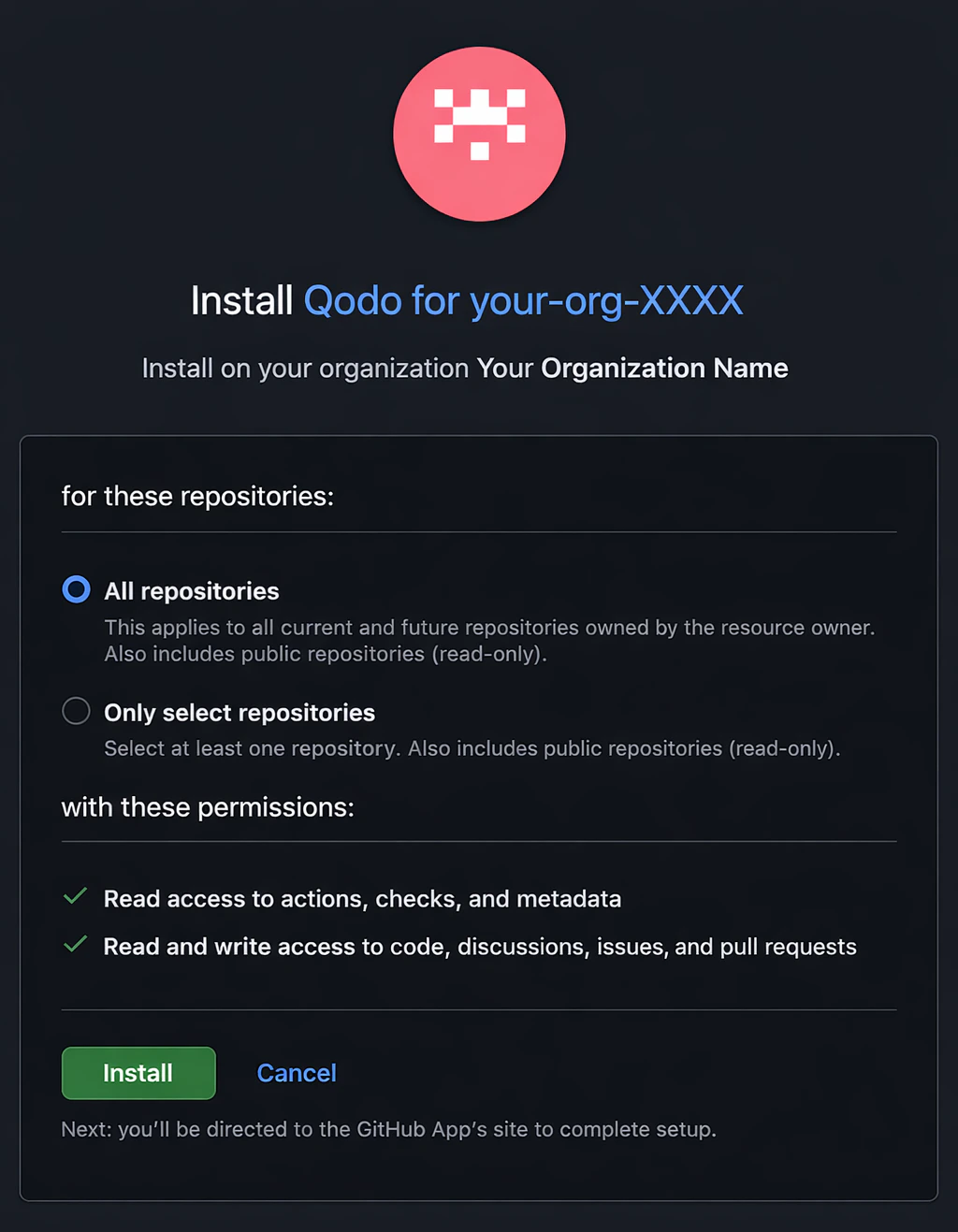
- All repositories (recommended)
- Selected repositories only
Click Install. After installation, you will be redirected back to the Qodo Portal.
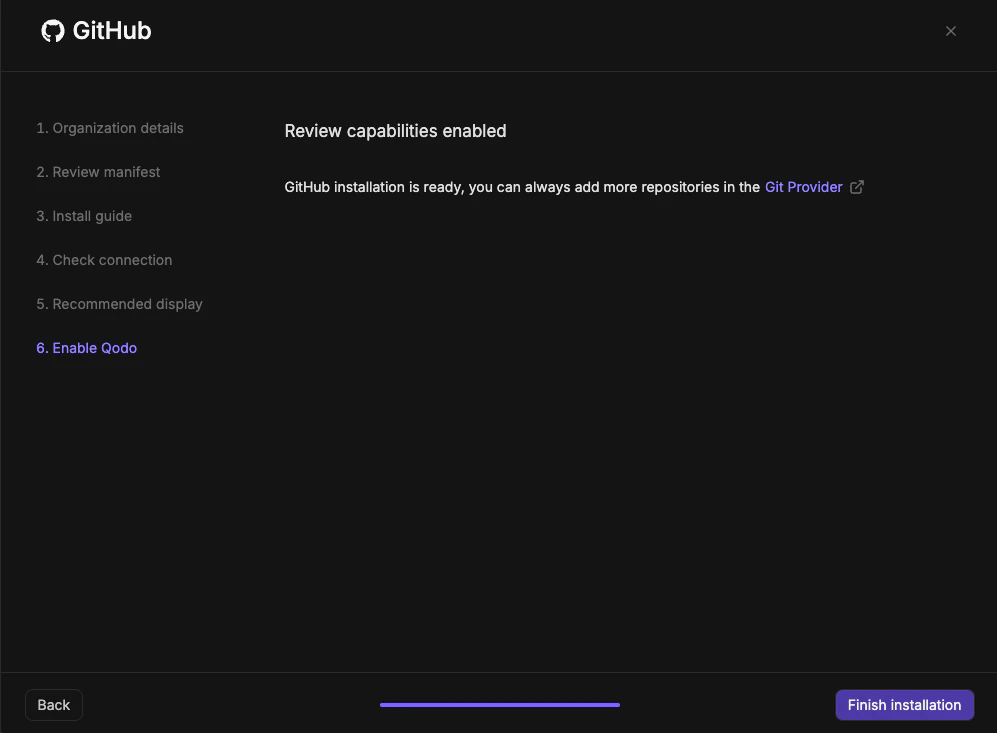
- Successful: You’ll see a “GitHub installation successful” message.
- Not successful: You’ll see a “Something went wrong” message. Click Test Connection to retry. If it fails again, contact your Qodo Account Manager.
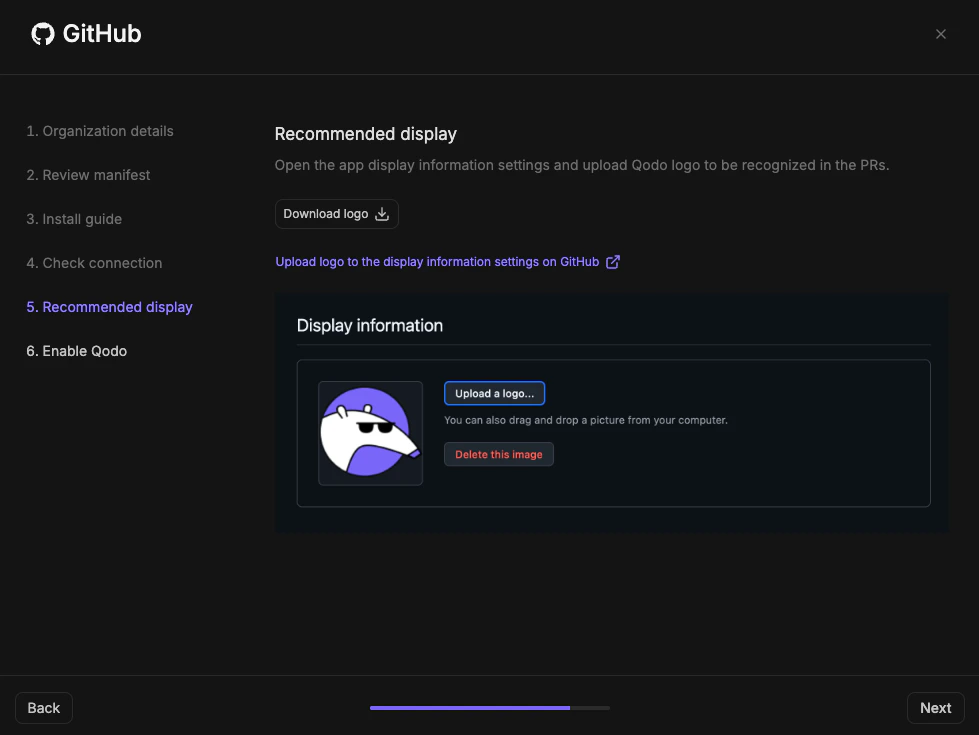
Step 5: Configure Qodo logo in PRs
To ensure Qodo appears consistently and is easy to recognize in pull requests:In the GitHub settings, upload the Qodo logo as the app logo and Save. You are redirected back to the Qodo portal wizard.