

EnterpriseDocumentation Index
Fetch the complete documentation index at: https://docs.qodo.ai/llms.txt
Use this file to discover all available pages before exploring further.
- Available for single-tenant Qodo environments.
- Not sure which deployment model you need? See Install Qodo in your Git provider for a full comparison, or check your deployment type.
Prerequisites
Before you begin, ensure you have:- A Qodo single-tenant deployment. You will receive your Qodo single-tenant URL from your Qodo Account Manager. Contact Qodo to get started.
- A Bitbucket Data Center instance (version 8.x or 9.x).
- System administrator access to your Bitbucket Data Center instance.
- App upload capability enabled in Bitbucket Data Center.
If you require Bitbucket Data Center version 10.x, contact your Qodo Account Manager.
Verify app upload is enabled
Verify app upload is enabled
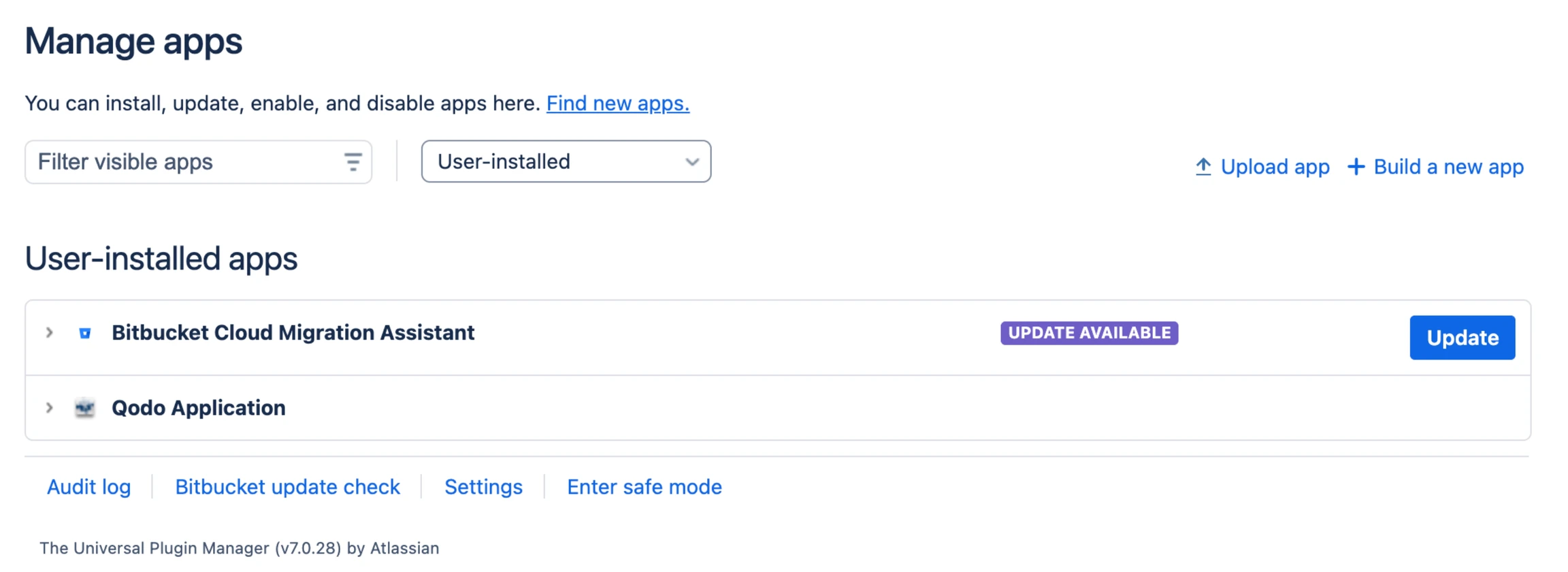
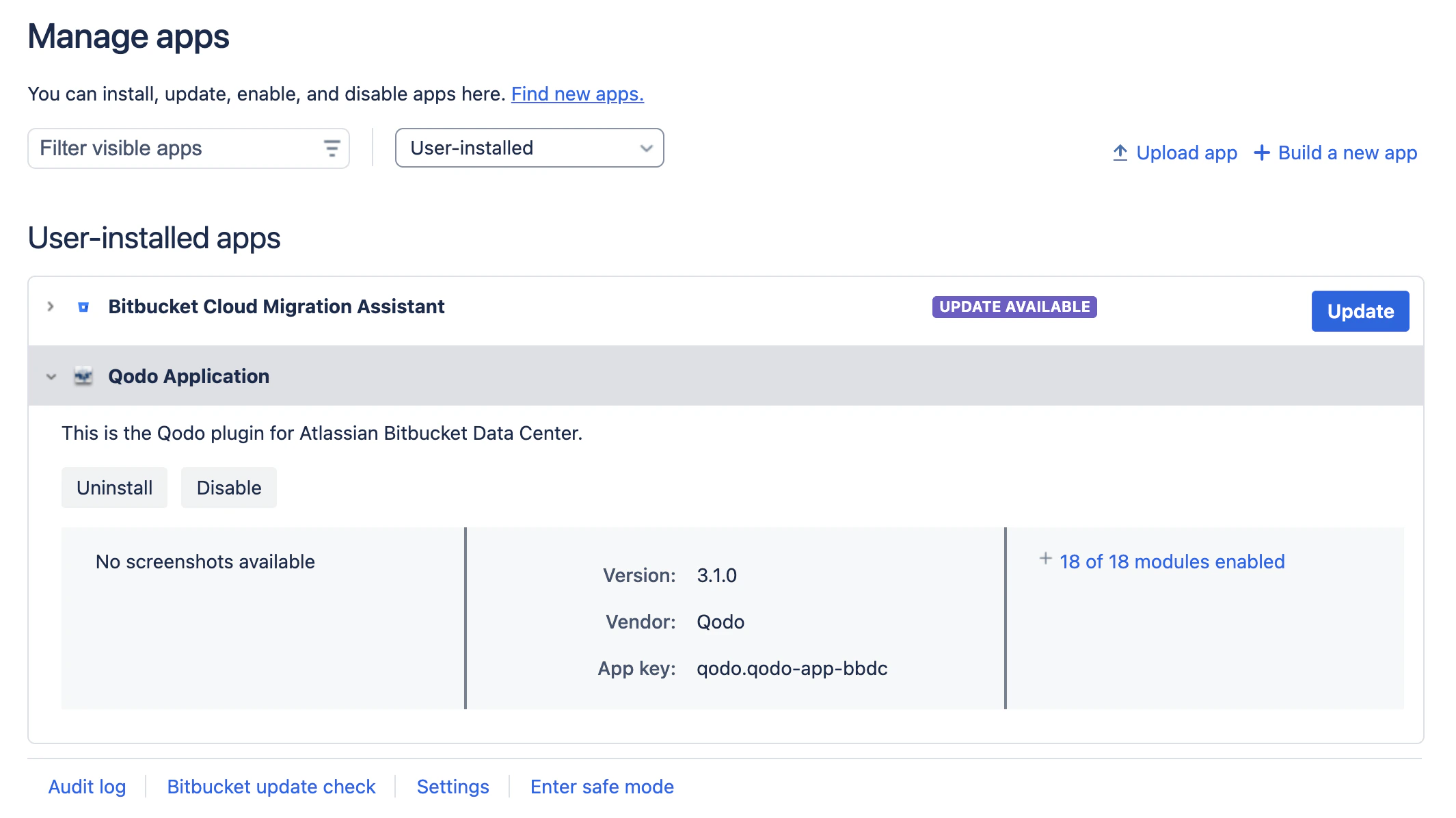
Install Qodo on Bitbucket Data Center
Install the Qodo app
Download the appropriate version (download JAR file):
- BBDC 8.x: Use
qodo-app-bbdc-2.x.x.jar - BBDC 9.x: Use
qodo-app-bbdc-3.x.x.jar
Create an access token
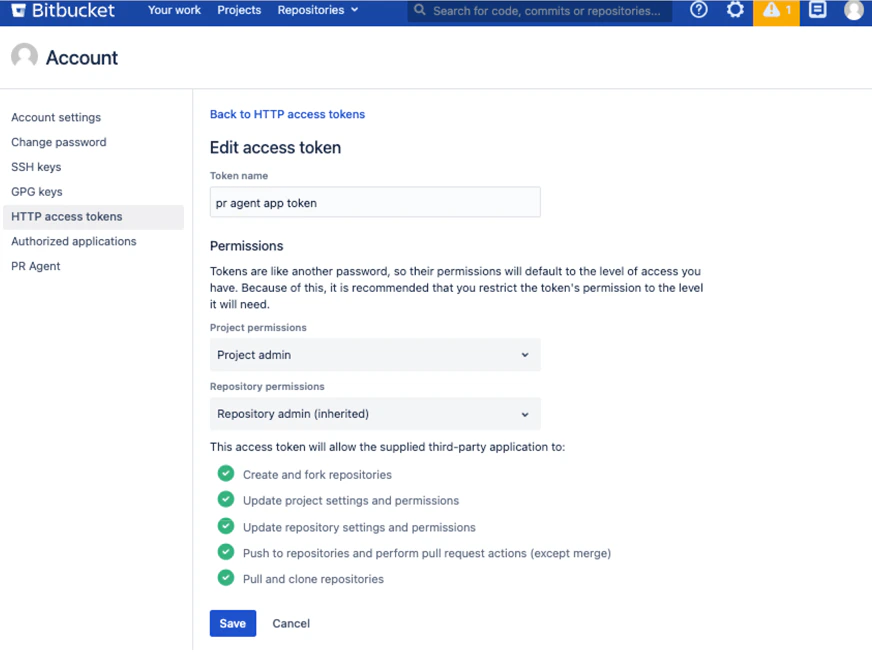
You need to create an HTTP access token for Qodo to communicate with Bitbucket Data Center.
For better visibility and auditability, consider creating a dedicated system administrator user (for example, Qodo) before generating the token. All pull request comments will appear under this user’s name.
Configure the token with the following settings:
- Name: Qodo Integration
- Permissions: Repository write access (minimum required)
Create a shared webhook secret
Select a strong secret value (it can be any string). You can use any secret generation tool you prefer.
Configure the Qodo app in Bitbucket Data Center
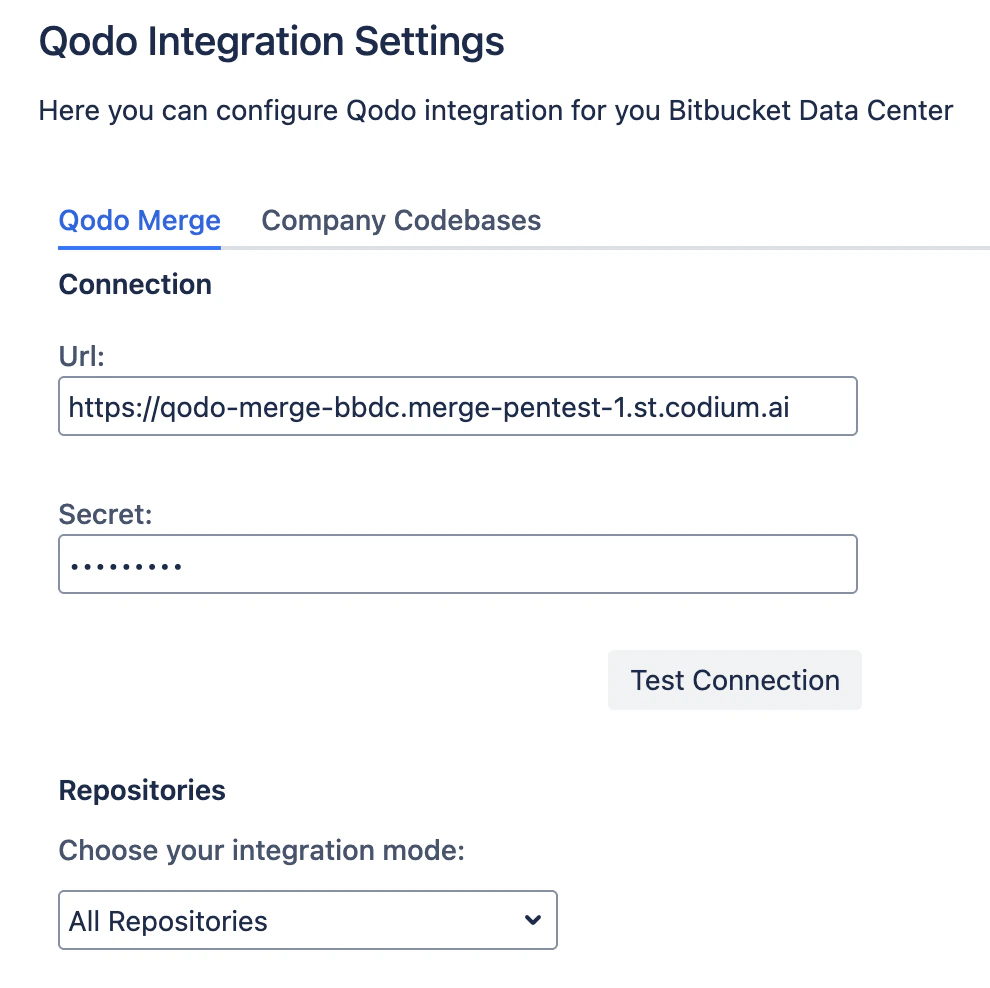
Configure repository integration
Select how Qodo integrates with your repositories.Integration modes:
- All repositories (default): Qodo is active on all repositories.
- Selected repositories only: Choose specific repositories to integrate.
- All repositories except: Exclude specific repositories from integration.
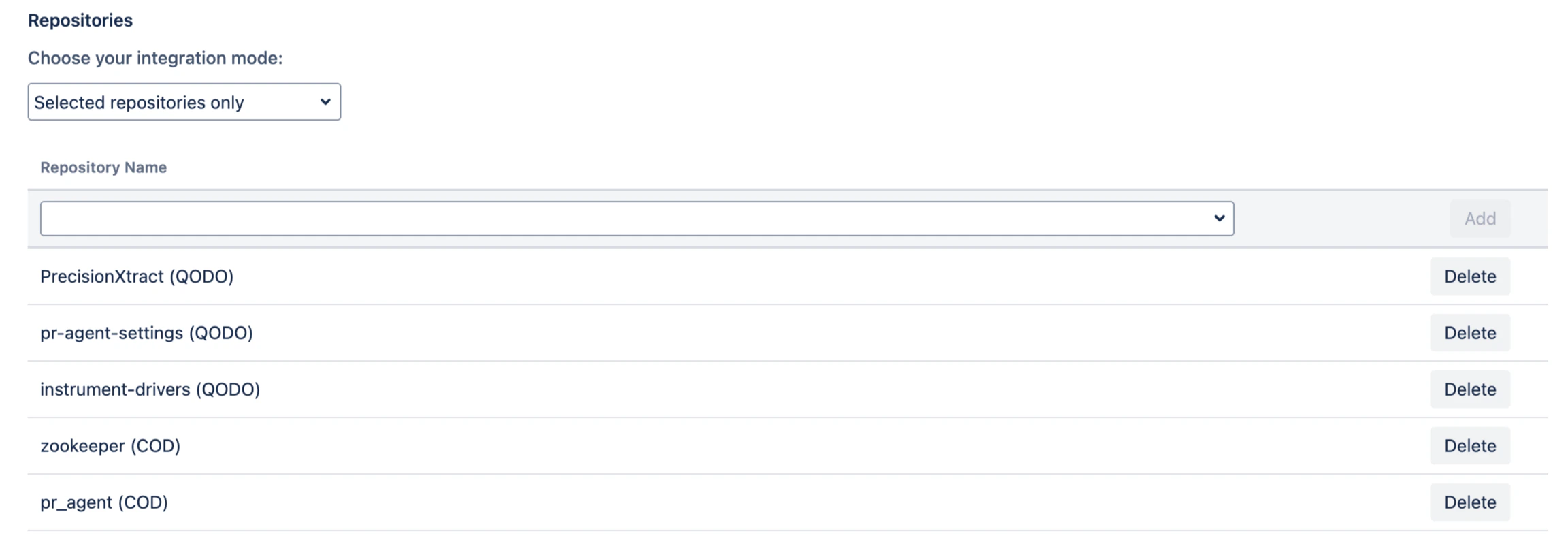
Send Bitbucket app details to Qodo
Provide your Qodo account contact with the following details to configure your Qodo instance:Wait for the Qodo team to confirm that the installation was successful.
For production environments, follow your organization’s secret management procedures to securely store these credentials.
Verify the installation
After receiving confirmation from the Qodo team, you can test the installation.Test the connection
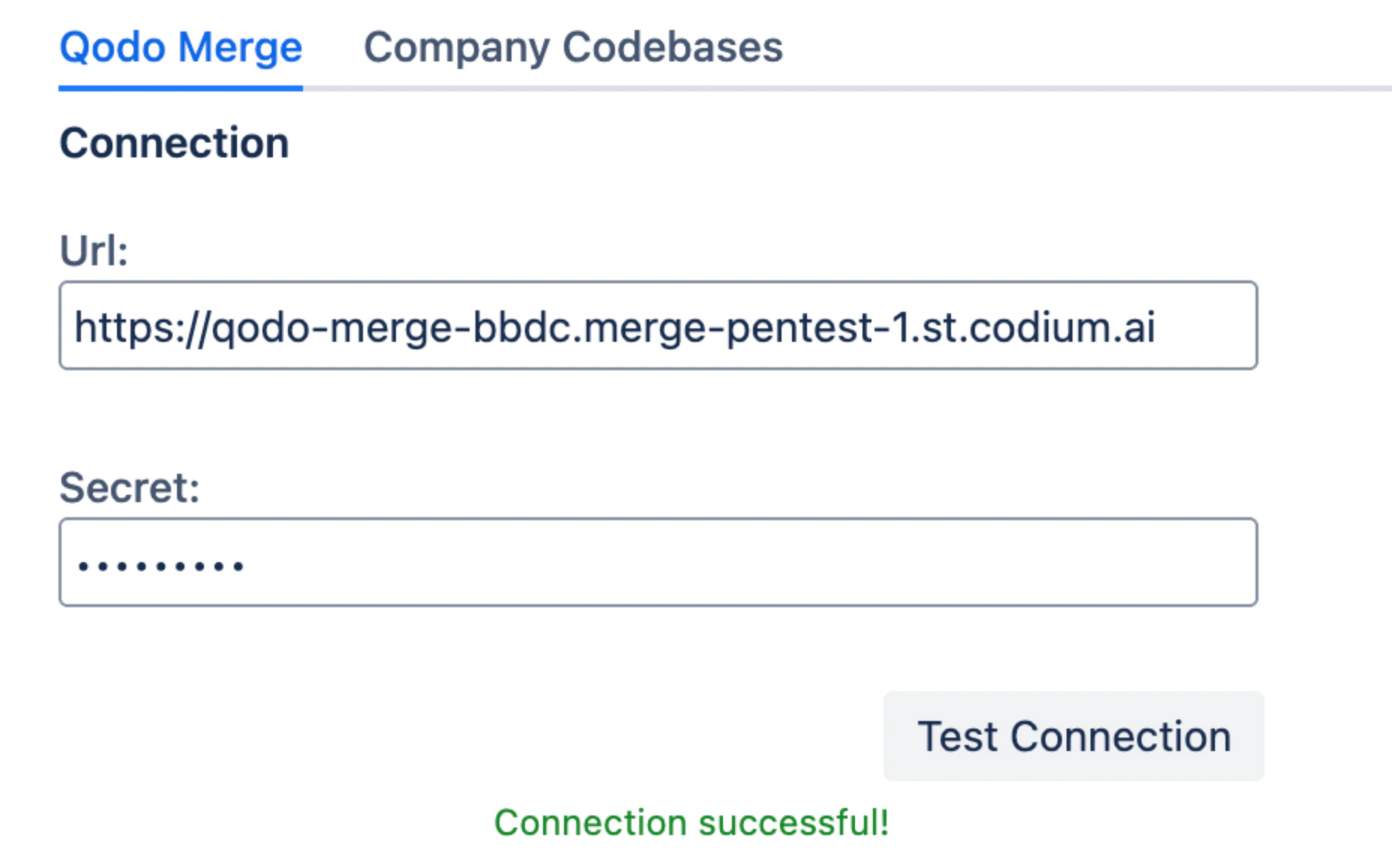
Run a test pull request
Open a new pull request in one of the connected repositories and confirm Qodo is triggered automatically.
Troubleshooting
If Qodo is not responding:- Verify that the app is enabled under Settings → Manage Apps.
- Check that the repository matches your selected integration mode.
- Confirm that the bearer token has the required permissions.
- Verify that the webhook secret matches in both Bitbucket Data Center and Qodo configuration.
- Review the Qodo logs for connection or authentication errors.