Install Qodo on GitHub using the built-in wizard. Installing from the Qodo portal rather than GitHub Marketplace ensures every feature is enabled and correctly configured. Assuming your environment is already set up, the process takes about 5 minutes.

Prerequisites

Before you begin, ensure you have:
  • Access to your Qodo multi-tenant portal.
  • GitHub organization admin access.

Access the GitHub integration

1
Log in to your Qodo portal.
2
From the left navigation menu, select Integrations.
3
Locate the GitHub card and click Add installation to launch the setup wizard.

Install Qodo using the wizard

The wizard guides you through two steps:
1

Review the install guide

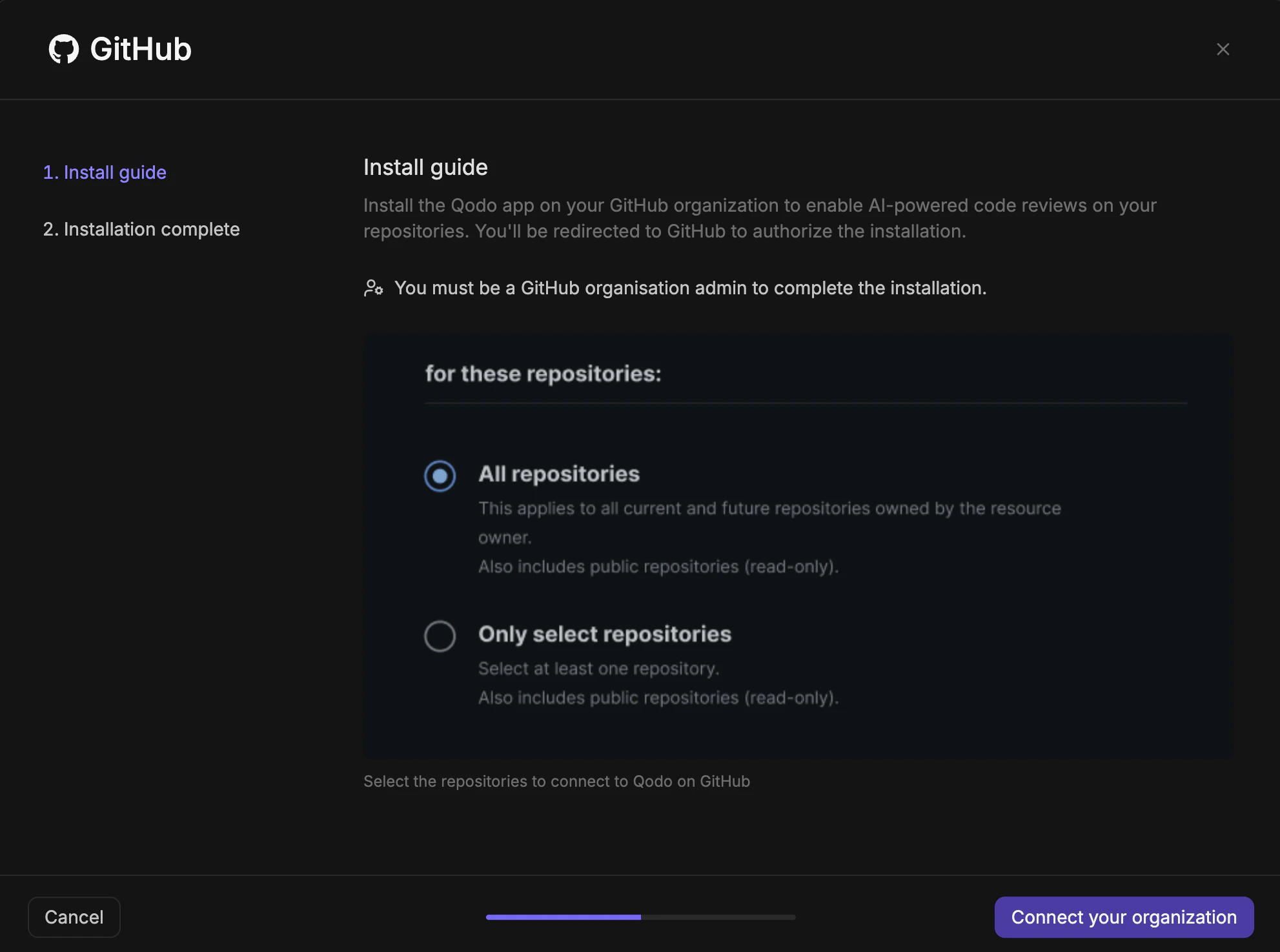
The wizard shows the install guide, a preview of the repository access configuration you will complete on GitHub.
GitHub MT wizard install guide step showing repository scope options
1
Click Connect your organization. You are redirected to GitHub.
2
Authorize the installation and confirm repository access, then click Install. You are redirected back to the Qodo wizard.
2

Complete the installation

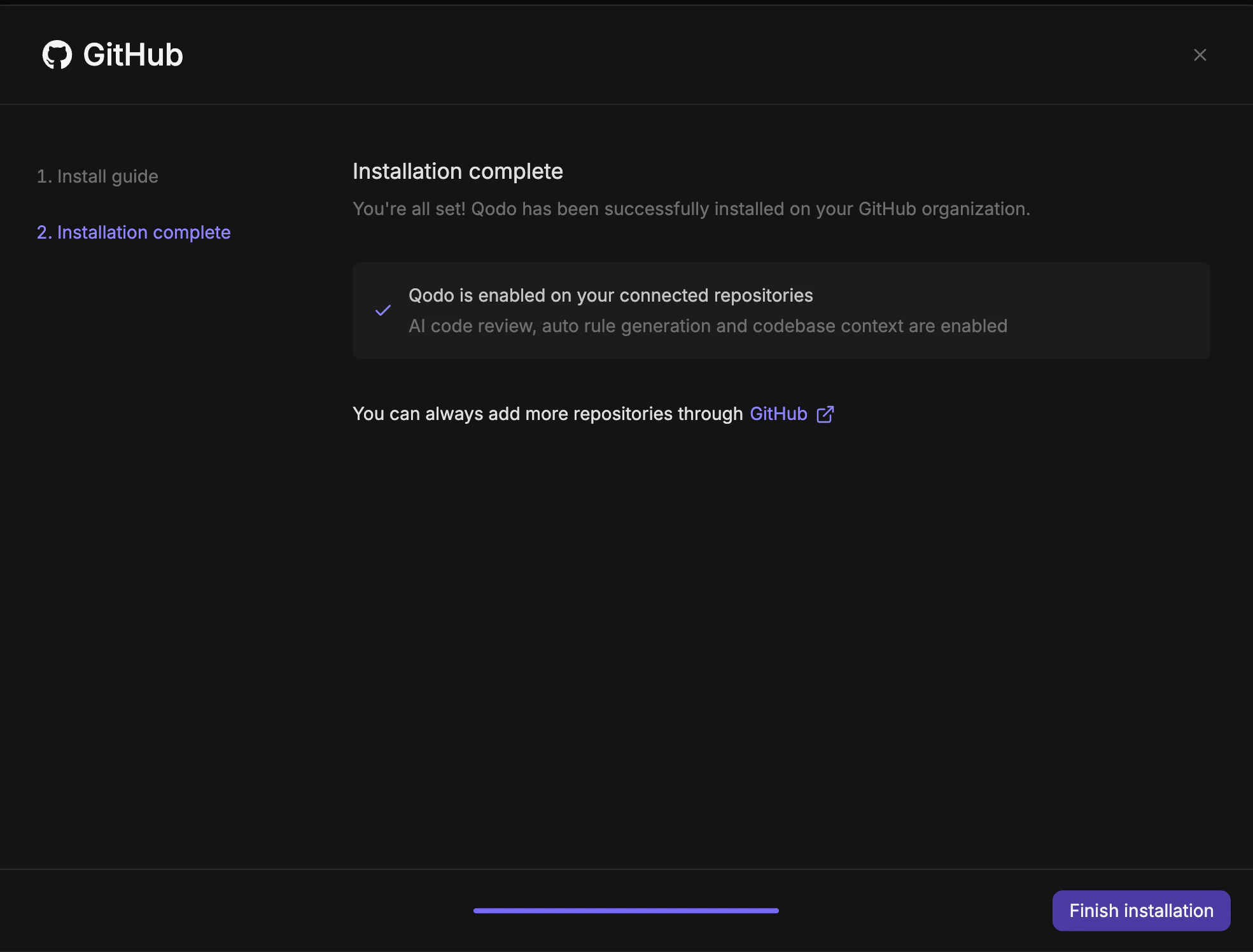
The wizard confirms that Qodo has been successfully installed on your GitHub organization and that AI code review, auto rule generation, and codebase context are enabled.
GitHub MT wizard installation complete screen
Click Finish installation. You are redirected to the Integrations page.
Qodo is now active on the selected repositories.

Verify the installation

1
Open a new pull request in one of the configured repositories and confirm Qodo is triggered automatically.
2
Add a comment using one of the supported commands:
  • /agentic_describe
  • /agentic_review
Qodo should respond with a review or PR summary directly on the pull request.

What’s next

View Using Qodo in PRs to learn about next steps and how to get the most out of Qodo.