

- This guide applies to the following deployment combinations, all of which use the same installation wizard:
- Qodo single-tenant with GitHub Cloud
- Qodo single-tenant with GitHub Enterprise Server
- Qodo multi-tenant with GitHub Enterprise Server
- Not sure which deployment model you need? See Install Qodo in your Git provider for a full comparison, or check your deployment type.
Prerequisites
Before you begin, ensure you have:- Access to your Qodo portal.
- Sufficient permissions to create GitHub applications.
Access the GitHub integration
1
Log in to your Qodo portal. For single-tenant accounts, your portal URL follows the pattern
app.yourcompany.st.qodo.ai and is provided by your Qodo Account Manager.2
Start the wizard in one of the following ways:
1
From the Integrations page
Navigate to Integrations, then:
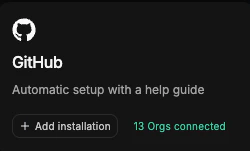
- GitHub Cloud: select the SaaS tab and click Add installation on the GitHub card.
- GitHub Enterprise Server: select the Self-Hosted tab and click Add installation on the GitHub Enterprise card.
2
From the homepage
On the homepage, in the top right-hand side, click the + button next to Git providers. On the selection page, choose GitHub.
Install Qodo using the wizard
The wizard guides you through six steps:1
Enter organization details
Enter your GitHub organization homepage URL and click Next. If you are using GitHub Enterprise Server, enter your server’s homepage URL (for example, 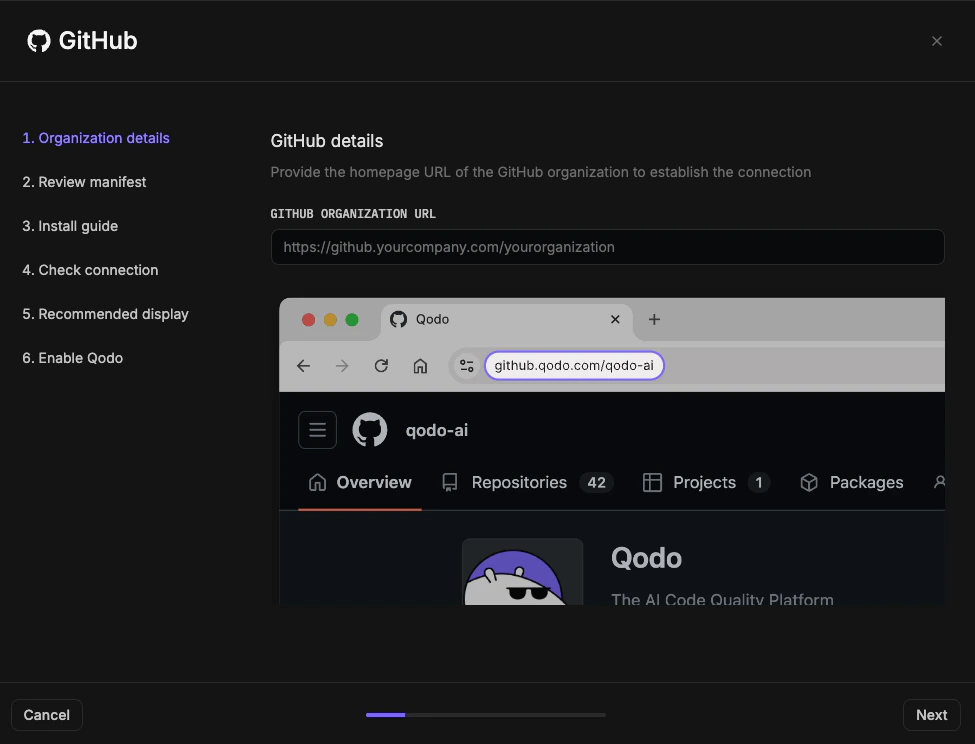
https://github.mycompany.com).2
Review the manifest
1
Review the Manifest, which defines the configurations and permissions Qodo requires. If you have questions about permissions or need adjustments, contact your Qodo Account Manager before proceeding.
2
Click Next.
3
Install the GitHub App
Review the Installation guide for the steps you will configure in GitHub, then click Install GitHub App. You are redirected to GitHub.In GitHub
1
Enter a name for the GitHub App (for example, your organization name + Qodo).
2
Click Create GitHub App for [your organization name].
3
Select the GitHub user account to authorize the app. If the displayed account is correct, click Continue; otherwise sign in with a different account.
4
Select which repositories Qodo can access: All repositories (recommended) or Selected repositories only. Repository-level settings can later be managed from the Qodo portal.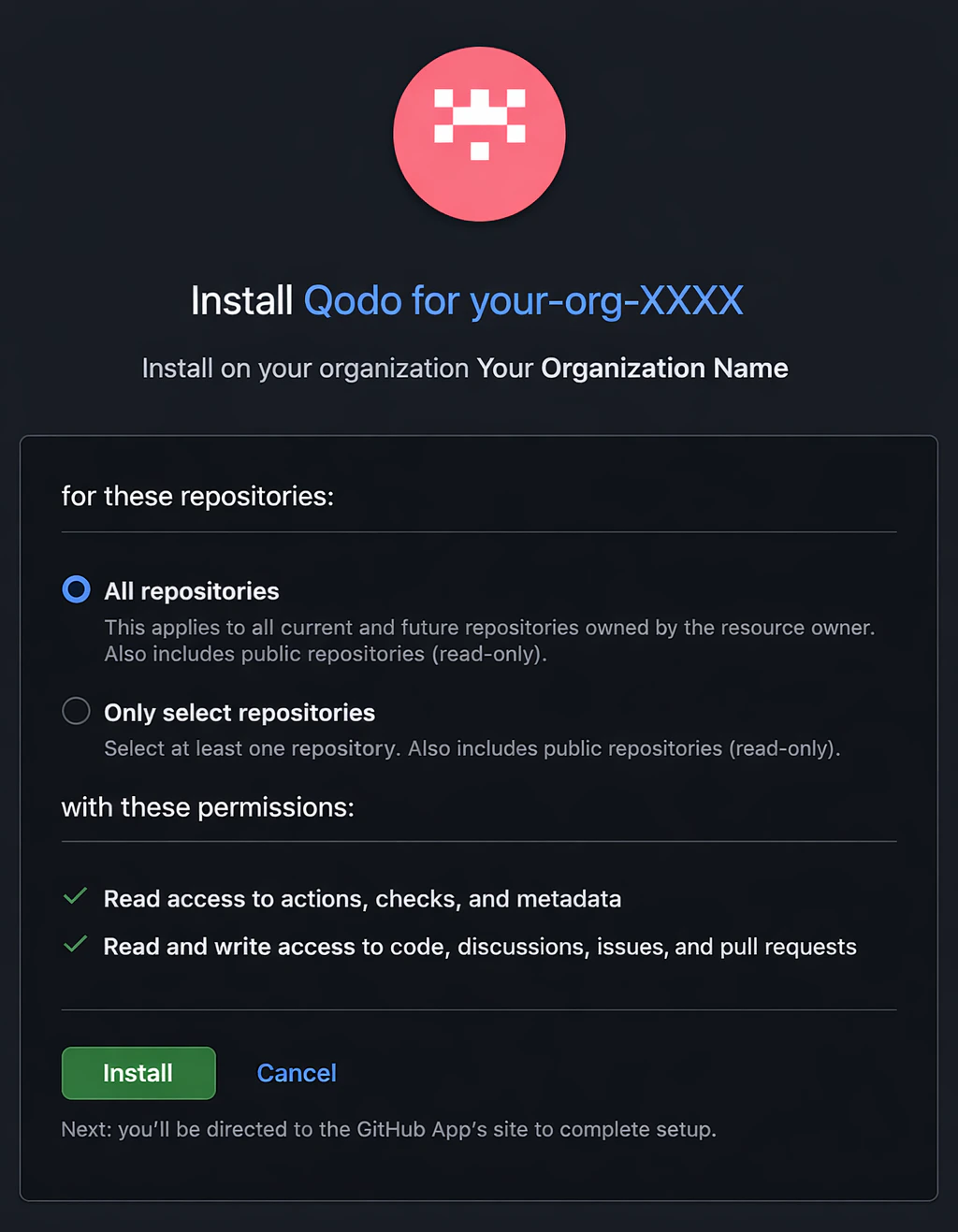
5
Click Install. You are redirected back to the Qodo portal.
4
Check the connection
1
Check for a “GitHub installation successful” message.
2
Click Next. If unsuccessful, click Test Connection to retry. If it fails again, contact your Qodo Account Manager.
5
Configure recommended display
To ensure Qodo appears consistently in pull requests:
1
Click Download logo to download the official Qodo logo.
2
Click Upload logo to the display information settings on GitHub to open the GitHub App settings page.
3
Upload the Qodo logo as the app logo and click Save. You are redirected back to the Qodo portal wizard.
4
Click Next.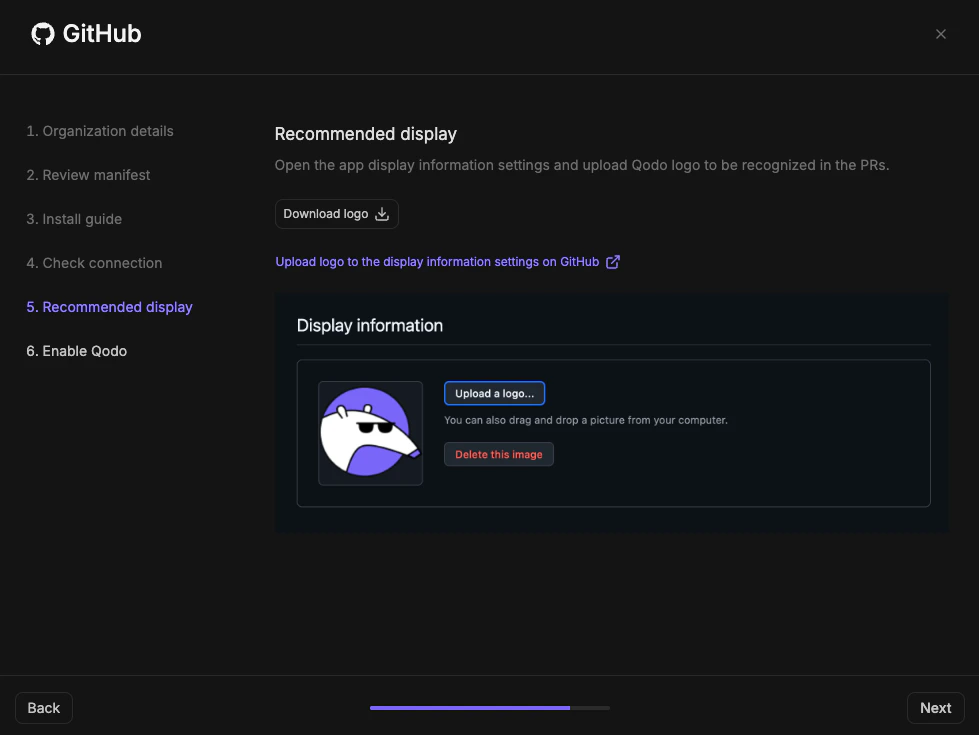
6
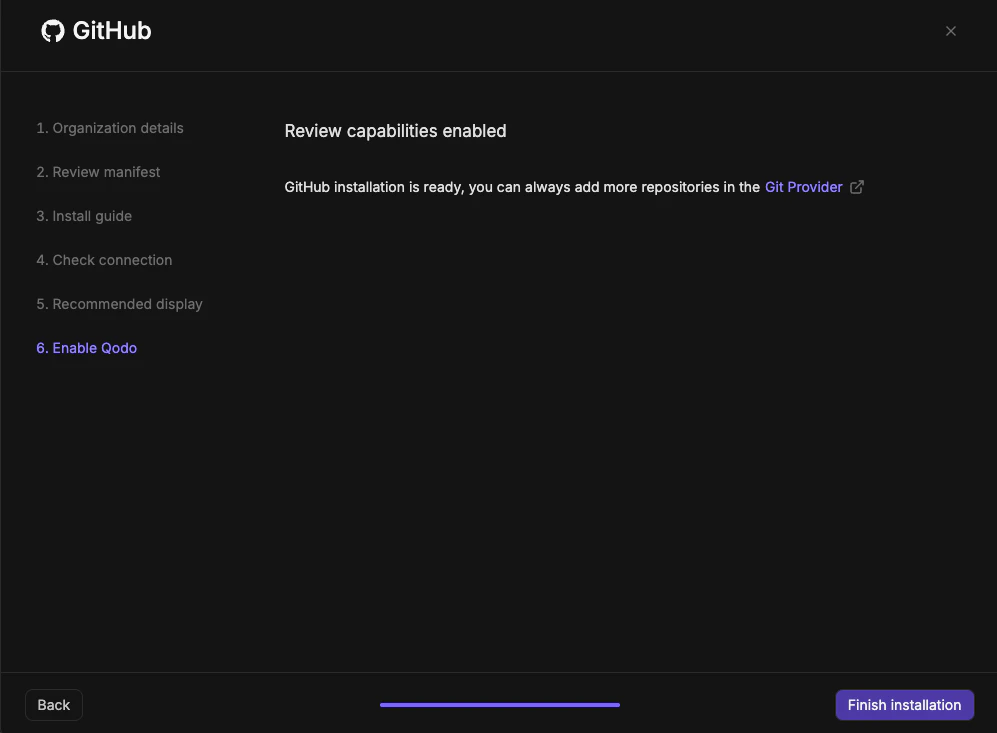
Enable Qodo
- Click Finish Installation.
Verify the installation
1
Open a new pull request in the configured repositories and confirm that Qodo is triggered automatically.
2
Add a comment using one of the supported commands:
/agentic_describe/agentic_review
Manage repositories after installation
- To add or remove repositories, go to your GitHub App settings and update which repositories the app can access.
- To enable or disable Qodo on individual repositories within your current scope, use the Repositories page in the Qodo portal.
Next steps
- Trigger a code review: Run a review automatically or on demand.
- Repositories page: Manage which repositories Qodo is active on.