

BetaGitHubGitLabBitbucketAzure DevOps
- Available on all plans.
- All users can view this page. Only organization admins (Enterprise plans) and team owners can add, delete, or modify installations and repositories. Team members have view-only access.
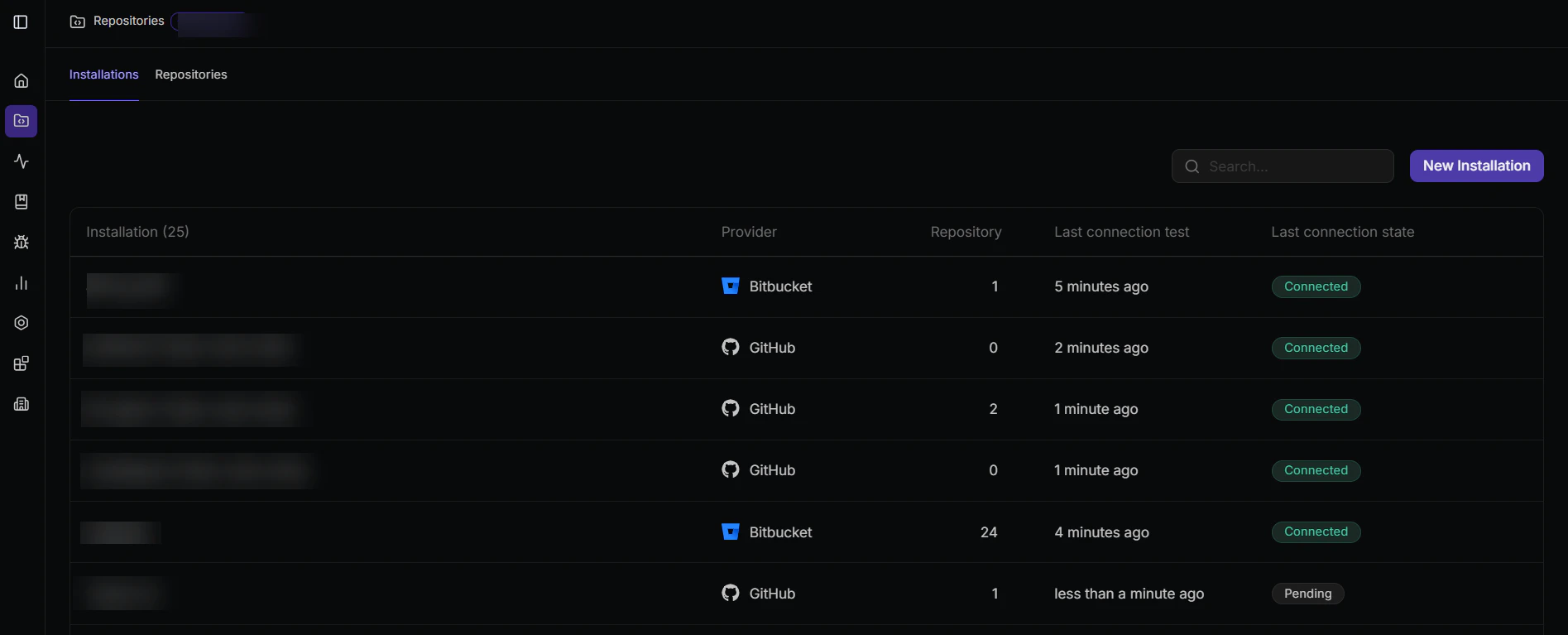
Manage repositories centrally
As organizations scale across more teams, more repositories, and multiple Git providers, keeping track of where Qodo is active becomes increasingly difficult. Connections can degrade silently and new repositories get added without code review enabled. The Repositories page gives you the visibility and control to stay on top of this:- Visibility: See every Git installation and repository Qodo is connected to, across all providers, in one place. Know exactly where Qodo is running and where it isn’t.
- Connection health: Monitor the health of every installation and repository connection. Spot errors before they cause gaps in review coverage.
- Centralized control: Enable or disable code review per repository without touching repository-level settings, configuration files, or involving the development team.
Monitor and manage repositories
Start with Installations. The Installations tab gives you a holistic view of all your Git connections across every provider. Check that all expected installations appear and that their connection state is healthy. Use Manage repos from the three-dot menu to drill into the repositories for a specific installation. Then check repository status. Open the Repositories tab to review the connection state for every repository across all your installations. If a repository shows an error, contact your Qodo account manager for assistance.Best practices
- Check connection health regularly: A repository showing an error means Qodo cannot review pull requests in it. Build a habit of scanning the Repository status column as part of your operational review. Catching a broken connection early prevents gaps in coverage going unnoticed.
- Use filters to audit coverage: Filter by installation or provider to verify that all expected repositories are connected and have code review enabled. This is especially useful after adding a new installation.
- Be deliberate about what you enable: New installations default to code review disabled. Onboard repositories intentionally rather than activating Qodo everywhere at once, so you can track rollout and keep your connection inventory accurate. When code review is disabled, indexing continues so the repository remains available for cross-repo context.
Next steps
- For a full description of the page layout, tabs, fields, and actions, see Manage repositories and installations.
- To connect a new Git installation, see Connect your Git integration.