

- Supported from Qodo 2.2.1.
- Available for both single-tenant and multi-tenant Qodo environments.
- Not sure which deployment model you need? See Install Qodo in your Git provider for a full comparison, or check your deployment type.
Prerequisites
Before you begin, ensure you have:- Access to your Qodo portal.
- A Qodo environment set up for Bitbucket Cloud. If you’re unsure of your environment type, contact your Qodo Account Manager.
- System administrator access to your Bitbucket workspace.
- A dedicated email address to use for the Qodo Bitbucket account (for example,
qodo@yourcompany.com). The account is created during the installation wizard.
Access the Bitbucket integration
1
Log in to your Qodo portal.
2
Start the wizard in one of the following ways:
1
From the Integrations page
Navigate to Integrations and click Add installation on the Bitbucket card.
2
From the homepage
On the homepage, in the top right-hand side, click the + button next to Git providers. On the selection page, choose Bitbucket.
Install Qodo on Bitbucket Cloud
1
Before you begin
You must have system administrative access in your Bitbucket workspace to complete the setup.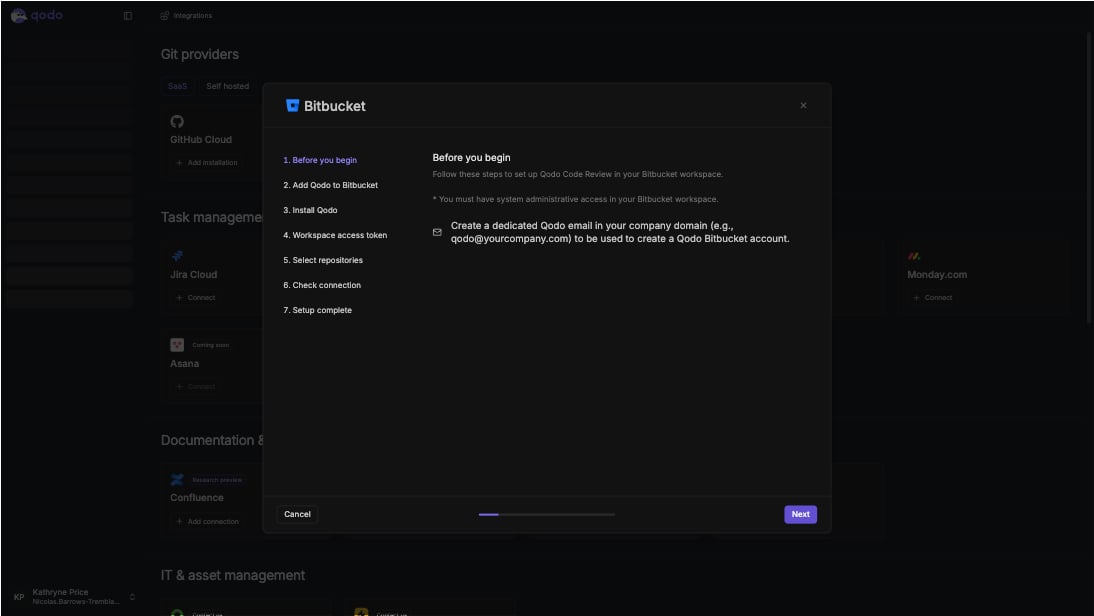
- Create a dedicated Qodo email in your company domain (e.g.,
qodo@yourcompany.com) to be used to create a Qodo Bitbucket account. - Click Next to proceed.
2
Add Qodo to Bitbucket
Using the email you just created, add Qodo as a user in your Bitbucket workspace.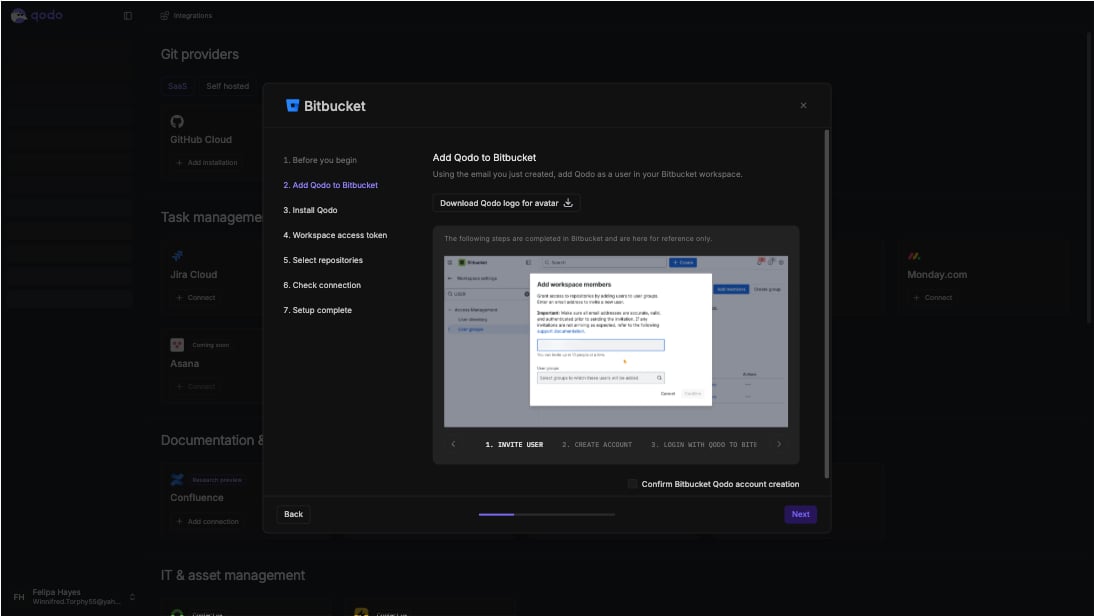
- Click Download Qodo logo for avatar and save it for use in sub-step 3.
1
Invite user
Go to Workspace settings → User groups, open Add workspace members, and enter the Qodo email address.
2
Create account
Accept the invitation email to create the Qodo Bitbucket account.
3
Log in with Qodo to Bitbucket
Log in to Bitbucket using the Qodo account credentials.
3
Install Qodo
Using the Qodo Bitbucket account you just created, install the Qodo app.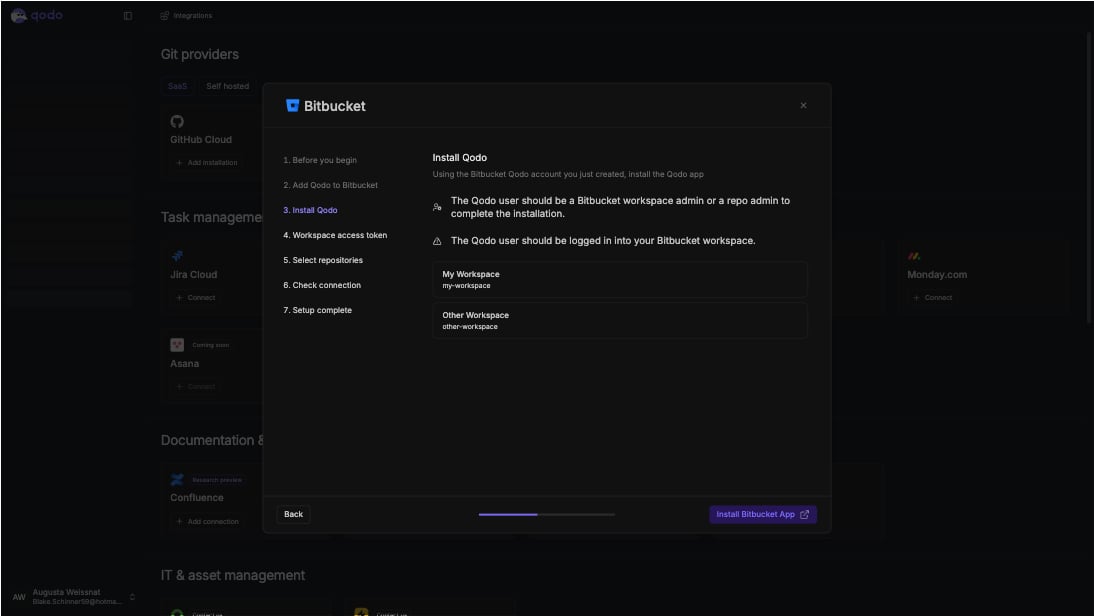
Requirements
- The Qodo user must be a Bitbucket workspace admin or repo admin to complete the installation.
- The Qodo user must be logged in to your Bitbucket workspace.
- Click Install Bitbucket App to proceed.
4
Add workspace access token (optional)
This step is optional. Skip it to keep using the previously authorized Bitbucket account. If a workspace access token is already saved and this field is left empty, it’s replaced with the authorized account.
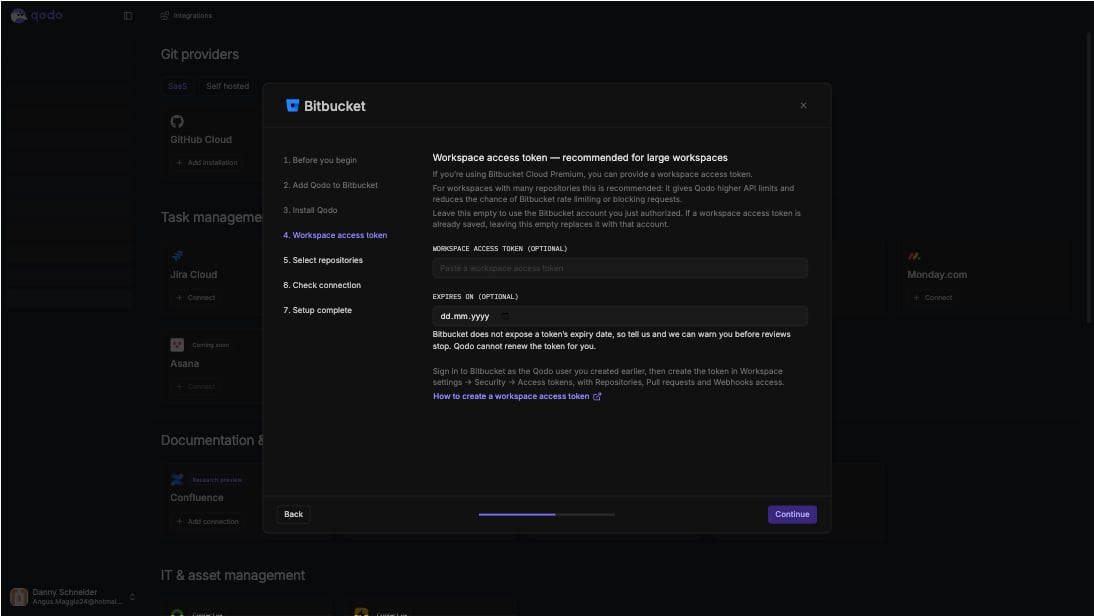
- Sign in as the Qodo user created during installation.
- Go to Workspace settings → Security → Access tokens.
- Create a token with Repositories, Pull requests, and Webhooks access.
- Workspace access token (optional): Paste the token you created.
- Expires on (optional): Add the token’s expiry date. Bitbucket doesn’t expose this date. Enter it here to get a warning before reviews stop. Qodo can’t renew the token automatically.
- Click Continue to proceed.
5
Select repositories
Select the repositories for Qodo to review.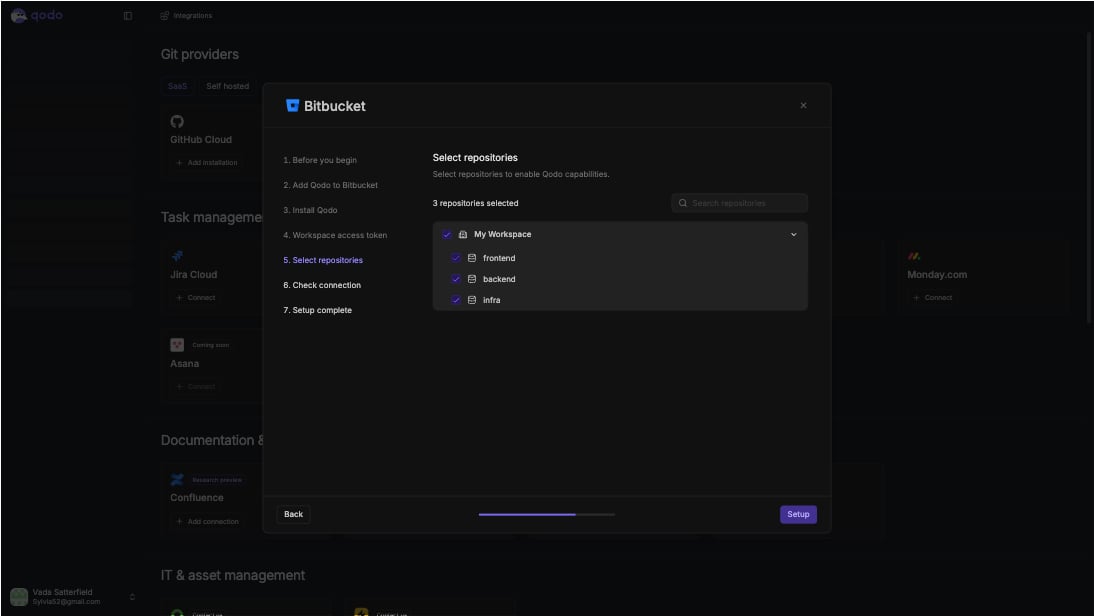
- Click Setup to continue.
You can always add more repositories later by returning to this step.
6
Check connection
Qodo verifies the connection to each repository selected in the previous step.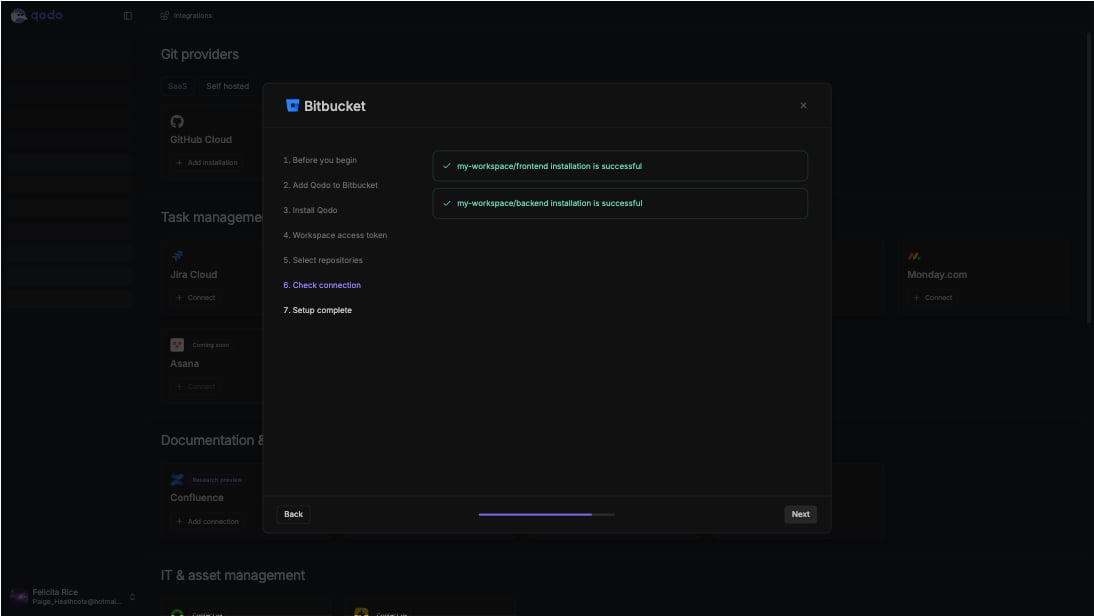
- Click Next to continue.
7
Setup complete
Qodo has been installed on your Bitbucket workspace. Repositories are fully connected and active within a few minutes.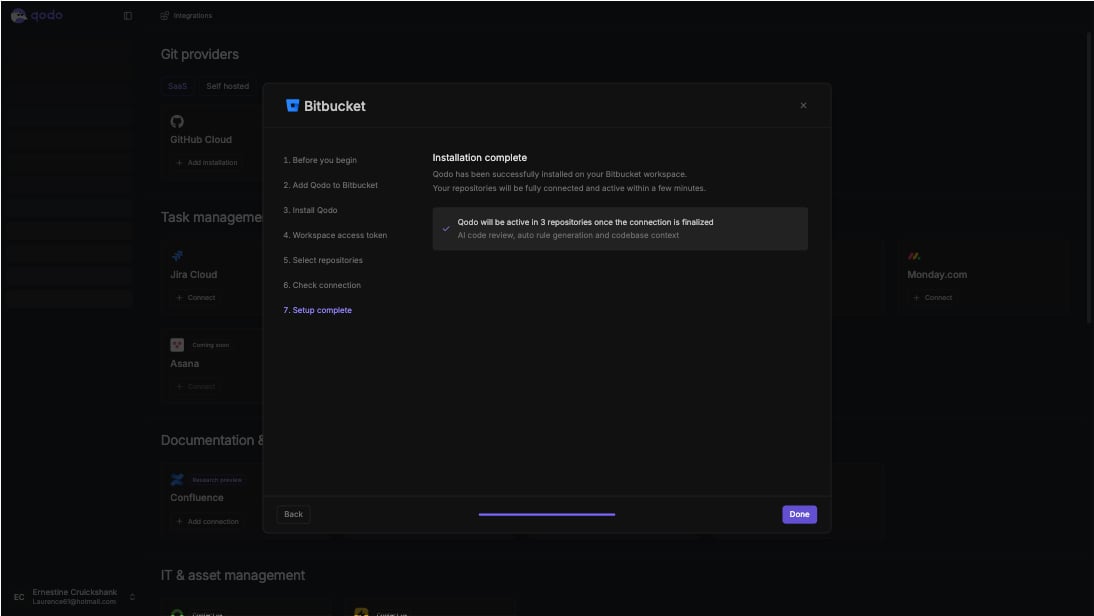
- Click Done to finish.
Verify the installation
1
Open a new pull request in one of the connected repositories and confirm Qodo is triggered automatically.
2
Add a comment using one of the supported commands:
/agentic_describe/agentic_review
Next steps
- Repositories page: Enable or disable Qodo on individual repositories within your current scope.
- Trigger a code review: Run a review automatically or on demand.