

Prerequisites
Before you begin, ensure you have:- A Qodo single-tenant deployment
- Receive your Qodo single-tenant URL from your Qodo Account Manager. It will look like qodo-merge.yourcompanyname.st.qodo.ai
- System administrator access (if you want to set up Qodo at group level)
Installation steps (at group level)
Step 1: Generate a token
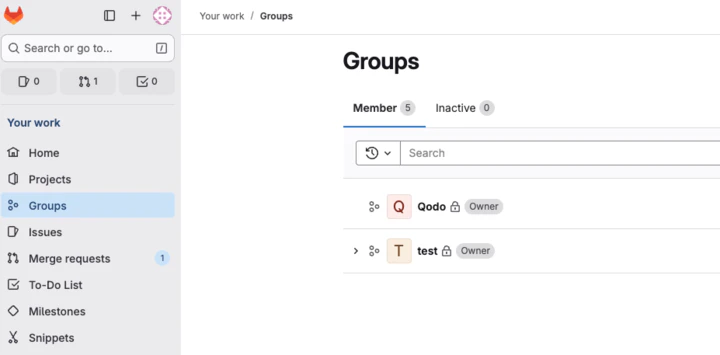
- Navigate to the groups section in Gitlab and choose the group you want to setup Qodo in
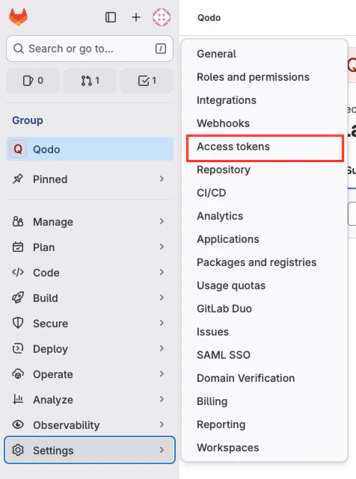
- (within the chosen group) Navigate to Group settings -> Access tokens
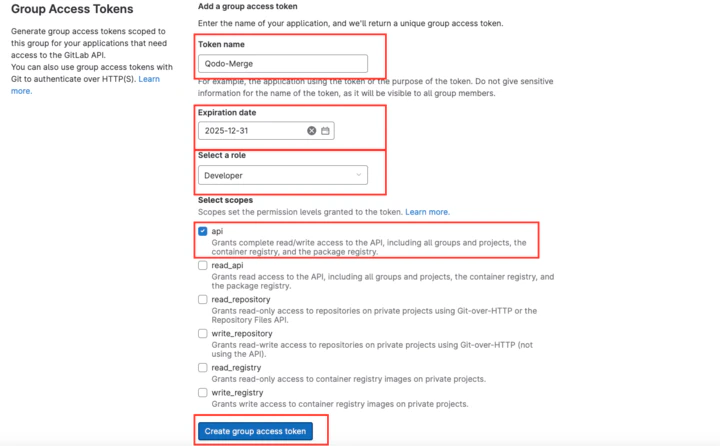
- Configure the Access token:
- Name: Any name will suffice
- Expiration date: Choose the relevant period (for a POV 1-2 months, for a customer - 1 year)
- Role: at least Developer
- Select Scopes: check only the api option
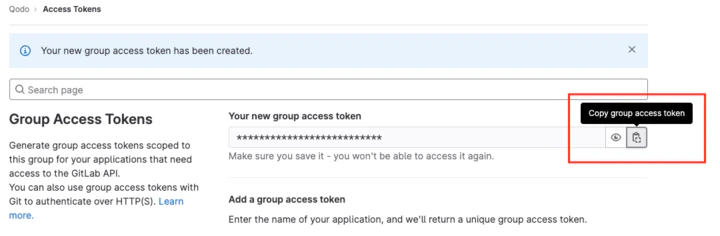
- Important: Copy and save the bearer token immediately. You won’t be able to see it again
Step 2: Create a shared webhook secret
Choose a strong secret (it can be anything). You can use any secret generation tool you prefer.Step 3: Create a group webhook
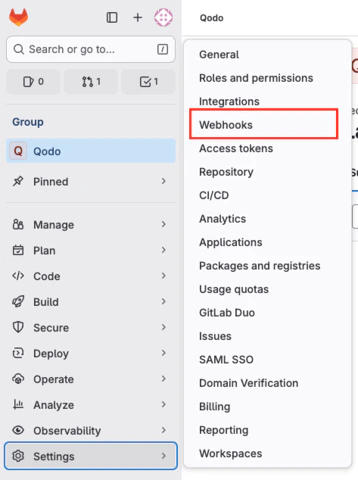
- (within the chosen group) Navigate to Group settings -> Webhooks
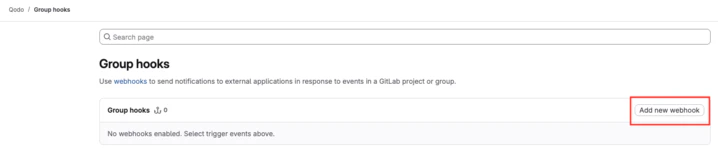
- Choose Add new webhook
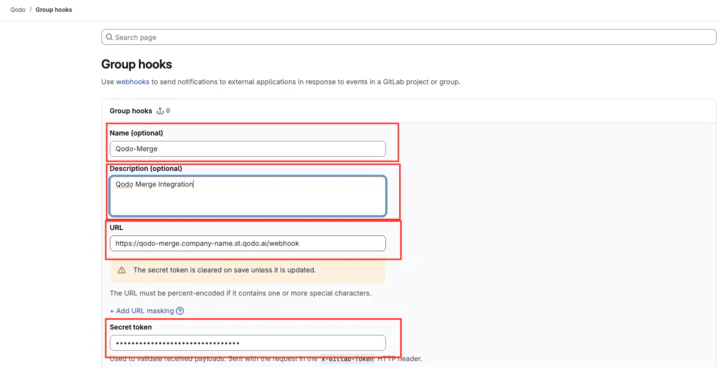
- Create the Webhook:
- Name - choose an appropriate name (no specific requirement)
- Description - free text
- URL - Qodo Merge single-tenant URL received from your Qodo Account Manager. It will look like qodo-merge.yourcompanyname.st.qodo.ai
- Secret token - the secret you created in step 2
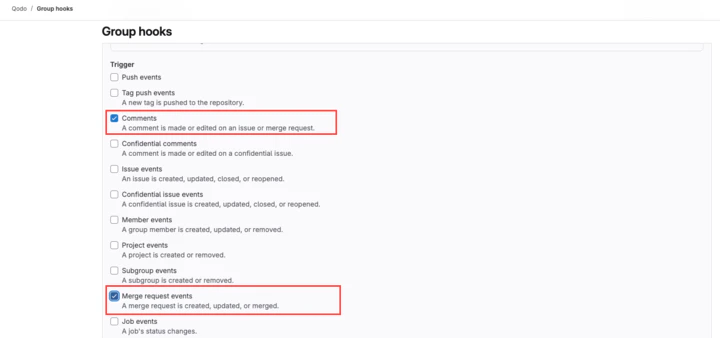
- Triggers - select Comments and Merge request events

Step 4: Send GitLab integration details to Qodo
Provide Qodo account contact the following details to configure your Qodo instance with the following settings:- Access Token created in step 1
- Webhook Secret created in step 3
- Gitlab group ID’s (Group that was chosen in Step 1)
- (If deployed on Gitlab self-hosted) Your Gitlab URL
Well Done. Now wait for the Qodo Team to confirm installation was successful.
Installation steps (at project level)
If you wish to limit the scope of Qodo Merge to a specific Gitlab project (repo) you can complete the same above steps (steps 1-4) just at the project level. You can repeat this for multiple projects, however for each project the webhook secret needs to be unique (and provide all the information to Qodo team for EACH project)
Verification
After confirmation from the Qodo team, you can proceed to testing the installationRun a test MR
Open a new merge request in one of your projects from chosen group (where Qodo Merge was configured)
Troubleshooting
If Qodo Merge isn’t responding:- Verify that you are raising the MR in a repo that is included in the appropriate group.
- Contact Qodo team.