

Qodo can be integrated with all versions of Github. Enterprise, Cloud & Cloud Enterprise.
Prerequisites
Before you begin, ensure you have:- A Qodo single-tenant deployment
- Receive your Qodo single-tenant URL from your Qodo Account Manager. It will look like qodo-merge.yourcompanyname.st.qodo.ai
- System administrator access to your Github Org
Installation steps
Step 1: Navigate to the GitHub apps section
- Login using an administrative account
- Click your profile picture → Your organizations
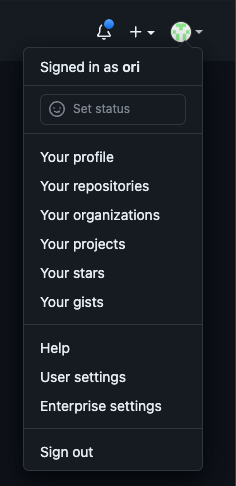
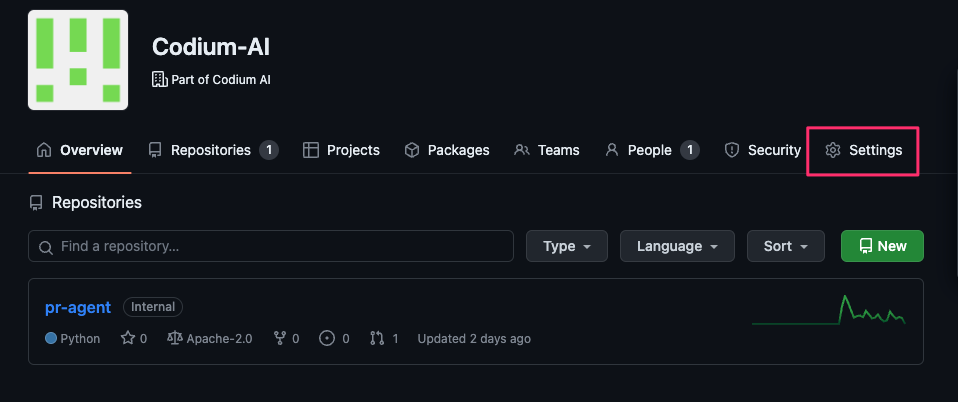
- Select your organization (click on the org name)

- Click “Settings”
- Go to Developer settings → GitHub Apps
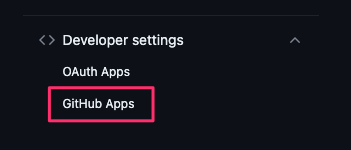
- Click “New GitHub App”
Step 2: Create the GitHub App
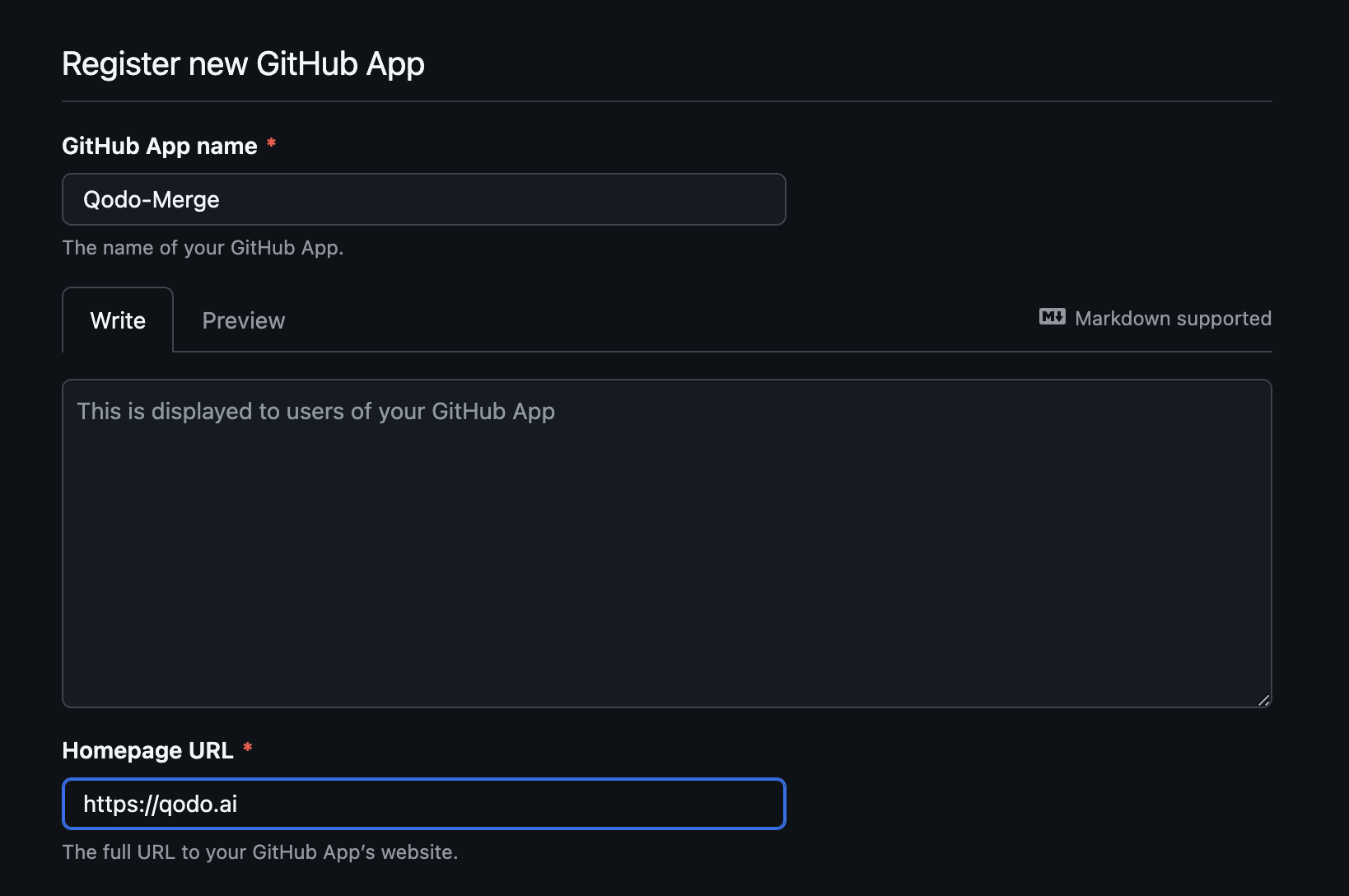
- Register a new Github App:
- App name: Qodo
- Homepage URL: http://qodo.ai
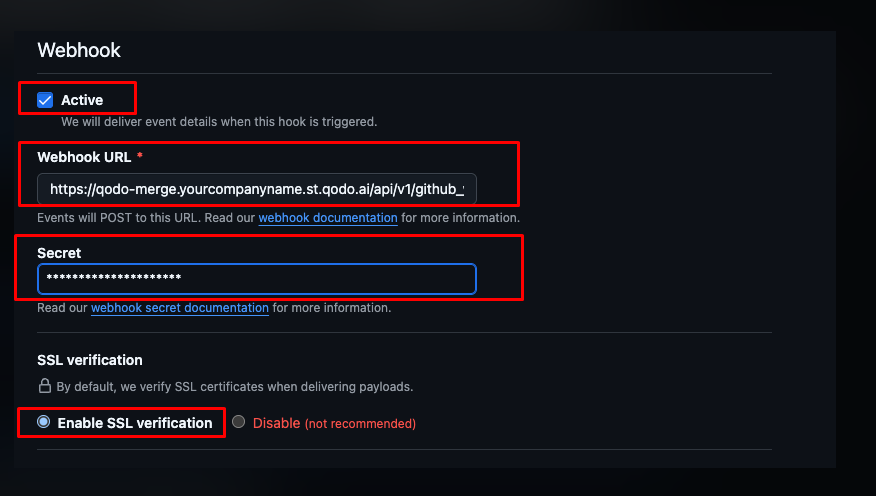
- Configure the webhook
- Check the “Active” checkbox.
- Webhook URL: use the following format (URL to be provided to you by Qodo):
https://qodo-merge.[yourcompanyname].st.qodo.ai/api/v1/github_webhooks
- Secret: generate a random secret and add it here. Keep the webhook secret safe, it will be needed to configure the Qodo service. Choose a strong secret (it can be anything). You can use any secret generation tool you prefer.
- Select “Enable SSL verification”
- Set the following Repository permissions:
| Permission Name | Description | Access |
|---|---|---|
| Actions | Workflows, workflow runs and artifacts | Read-only |
| Checks | Checks on code | Read-only |
| Contents | Repository contents commits. branches, downloads, releases and merges | Read and write |
| Discussions | Discussions and related comments and labels | Read and write |
| Issues | Issues and related comments, assignees, labels and milestones | Read and write |
| Pull requests | Pull requests and related comments, assignees, labels, milestones and merges | Read and write |






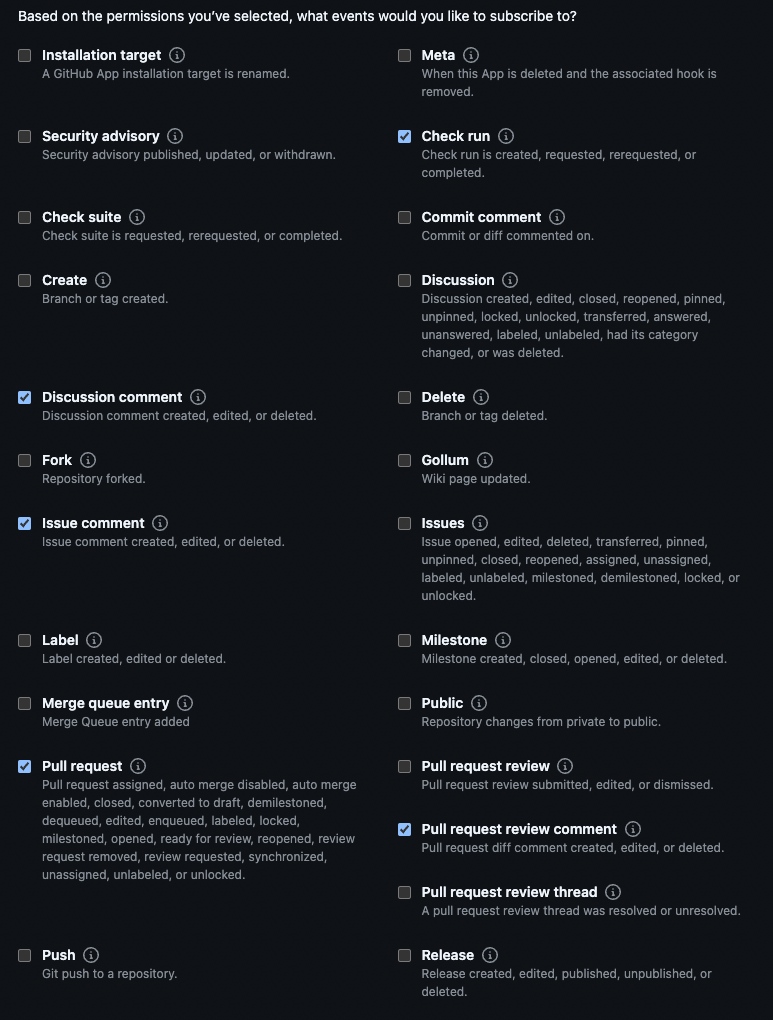
- Subscribe to the following events:
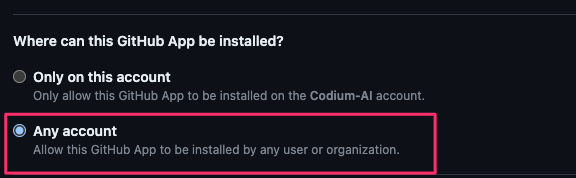
- In the “Where can this GitHub App be installed?” section:
- Choose “Any account” (If you have multiple organizations, this will avoid creating a separate application for each org).
- Finally, click “Create GitHub App”

Step 3: Post creation actions
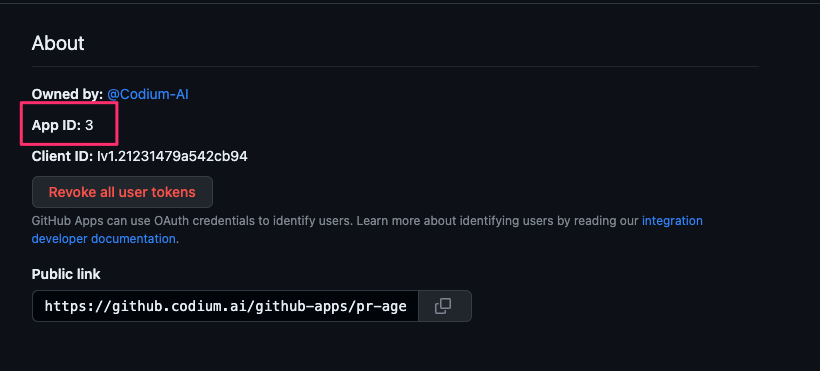
- Write down the App ID, it will be needed for Qodo Merge configuration
- Generate a private key, it will be needed for Qodo Merge configuration
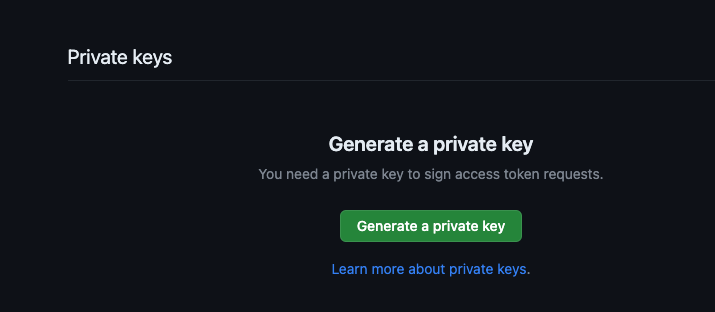
- Upload a logo that will be used on Qodo GitHub posts on issues and PRs.
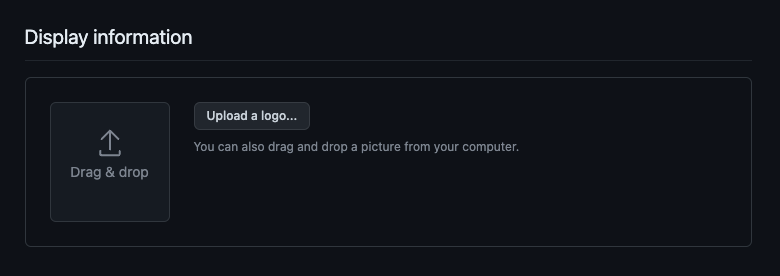
- Use the Qodo Anteater logo:

Step 4: Install the App
- Go to Your Organization -> Settings -> Developer Settings -> Github Apps:
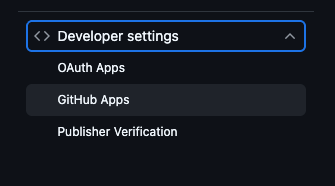
- Click on the Qodo App name
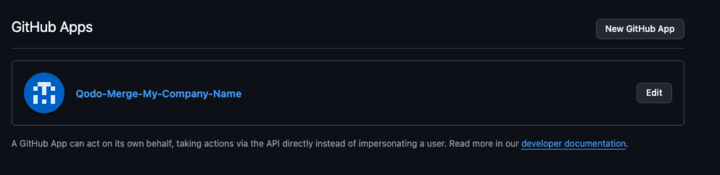
- Install the App on each of the relevant Orgs
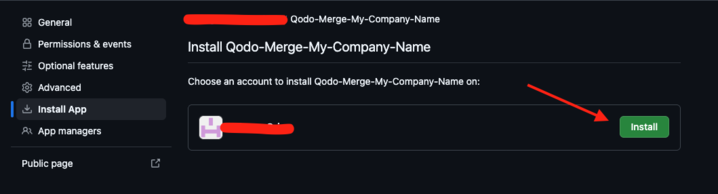
Step 5: App configuration
Select the repositories you wish to include for Qodo Merge.- Go to the GitHub Apps section in your organization’s Settings menu:
- Click “Configure” on the Qodo app

- Click “Configure” on the Qodo app
- Under Repository Access choose “Only select repositories” and select the repositories that you wish to include:
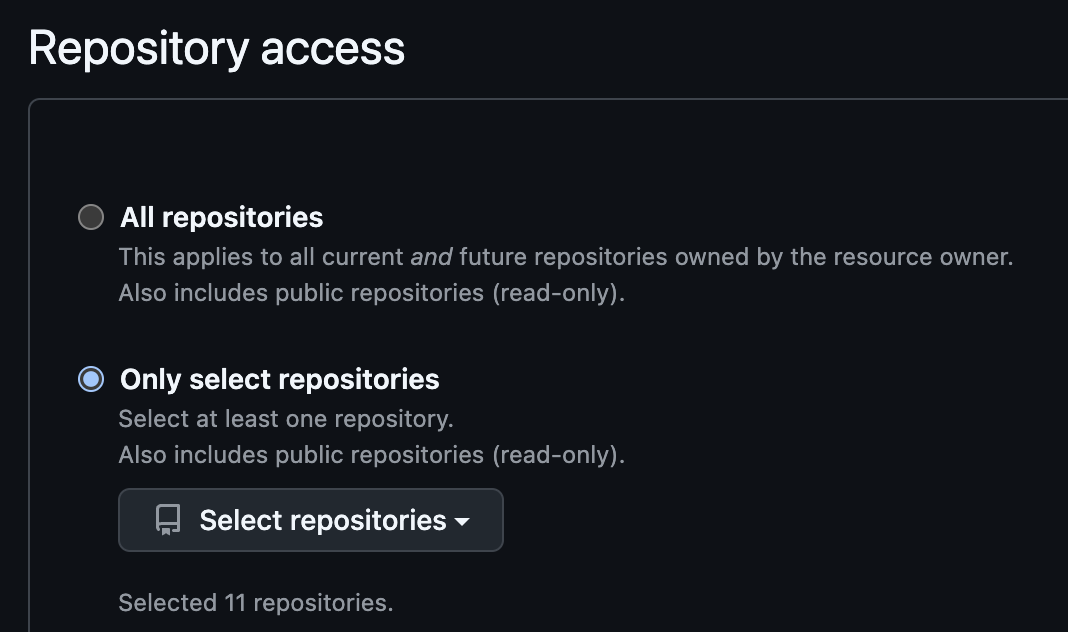
Step 6: Send GitHub App details to Qodo
Provide Qodo account contact the following details to configure your Qodo instance with the following settings:Production Note:For production environments, follow your organization’s secret management procedures to securely store these credentials.
The organization ID is available in the organization settings in Github. You can provide multiple organizations if you have installed Qodo several times.
Well Done. Now wait for the Qodo Team to confirm Server configuration is complete.
Verification
After confirmation from the Qodo team, you can proceed to testing the installationRun a test PR
Troubleshooting
If Qodo Merge isn’t responding:- Verify that you are raising the PR in a repo that was selected in the App settings
- Contact Qodo team and provide the installation ID of the App.
/review- Perform a code review/improve- Suggest code improvements/describe- Generate a PR description/ask- Ask questions about the code changes