

Using chat history
Continue the conversation
At the end of Qodo’s response, continue the conversation as long as you wish. Qodo will maintain the context of your initial query, providing tailored responses to your follow-up questions.
Start a new conversation
Click on plus + button on the top right of the chat interface to start a new conversation. Your current chat history will be cleared, and Qodo will be ready to start a new conversation.
Check your chat history
Next to the New Chat button, find the History button (clock with a round arrow) and click it. The chat history interface opens. You can see your latest 20 chats with Qodo and select any chat to continue the conversation.
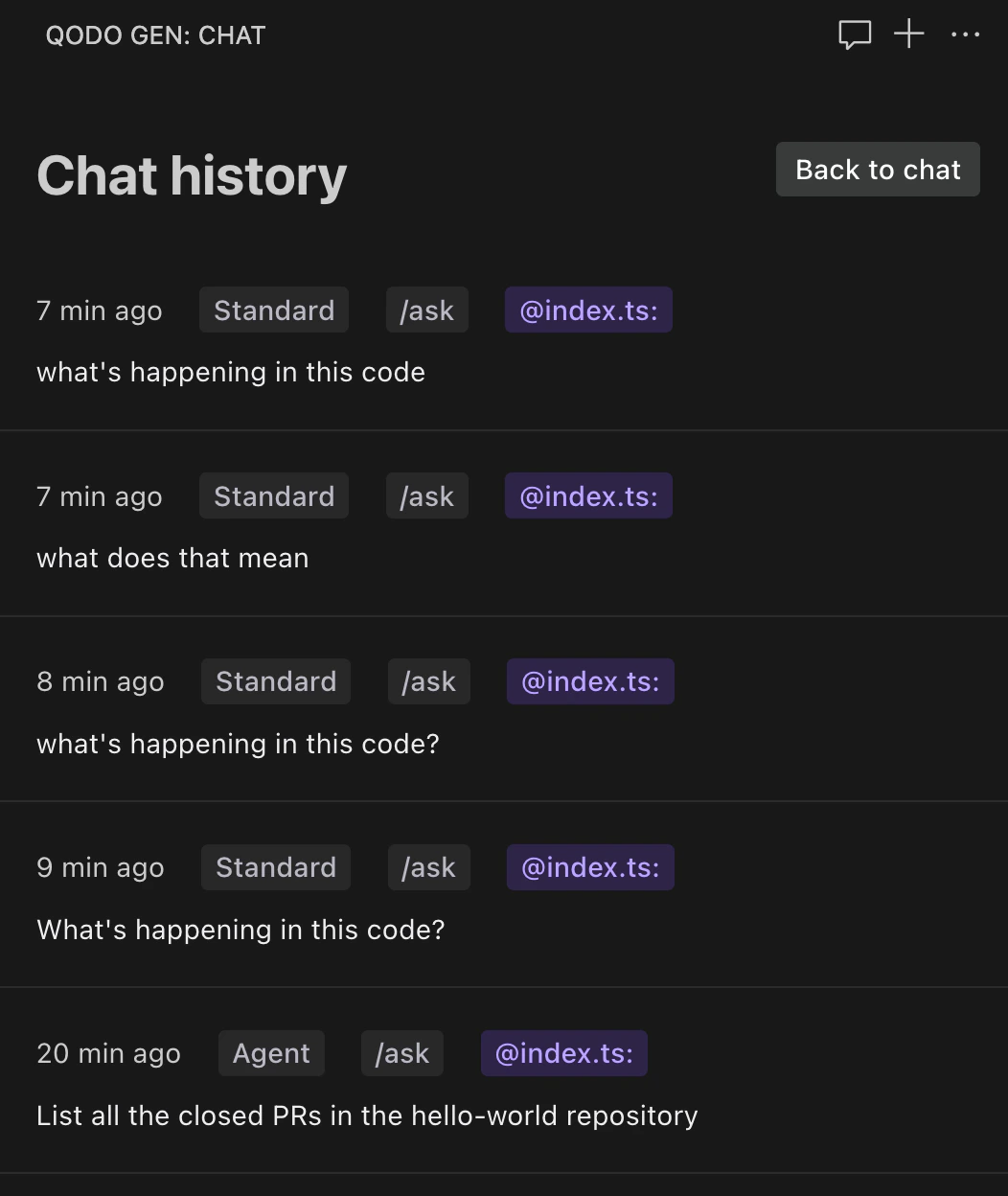
Chat history file
Chat history is saved locally in the user’s home directory at.qodo/history. The file is named using a hash of the workspace path to ensure uniqueness.
This file is automatically maintained. Any history that hasn’t been accessed in over 90 days is deleted.