

~/.qodo/agent-session-review/. Session data, reviewer notes, and marks stay in this local folder. Nothing is automatically published to your Git provider. Sessions persist between restarts and can be reopened using their session ID.
What you can do
With Agent Session Review, you can:- Review one or more related pull requests together as a single work package.
- Get a narrative overview of what changed and why before reading individual files.
- See which Qodo findings are high-priority and understand their practical impact.
- Understand what behavior the change adds, removes, or modifies.
- Save notes and marks locally as you review.
- Refresh the session after new commits without losing your saved work.
- Export the completed review as a local HTML file for sharing or archiving.
Access Agent Session Review
Agent Session Review is available as a separately installed Qodo skill. It is not included in the standard provider plugins.Prerequisites
Before installing the skill, make sure you have:- Python 3.9 or later.
- Qodo CLI 2.3.1 or later.
- An authenticated Qodo connection with managed review read access to the repositories you want to review.
Install the skill
Run the following command:Open a review session
Use a supported coding agent and ask it to open the work package you want to review. For example:Refresh session data
Select Refresh in the top bar to fetch the latest information for the work package, including pull request states, findings, and other review data. Refreshing updates the session without removing your locally saved notes and marks. The refresh controls also provide access to session information:- Hover over the refresh control to see when the data was last fetched.
- Select the folder icon to open the local session data folder.
- View the requests made during the refresh.
Review your work package in depth
The Agent Session Review UI organizes the work package into sections that help you understand the changes, investigate risks, and record your review. The first time you open a work package, the Overview page appears. Use the navigation in the sidebar to explore the rest of the review.Choose a work package
The Workpackage selector at the top of the sidebar shows the current work package. Open the menu to switch to another package. When the sidebar is collapsed, the work package name appears in the header and acts as the selector. The sidebar footer shows when the review was last generated.Overview
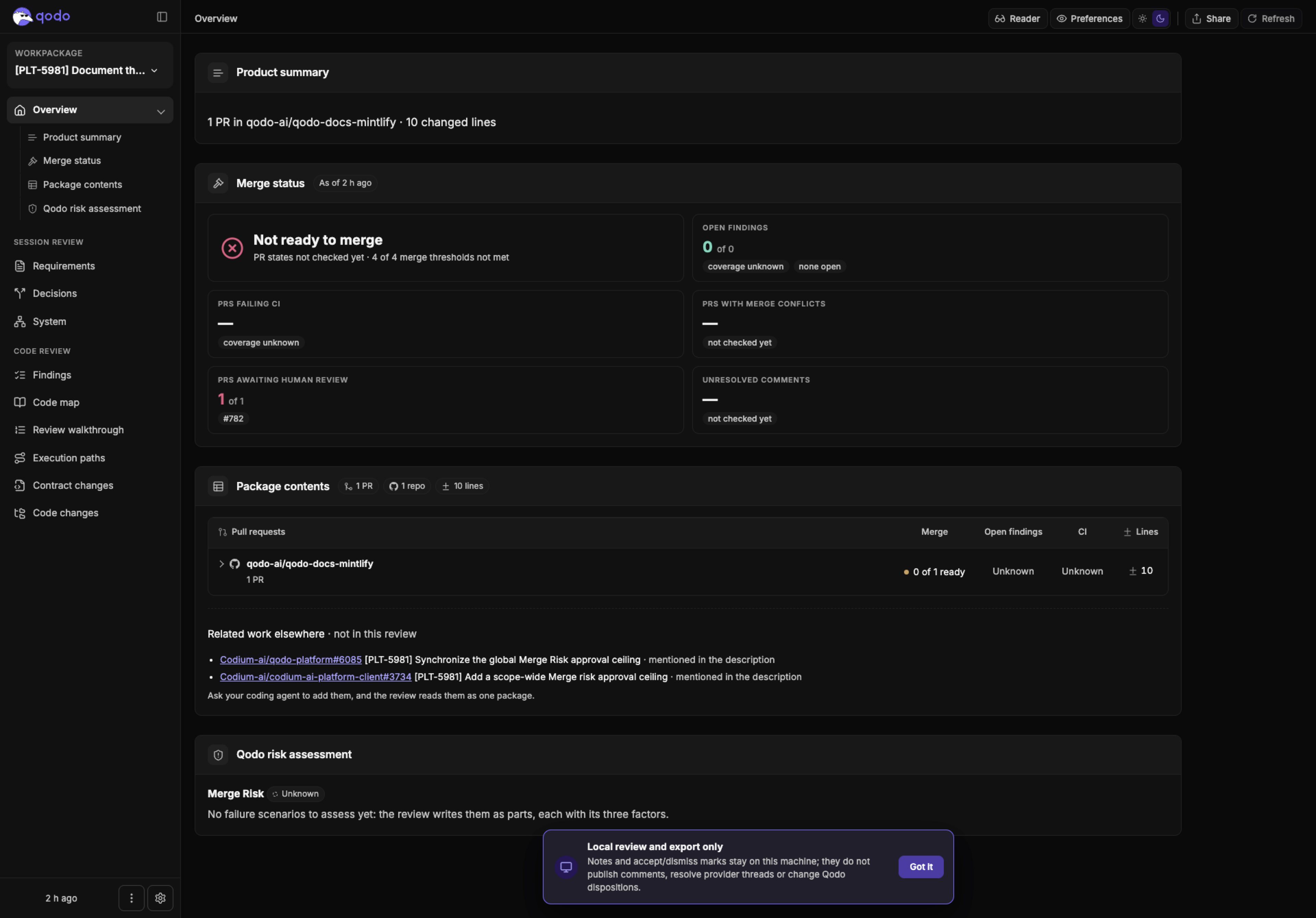
The Overview page summarizes the work package, its merge readiness, and its potential risks. It is the first page you see when you open a work package.
Product summary
Product summary shows the number of pull requests, the repositories they belong to, and the total number of changed lines. The Merge status area shows whether the work package is ready to merge and identifies what is blocking it. It shows Ready to merge or Not ready to merge. A work package is ready only when all merge thresholds have been checked and passed. A threshold that hasn’t been checked counts as not met. The merge thresholds cover:- Pull requests failing CI.
- Pull requests with merge conflicts.
- Pull requests awaiting human review.
- Unresolved comments.
Package contents
Package contents lists the pull requests in the work package, grouped by repository. The table shows merge status, open findings, CI status, and changed lines. Related work elsewhere lists related pull requests that aren’t included in the current review. These pull requests don’t count toward the work package’s merge status or risk assessment. To include a related pull request, ask your coding agent to add it to the work package.Qodo risk assessment
The Qodo risk assessment shows the work package’s Merge Risk level, based on identified failure scenarios. Each scenario is assessed using three factors:- Blast radius: How widely a failure could affect the system.
- Complexity: How difficult the change is to understand and implement correctly.
- Damage: How severe the impact would be if a failure occurs.
Requirements
The Requirements page describes the intended product behavior and the changes covered by the work package. The default layout includes three cards:- Product summary: Explains the current behavior, the change being made, and why it is needed. It includes the sections Today, The change, and Why.
- Product assets: Shows the product assets related to the work package.
- Primary behaviors: Describes the main behaviors affected by the change.
- Why it’s being built: Provides additional context about the reason for the work.
- What’s different: Highlights what changes compared with the existing behavior.
- Hop by hop: Describes the user journey through the affected behavior.
- Select the arrow to expand or collapse a card.
- Select the expand icon to open a card on its own page.
- Use the breadcrumb to return to the Requirements page.
Decisions
The Decisions page separates decisions made by the coding agent from decisions that require human input.Agent decisions
Agent decisions lists decisions made during implementation. The page shows how many decisions have been accepted out of the total. Use the filters to view decisions by category:- All: Shows all decisions.
- Behavior: Shows decisions affecting product behavior.
- Technical: Shows technical implementation decisions.
Human decisions
Human decisions lists decisions that require input from a reviewer. Review these decisions and record your response as part of the work package review.System
The System section contains technical views that help you understand the work package’s architecture, dependencies, and potential failure scenarios.Merge Risk
The Merge Risk page presents the risk assessment for the work package. It includes an overall risk level and the failure scenarios identified during the review. Use the tabs to explore different aspects of the assessment:- Risk assessment: Shows the overall Merge Risk level and identified failure scenarios.
- Risk summary: Summarizes the main risks identified in the work package.
- Blast radius: Shows the potential scope of impact if a failure occurs.
- Complexity: Shows how difficult the changes are to understand and implement correctly.
- Damage: Shows the potential severity of a failure.
- Go deeper: Provides additional detail for investigating the assessment.
Findings
The Findings page brings together quality and issue findings and lets you review individual findings.Quality & Issue findings
This card summarizes findings across the work package. It includes:- Open findings: Findings that still need review.
- Reviewers & scanners: Findings from reviewers and scanning tools.
- CI checks: Results from continuous integration checks.
- Tests: Information about test coverage and test results.
Finding review
Finding review lists individual findings that need attention. The page shows the number of open findings. Review each finding and record your response. Your answers are saved as notes in Agent Session Review, on the first line of the corresponding decision. Select Publish to post your answers to the pull request.Code map
The Code map page helps you explore the implementation of each pull request. Each pull request has its own chapter, with a summary and risk assessment, guided reading layers, Qodo findings, decisions, and quality information.Guided reading layers
Use the guided reading layers to explore the implementation in a structured order:- Contracts and interfaces: Review the interfaces and contracts affected by the change.
- Implementations: Explore how the changes are implemented.
- Tests: Review the tests related to the changes.
Qodo findings
Review the Qodo findings associated with the pull request. For each finding, record whether you agree, partially agree, or disagree with the finding. These review decisions are stored locally in Agent Session Review. To change a finding’s stored disposition in Qodo, use the Review Resolver skill.Decisions
Review the implementation decisions associated with the pull request. Decisions can be labeled:- Unplanned: The implementation includes a decision that wasn’t part of the original plan.
- Changed: The implementation differs from the planned decision.
- Missing: A planned decision hasn’t been implemented.
- Planned: The implementation follows the original plan.
Quality
The Quality section shows test coverage information for changed files.Review walkthrough
The Review walkthrough provides a guided view of the code review. Use it to follow the review of the changes and understand the evidence presented for the pull request.Execution paths
The Execution paths page describes what happens when the changed code runs, helping you follow the execution flow through the affected system. Execution paths aren’t generated automatically. If the page indicates that the content hasn’t been written, ask your coding agent to generate it using thecode-review-master skill. Once generated, the content appears on the Execution paths page.
Contract changes
The Contract changes page helps you review changes to contracts, including APIs, data formats, and interfaces. Use it to understand how the changes affect the way components and services interact.Code changes
The Code changes page provides a view of the code changes included in the work package. Use it to inspect the implementation alongside the other review information.Customize your review layout
Use the More menu at the bottom of the sidebar, to the left of Settings, to customize and manage your review layout. The menu includes:- Customize: Choose which sections and cards appear in your review.
- Templates: Browse available layout templates.
- My layouts: View layouts you’ve saved.
- Add to my layouts: Save the current layout for reuse.
- Reset to default: Restore the default layout.
Settings
Select the cog icon at the bottom of the sidebar to open Settings. The Settings window has four tabs: General, File paths, Review style, and Shortcuts. Select the × in the top-right corner to close Settings.General
Use General settings to control the review interface.- Show sub-menus: Controls whether sub-menus appear in the navigation.
- Show Ask Qodo: Controls whether Ask Qodo appears in the interface.
File paths
File paths shows where Agent Session Review stores its local files.- Work package folder: The folder used to store work packages.
- App settings file: The location of the application settings file.
Review style
Use the Review style tab to view and configure the available review style settings.Shortcuts
Use Shortcuts to view keyboard shortcuts. Available shortcuts depend on the page and context. Always available
Page-specific
Shortcuts that aren’t available in the current context appear dimmed.
Record your review
Use the review controls to record decisions, answer open questions, and add notes as you work through the pull requests.Decisions and questions
Review the decisions and open questions associated with the work package. You can accept a decision, ask why it was made, or revise it. Your responses are saved locally as part of the review.Pull request verdicts
Choose a verdict for each pull request:- Approve: The changes are ready to merge.
- Comment: You have feedback but aren’t requesting changes.
- Request changes: The changes need to be updated before merging.
Notes
Add notes to capture observations and context as you review the work package. Notes and marks are stored locally with the session.Export your review
You can export your review to share it with others or keep a record of your findings. Use Copy as Markdown to copy the review in Markdown format. You can paste it into a pull request or another document. You can also export the review as HTML to share a standalone copy. Exporting or copying the review doesn’t publish comments to your Git provider, resolve pull request threads, or change Qodo finding dispositions. Your notes and accept or dismiss marks remain local to the Agent Session Review session.Related resources
- Agentic Toolbox: Learn about the available skills, supported interfaces, and installation.
- Qodo tools overview: A high-level summary of tool groups and suggested workflows.
- Suggested workflows: Common workflows for using the Agentic Toolbox skills together.