

Install Qodo
Visit Qodo’s page on JetBrains Marketplace to install Qodo IDE Plugin. Alternatively, follow these steps to install the plugin from within your JetBrains IDE:1
Open the settings menu in your JetBrains IDE by clicking the cog wheel on the top right.
2
Select Plugins.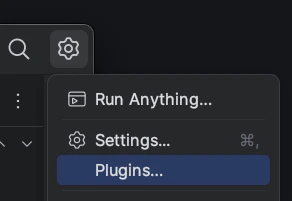
3
Type Qodo in the search bar.
4
Click the Install button.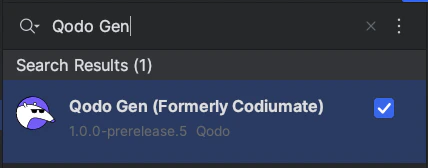
Activate Qodo IDE plugin
1
Following installation, restart your IDE to activate the Qodo IDE plugin.
2
After restarting, the Qodo icon should appear in the IDE’s sidebar on the left side.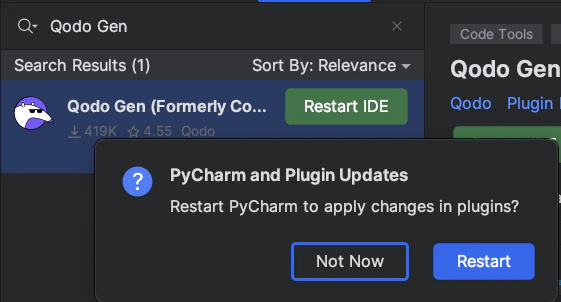
Android Studio support for JCEF
Qodo Plugin uses JCEF (Java Chromium Embedded Framework) to create a webview component in the plugin’s tool window. By default, most IntelliJ-based IDEs come with a boot runtime that includes JCEF. However, Android Studio (and some other versions of IntelliJ-based IDEs) utilize a boot runtime lacking JCEF, which prevents the plugin from loading in these environments. Also in some cases JCEF could persist but not be initialized. To address this issue:1
Navigate to the “Help” -> “Find Action…” and find (type) “Registry”. Here disable
ide.browser.jcef.sandbox.enable option.2
Navigate to the “Help” -> “Find Action…” and find (type) “Choose Boot Runtime for the IDE” dialog. Here, you can select a boot runtime equipped with JCEF.
3
Restart the IDE.