Qodo IDE plugin, formerly Qodo Gen, brings local code review workflows to JetBrains and VS Code as part of the Qodo Platform.
Install Qodo IDE plugin
Visit Qodo’s page on Visual Studio Marketplace to install Qodo. Alternatively, follow these steps to install the plugin from within VSCode:1
In VSCode, open the Extensions menu by clicking the Extensions icon in the Activity Bar on the left side.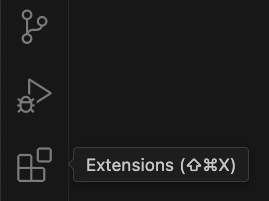
2
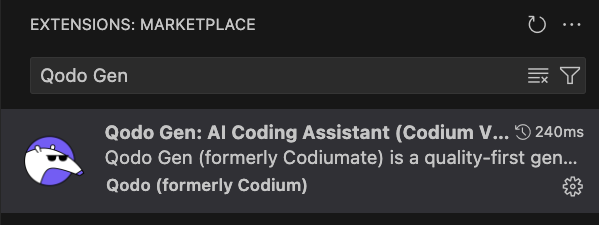
Type Qodo in the search bar.
3
Click the Install button.
Activate Qodo
1
Following installation, restart all extensions to activate Qodo IDE Plugin.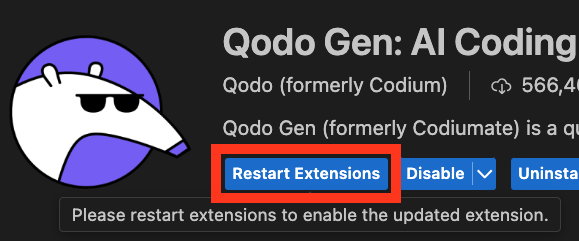
2
After restarting extensions, the Qodo icon should appear in the Activity Bar on the left side.