

Qodo IDE plugin, formerly Qodo Gen, brings local code review workflows to JetBrains and VS Code as part of the Qodo Platform.
Install Qodo
Visit Qodo’s page on JetBrains Marketplace to install Qodo IDE Plugin. Alternatively, follow these steps to install the plugin from within your JetBrains IDE:1
Open the settings menu in your JetBrains IDE by clicking the cog wheel on the top right.
2
Select Plugins.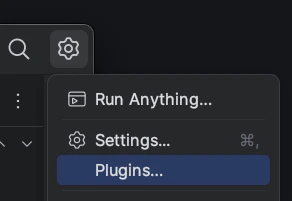
3
Type Qodo in the search bar.
4
Click the Install button.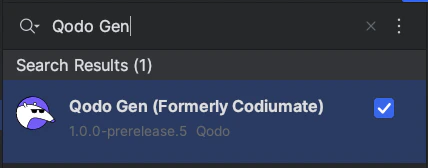
Activate Qodo IDE plugin
1
Following installation, restart your IDE to activate the Qodo IDE plugin.
2
After restarting, the Qodo icon should appear in the IDE’s sidebar on the left side.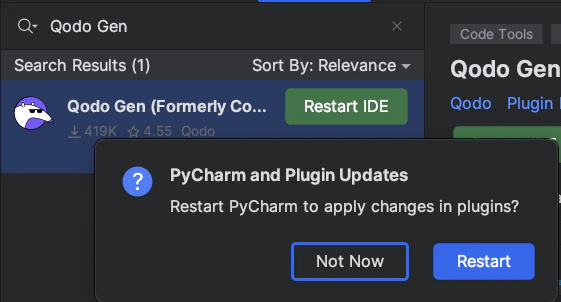
Android Studio support for JCEF
Qodo Plugin uses JCEF (Java Chromium Embedded Framework) to create a webview component in the plugin’s tool window. By default, most IntelliJ-based IDEs come with a boot runtime that includes JCEF. However, Android Studio (and some other versions of IntelliJ-based IDEs) utilize a boot runtime lacking JCEF, which prevents the plugin from loading in these environments. Also in some cases JCEF could persist but not be initialized. To address this issue:1
Navigate to the “Help” -> “Find Action…” and find (type) “Registry”. Here disable
ide.browser.jcef.sandbox.enable option.2
Navigate to the “Help” -> “Find Action…” and find (type) “Choose Boot Runtime for the IDE” dialog. Here, you can select a boot runtime equipped with JCEF.
3
Restart the IDE.