To start using Qodo you must Sign in.

Visual Studio Code

1
Open Qodo by clicking the Qodo logo in the Activity Bar (extensions bar).
2
Click Sign in to Qodo in the top-right corner.

VS Code sidebar showing the Sign in to Qodo Gen button in the top-right corner
3
Follow the instructions on the webpage.Alternatively, click the Qodo icon in the bottom-right corner. A popup with sign-in instructions will open.
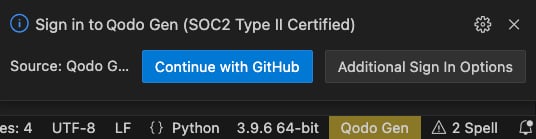
VS Code sign-in popup showing Continue with GitHub and Additional Sign In Options buttons

JetBrains

1
Open Qodo by clicking the Qodo logo in the tool window bar.
2
Follow the instructions to sign in.
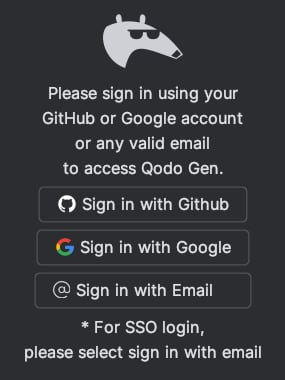
Qodo Gen sign-in options screen showing GitHub, Google, and Email sign-in buttons

Choose your sign-in method

Choose one sign-in method and stick to it. Qodo won’t let you sign in using a different method later.
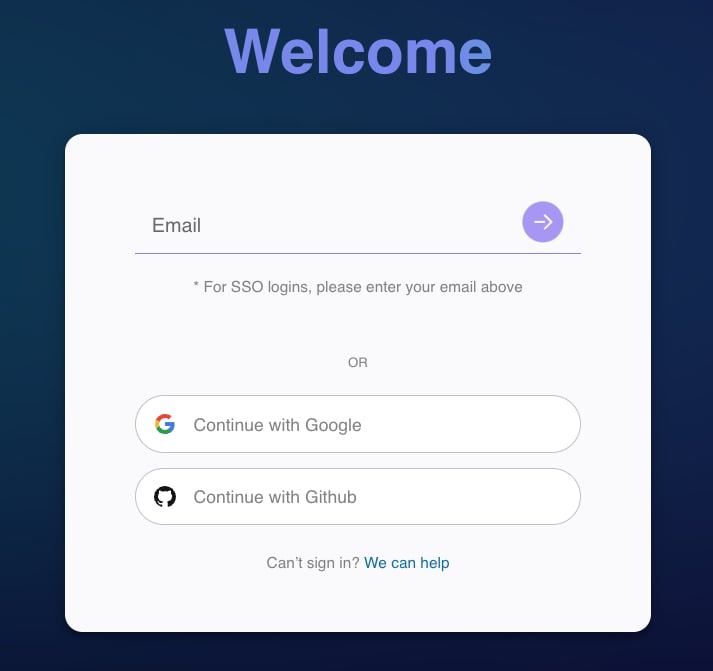
Qodo web welcome screen with email field and Continue with Google or GitHub options

Sign in to Teams plan

Once you receive an invitation email from your team administrator, sign in to Qodo using the email address to which the invitation was sent. Select one of the available sign-in methods to complete the process.

Sign in to Enterprise plan

Sign in using your work email to automatically connect to your organization’s workspace. Select one of the available sign-in methods to finish. If your organization has configured Single Sign-On (SSO), you can use it for a smoother login process.