

What can modes do?
Each Mode is tailored to a specific role or mindset. For example:- Ask Mode: Optimized for speed and responsiveness, using minimal tools in read-only mode. Great for quick questions and exploration.
- Code Mode: A full-featured generalist with access to all available tools, capable of writing code, running workflows, and reasoning through multi-step tasks.
- Plan Mode: Ideal for high-level planning, system design, complex understanding, and exploring architectural trade-offs.
Getting started
How to use modes
To use a mode, choose it from the mode dropdown menu in the bottom-left corner of Qodo IDE Plugin. Once selected, the mode stays active across messages, adapting to your session’s needs and maintaining context as you go. You can either create a new mode or use Qodo’s ready-to-use default modes.Create a new mode
In order to create a new mode: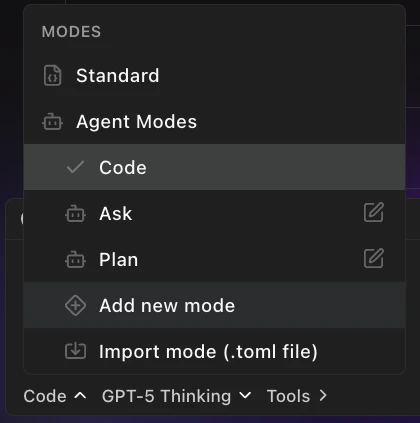
Prompt: Enter natural language instructions for your mode to follow. For example: “Provide feedback during development to help me follow style guidelines, spot issues early, and write cleaner code.”
MCP Tools: From the list, choose which MCP tools the mode should have access to (e.g.,
filesystem, github, shell).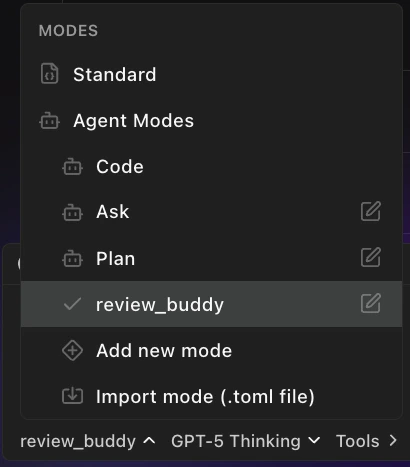
Sharing and reusing modes
Qodo makes it easy to collaborate by letting you share and reuse custom modes across your team.-
Share Button: Click the share button in a mode’s configuration page to share your mode. This allows you to export the mode’s configuration as a
.tomlfile, so others can easily import and use it in their environment. -
Import mode from file: From the mode creation menu, upload a
.tomlfile to import an existing mode into Qodo.