
Jira Integrations
Jira Cloud
There are two ways to authenticate with Jira Cloud:
Jira App Authentication
The recommended way to authenticate with Jira Cloud is to install the Qodo app in your Jira Cloud instance. This will allow Qodo to access Jira data on your behalf.
Go to the Qodo integrations page.
Click on Connect Jira Cloud to connect the Jira Cloud app.
Click Accept.
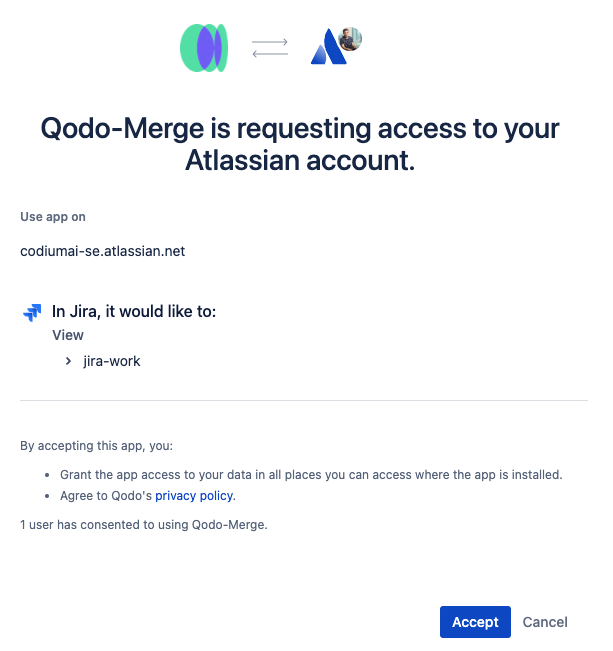
After installing the app, you’ll be redirected to the Qodo registration page with a confirmation message.
Qodo can now fetch Jira ticket context for your pull requests.
Email/Token Authentication
You can create an API token from your Atlassian account:
Log in to the API tokens page on Jira.
Click Create API token.
Enter a name for your new token and click Create.
Click Copy to clipboard.
Add the following lines in your configuration file:
Jira Data Center/Server
Basic authentication
You can authenticate with Jira Data Center or Server using your Jira username and password.
Add the following values to your configuration file, environment variables, or secrets file:
Validating Basic authentication via Python script
If you’re experiencing issues retrieving tickets in Qodo when using Basic authentication, you can validate the setup with a Python script. The steps below help verify that Basic authentication is working correctly and that Jira ticket details are accessible.
Run:
Run the following Python script. Make sure to replace the placeholders with your actual values:
How to link a PR to a Jira ticket
Qodo automatically detects Jira tickets using one of the following methods:
Method 1: PR description reference
Include a ticket reference in your pull request description using either:
The full Jira ticket URL:
https://<JIRA_ORG>.atlassian.net/browse/<TICKET_ID>The shortened ticket ID (for example,
ISSUE-123)
For shortened ticket IDs, the Jira base URL must be configured (see below).
Method 2: Branch name detection
Prefix your branch name with the ticket ID, for example:
ISSUE-123-feature-descriptionfeature/ISSUE-123/feature-description
Jira base URL
For shortened ticket IDs or branch name detection (Jira Cloud), configure the Jira base URL in your configuration file under the [jira] section:
Where <JIRA_ORG> is your Jira organization identifier (for example, mycompany for https://mycompany.atlassian.net).
Multi-JIRA server configuration
Qodo supports connecting to multiple JIRA servers using different authentication methods.
Email/token (basic auth)
Configure multiple servers using Email/Token authentication in your configuration file.
Example configuration:
PAT auth
Configure multiple servers using Personal Access Token authentication in your configuration file.
Example Configuration:
Mixed authentication (E\email/token + PAT):
Jira Cloud app
For Jira Cloud instances using app authentication:
Install the Qodo app on each Jira Cloud instance you want to connect.
In your configuration file, set the default server for ticket ID resolution:
Full URLs (for example, https://other-team.atlassian.net/browse/TASK-456) automatically resolve to the correct connected Jira instance.
Last updated