> ## Documentation Index
> Fetch the complete documentation index at: https://docs.qodo.ai/llms.txt
> Use this file to discover all available pages before exploring further.
# Options and configurations
**Git Integration (formerly Qodo Merge)** – AI code review agents for pull requests. This documentation describes the Qodo v1 experience. For the Qodo v2 documentation, click [here.](/code-review)
## Accessing the options page
To open the Qodo Chrome extension settings:
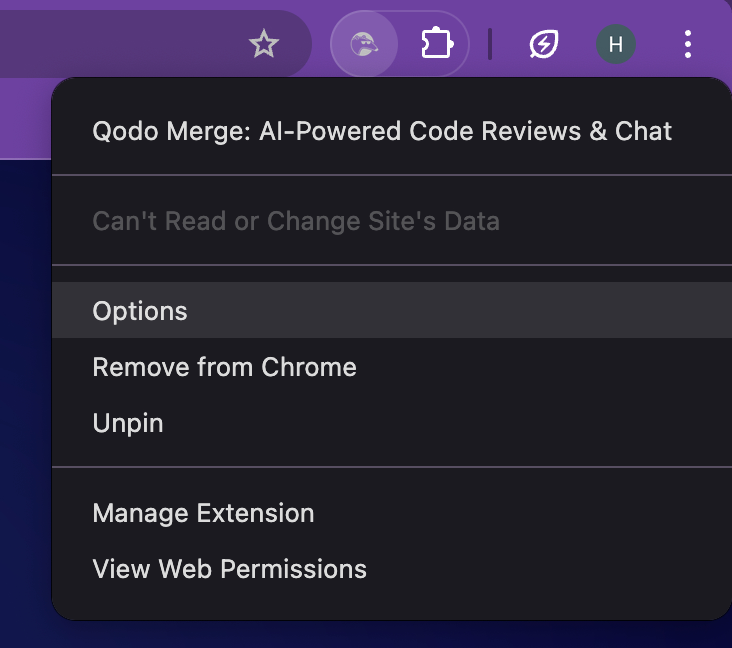
Locate the Qodo icon in your Chrome toolbar (top-right corner).
Right-click the icon and select **Options**.
Or, navigate directly to: `chrome-extension://ephlnjeghhogofkifjloamocljapahnl/options.html`
 ## Configuration options
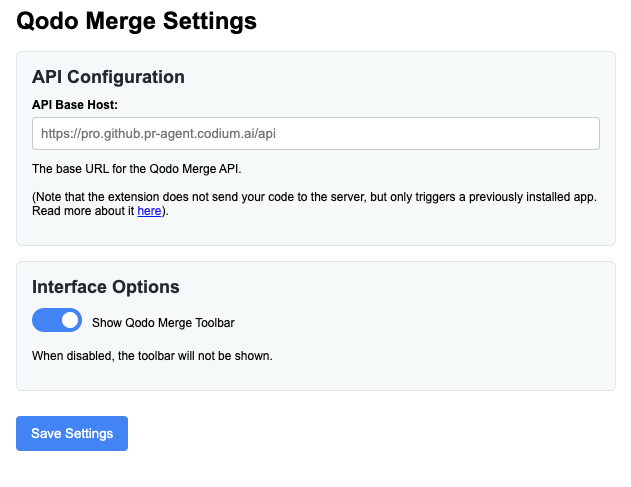
**API Base Host**
For single-tenant installations, you can direct the extension to your organization’s Qodo server.
Enter your Qodo API endpoint in the **API Base Host** field.
This value should be provided by your Qodo DevOps team.
## Configuration options
**API Base Host**
For single-tenant installations, you can direct the extension to your organization’s Qodo server.
Enter your Qodo API endpoint in the **API Base Host** field.
This value should be provided by your Qodo DevOps team.
 ## **Interface settings**
You can adjust how the extension appears in the GitHub UI:
**Show Qodo Toolbar:** toggles the toolbar inside GitHub comment boxes.
After making changes, click **Save Settings**.
## **Interface settings**
You can adjust how the extension appears in the GitHub UI:
**Show Qodo Toolbar:** toggles the toolbar inside GitHub comment boxes.
After making changes, click **Save Settings**.