> ## Documentation Index
> Fetch the complete documentation index at: https://docs.qodo.ai/llms.txt
> Use this file to discover all available pages before exploring further.
# Agentic tools (MCPs)
Enterprise
Qodo IDE plugin, formerly Qodo Gen, brings local code review workflows to JetBrains and VS Code as part of the Qodo Platform.
Agentic Tools (MCPs) allow you to integrate external tools and services into Qodo IDE plugin. This enables Qodo to access and use custom tools when needed.
 ## Requirements
You will need [Node.js](https://nodejs.org/) installed to run tools properly.
To verify you have Node installed, open the command line on your computer.
* On macOS, open the Terminal from your Applications folder
* On Windows, press Windows + R, type “cmd”, and press Enter
Once in the command line, verify you have Node installed by entering in the following command:
If you get an error saying “command not found” or “node is not recognized”, download Node from [nodejs.org](https://nodejs.org/).
Learn more on why Node.js is required in [Anthropic's official MCP documentation](https://modelcontextprotocol.io/quickstart/user#2-add-the-filesystem-mcp-server).
## Agentic tools configuration
**Note:**
If you're an Enterprise user, you may be unable to add new Agentic Tools if your system administrator has restricted additions in the **Agentic Tools Allow List**.
To create a tool and add it to Qodo, you need the applicable MCP server configuration.
**Qodo supports two types of MCPs:**
1. **Local MCPs** These run directly in your environment and don’t require network calls. Ideal for internal tools or logic that doesn’t rely on external APIs.
2. **Remote MCPs (SSE MCPs)** These are hosted externally and communicate via HTTP. When setting up a Remote MCP, you'll provide a URL, and optionally, you can add custom HTTP headers (e.g., for authentication).
### 1. Local MCPs
The configuration for a local MCP is usually in JSON form. For example, the [GitHub MCP server configuration](https://github.com/modelcontextprotocol/servers) is:
You can find many MCP tools and setup options in the [MCP GitHub](https://github.com/modelcontextprotocol/servers/blob/main/README.md).
### 2. Remote (SSE) MCPs
SSE (Server-Sent Events) MCPs are recommended for Enterprise environments. They are easier to manage, more secure, and ideal for external services like Jira. If you're setting up an **Allow List** in your Enterprise environment, enable SSE-based MCPs for a smoother experience.
The SSE MCPs configuration relies on a URL.
To configure this type of tool, add the following as to the Agentic Tools configuration text box:
## Create a new Agentic Tool
Once you've got your [required MCP configuration](/qodo-ide/tools-mcps/agentic-tools-mcps#agentic-tools-configuration), you can create a new Agentic Tool for Qodo's Agent to use:
**Open Qodo chat** Learn more about Agentic Mode and what it does.
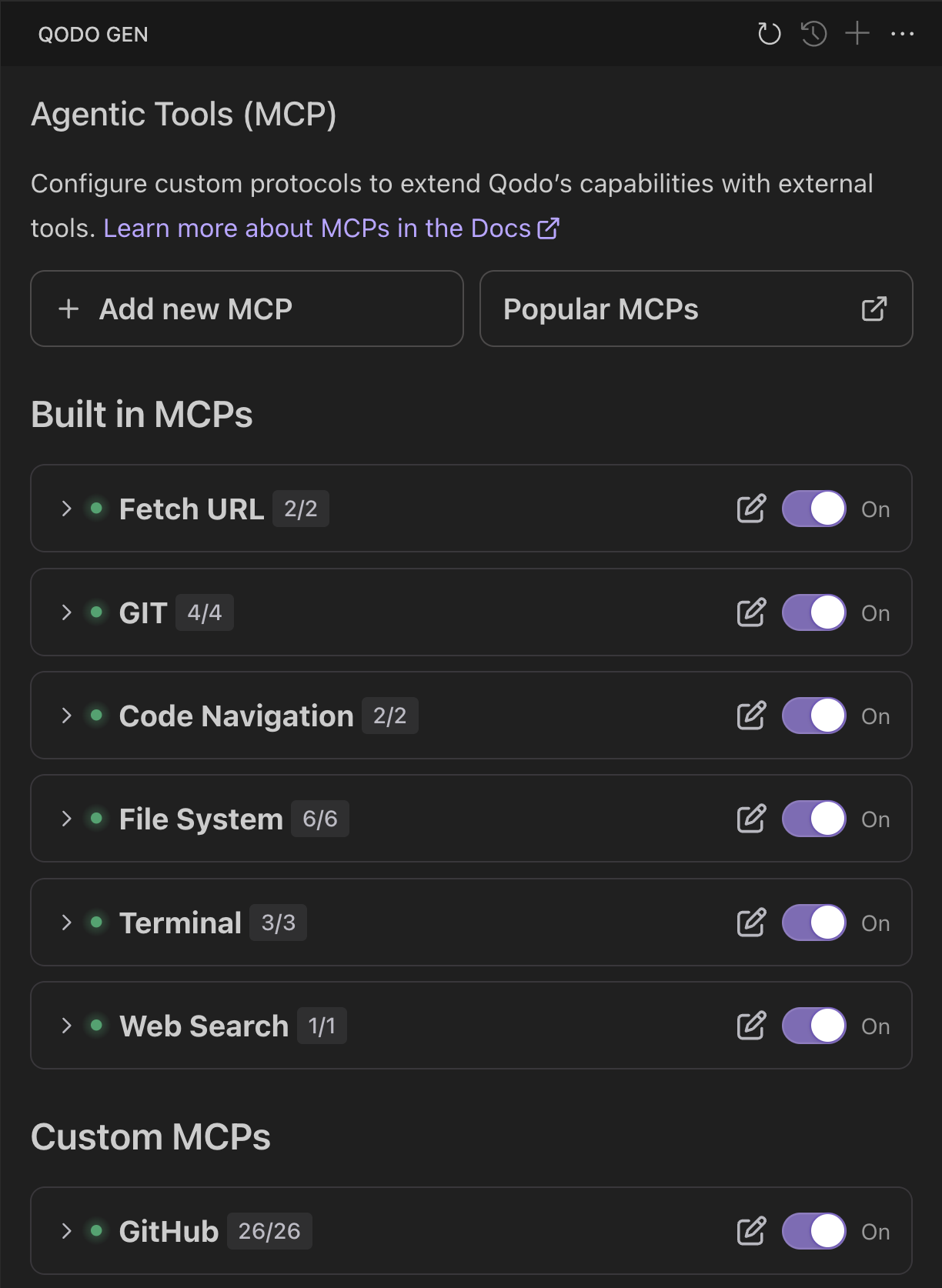
**Go to the Tools Management page**
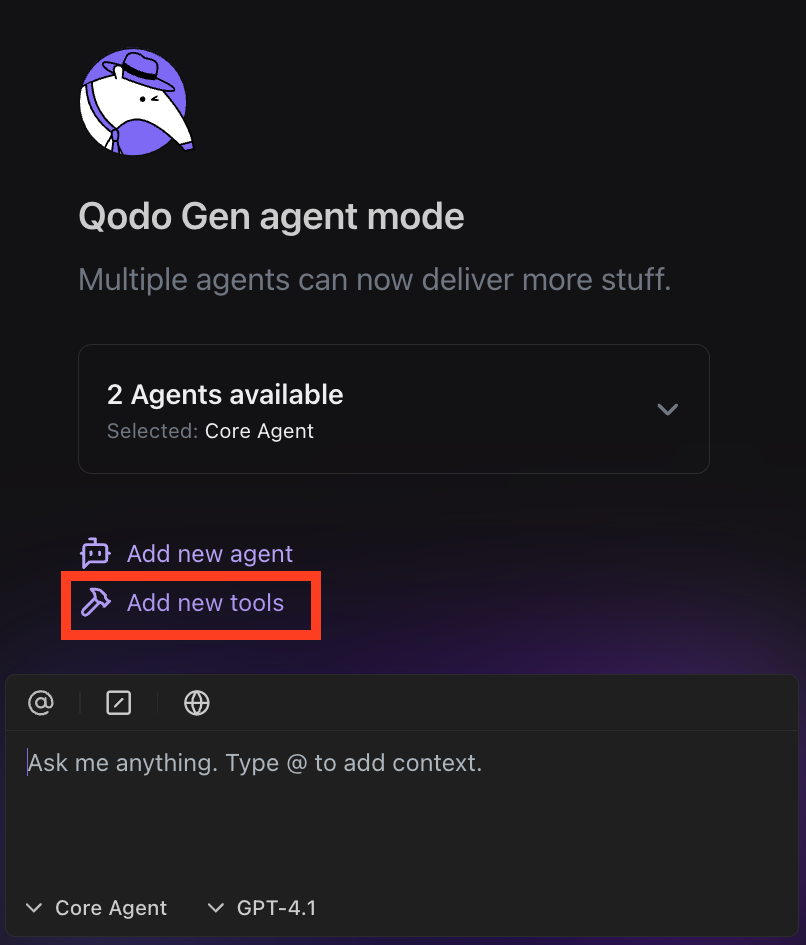
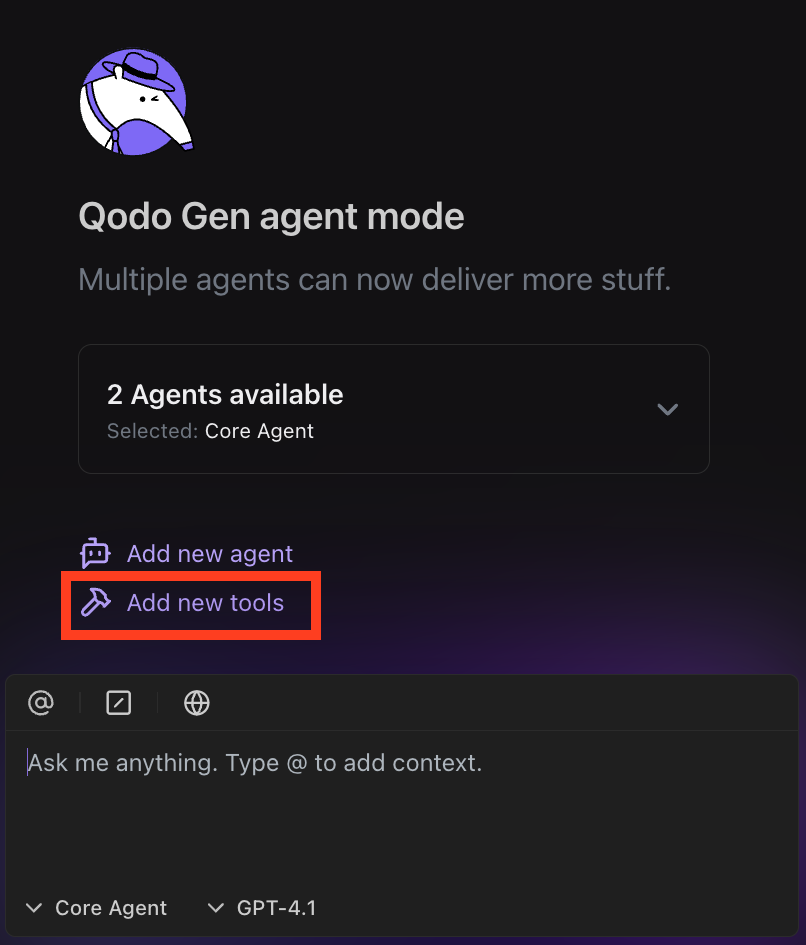
Click **Add new tools.**
## Requirements
You will need [Node.js](https://nodejs.org/) installed to run tools properly.
To verify you have Node installed, open the command line on your computer.
* On macOS, open the Terminal from your Applications folder
* On Windows, press Windows + R, type “cmd”, and press Enter
Once in the command line, verify you have Node installed by entering in the following command:
If you get an error saying “command not found” or “node is not recognized”, download Node from [nodejs.org](https://nodejs.org/).
Learn more on why Node.js is required in [Anthropic's official MCP documentation](https://modelcontextprotocol.io/quickstart/user#2-add-the-filesystem-mcp-server).
## Agentic tools configuration
**Note:**
If you're an Enterprise user, you may be unable to add new Agentic Tools if your system administrator has restricted additions in the **Agentic Tools Allow List**.
To create a tool and add it to Qodo, you need the applicable MCP server configuration.
**Qodo supports two types of MCPs:**
1. **Local MCPs** These run directly in your environment and don’t require network calls. Ideal for internal tools or logic that doesn’t rely on external APIs.
2. **Remote MCPs (SSE MCPs)** These are hosted externally and communicate via HTTP. When setting up a Remote MCP, you'll provide a URL, and optionally, you can add custom HTTP headers (e.g., for authentication).
### 1. Local MCPs
The configuration for a local MCP is usually in JSON form. For example, the [GitHub MCP server configuration](https://github.com/modelcontextprotocol/servers) is:
You can find many MCP tools and setup options in the [MCP GitHub](https://github.com/modelcontextprotocol/servers/blob/main/README.md).
### 2. Remote (SSE) MCPs
SSE (Server-Sent Events) MCPs are recommended for Enterprise environments. They are easier to manage, more secure, and ideal for external services like Jira. If you're setting up an **Allow List** in your Enterprise environment, enable SSE-based MCPs for a smoother experience.
The SSE MCPs configuration relies on a URL.
To configure this type of tool, add the following as to the Agentic Tools configuration text box:
## Create a new Agentic Tool
Once you've got your [required MCP configuration](/qodo-ide/tools-mcps/agentic-tools-mcps#agentic-tools-configuration), you can create a new Agentic Tool for Qodo's Agent to use:
**Open Qodo chat** Learn more about Agentic Mode and what it does.
**Go to the Tools Management page**
Click **Add new tools.**
 **Create a New Tool** Click **Add new MCP** button at the top left of the tools management page.
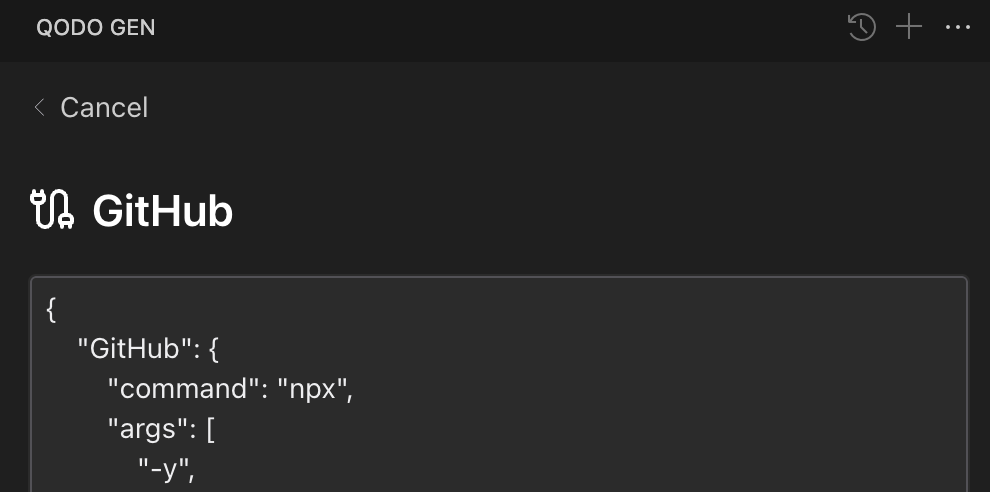
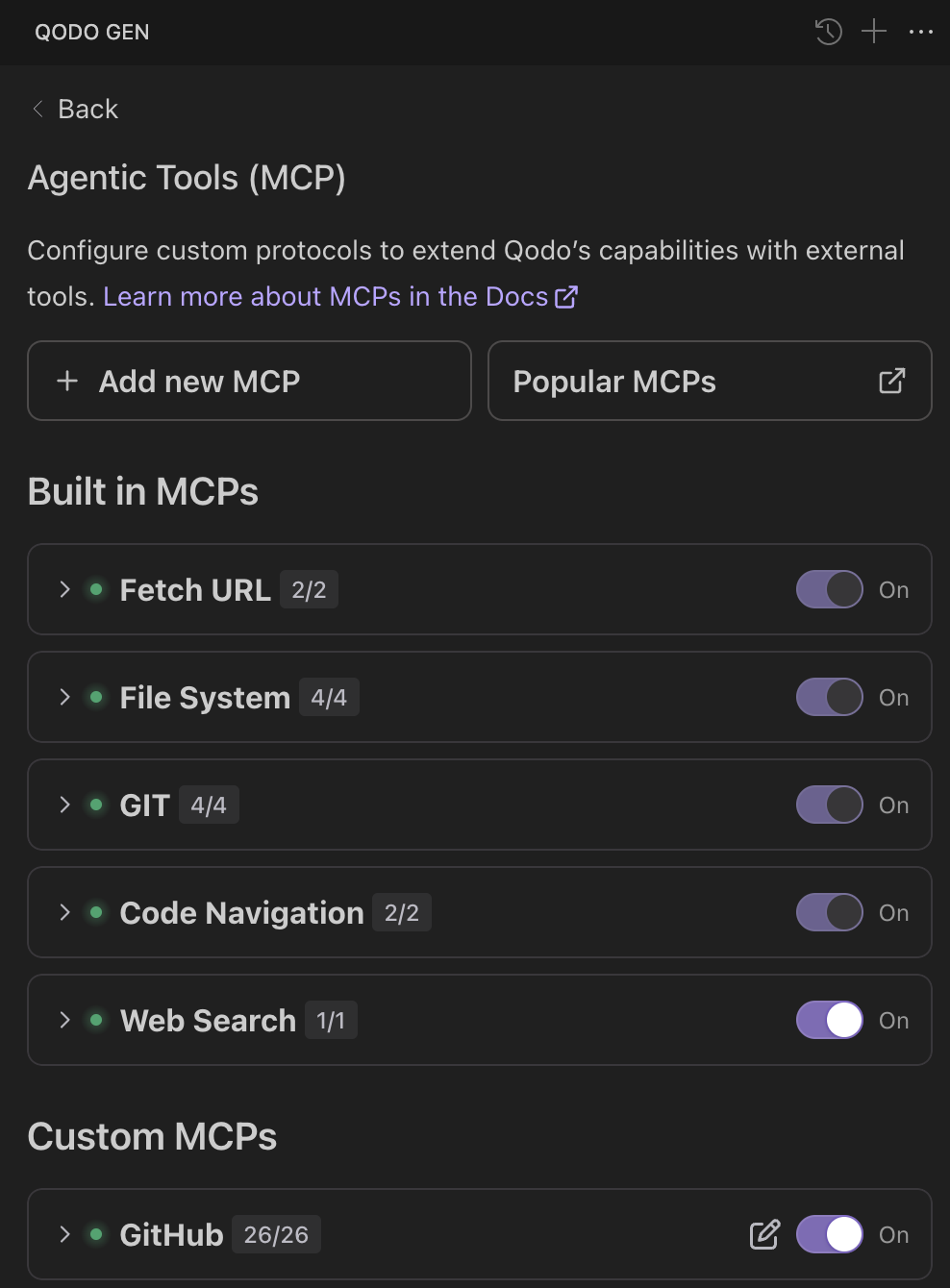 **Enter Tool Configuration Details** Paste a JSON configuration script to configure your new tool. [Learn more about tools configuration](/qodo-ide/tools-mcps/agentic-tools-mcps#agentic-tools-configuration).
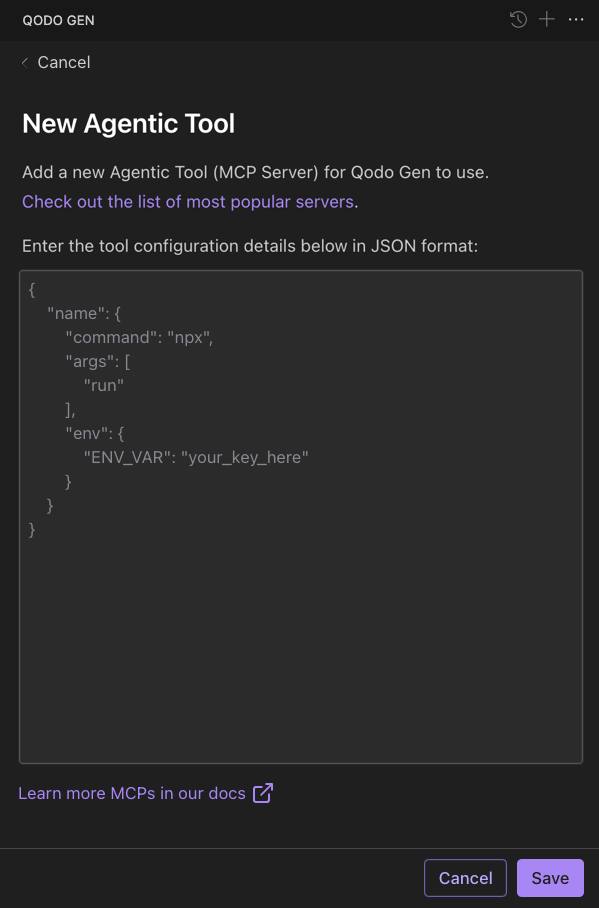 **Save and Test** Save your configuration.
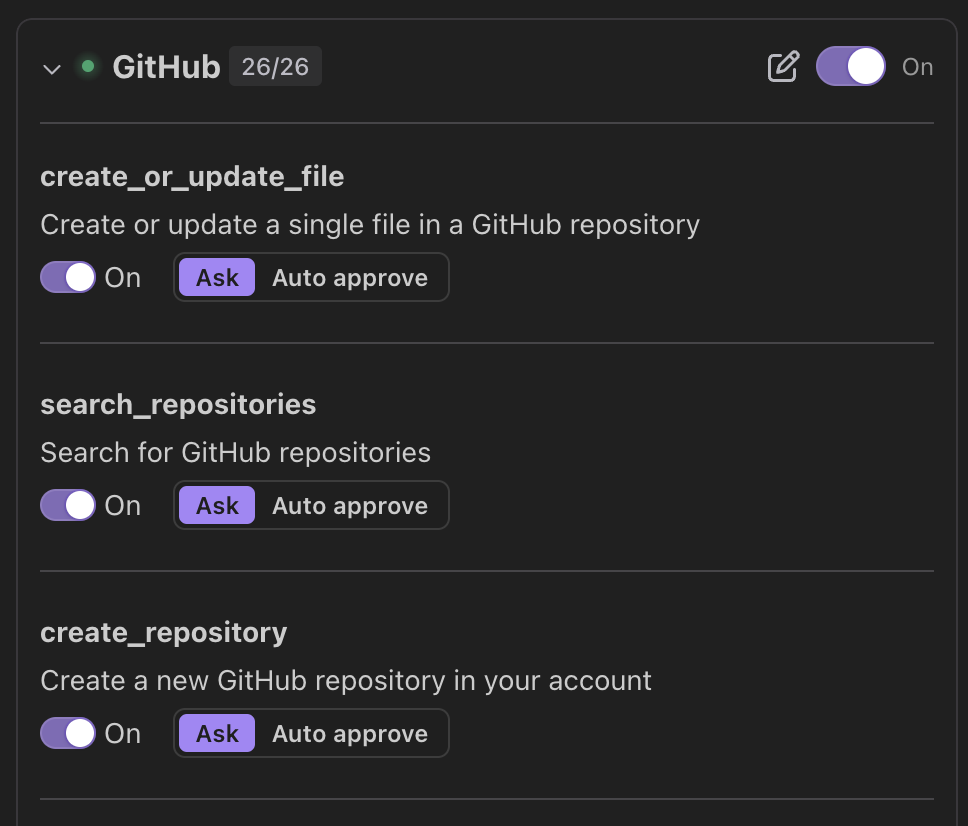
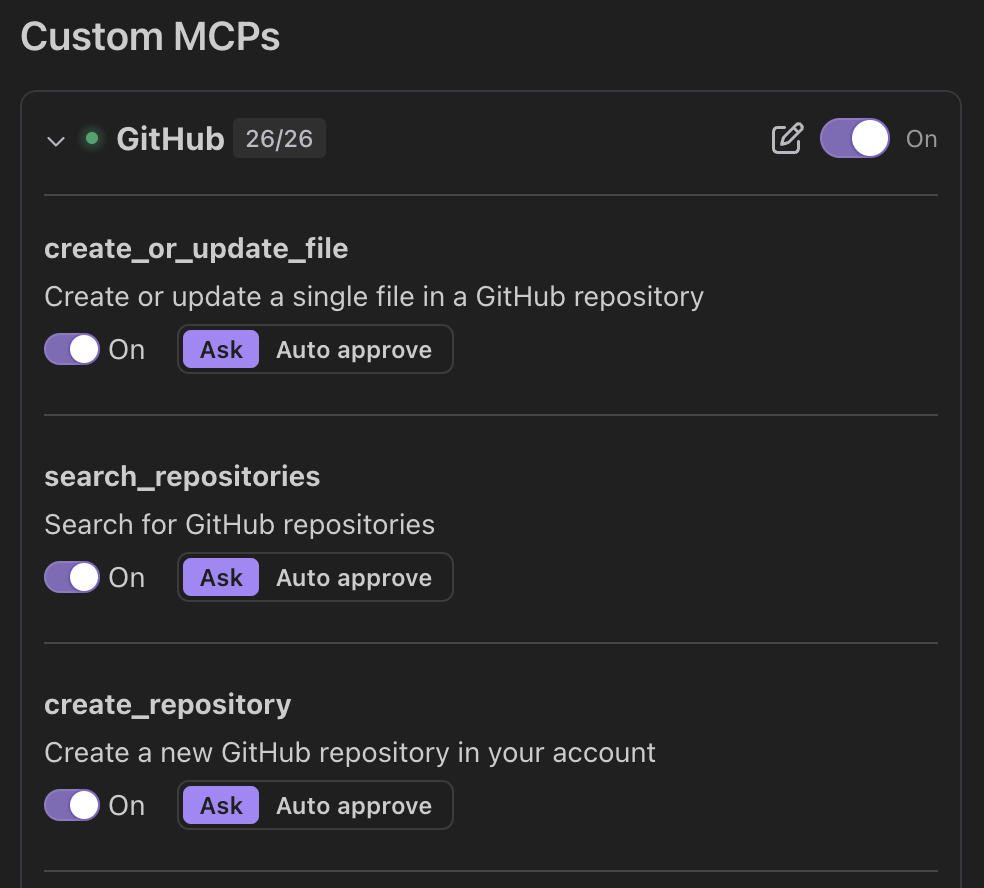
* **A green dot** will indicate a successful connection.
* A list of sub-tools will appear under the tool, indicating all the services this tool is capable of. You can toggle all sub-tools on or off.
* Click **Auto approve** to automatically approve every in-chat use of that sub-tool.
* You can turn sub-tools on or off by clicking the toggle button.
**Save and Test** Save your configuration.
* **A green dot** will indicate a successful connection.
* A list of sub-tools will appear under the tool, indicating all the services this tool is capable of. You can toggle all sub-tools on or off.
* Click **Auto approve** to automatically approve every in-chat use of that sub-tool.
* You can turn sub-tools on or off by clicking the toggle button.
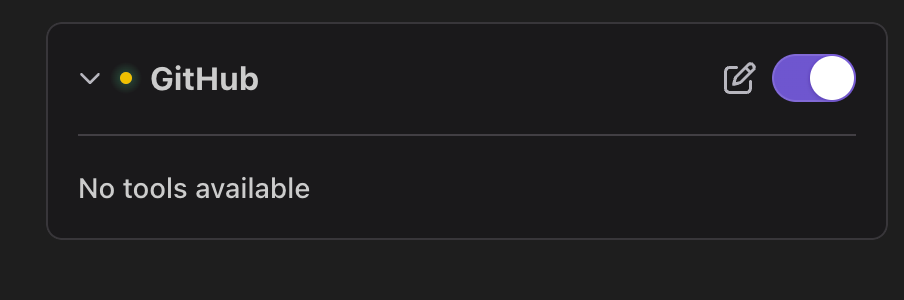
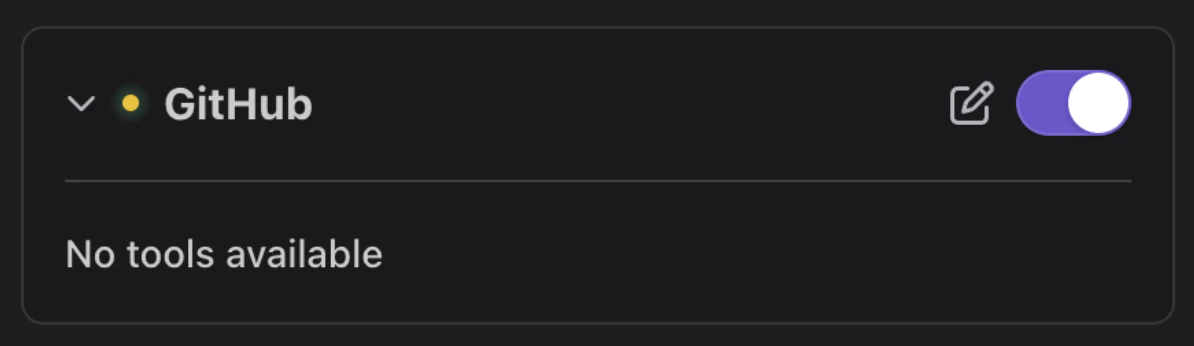
 * **A yellow dot** indicates a problem with your connection. Try checking your configuration and API keys and make sure you've set them all correctly.
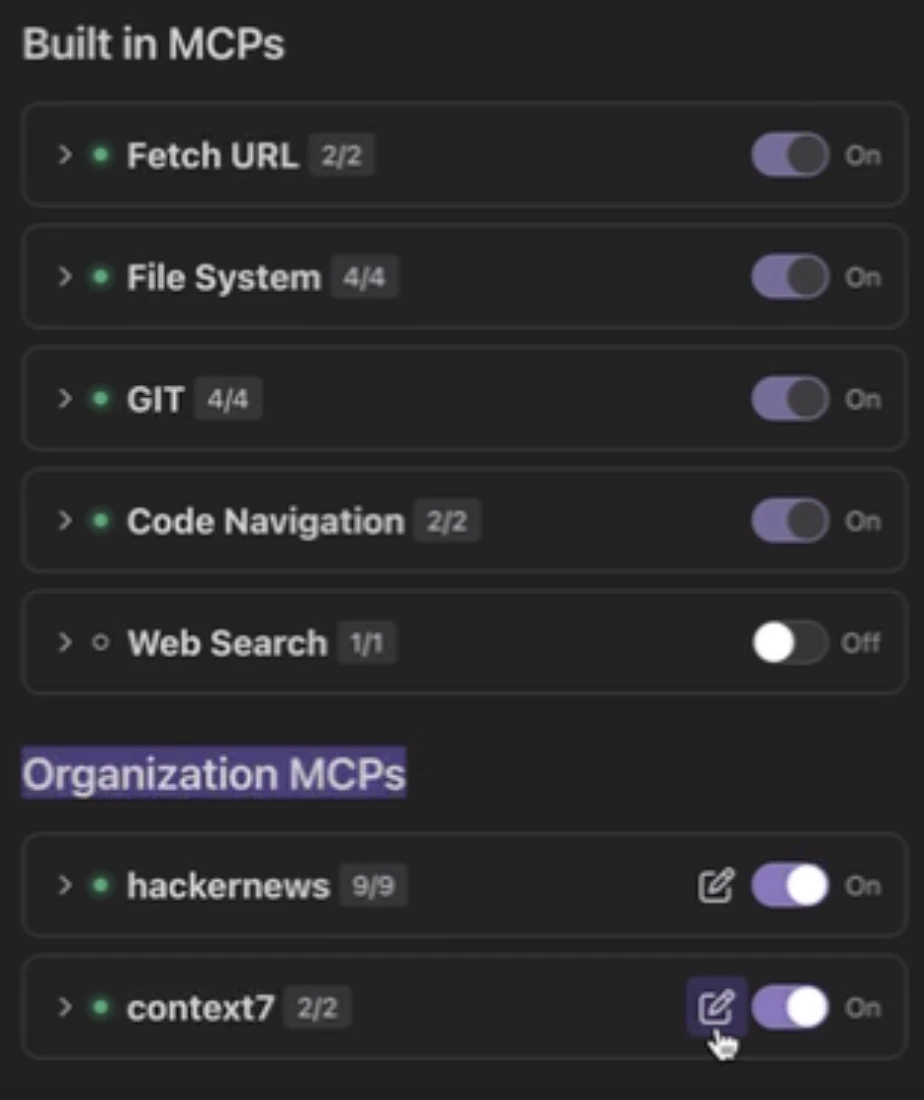
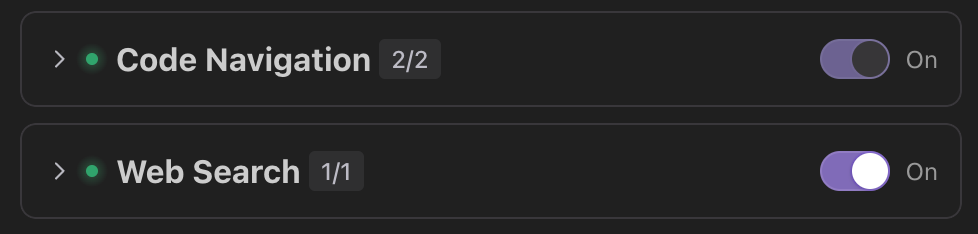
 **Modify or Delete:** You can edit or remove a tool as needed. **Some of the built-in tools, like Code Navigation, cannot be edited.**
 ## Remove or manage tools
You can scroll through all connected tools in the tools management page.
## Remove or manage tools
You can scroll through all connected tools in the tools management page.
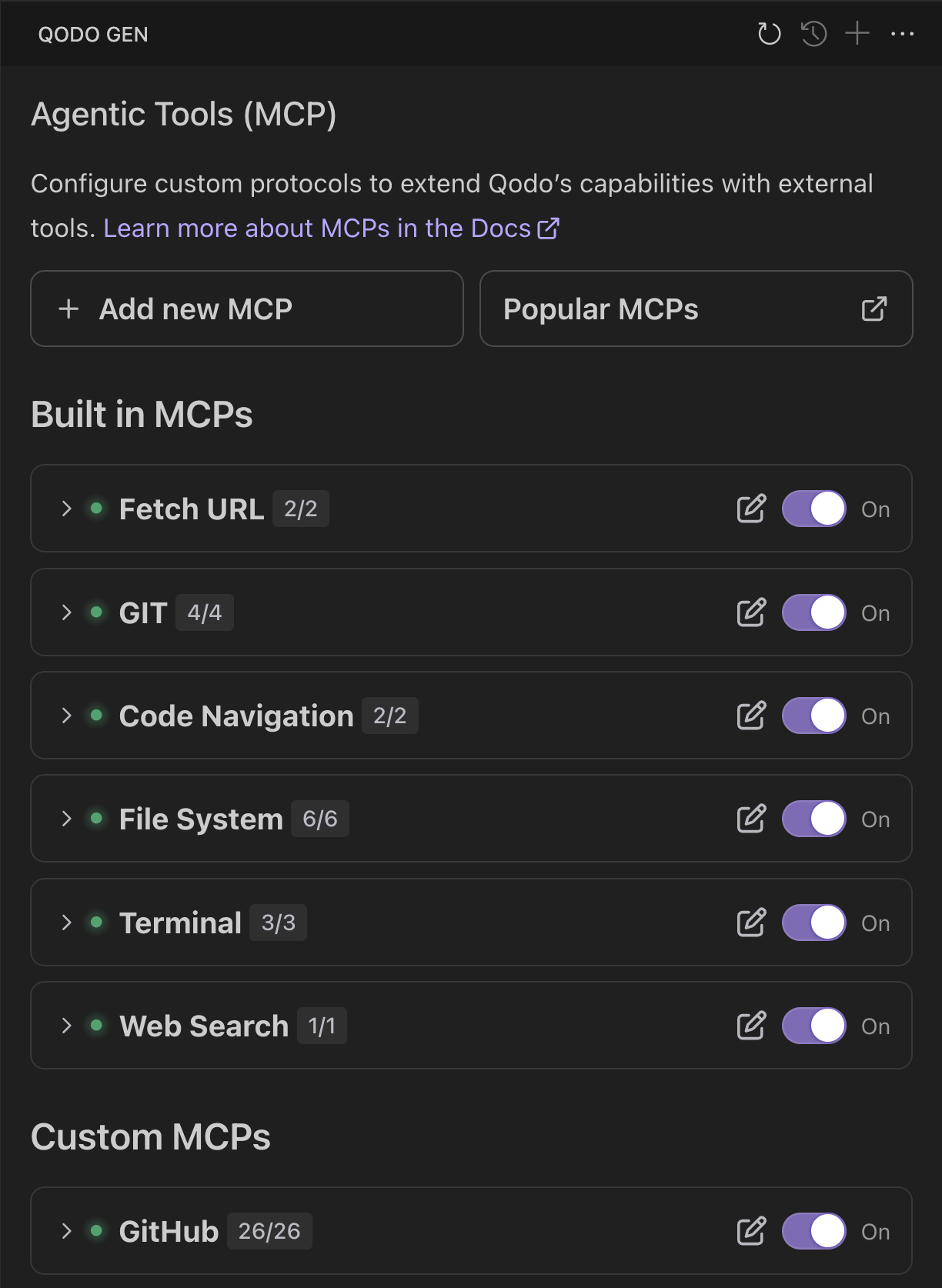 You can enable, disable, or modify the configuration of tools at any time. Click the **pen and note symbol** next to a custom tool's toggle button to modify a tool's configuration.
 Toggling a tool off will disable Qodo from using it.
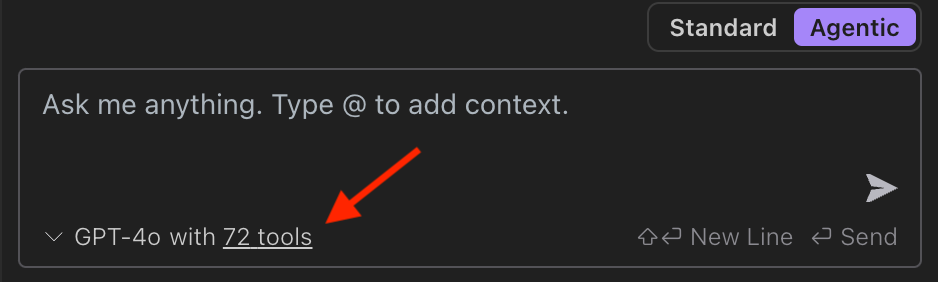
 See the number of available tools any time at the bottom of Qodo Chat, under the chatbox. Clicking on it displays a list of available tools.
 ### Manage sub-tools
Click the small arrow next to a tool's name to open a list of sub-tools, indicating all the services this tool is capable of.
You can toggle all sub-tools on or off, and set whether your approval is needed for their use.
### Manage sub-tools
Click the small arrow next to a tool's name to open a list of sub-tools, indicating all the services this tool is capable of.
You can toggle all sub-tools on or off, and set whether your approval is needed for their use.
 ## Troubleshooting
**A yellow dot** near the tool's name indicates a problem with your connection.
Try checking your configuration and API keys and make sure you've set them all correctly. Also, ensure your internet connection is stable.
## Troubleshooting
**A yellow dot** near the tool's name indicates a problem with your connection.
Try checking your configuration and API keys and make sure you've set them all correctly. Also, ensure your internet connection is stable.
 ## Agentic tools allow list
This feature is only available for Enterprise users.
The **Agentic Tools Allow List** feature enables enterprise organizations to enforce stricter governance over Agentic Tools usage in Qodo.
When enabled, this mode restricts developers to using only a predefined set of tools defined at the organization level.
This feature is ideal if you need tight control over tool configuration to comply with internal policies, reduce misconfigurations, and standardize environments.
### Activation flow
1. **Request Enablement** An organization admin submits a request to Qodo Support to enable Agentic Tools Allow List mode.
2. **Allow List Configuration** The Qodo DevOps team configures the organization's MCP allow list manually.
### Developer behavior
Once MCP Allow List mode is active:
* **View Access:** Developers can view the organization-defined tools list upon their next login to Qodo.
* **Overrides Allowed:** Developers may override values for existing environment variables listed in the allow list.
* **No Custom Agentic Tools:** Developers **cannot** add new or custom tools outside the allow list.
## Agentic tools allow list
This feature is only available for Enterprise users.
The **Agentic Tools Allow List** feature enables enterprise organizations to enforce stricter governance over Agentic Tools usage in Qodo.
When enabled, this mode restricts developers to using only a predefined set of tools defined at the organization level.
This feature is ideal if you need tight control over tool configuration to comply with internal policies, reduce misconfigurations, and standardize environments.
### Activation flow
1. **Request Enablement** An organization admin submits a request to Qodo Support to enable Agentic Tools Allow List mode.
2. **Allow List Configuration** The Qodo DevOps team configures the organization's MCP allow list manually.
### Developer behavior
Once MCP Allow List mode is active:
* **View Access:** Developers can view the organization-defined tools list upon their next login to Qodo.
* **Overrides Allowed:** Developers may override values for existing environment variables listed in the allow list.
* **No Custom Agentic Tools:** Developers **cannot** add new or custom tools outside the allow list.