> ## Documentation Index
> Fetch the complete documentation index at: https://docs.qodo.ai/llms.txt
> Use this file to discover all available pages before exploring further.
# VSCode installation
Qodo IDE plugin, formerly Qodo Gen, brings local code review workflows to JetBrains and VS Code as part of the Qodo Platform.
## Install Qodo IDE plugin
Visit [Qodo's page on Visual Studio Marketplace](https://marketplace.visualstudio.com/items?itemName=Codium.codium) to install Qodo.
Alternatively, follow these steps to install the plugin from within VSCode:
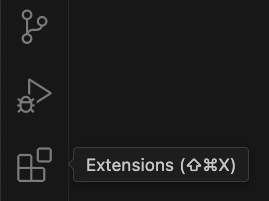
In VSCode, open the Extensions menu by clicking the Extensions icon in the Activity Bar on the left side.
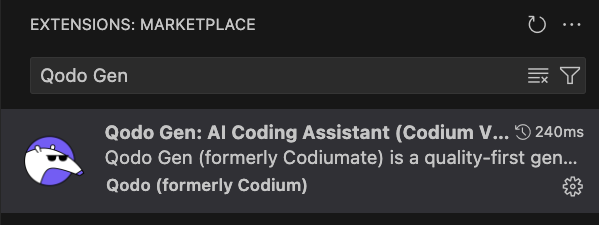
 Type **Qodo** in the search bar.
Click the Install button.
Type **Qodo** in the search bar.
Click the Install button.
 ## Activate Qodo
Following installation, restart all extensions to activate Qodo IDE Plugin.
## Activate Qodo
Following installation, restart all extensions to activate Qodo IDE Plugin.
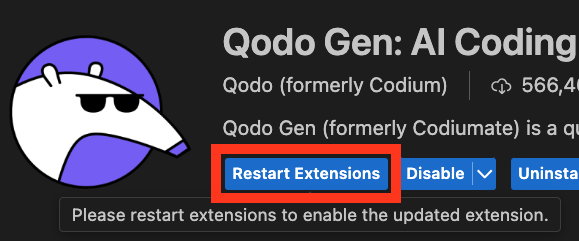 After restarting extensions, the Qodo icon should appear in the Activity Bar on the left side.

 ## Sign in to Enterprise plan
If you're on an Enterprise plan, sign in with your work email using the registered domain. Qodo automatically connects you to your organization's workspace. Select one of the sign-in methods to complete the process.
If your organization has Single Sign-On (SSO) configured, you may also use this method for an even smoother login process.
## Sign in to Enterprise plan
If you're on an Enterprise plan, sign in with your work email using the registered domain. Qodo automatically connects you to your organization's workspace. Select one of the sign-in methods to complete the process.
If your organization has Single Sign-On (SSO) configured, you may also use this method for an even smoother login process.