> ## Documentation Index
> Fetch the complete documentation index at: https://docs.qodo.ai/llms.txt
> Use this file to discover all available pages before exploring further.
# JetBrains installation
Qodo IDE plugin, formerly Qodo Gen, brings local code review workflows to JetBrains and VS Code as part of the Qodo Platform.
## Install Qodo
Visit [Qodo's page on JetBrains Marketplace](https://plugins.jetbrains.com/plugin/21206-qodo-gen-formerly-codiumate-) to install Qodo IDE Plugin.
Alternatively, follow these steps to install the plugin from within your JetBrains IDE:
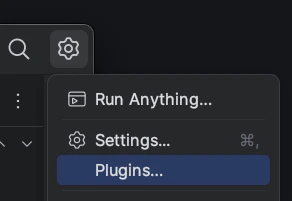
Open the settings menu in your JetBrains IDE by clicking the cog wheel on the top right.
Select **Plugins**.
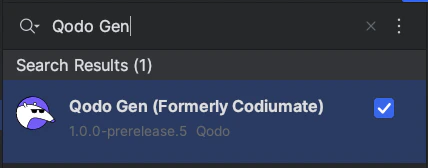
 Type **Qodo** in the search bar.
Click the Install button.
Type **Qodo** in the search bar.
Click the Install button.
 ## Activate Qodo IDE plugin
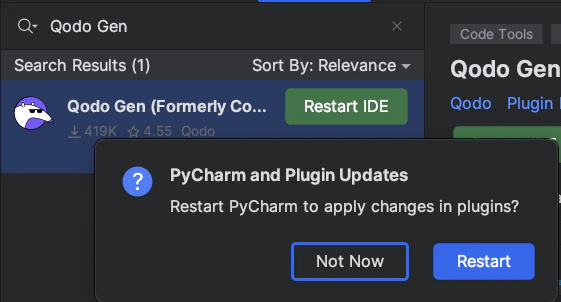
Following installation, restart your IDE to activate the Qodo IDE plugin.
After restarting, the Qodo icon should appear in the IDE's sidebar on the left side.
## Activate Qodo IDE plugin
Following installation, restart your IDE to activate the Qodo IDE plugin.
After restarting, the Qodo icon should appear in the IDE's sidebar on the left side.
 ## Android Studio support for JCEF
Qodo Plugin uses JCEF (Java Chromium Embedded Framework) to create a webview component in the plugin's tool window. By default, most IntelliJ-based IDEs come with a boot runtime that includes JCEF. However, Android Studio (and some other versions of IntelliJ-based IDEs) utilize a boot runtime lacking JCEF, which prevents the plugin from loading in these environments.
Also in some cases JCEF could persist but not be initialized.
To address this issue:
Navigate to the "Help" -> "Find Action..." and find (type) "Registry". Here disable `ide.browser.jcef.sandbox.enable` option.
Navigate to the "Help" -> "Find Action..." and find (type) "Choose Boot Runtime for the IDE" dialog. Here, you can select a boot runtime equipped with JCEF.
Restart the IDE.
If the issue persists, please open an issue in our [GitHub issue tracker](https://github.com/Codium-ai/codiumai-jetbrains-release/issues) or [contact support](/qodo-support).
## Android Studio support for JCEF
Qodo Plugin uses JCEF (Java Chromium Embedded Framework) to create a webview component in the plugin's tool window. By default, most IntelliJ-based IDEs come with a boot runtime that includes JCEF. However, Android Studio (and some other versions of IntelliJ-based IDEs) utilize a boot runtime lacking JCEF, which prevents the plugin from loading in these environments.
Also in some cases JCEF could persist but not be initialized.
To address this issue:
Navigate to the "Help" -> "Find Action..." and find (type) "Registry". Here disable `ide.browser.jcef.sandbox.enable` option.
Navigate to the "Help" -> "Find Action..." and find (type) "Choose Boot Runtime for the IDE" dialog. Here, you can select a boot runtime equipped with JCEF.
Restart the IDE.
If the issue persists, please open an issue in our [GitHub issue tracker](https://github.com/Codium-ai/codiumai-jetbrains-release/issues) or [contact support](/qodo-support).