> ## Documentation Index
> Fetch the complete documentation index at: https://docs.qodo.ai/llms.txt
> Use this file to discover all available pages before exploring further.
# Chat preferences
Enterprise
Qodo IDE plugin, formerly Qodo Gen, brings local code review workflows to JetBrains and VS Code as part of the Qodo Platform.
Set Chat Preferences to customize your Qodo IDE Plugin experience with custom instructions and other settings.
## How to get to the chat preferences page
Open Qodo Chat by clicking the Qodo icon in your Extensions or Plugins bar.
Click the three dots icon on the top right.
Select **Chat Preferences**.
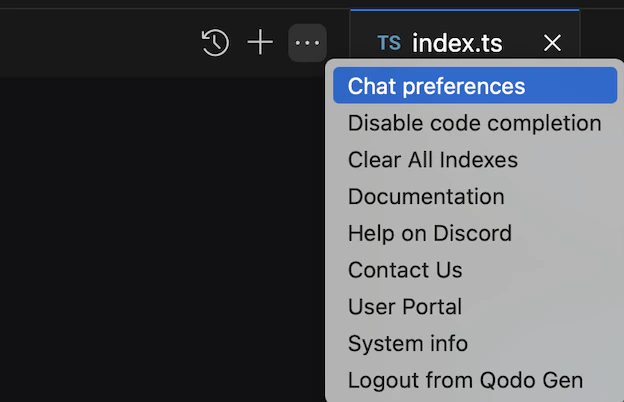 ## Configure chat preferences
In the Chat Preferences window, you can configure:
## Custom instructions
Add custom instructions for Qodo Chat to follow in conversations.
To configure instructions for a specific command, click **Add a specific command**. To set general instructions for all commands, add them under **All messages**.
## Terminal commands
These preferences affect the [Terminal Agentic Tool](/qodo-ide/tools-mcps/agentic-tools-mcps).
1. **Allowed commands**: Set terminal commands that the agent runs automatically without approval. All other terminal commands require approval.
2. **Blocked commands:** Set terminal commands that the agent automatically blocks.
## Configure chat preferences
In the Chat Preferences window, you can configure:
## Custom instructions
Add custom instructions for Qodo Chat to follow in conversations.
To configure instructions for a specific command, click **Add a specific command**. To set general instructions for all commands, add them under **All messages**.
## Terminal commands
These preferences affect the [Terminal Agentic Tool](/qodo-ide/tools-mcps/agentic-tools-mcps).
1. **Allowed commands**: Set terminal commands that the agent runs automatically without approval. All other terminal commands require approval.
2. **Blocked commands:** Set terminal commands that the agent automatically blocks.