> ## Documentation Index
> Fetch the complete documentation index at: https://docs.qodo.ai/llms.txt
> Use this file to discover all available pages before exploring further.
# Chat history
Enterprise
Qodo IDE plugin, formerly Qodo Gen, brings local code review workflows to JetBrains and VS Code as part of the Qodo Platform.
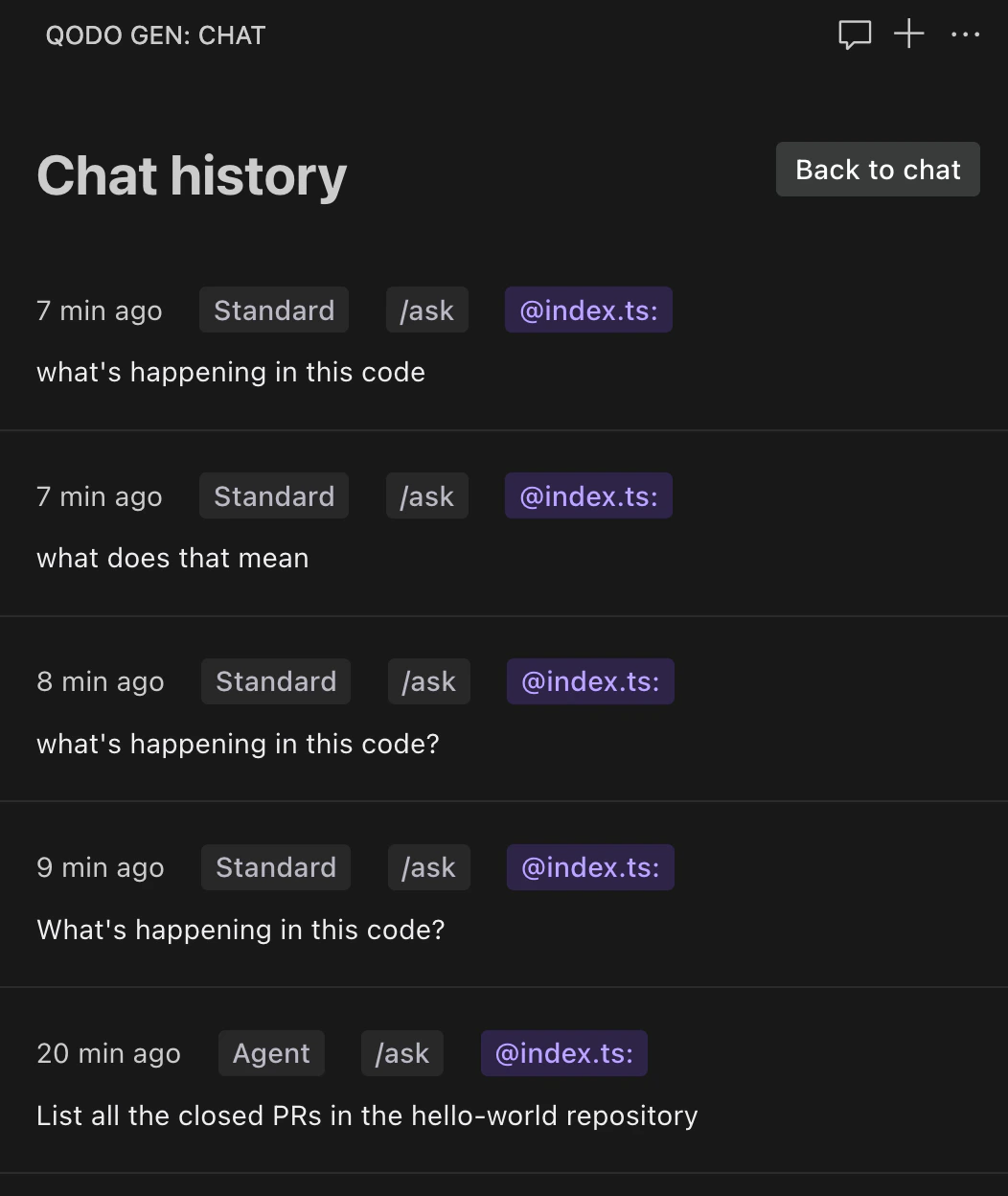
Qodo Chat maintains a history of your 20 most recent conversations, allowing you to review past interactions, refresh your memory, or explore new topics. You can continue a past chat to dive deeper into a topic or request additional information.
## Using chat history
Call a command by typing it in the chatbox.
At the end of Qodo's response, continue the conversation as long as you wish. Qodo will maintain the context of your initial query, providing tailored responses to your follow-up questions.
Click the **+** button on the top right of the chat interface to start a new conversation. Your current chat history will be cleared, and Qodo will be ready to start a new conversation.
Next to the **New Chat** button, find the History button (clock with a round arrow) and click it. The chat history interface opens. You can see your latest 20 chats with Qodo and select any chat to continue the conversation.
Your chat history is saved between sessions, allowing you to revisit previous conversations even after closing your IDE. Chat history is saved on a per-project basis, so you only see conversations relevant to your current project.
 ## Chat history file
Chat history is saved locally in the user's home directory at `.qodo/history`. The file is named using a hash of the workspace path to ensure uniqueness.
Qodo automatically maintains this file and deletes any history not accessed in over 90 days.
## History migration
**VSCode users**: VSCode does not migrate chat history during upgrades. Installing a new version removes previous conversations.
**JetBrains users**: JetBrains migrates chat history during upgrades. Previous conversations remain available after updating your IDE.
## Chat history file
Chat history is saved locally in the user's home directory at `.qodo/history`. The file is named using a hash of the workspace path to ensure uniqueness.
Qodo automatically maintains this file and deletes any history not accessed in over 90 days.
## History migration
**VSCode users**: VSCode does not migrate chat history during upgrades. Installing a new version removes previous conversations.
**JetBrains users**: JetBrains migrates chat history during upgrades. Previous conversations remain available after updating your IDE.