> ## Documentation Index
> Fetch the complete documentation index at: https://docs.qodo.ai/llms.txt
> Use this file to discover all available pages before exploring further.
# Workflows
Qodo IDE plugin, formerly Qodo Gen, brings local code review workflows to JetBrains and VS Code as part of the Qodo Platform.
Workflows are [**custom agents**](/qodo-ide/agent/what-is-an-agent) that can run directly in the IDE. They are single-task executors, triggered to perform a specific job step by step.
Workflows allow you to define agent behaviors, instructions, and tools, but with a visual interface integrated into your development environment.
Use workflows to automate processes, define reusable steps, and interact with Qodo’s powerful [Agentic Tools](/qodo-ide/tools-mcps/agentic-tools-mcps). All without leaving your editor.
## Get started
### How to use workflows
To use a workflow, call it with its applicable slash command.
In the chatbox in the bottom of the Qodo panel, type / followed by the required workflow's name.
For example:
```bash theme={null}
/my-workflow-name
```
Once run, the workflows executes a single, focused job and then exits. It does **not** maintain ongoing context or remain active after completing its task.
You can either create a new workflow or [use Qodo's ready-to-use default workflows](/qodo-ide/agent/workflows/available-workflows).
### Create a new workflow
To create a new agent:
Type `/` in the chat input, or click the `/` button, to open the workflow menu.
Select `Create new workflow` in the workflow menu, then press Enter.
The workflow creation panel will open.
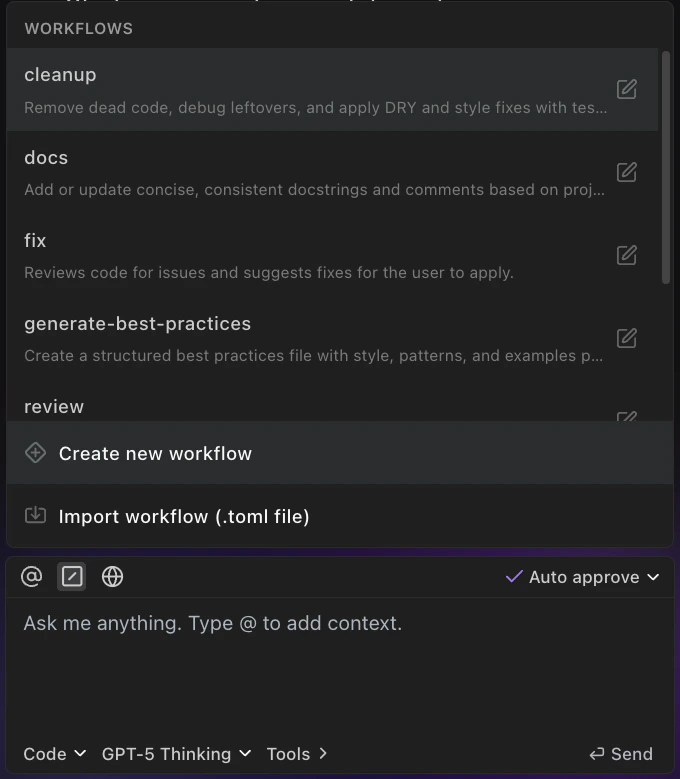 **Name** your workflow (e.g., `review_agent`)
**Steps:** Enter natural language instructions for your agent to follow, step-by-step. For example: *"1. Review my code changes. 2. Identify potential issues such as anti-patterns, missing error handling, or excessive complexity. 3. Provide a summary of the findings with recommended improvements.*"
**MCP Tools:** From the list, select which **MCP tools** the agent should have access to (e.g., `filesystem`, `github`, `shell`).
**Preferable model**: From the list, select a preferable AI model for your workflow to use.
**Description**: Add a description for your agent, explaining what it does.
Click the **Save** button.
Your newly created workflow is ready to run immediately.
In the chatbox in the bottom of the Qodo panel, type `/` followed by the workflow's name.
### Sharing and reusing workflows
Qodo makes it easy to collaborate by letting you share and reuse custom workflows across your team.
**Share button**
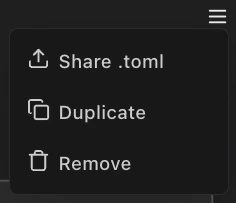
Click the share button in a workflow's configuration page to share your workflow (click the menu button on the top right, then select **Share .toml**).
This allows you to export the workflow's configuration [`as a .toml file`](/qodo-ide/agent/workflows/agent-toml-file), so others can easily import and use it in their environment.
**Name** your workflow (e.g., `review_agent`)
**Steps:** Enter natural language instructions for your agent to follow, step-by-step. For example: *"1. Review my code changes. 2. Identify potential issues such as anti-patterns, missing error handling, or excessive complexity. 3. Provide a summary of the findings with recommended improvements.*"
**MCP Tools:** From the list, select which **MCP tools** the agent should have access to (e.g., `filesystem`, `github`, `shell`).
**Preferable model**: From the list, select a preferable AI model for your workflow to use.
**Description**: Add a description for your agent, explaining what it does.
Click the **Save** button.
Your newly created workflow is ready to run immediately.
In the chatbox in the bottom of the Qodo panel, type `/` followed by the workflow's name.
### Sharing and reusing workflows
Qodo makes it easy to collaborate by letting you share and reuse custom workflows across your team.
**Share button**
Click the share button in a workflow's configuration page to share your workflow (click the menu button on the top right, then select **Share .toml**).
This allows you to export the workflow's configuration [`as a .toml file`](/qodo-ide/agent/workflows/agent-toml-file), so others can easily import and use it in their environment.
 **Edit workflow**
Click the edit button next to a workflow's name to edit its configuration.
**Edit workflow**
Click the edit button next to a workflow's name to edit its configuration.
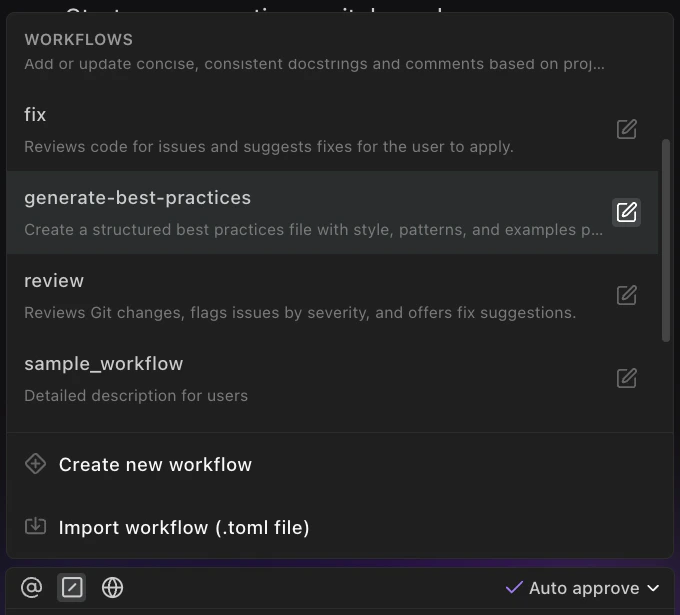 **Import workflow from file**
From the workflow menu, choose to upload a `.toml` file to import an existing workflow into Qodo. [`Learn more about agent .toml file`](/qodo-ide/agent/workflows/agent-toml-file).
This makes it simple to standardize useful tools across your organization, or share helpful setups with teammates.
**Import workflow from file**
From the workflow menu, choose to upload a `.toml` file to import an existing workflow into Qodo. [`Learn more about agent .toml file`](/qodo-ide/agent/workflows/agent-toml-file).
This makes it simple to standardize useful tools across your organization, or share helpful setups with teammates.