> ## Documentation Index
> Fetch the complete documentation index at: https://docs.qodo.ai/llms.txt
> Use this file to discover all available pages before exploring further.
# Install Qodo on Bitbucket Cloud (on-premises)
> Install and configure the Bitbucket Cloud integration for Qodo on-premises deployments.
This guide helps you install and configure Qodo on-premises with your Bitbucket Cloud workspace.
Assuming your Qodo environment is already set up, configuring Bitbucket typically takes about 10 minutes.
Once complete, Qodo processes pull requests and delivers actionable output such as code reviews and insights, directly in your pull requests.
## Prerequisites
Before you begin, ensure you have:
* **A Qodo on-premises deployment.** You will receive your Qodo on-premises URL from your Qodo Account Manager. It typically looks like: `qodo-merge.yourcompanyname.qodo.ai`
* **System administrator access to your Bitbucket workspace.**
## Installation
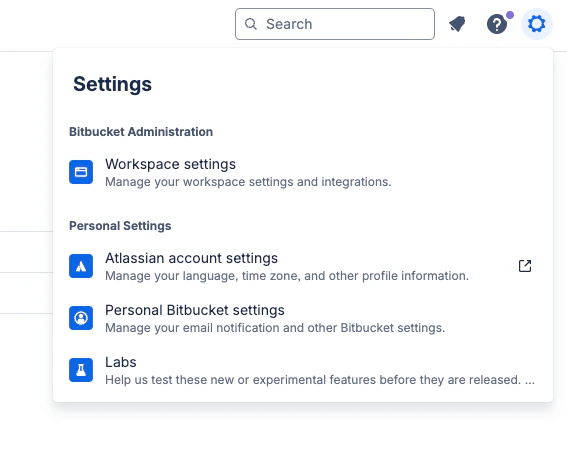
Navigate to **Settings** (cog wheel) → **Workspace settings**.
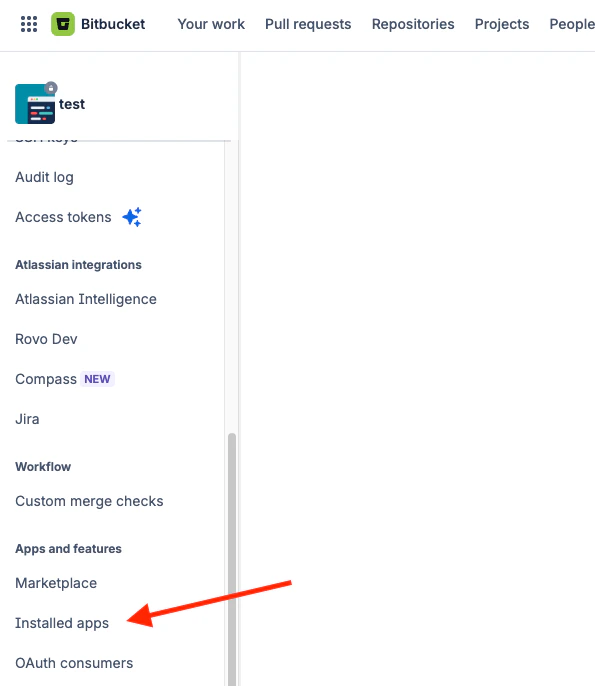
 On the left-hand side menu, navigate to **Installed apps**.
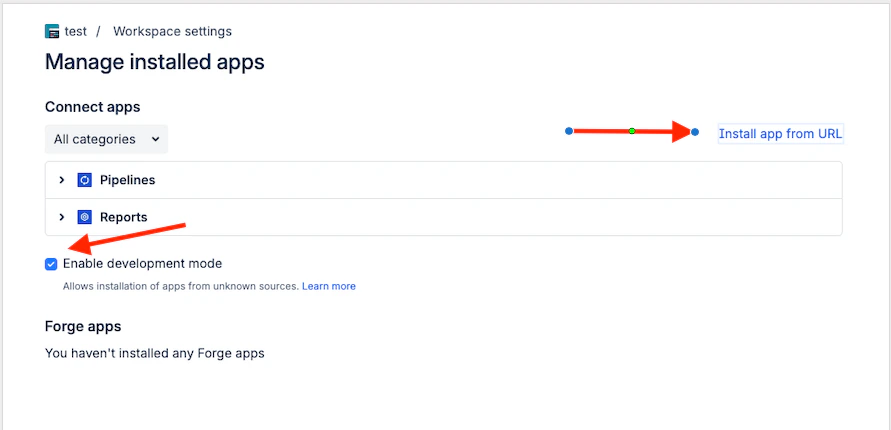
 Enable **Development mode** to allow app installation, then click **Install app from URL**.
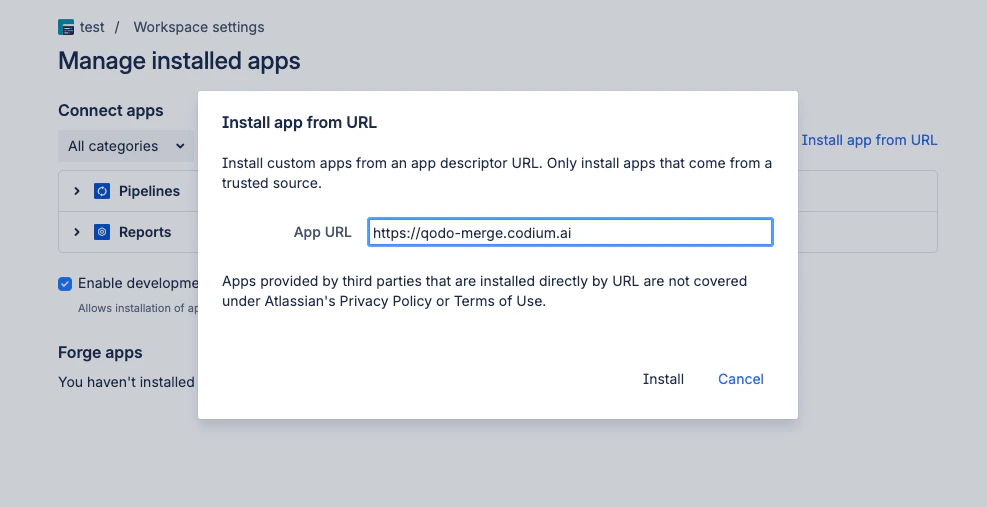
 Enter your Qodo on-premises URL and click **Install**.
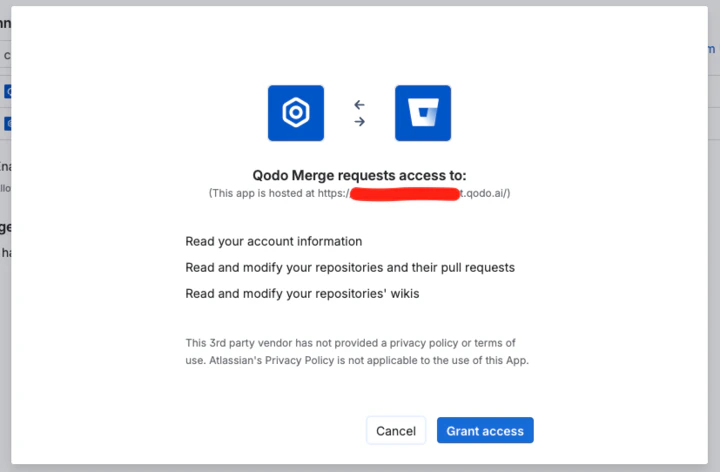
 In the popup displayed, click **Grant access** to the app.
 Add your Bitbucket workspace ID to your Qodo on-premises configuration to complete the setup.
Qodo is now enabled for all repositories within your Bitbucket workspace.
## Verify the installation
### Run a test pull request
Open a new pull request in one of the integrated repositories and confirm Qodo is triggered automatically.
Add a comment using one of the supported commands:
* `/agentic_describe`
* `/agentic_review`
Qodo should respond with a review or PR summary directly on the pull request.
## Next steps
[Using Qodo in PRs](/code-review/get-started/use-qodo-in-prs): Get the most out of Qodo.
Add your Bitbucket workspace ID to your Qodo on-premises configuration to complete the setup.
Qodo is now enabled for all repositories within your Bitbucket workspace.
## Verify the installation
### Run a test pull request
Open a new pull request in one of the integrated repositories and confirm Qodo is triggered automatically.
Add a comment using one of the supported commands:
* `/agentic_describe`
* `/agentic_review`
Qodo should respond with a review or PR summary directly on the pull request.
## Next steps
[Using Qodo in PRs](/code-review/get-started/use-qodo-in-prs): Get the most out of Qodo.