> ## Documentation Index
> Fetch the complete documentation index at: https://docs.qodo.ai/llms.txt
> Use this file to discover all available pages before exploring further.
# Integrate Qodo with Jira
## Jira Cloud
Jira is supported as an external ticketing integration and can be used with supported repository platforms by referencing tickets in the PR description or branch name.
### Jira app authentication
The recommended way to authenticate with Jira Cloud is to install the Qodo app in your Jira Cloud instance. This will allow Qodo to access Jira data on your behalf.
Go to the Qodo Integrations page.
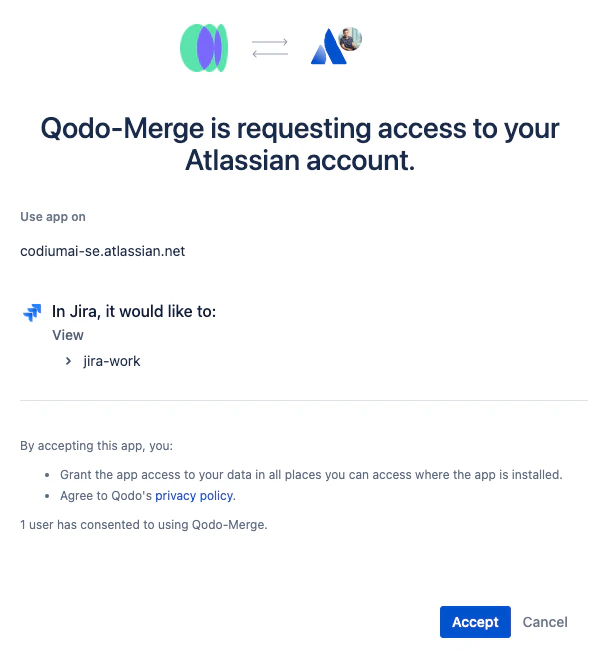
Click **Connect Jira Cloud** to connect the Jira Cloud app.
Click **Accept**.
 After installing the app, you’ll be redirected to the Qodo registration page with a confirmation message.
Qodo can now fetch Jira ticket context for your pull requests.
## Jira Data Center/Server
### Personal Access Token (PAT) authentication
Authenticate with Jira Data Center or Server using a Personal Access Token (PAT).
Add the following values to your configuration file, environment variables, or secrets file:
```bash theme={null}
[jira]
jira_base_url = "https://jira.company.com"
jira_api_token = "server_pat_token"
```
### Validate PAT authentication via Python script
If you’re experiencing issues retrieving tickets in Qodo when using PAT authentication, you can validate the setup with a Python script. The steps below help verify that PAT authentication is working correctly and that Jira ticket details are accessible.
Run:
```bash theme={null}
pip install jira==3.8.0
```
Run the following Python script. Make sure to replace the placeholders with your actual values:
```python expandable theme={null}
from jira import JIRA
if __name__ == "__main__":
try:
# Jira server URL
server = "https://..."
# Jira PAT token
token_auth = "..."
# Jira ticket code (e.g. "PROJ-123")
ticket_id = "..."
print("Initializing JiraServerTicketProvider with JIRA server")
# Initialize JIRA client
jira = JIRA(
server=server,
token_auth=token_auth,
timeout=30
)
if jira:
print(f"JIRA client initialized successfully")
else:
print("Error initializing JIRA client")
# Fetch ticket details
ticket = jira.issue(ticket_id)
print(f"Ticket title: {ticket.fields.summary}")
except Exception as e:
print(f"Error fetching JIRA ticket details: {e}")
```
## How to link a PR to a Jira ticket
Qodo automatically detects Jira tickets using one of the following methods:
### Method 1: PR description reference
Include a ticket reference in your pull request description using either:
* The full Jira ticket URL: `https://.atlassian.net/browse/`
* The shortened ticket ID (for example, `ISSUE-123`)
For shortened ticket IDs, the Jira base URL must be configured (see below).
### Method 2: Branch name detection
Prefix your branch name with the ticket ID, for example:
* `ISSUE-123-feature-description`
* `feature/ISSUE-123/feature-description`
## Jira base URL
For shortened ticket IDs or branch name detection (Jira Cloud), configure the Jira base URL in your configuration file under the `[jira]` section:
```bash theme={null}
[jira]
jira_base_url = "https://.atlassian.net"
```
Where `` is your Jira organization identifier (for example, `mycompany` for `https://mycompany.atlassian.net`).
## Multi-JIRA server configuration
Qodo supports connecting to multiple JIRA servers using different authentication methods.
### PAT auth
Configure multiple servers using Personal Access Token authentication in your [configuration file](/code-review/get-started/configuration-overview/configuration-file).
**Example Configuration:**
```js theme={null}
[jira]
# List of JIRA server URLs
jira_servers = ["https://server1.jira.com", "https://server2.jira.com"]
# List of PAT tokens
jira_api_token = ["pat_token_1", "pat_token_2"]
# Default server for ticket IDs
# Each repository can configure its own jira_base_url in a local config file
# to choose which server to use by default.
jira_base_url = "https://server1.jira.com"
```
### Jira Cloud app
For Jira Cloud instances using app authentication:
1. Install the Qodo app on each Jira Cloud instance you want to connect.
2. In your configuration file, set the default server for ticket ID resolution:
```bash theme={null}
[jira]
jira_base_url = "https://primary-team.atlassian.net"
```
Full URLs (for example, `https://other-team.atlassian.net/browse/TASK-456`) automatically resolve to the correct connected Jira instance.
After installing the app, you’ll be redirected to the Qodo registration page with a confirmation message.
Qodo can now fetch Jira ticket context for your pull requests.
## Jira Data Center/Server
### Personal Access Token (PAT) authentication
Authenticate with Jira Data Center or Server using a Personal Access Token (PAT).
Add the following values to your configuration file, environment variables, or secrets file:
```bash theme={null}
[jira]
jira_base_url = "https://jira.company.com"
jira_api_token = "server_pat_token"
```
### Validate PAT authentication via Python script
If you’re experiencing issues retrieving tickets in Qodo when using PAT authentication, you can validate the setup with a Python script. The steps below help verify that PAT authentication is working correctly and that Jira ticket details are accessible.
Run:
```bash theme={null}
pip install jira==3.8.0
```
Run the following Python script. Make sure to replace the placeholders with your actual values:
```python expandable theme={null}
from jira import JIRA
if __name__ == "__main__":
try:
# Jira server URL
server = "https://..."
# Jira PAT token
token_auth = "..."
# Jira ticket code (e.g. "PROJ-123")
ticket_id = "..."
print("Initializing JiraServerTicketProvider with JIRA server")
# Initialize JIRA client
jira = JIRA(
server=server,
token_auth=token_auth,
timeout=30
)
if jira:
print(f"JIRA client initialized successfully")
else:
print("Error initializing JIRA client")
# Fetch ticket details
ticket = jira.issue(ticket_id)
print(f"Ticket title: {ticket.fields.summary}")
except Exception as e:
print(f"Error fetching JIRA ticket details: {e}")
```
## How to link a PR to a Jira ticket
Qodo automatically detects Jira tickets using one of the following methods:
### Method 1: PR description reference
Include a ticket reference in your pull request description using either:
* The full Jira ticket URL: `https://.atlassian.net/browse/`
* The shortened ticket ID (for example, `ISSUE-123`)
For shortened ticket IDs, the Jira base URL must be configured (see below).
### Method 2: Branch name detection
Prefix your branch name with the ticket ID, for example:
* `ISSUE-123-feature-description`
* `feature/ISSUE-123/feature-description`
## Jira base URL
For shortened ticket IDs or branch name detection (Jira Cloud), configure the Jira base URL in your configuration file under the `[jira]` section:
```bash theme={null}
[jira]
jira_base_url = "https://.atlassian.net"
```
Where `` is your Jira organization identifier (for example, `mycompany` for `https://mycompany.atlassian.net`).
## Multi-JIRA server configuration
Qodo supports connecting to multiple JIRA servers using different authentication methods.
### PAT auth
Configure multiple servers using Personal Access Token authentication in your [configuration file](/code-review/get-started/configuration-overview/configuration-file).
**Example Configuration:**
```js theme={null}
[jira]
# List of JIRA server URLs
jira_servers = ["https://server1.jira.com", "https://server2.jira.com"]
# List of PAT tokens
jira_api_token = ["pat_token_1", "pat_token_2"]
# Default server for ticket IDs
# Each repository can configure its own jira_base_url in a local config file
# to choose which server to use by default.
jira_base_url = "https://server1.jira.com"
```
### Jira Cloud app
For Jira Cloud instances using app authentication:
1. Install the Qodo app on each Jira Cloud instance you want to connect.
2. In your configuration file, set the default server for ticket ID resolution:
```bash theme={null}
[jira]
jira_base_url = "https://primary-team.atlassian.net"
```
Full URLs (for example, `https://other-team.atlassian.net/browse/TASK-456`) automatically resolve to the correct connected Jira instance.