> ## Documentation Index
> Fetch the complete documentation index at: https://docs.qodo.ai/llms.txt
> Use this file to discover all available pages before exploring further.
# Integrate Qodo with Confluence
> Connect Confluence to Qodo to enable the Spec Agent to analyze pull requests against requirements documented in Confluence.
Connect Confluence to Qodo so the Spec Agent can use documentation stored in Confluence when reviewing GitHub pull requests.
## Prerequisites
Before connecting Confluence, ensure you have:
* Confluence administrator permissions.
* A Git provider connected to Qodo and the Qodo app installed. For more information, see [Install Qodo](https://docs.qodo.ai/install-and-configure/install).
## Integrate Confluence with Qodo
1. Log in to the Qodo portal.
2. Navigate to **Integrations** > **Documentation & Design**.
3. Under **Confluence**, click **Connect**.
4. Sign in to your Atlassian account.
5. Select the Confluence workspace you want to connect.
6. Review the requested permissions and click **Allow**.
7. After authorization completes, the integration status changes to **Connected**.
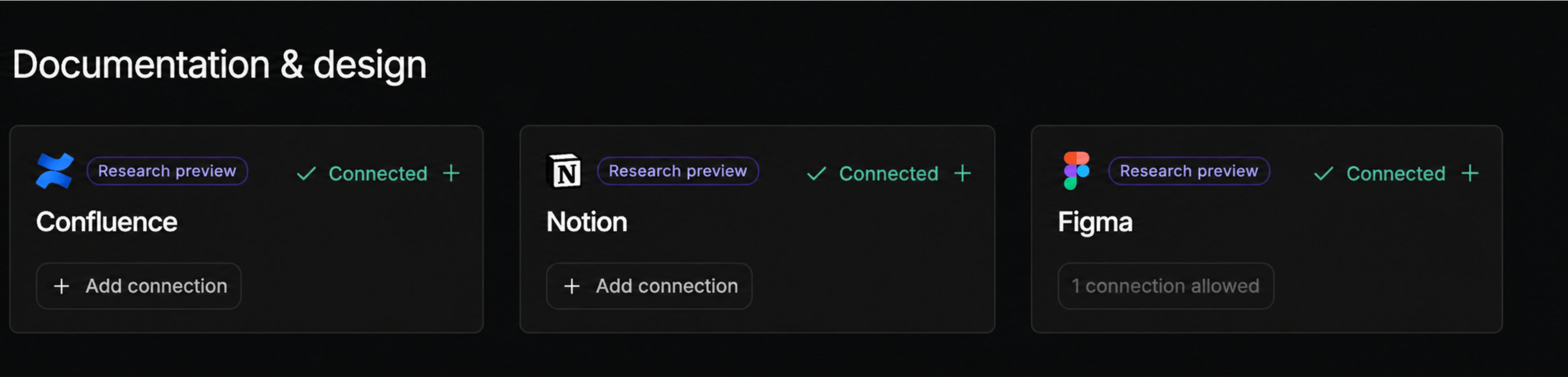 When you connect Confluence, Qodo automatically enables the Spec agent. You do not need to enable it manually.
## Verify the integration
After connecting Confluence:
1. Create or update a Confluence page that contains product requirements, technical specifications, or implementation details.
2. Create or update a pull request in a GitHub repository connected to Qodo, and add a link to the relevant Confluence page in the PR description.
3. Wait for the Qodo review to complete.
4. Open the **Qodo Review Results** in the pull request.
When a pull request includes a specification link in its description, the Spec agent analyzes the implementation against the requirements in the linked page and generates **📎 Requirement gap** findings as part of the review.
When you connect Confluence, Qodo automatically enables the Spec agent. You do not need to enable it manually.
## Verify the integration
After connecting Confluence:
1. Create or update a Confluence page that contains product requirements, technical specifications, or implementation details.
2. Create or update a pull request in a GitHub repository connected to Qodo, and add a link to the relevant Confluence page in the PR description.
3. Wait for the Qodo review to complete.
4. Open the **Qodo Review Results** in the pull request.
When a pull request includes a specification link in its description, the Spec agent analyzes the implementation against the requirements in the linked page and generates **📎 Requirement gap** findings as part of the review.
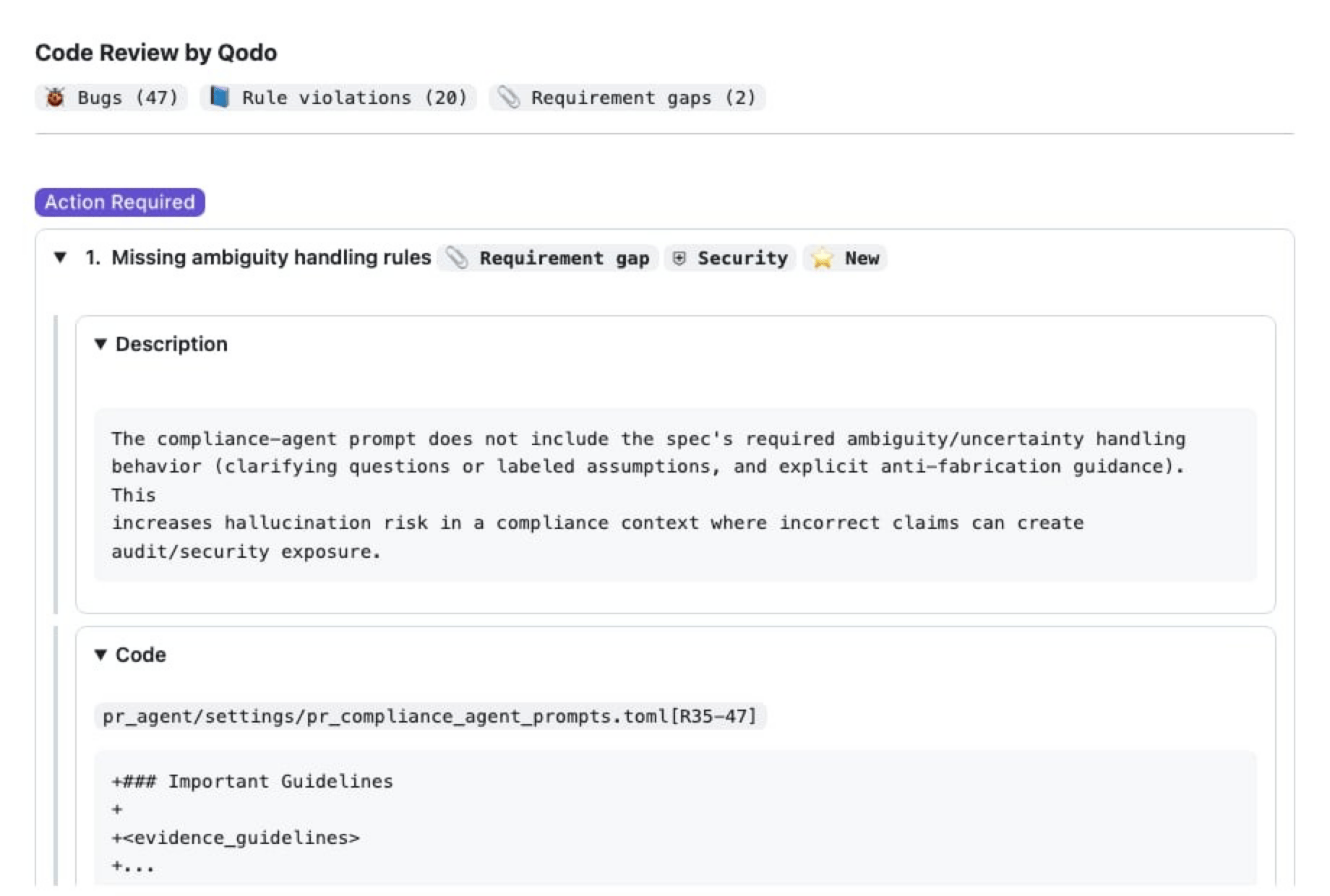 For more information about requirement gap findings, see [View requirement gaps in your findings](/code-review/view-requirement-gaps-in-findings).
## Troubleshooting
### No documentation findings appear
If you do not see documentation-based findings in the pull request review:
* Verify that the PR description contains a link to the relevant Confluence page.”
* Verify that the Confluence integration is connected in the Qodo portal.
* Verify that the repository is connected to Qodo through the GitHub App.
* Verify that the Spec Agent is enabled.
* Ensure the pull request has completed a Qodo review.
* Confirm that the relevant documentation exists in Confluence.
Not every pull request produces documentation findings. The Spec agent generates requirement gaps only when it identifies documentation that is relevant to the changes in the pull request and detects missing or incomplete implementation.
## Related resources
* [Documentation & design integrations](/install-and-configure/integrations/documentation-and-design-integrations): An overview of documentation and design management integrations.
* [View requirement gaps in your findings](/code-review/view-requirement-gaps-in-findings): How requirement gaps appear in reviews.
For more information about requirement gap findings, see [View requirement gaps in your findings](/code-review/view-requirement-gaps-in-findings).
## Troubleshooting
### No documentation findings appear
If you do not see documentation-based findings in the pull request review:
* Verify that the PR description contains a link to the relevant Confluence page.”
* Verify that the Confluence integration is connected in the Qodo portal.
* Verify that the repository is connected to Qodo through the GitHub App.
* Verify that the Spec Agent is enabled.
* Ensure the pull request has completed a Qodo review.
* Confirm that the relevant documentation exists in Confluence.
Not every pull request produces documentation findings. The Spec agent generates requirement gaps only when it identifies documentation that is relevant to the changes in the pull request and detects missing or incomplete implementation.
## Related resources
* [Documentation & design integrations](/install-and-configure/integrations/documentation-and-design-integrations): An overview of documentation and design management integrations.
* [View requirement gaps in your findings](/code-review/view-requirement-gaps-in-findings): How requirement gaps appear in reviews.