> ## Documentation Index
> Fetch the complete documentation index at: https://docs.qodo.ai/llms.txt
> Use this file to discover all available pages before exploring further.
# Generate and manage rules
> This page explains how to generate and manage rules in the Qodo portal, including rule lifecycle operations such as editing, disabling, and deletion.
export const AzureIcon = () => ;
BetaGitHubBitbucketAzure DevOps
**Admins** can create, edit, enable, approve, and delete rules. \
**Members** can generate rules in the portal; however, these rules appear in the **Suggestions** tab and require admin approval before becoming active. Members can also view active rules, suggested rules, and review rule outcomes during code reviews.
## Review Standards
In the Qodo portal, navigate to **Review Standards** from the left menu.
The summary cards at the top show rule performance for the last 30 days. See [Rule analytics](/governance/rule-enforcement/analytics) for details.
## Anatomy of a rule
A rule consists of the following fields:
| Field | Description | Details |
| ---------------- | ----------------------------------------------------------- | --------------------------------------------------------------------------------------------------------------------------------- |
| **Rule name** | Short, descriptive title summarizing the rule’s intent. | Shown in the table in the **Rules** tab and in code review findings. |
| **Rule content** | Enforcement description used during reviews. | Explains what to check and what behavior is expected. |
| **Examples** | Compliant and non-compliant code examples. | Displayed to developers when violations occur. |
| **Category** | Type of issue the rule addresses. | Security, Correctness, Quality, Reliability, Performance, Testability, Compliance, Accessibility, Observability, Architecture. |
| **Severity** | Priority level of a violation. | Error (action required), Warning (recommended), Recommendation (informational). |
| **Scope** | Where the rule is enforced. | Can be left empty to apply organization-wide, or limited to specific Git organizations, repositories, and optional path patterns. |
| **Source type** | The category of origin: how this rule was created or added. | User, Repository File, Qodo Library, Mined Pattern, Compliance File |
| **Source** | The exact location the rule came from. | A file path, URL, or identifier pointing to the original source. |
**Rule scope**
Scope defines where the rule is enforced.
By default, a rule applies organization-wide. You can narrow the scope to limit enforcement:
* **Organization**: leave the scope empty to apply the rule to all repositories across all Git organizations.
* **Git organization**: applies the rule to selected Git organizations.
* **Repository**: applies only to selected repositories.
* **Path patterns**: applies to specific directories or files within a repository. Path patterns are optional and can only be added after selecting a repository, and are especially useful for monorepos where different projects or services live under the same repository.
Rules extracted from supported files (such as AGENTS.md) are automatically scoped to the folder containing that file, with no additional portal configuration needed.
## Generate a rule
Use this flow to describe a rule in natural language and let Qodo agent generate a structured draft.
1. From **Rules**, click **Generate**.
2. Enter a short description of the rule’s intent.
3. Click **Generate rule**.
Example prompts:
* "Disallow `console.log` in production builds"
* "Avoid SQL string concatenation with user input"
Qodo generates a complete rule draft that can be edited before activation.
Before activation, Qodo checks for:
* Conflicts
* Duplicates
* Overlapping scope
You can review related rules or revise the draft.
The rule is added to the table in the **Rules** tab and enforced automatically according to its defined scope (repositories and optional path patterns).
If you are a member (non-admin), your rule appears in **Rules > Suggestions** for admin review before activation, unless an admin has enabled [**Auto-approve user suggestions**](/install-and-configure/configuration-overview/portal-configuration#review-standards). For more information, see [Review and activate suggested rules](/governance/rule-enforcement/suggested-rules).
## Manage existing rules
Management actions for existing rules are available from the **actions menu (⋮)** in the table in the **Rules** tab. These actions are optional and can be performed at any time by admins or team admins.
| Action | Description |
| ---------------------- | ------------------------------------------------------------ |
| Edit rule | Update the rule name, content, examples, scope, or severity. |
| Deactivate or Activate | Pauses enforcement while retaining the rule and its history. |
| Delete rule | Permanently removes the rule. This cannot be undone. |
## Activate or deactivate rules in bulk
Select the checkbox next to each rule in the **Rules** tab, then choose **Activate** or **Deactivate** to update them all at once. To select every rule at once, select the checkbox in the table's top row.
## Automatic rule updates from files
Qodo continuously monitors the supported rule files across your repositories. When changes to these files are merged to your repository, or when a new supported file is added, Qodo processes the diff and automatically adds new rules to the Review Standards as active rules. The scope of extracted rules is automatically determined by the file's location in the repository.
New rules added this way are:
* Added directly as active rules
* Enriched with category, severity, scope, and examples
Only new rules are added. Edits and deletions to existing rules in these files are not reflected in the Review Standards. To modify or remove a rule, use Review Standards in the Qodo portal directly.
**Single-tenant customers**
If you installed Qodo before the new setup wizard was introduced, your GitHub App may not have the Push event subscription enabled. Without it, Qodo cannot detect changes to supported rule files.
To enable it:
1. Go to your GitHub App settings page.
2. Select **Permissions & events**.
3. Scroll to **Subscribe to events**.
4. Check **Push**.
5. Click **Save changes**.
For more details, see [GitHub's documentation](https://docs.github.com/en/apps/maintaining-github-apps/modifying-a-github-app-registration).
## Fetch rules using `get-qodo-rules` skill
Supported AI coding agents can access your Review Standards directly using the `get-qodo-rules` skill.
The skill fetches repository specific rules from the Qodo platform API, including organization, repository, and path-level rules, and loads them into the agent context. This allows the agent to reference the same rules that are defined in Qodo.
This capability is optional and does not replace Qodo’s rule enforcement. It enables agents to use the rules already configured for the repository. Using the skill requires a Qodo API key and rules configured in the Qodo platform.
For more information, see:
* To set up the Rules Skill, see the [open-source installation instructions](https://github.com/qodo-ai/qodo-skills).
* For an overview on Qodo Agent Skills, see [Agent Skills](/agent-skills).
## Next steps
* [Best practices for setting rules](/governance/rule-enforcement/best-practices-for-setting-rules): Get guidance on writing clear, impactful, and maintainable rules.
* [Rule analytics](/governance/rule-enforcement/analytics): Track how rules perform across pull requests over time.


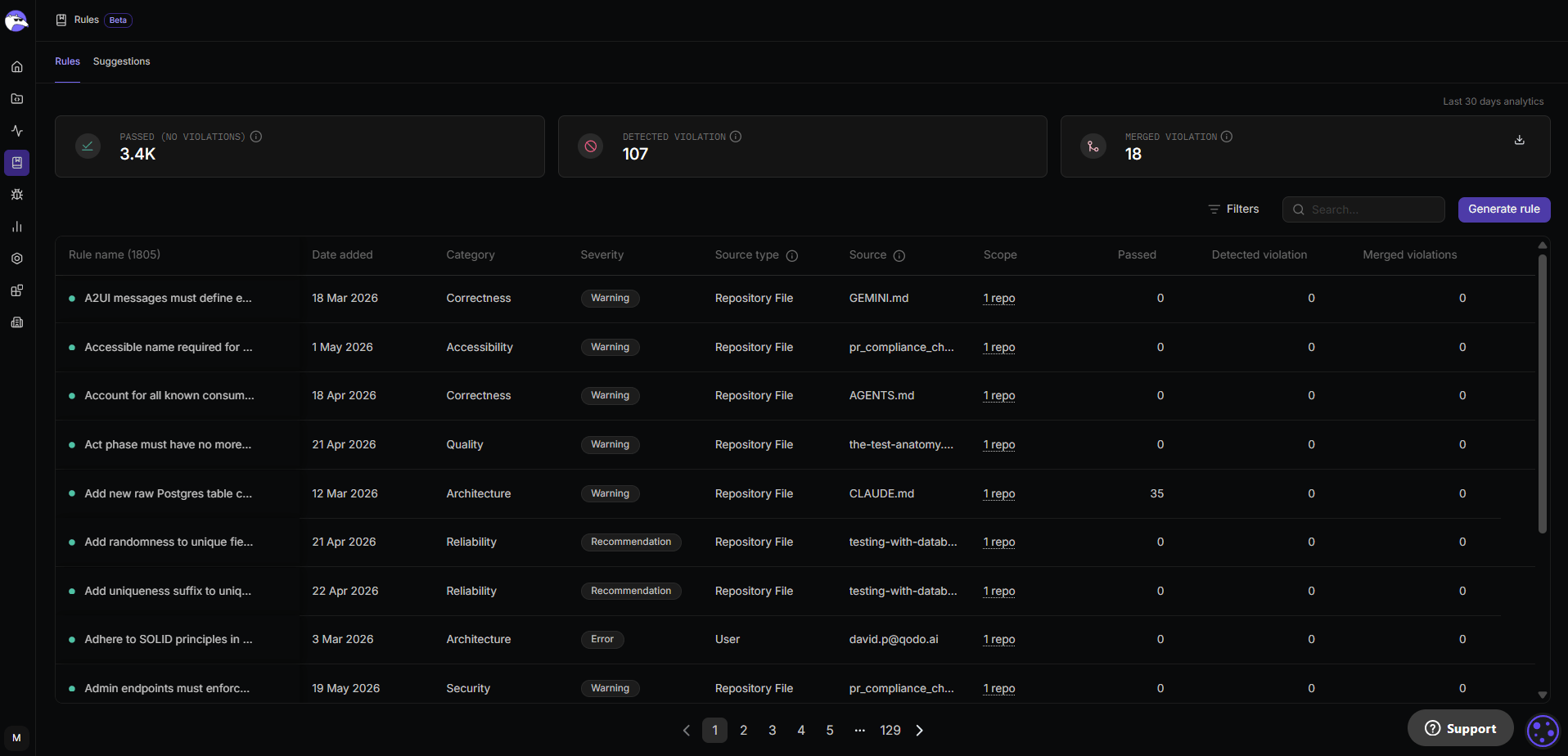 The summary cards at the top show rule performance for the last 30 days. See [Rule analytics](/governance/rule-enforcement/analytics) for details.
## Anatomy of a rule
A rule consists of the following fields:
| Field | Description | Details |
| ---------------- | ----------------------------------------------------------- | --------------------------------------------------------------------------------------------------------------------------------- |
| **Rule name** | Short, descriptive title summarizing the rule’s intent. | Shown in the table in the **Rules** tab and in code review findings. |
| **Rule content** | Enforcement description used during reviews. | Explains what to check and what behavior is expected. |
| **Examples** | Compliant and non-compliant code examples. | Displayed to developers when violations occur. |
| **Category** | Type of issue the rule addresses. | Security, Correctness, Quality, Reliability, Performance, Testability, Compliance, Accessibility, Observability, Architecture. |
| **Severity** | Priority level of a violation. | Error (action required), Warning (recommended), Recommendation (informational). |
| **Scope** | Where the rule is enforced. | Can be left empty to apply organization-wide, or limited to specific Git organizations, repositories, and optional path patterns. |
| **Source type** | The category of origin: how this rule was created or added. | User, Repository File, Qodo Library, Mined Pattern, Compliance File |
| **Source** | The exact location the rule came from. | A file path, URL, or identifier pointing to the original source. |
**Rule scope**
Scope defines where the rule is enforced.
By default, a rule applies organization-wide. You can narrow the scope to limit enforcement:
* **Organization**: leave the scope empty to apply the rule to all repositories across all Git organizations.
* **Git organization**: applies the rule to selected Git organizations.
* **Repository**: applies only to selected repositories.
* **Path patterns**: applies to specific directories or files within a repository. Path patterns are optional and can only be added after selecting a repository, and are especially useful for monorepos where different projects or services live under the same repository.
The summary cards at the top show rule performance for the last 30 days. See [Rule analytics](/governance/rule-enforcement/analytics) for details.
## Anatomy of a rule
A rule consists of the following fields:
| Field | Description | Details |
| ---------------- | ----------------------------------------------------------- | --------------------------------------------------------------------------------------------------------------------------------- |
| **Rule name** | Short, descriptive title summarizing the rule’s intent. | Shown in the table in the **Rules** tab and in code review findings. |
| **Rule content** | Enforcement description used during reviews. | Explains what to check and what behavior is expected. |
| **Examples** | Compliant and non-compliant code examples. | Displayed to developers when violations occur. |
| **Category** | Type of issue the rule addresses. | Security, Correctness, Quality, Reliability, Performance, Testability, Compliance, Accessibility, Observability, Architecture. |
| **Severity** | Priority level of a violation. | Error (action required), Warning (recommended), Recommendation (informational). |
| **Scope** | Where the rule is enforced. | Can be left empty to apply organization-wide, or limited to specific Git organizations, repositories, and optional path patterns. |
| **Source type** | The category of origin: how this rule was created or added. | User, Repository File, Qodo Library, Mined Pattern, Compliance File |
| **Source** | The exact location the rule came from. | A file path, URL, or identifier pointing to the original source. |
**Rule scope**
Scope defines where the rule is enforced.
By default, a rule applies organization-wide. You can narrow the scope to limit enforcement:
* **Organization**: leave the scope empty to apply the rule to all repositories across all Git organizations.
* **Git organization**: applies the rule to selected Git organizations.
* **Repository**: applies only to selected repositories.
* **Path patterns**: applies to specific directories or files within a repository. Path patterns are optional and can only be added after selecting a repository, and are especially useful for monorepos where different projects or services live under the same repository.
 ## Automatic rule updates from files
Qodo continuously monitors the supported rule files across your repositories. When changes to these files are merged to your repository, or when a new supported file is added, Qodo processes the diff and automatically adds new rules to the Review Standards as active rules. The scope of extracted rules is automatically determined by the file's location in the repository.
New rules added this way are:
* Added directly as active rules
* Enriched with category, severity, scope, and examples
Only new rules are added. Edits and deletions to existing rules in these files are not reflected in the Review Standards. To modify or remove a rule, use Review Standards in the Qodo portal directly.
## Automatic rule updates from files
Qodo continuously monitors the supported rule files across your repositories. When changes to these files are merged to your repository, or when a new supported file is added, Qodo processes the diff and automatically adds new rules to the Review Standards as active rules. The scope of extracted rules is automatically determined by the file's location in the repository.
New rules added this way are:
* Added directly as active rules
* Enriched with category, severity, scope, and examples
Only new rules are added. Edits and deletions to existing rules in these files are not reflected in the Review Standards. To modify or remove a rule, use Review Standards in the Qodo portal directly.