> ## Documentation Index
> Fetch the complete documentation index at: https://docs.qodo.ai/llms.txt
> Use this file to discover all available pages before exploring further.
# Manage Git installations
> View and manage every Git installation connected to Qodo, add new installations, and resolve connection errors.
The **Installations** tab lists all Git integrations connected to Qodo. A Git installation is the fundamental connection unit, representing a single connection that grants Qodo access to a defined set of repositories. Once an installation is complete, Qodo automatically tests the connection to verify both API access and webhook delivery.
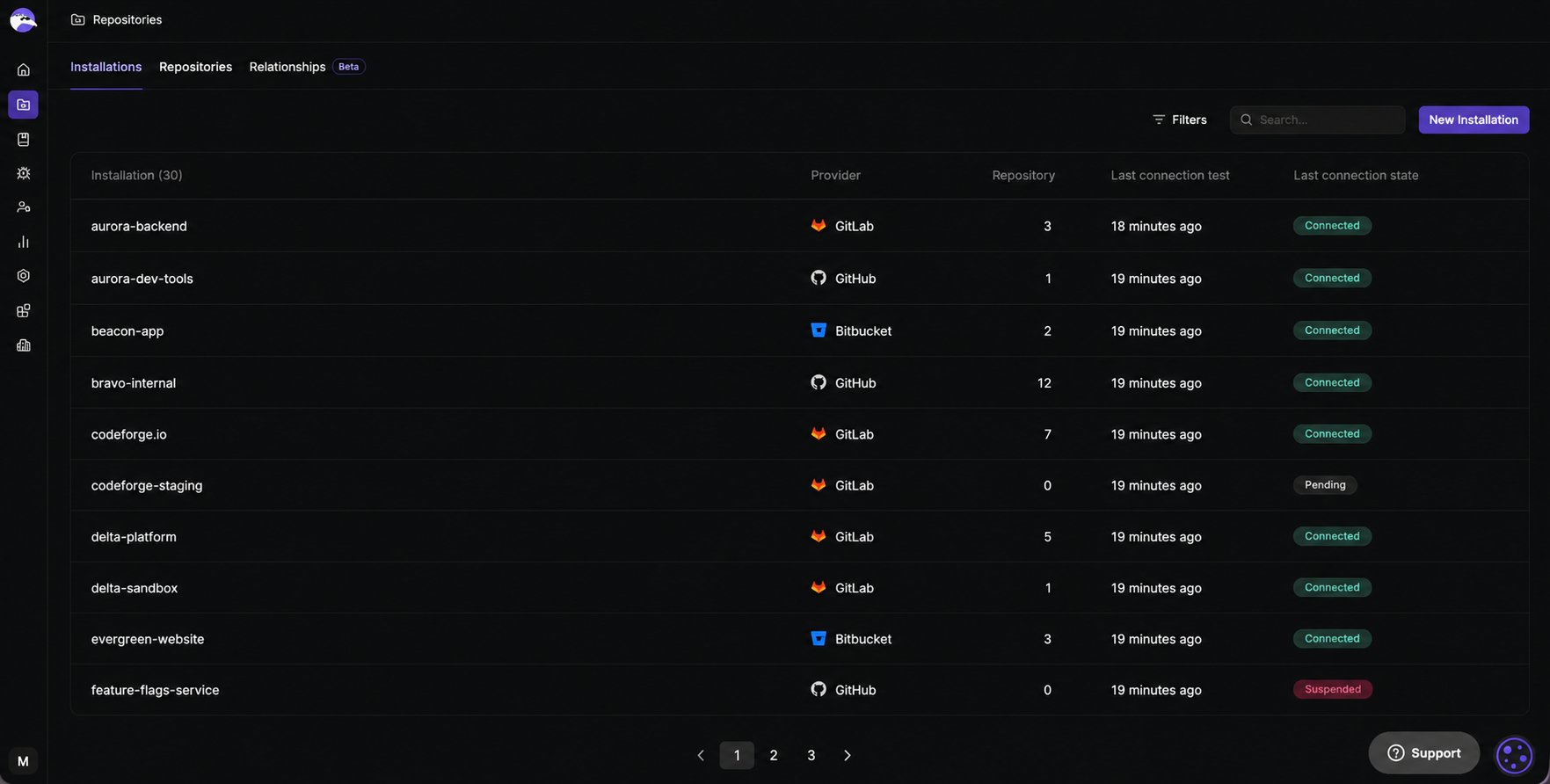 Use the search bar to find a specific installation by name. To view the repositories under a specific installation, click the installation row to open the [Repositories tab](/governance/repositories/manage-repositories) filtered to that installation. To manage the repositories an installation covers, see [Manage the repositories in an installation](#manage-the-repositories-in-an-installation).
| Field | Description |
| ------------------------- | ------------------------------------------------------------------ |
| **Installation** | The installation name. |
| **Provider** | The Git provider. |
| **Repositories** | Number of repositories Qodo has access to under this installation. |
| **Last connection test** | When Qodo last tested the connection to this installation. |
| **Last connection state** | Current connection status. |
Connection tests run automatically on a regular schedule. The last test result is shown for each installation.
| Status | Description |
| ------------- | ------------------------------------------------------------------------------------------------------------------------------------------------------------------------------------------------------------------------------------------------------------------------------------------------------------------------------------------------------------------------------------------------- |
| **Connected** | Qodo can reach the installation and everything is working as expected. |
| **Pending** | Qodo is still setting up this installation. |
| **Error** | Qodo could not connect to this installation. See [Error types](#error-types) for details. |
| **Suspended** | *(GitHub only)* The GitHub App installation has been suspended and cannot access any resources. Only the party that suspended it can reverse this: the account owner via the GitHub website, or the app manager via the GitHub REST API. See [Suspending a GitHub App installation](https://docs.github.com/en/apps/maintaining-github-apps/suspending-a-github-app-installation) in GitHub Docs. |
### Error types
When an installation shows an error, the error type indicates what went wrong and who can resolve it.
| Error type | Description | Action |
| ------------------------ | ----------------------------------------------------------- | --------------------------------------------------- |
| **Authentication** | Your credentials are no longer valid. | Reconnect or reauthorize the app to resume syncing. |
| **Transient** | The Git provider is temporarily unavailable. | Retry the connection later. |
| **Permanent** | The Git provider returned a client error. | Check your installation settings and try again. |
| **Invalid installation** | There is a configuration issue with your Qodo installation. | Contact your Qodo Account Manager. |
| **Internal** | An internal error occurred. | Contact your Qodo Account Manager. |
### Add a new installation
Click **New Installation** to connect an additional Git account or organization. This takes you to the [Integrations page](https://app.qodo.ai/integrations) where you can set up a new installation using the guided wizard.
### Manage the repositories in an installation
* Select **Manage repos** from the three-dot menu to manage the repositories under an installation. For GitHub, Bitbucket, and Azure DevOps installations, this opens the [Repositories tab](/governance/repositories/manage-repositories) filtered to that installation, where you can review the repositories Qodo can access and toggle code review per repository. GitLab differs, see below.
For GitLab installations, **Manage repos** opens the **Manage repositories** dialog rather than the Repositories tab, where you can edit which repositories Qodo can access. Since Qodo does not store your GitLab personal access token, you re-enter it here to load the installation's groups and repositories.
Use the search bar to find a specific installation by name. To view the repositories under a specific installation, click the installation row to open the [Repositories tab](/governance/repositories/manage-repositories) filtered to that installation. To manage the repositories an installation covers, see [Manage the repositories in an installation](#manage-the-repositories-in-an-installation).
| Field | Description |
| ------------------------- | ------------------------------------------------------------------ |
| **Installation** | The installation name. |
| **Provider** | The Git provider. |
| **Repositories** | Number of repositories Qodo has access to under this installation. |
| **Last connection test** | When Qodo last tested the connection to this installation. |
| **Last connection state** | Current connection status. |
Connection tests run automatically on a regular schedule. The last test result is shown for each installation.
| Status | Description |
| ------------- | ------------------------------------------------------------------------------------------------------------------------------------------------------------------------------------------------------------------------------------------------------------------------------------------------------------------------------------------------------------------------------------------------- |
| **Connected** | Qodo can reach the installation and everything is working as expected. |
| **Pending** | Qodo is still setting up this installation. |
| **Error** | Qodo could not connect to this installation. See [Error types](#error-types) for details. |
| **Suspended** | *(GitHub only)* The GitHub App installation has been suspended and cannot access any resources. Only the party that suspended it can reverse this: the account owner via the GitHub website, or the app manager via the GitHub REST API. See [Suspending a GitHub App installation](https://docs.github.com/en/apps/maintaining-github-apps/suspending-a-github-app-installation) in GitHub Docs. |
### Error types
When an installation shows an error, the error type indicates what went wrong and who can resolve it.
| Error type | Description | Action |
| ------------------------ | ----------------------------------------------------------- | --------------------------------------------------- |
| **Authentication** | Your credentials are no longer valid. | Reconnect or reauthorize the app to resume syncing. |
| **Transient** | The Git provider is temporarily unavailable. | Retry the connection later. |
| **Permanent** | The Git provider returned a client error. | Check your installation settings and try again. |
| **Invalid installation** | There is a configuration issue with your Qodo installation. | Contact your Qodo Account Manager. |
| **Internal** | An internal error occurred. | Contact your Qodo Account Manager. |
### Add a new installation
Click **New Installation** to connect an additional Git account or organization. This takes you to the [Integrations page](https://app.qodo.ai/integrations) where you can set up a new installation using the guided wizard.
### Manage the repositories in an installation
* Select **Manage repos** from the three-dot menu to manage the repositories under an installation. For GitHub, Bitbucket, and Azure DevOps installations, this opens the [Repositories tab](/governance/repositories/manage-repositories) filtered to that installation, where you can review the repositories Qodo can access and toggle code review per repository. GitLab differs, see below.
For GitLab installations, **Manage repos** opens the **Manage repositories** dialog rather than the Repositories tab, where you can edit which repositories Qodo can access. Since Qodo does not store your GitLab personal access token, you re-enter it here to load the installation's groups and repositories.
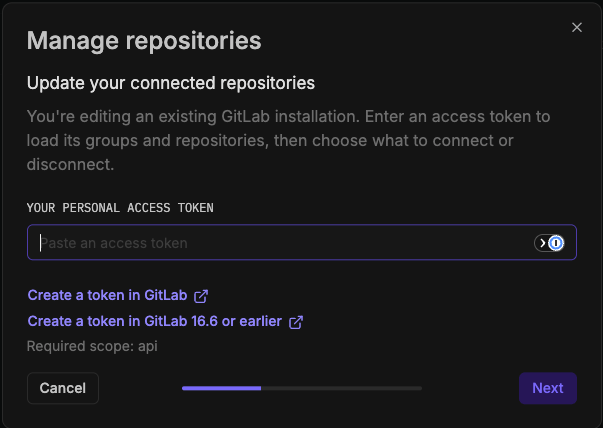 Reuse the token created during installation, if it hasn't expired, or generate a new one:
* Click **Create a token in GitLab**.
* For a GitLab Server installation on GitLab 16.6 or earlier, click **Create a token in GitLab 16.6 or earlier** instead.
Required scope: `api`, preselected.
Used once, never stored. Short expiry recommended, e.g., 1 day.
Paste the token and click **Next** to load the installation's groups and repositories.
Reuse the token created during installation, if it hasn't expired, or generate a new one:
* Click **Create a token in GitLab**.
* For a GitLab Server installation on GitLab 16.6 or earlier, click **Create a token in GitLab 16.6 or earlier** instead.
Required scope: `api`, preselected.
Used once, never stored. Short expiry recommended, e.g., 1 day.
Paste the token and click **Next** to load the installation's groups and repositories.
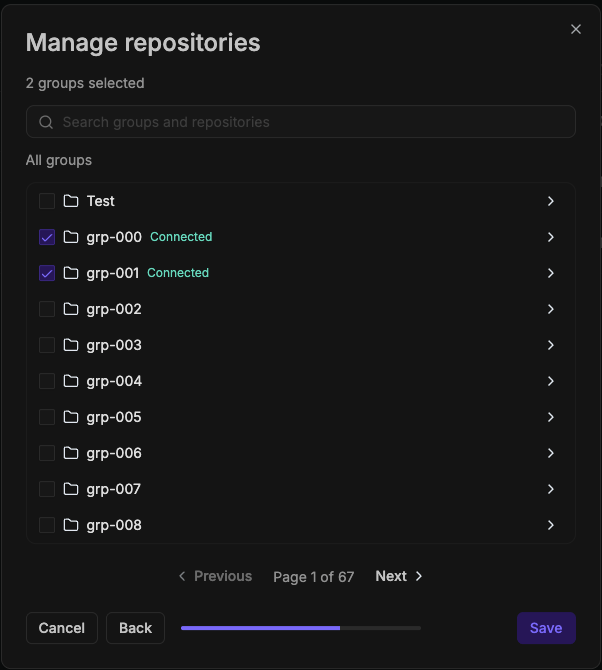 Use the search bar to find a repository by name, or browse the group tree. Already-connected repositories are marked **Connected**.
Select or clear a repository or group to add it to or remove it from the installation.
Click **Save** to apply your changes, or **Cancel** to discard them.
Use the search bar to find a repository by name, or browse the group tree. Already-connected repositories are marked **Connected**.
Select or clear a repository or group to add it to or remove it from the installation.
Click **Save** to apply your changes, or **Cancel** to discard them.
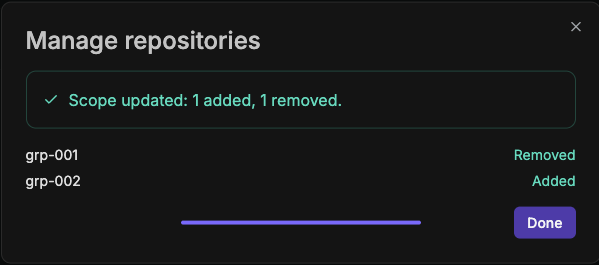 Qodo confirms the change with a count of items added and removed, and lists the status of each. Click **Done**.
### Delete an installation
From the three-dot menu, select **Delete installation** to permanently remove it. Qodo displays a confirmation dialog before deleting.
Deleting an installation cannot be undone. All repositories connected under that installation will be disconnected from Qodo.
For GitLab installations, deleting also removes Qodo's webhooks and bot from the connected GitLab repositories and groups. The confirmation dialog asks for a personal access token to do this.
Qodo confirms the change with a count of items added and removed, and lists the status of each. Click **Done**.
### Delete an installation
From the three-dot menu, select **Delete installation** to permanently remove it. Qodo displays a confirmation dialog before deleting.
Deleting an installation cannot be undone. All repositories connected under that installation will be disconnected from Qodo.
For GitLab installations, deleting also removes Qodo's webhooks and bot from the connected GitLab repositories and groups. The confirmation dialog asks for a personal access token to do this.
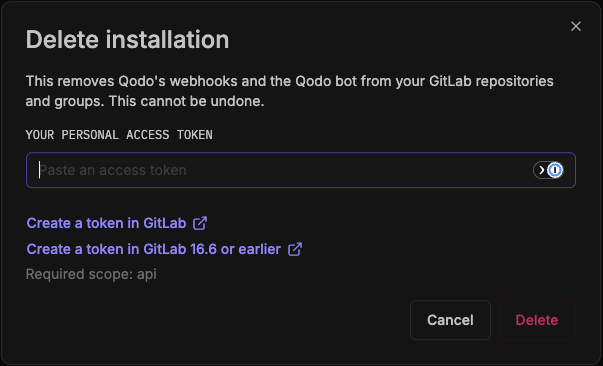 Generate a token to authorize the removal:
* Click **Create a token in GitLab**.
* For a GitLab Server installation on GitLab 16.6 or earlier, click **Create a token in GitLab 16.6 or earlier** instead.
Paste the token and click **Delete** to confirm. Required scope: `api`.
Used once to remove the webhooks and Qodo bot, then discarded. Short expiry recommended, e.g., 1 day.
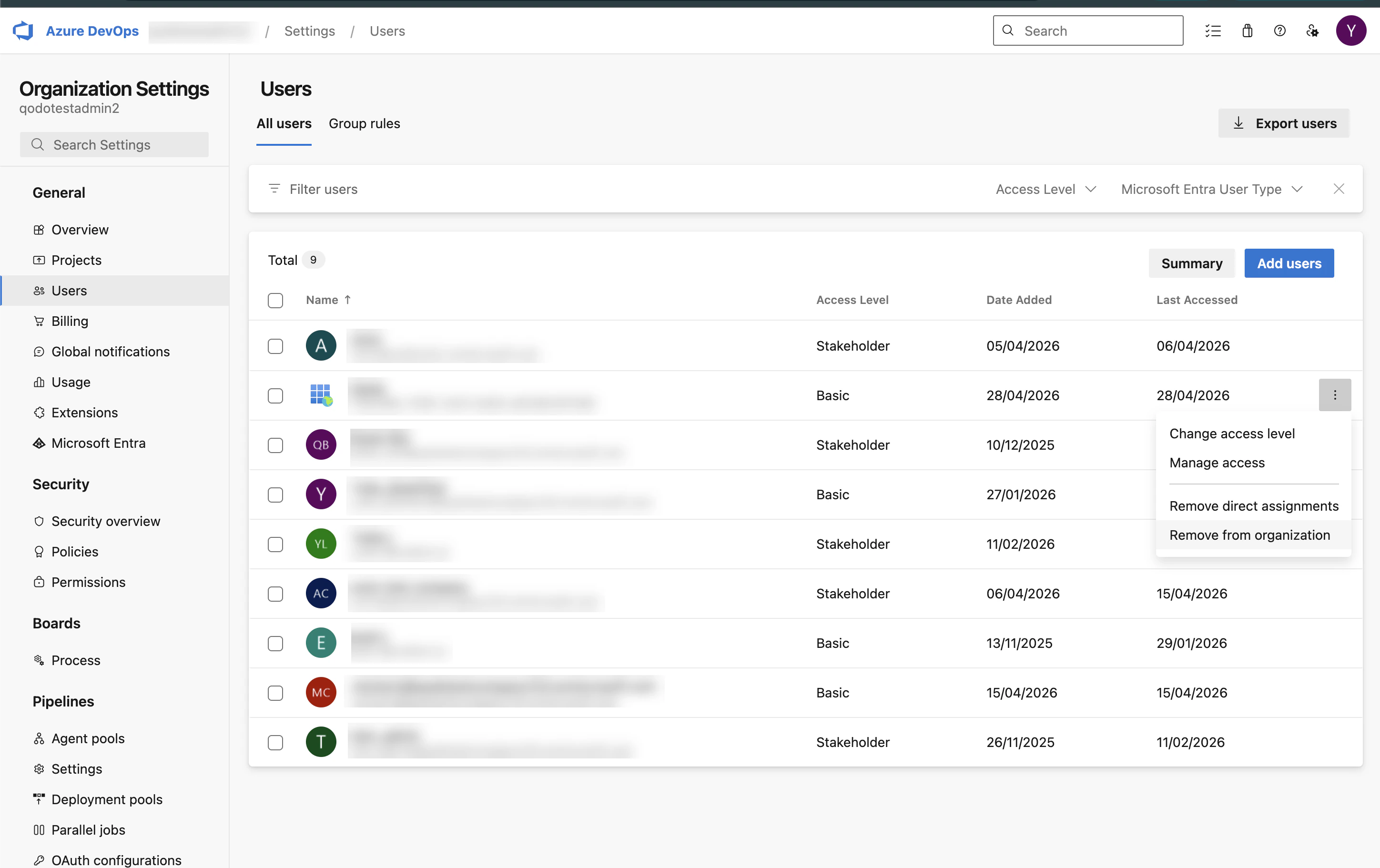
If you are deleting your last Qodo installation from an Azure DevOps organization, deleting it in Qodo is not enough to fully remove Qodo from your organization. You must also manually remove the Qodo service principal user. Go to `https://dev.azure.com/{org_id}/_settings/users` and remove the user from there.
Generate a token to authorize the removal:
* Click **Create a token in GitLab**.
* For a GitLab Server installation on GitLab 16.6 or earlier, click **Create a token in GitLab 16.6 or earlier** instead.
Paste the token and click **Delete** to confirm. Required scope: `api`.
Used once to remove the webhooks and Qodo bot, then discarded. Short expiry recommended, e.g., 1 day.
If you are deleting your last Qodo installation from an Azure DevOps organization, deleting it in Qodo is not enough to fully remove Qodo from your organization. You must also manually remove the Qodo service principal user. Go to `https://dev.azure.com/{org_id}/_settings/users` and remove the user from there.
 ## Next steps
* [Manage repositories](/governance/repositories/manage-repositories): View and manage individual repositories, connection health, and PR history indexing.
* [Audit cross-repository relationships](/governance/repositories/relationships): Audit cross-repository relationships across your organization.
## Next steps
* [Manage repositories](/governance/repositories/manage-repositories): View and manage individual repositories, connection health, and PR history indexing.
* [Audit cross-repository relationships](/governance/repositories/relationships): Audit cross-repository relationships across your organization.