> ## Documentation Index
> Fetch the complete documentation index at: https://docs.qodo.ai/llms.txt
> Use this file to discover all available pages before exploring further.
# Manage skills across repositories
> Use the Skills page in the Qodo portal to monitor, manage, and enforce skills across repositories.
Beta
Qodo treats skills as first-class inputs to its agentic review pipeline. A skill is a markdown capsule (a SKILL.md file plus optional supporting files) stored directly in the repository, encoding context that helps a reviewer evaluate changes: coding standards, architectural decisions, ownership maps, or workflow checklists. At the start of every PR review, Qodo discovers all skills in the repository, filters down to those relevant to the diff, and uses them as live inputs to the review. Findings are cited back to the driving skill by name so the rationale is always traceable.
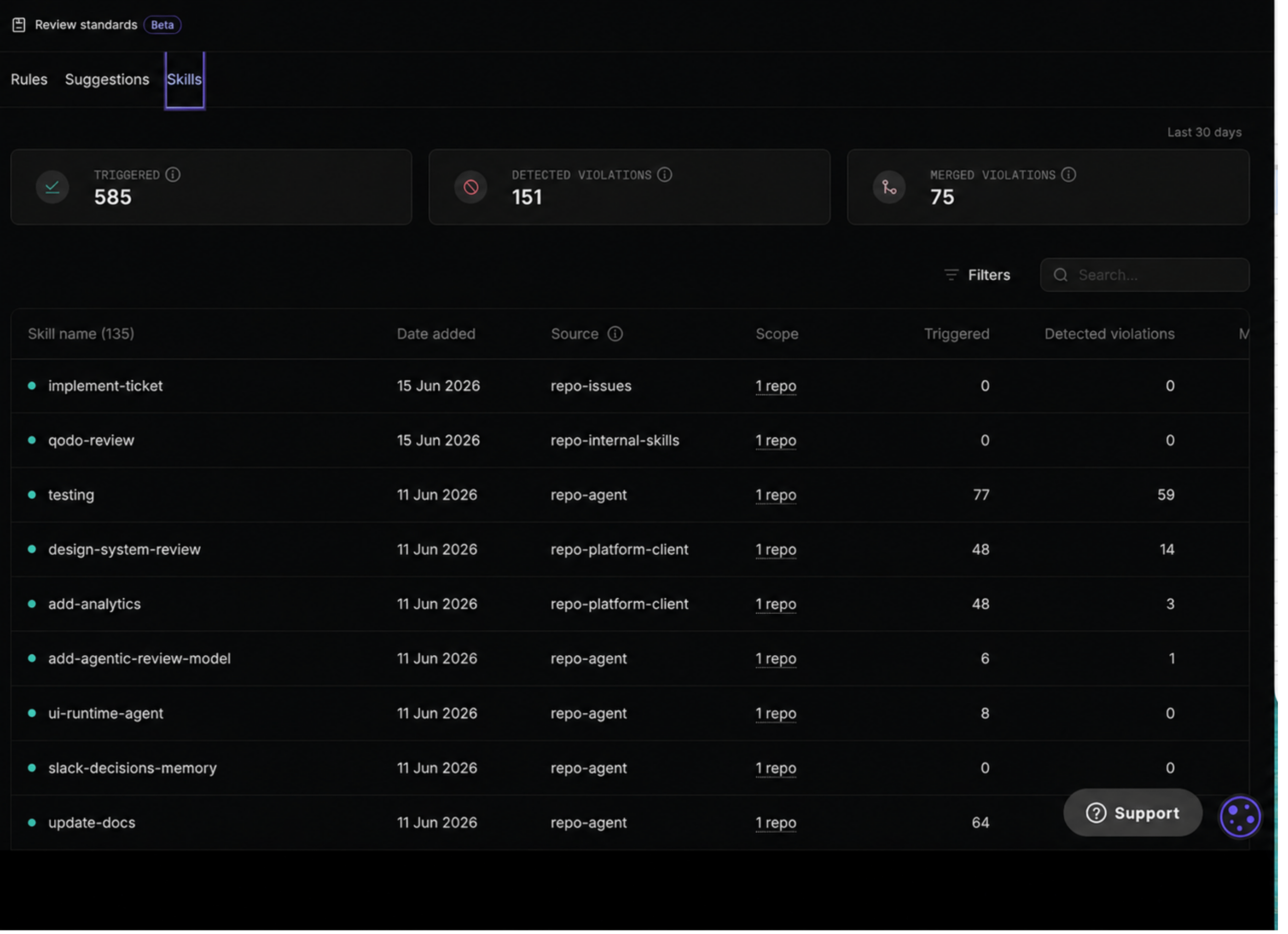
The **Skills** page, under **Review standards** in the Qodo portal, is used to manage and validate how skills are applied across repositories. It enables teams to review coverage of standards, identify gaps or inconsistencies in enforcement, and monitor rule activity over time.
## Before you begin
To use skills, you need:
* At least one skill file to exist under /skills folder in the same repo.
* Admin access to the Qodo portal.
## How Qodo uses skills
Qodo scans repositories to discover skill files. When a skill can be applied during code review, Qodo identifies it and includes it in the review process, where its review rules are evaluated against the code changes.
When a pull request is opened, Qodo evaluates the code against the rules assigned to that repository. Violations are surfaced in the pull request to provide reviewers with context before merging.
## View skills and repository coverage
 ### Find and filter skills
Use the filter bar to find a specific skill, or filter skills by Status, Category, Source and Scope. This helps you quickly locate skills, understand where they are applied, and review their current enforcement status across repositories.
## View skill coverage and activity
For each skill, the following information is available:
| Field | Description |
| ----------------------- | -------------------------------------------------------------------------------- |
| **Skill name** | The name of the skill. |
| **Date added** | When Qodo first discovered the skill. |
| **Category** | Groups skills by categories: Coding standards, Guideline, and Context Retriever. |
| **Source** | The repositories where the skill file is stored. |
| **Scope** | The repositories where the skill is actively enforced during reviews. |
| **Triggered** | The number of pull requests in which the skill was executed during review. |
| **Detected violations** | The number of pull requests in which the skill was executed during review. |
This information helps administrators understand which skills are actively contributing to code quality, where they are being enforced, and how widely they are used across the organization.
## Manage repository assignments
You can change the repositories associated with the skill based on your needs.
1. Log in to the Qodo portal and navigate to **Review standards** in the left navigation bar.
2. Click the **Skills** tab.
3. Select a skill in the table.\
The right navigation tab opens.
4. Click **Edit**.
The Skill-related pane opens. Under **Scope**, the repositories associated with the skill are displayed.
### Find and filter skills
Use the filter bar to find a specific skill, or filter skills by Status, Category, Source and Scope. This helps you quickly locate skills, understand where they are applied, and review their current enforcement status across repositories.
## View skill coverage and activity
For each skill, the following information is available:
| Field | Description |
| ----------------------- | -------------------------------------------------------------------------------- |
| **Skill name** | The name of the skill. |
| **Date added** | When Qodo first discovered the skill. |
| **Category** | Groups skills by categories: Coding standards, Guideline, and Context Retriever. |
| **Source** | The repositories where the skill file is stored. |
| **Scope** | The repositories where the skill is actively enforced during reviews. |
| **Triggered** | The number of pull requests in which the skill was executed during review. |
| **Detected violations** | The number of pull requests in which the skill was executed during review. |
This information helps administrators understand which skills are actively contributing to code quality, where they are being enforced, and how widely they are used across the organization.
## Manage repository assignments
You can change the repositories associated with the skill based on your needs.
1. Log in to the Qodo portal and navigate to **Review standards** in the left navigation bar.
2. Click the **Skills** tab.
3. Select a skill in the table.\
The right navigation tab opens.
4. Click **Edit**.
The Skill-related pane opens. Under **Scope**, the repositories associated with the skill are displayed.
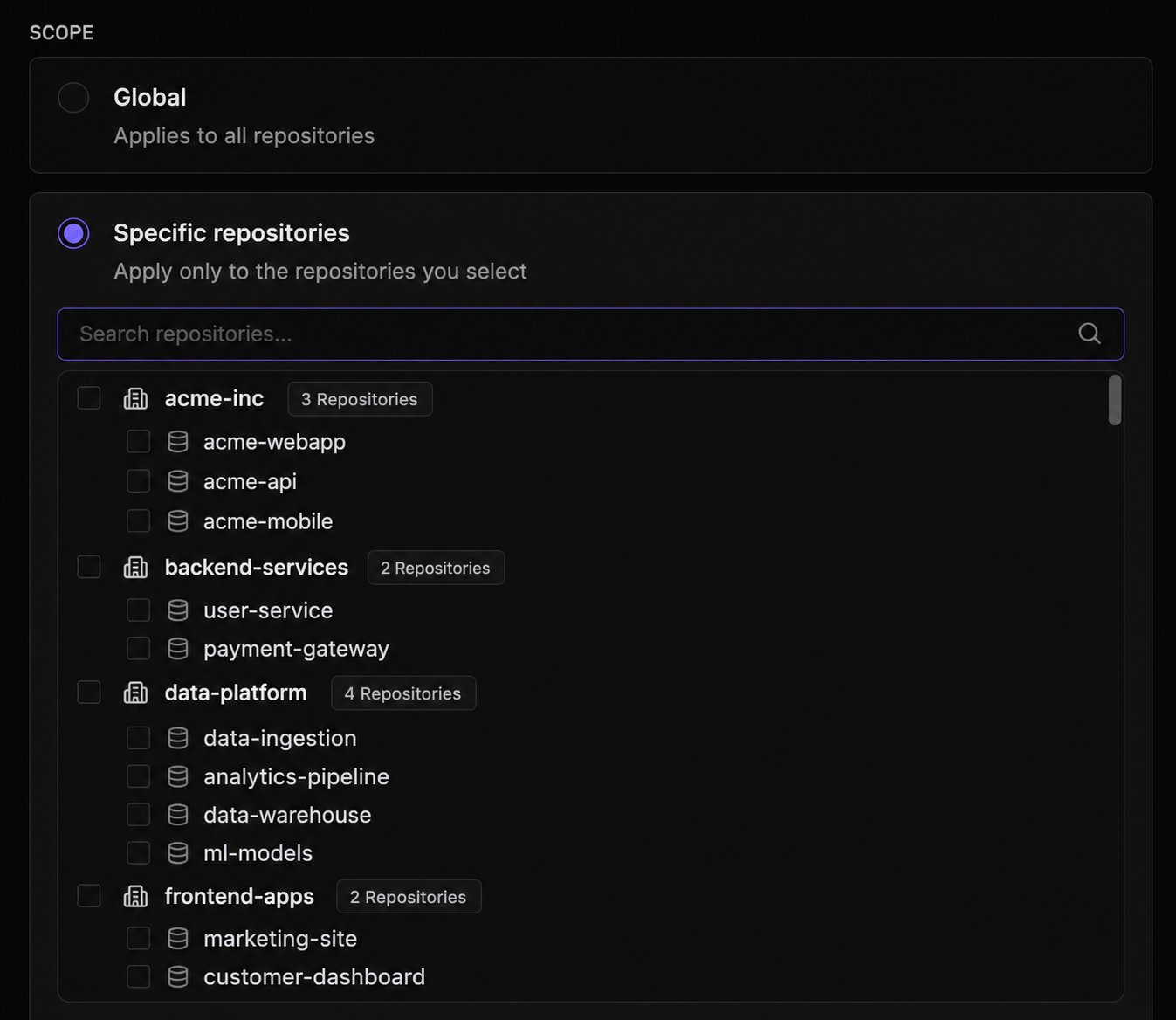 5. Select **Global**, or select **Specific repositories** to add or remove.
6. Click **Save**.
This edits the scope for a single skill at a time from the skill's side panel. To edit scope for multiple skills at once, see [Manage skills in bulk](#manage-skills-in-bulk).
## Deactivate a skill
Skills are automatically activated once Qodo detects, analyzes, and adds them to the Skills list. To stop a skill from being applied during reviews, set its status to Inactive. The skill remains available in the Skills list and can be reactivated at any time.
1. Log in to the Qodo portal and navigate to **Review Standards** in the left navigation bar.
2. Click the **Skills** tab.
3. Select a skill in the table.\
The left navigation tab opens.
4. Select the **Active** drop-down and select **Inactive**.
## Manage skills in bulk
Multiple skills can be activated, deactivated, or rescoped at once from the **Skills** table.
Select the checkbox next to each skill, or select the checkbox in the table's top row to select every skill at once.
5. Select **Global**, or select **Specific repositories** to add or remove.
6. Click **Save**.
This edits the scope for a single skill at a time from the skill's side panel. To edit scope for multiple skills at once, see [Manage skills in bulk](#manage-skills-in-bulk).
## Deactivate a skill
Skills are automatically activated once Qodo detects, analyzes, and adds them to the Skills list. To stop a skill from being applied during reviews, set its status to Inactive. The skill remains available in the Skills list and can be reactivated at any time.
1. Log in to the Qodo portal and navigate to **Review Standards** in the left navigation bar.
2. Click the **Skills** tab.
3. Select a skill in the table.\
The left navigation tab opens.
4. Select the **Active** drop-down and select **Inactive**.
## Manage skills in bulk
Multiple skills can be activated, deactivated, or rescoped at once from the **Skills** table.
Select the checkbox next to each skill, or select the checkbox in the table's top row to select every skill at once.
 * **Activate** or **Deactivate**: Update the enabled state for all selected skills.
* **Define scope**: Set the scope for all selected skills at once. Select **Global** to apply the selected skills organization-wide, or **Specific repositories** to select a total of 25 entities (organizations and repositories), with an optional path pattern for each selected repository.
A confirmation dialog appears before the action is applied. Confirm to apply the change to all selected skills.
Defining a scope in bulk replaces the current scope on every selected skill. This cannot be undone.
## Understand skill analytics
The analytics section at the top of the Skills page provides a high-level view of rule activity and effectiveness for the selected time period.
| Metric | Description |
| ------------------- | ------------------------------------------------------------------------------------------------------ |
| Triggerd | The number of times a rule-related skill was executed during a review. |
| Detected violations | The number of rule violations identified by Qodo. |
| Merged violations | The number of pull requests merged that still include unresolved rule violations at the time of merge. |
These metrics help teams understand how frequently rules are applied, measure their effectiveness, and identify opportunities to improve review standards and code quality.
A high number of merged violations can indicate that rule violations are reaching the main branch despite being flagged during review. Use this metric to identify which skills are generating the most merged violations and determine whether additional review processes or enforcement measures are needed.
## Related resources
* [View skill-related findings](/code-review/view-skill-related-findings): View skill-related findings in your pull request.
* **Activate** or **Deactivate**: Update the enabled state for all selected skills.
* **Define scope**: Set the scope for all selected skills at once. Select **Global** to apply the selected skills organization-wide, or **Specific repositories** to select a total of 25 entities (organizations and repositories), with an optional path pattern for each selected repository.
A confirmation dialog appears before the action is applied. Confirm to apply the change to all selected skills.
Defining a scope in bulk replaces the current scope on every selected skill. This cannot be undone.
## Understand skill analytics
The analytics section at the top of the Skills page provides a high-level view of rule activity and effectiveness for the selected time period.
| Metric | Description |
| ------------------- | ------------------------------------------------------------------------------------------------------ |
| Triggerd | The number of times a rule-related skill was executed during a review. |
| Detected violations | The number of rule violations identified by Qodo. |
| Merged violations | The number of pull requests merged that still include unresolved rule violations at the time of merge. |
These metrics help teams understand how frequently rules are applied, measure their effectiveness, and identify opportunities to improve review standards and code quality.
A high number of merged violations can indicate that rule violations are reaching the main branch despite being flagged during review. Use this metric to identify which skills are generating the most merged violations and determine whether additional review processes or enforcement measures are needed.
## Related resources
* [View skill-related findings](/code-review/view-skill-related-findings): View skill-related findings in your pull request.