> ## Documentation Index
> Fetch the complete documentation index at: https://docs.qodo.ai/llms.txt
> Use this file to discover all available pages before exploring further.
# Manage cross-repository relationships
> Define relationships between repositories to enable cross-repository code review. Auto-discover or manually add, view, and remove relationships from the Repositories page.
Beta
Multi-tenant
Single-tenant
Repository relationships define which repositories depend on each other. You can let Qodo discover these relationships automatically, or define them manually. Once defined, Qodo automatically uses them to detect breaking changes across repositories when a pull request (PR) is opened. This runs by default; to view or change it, go to [Configurations](/install-and-configure/configuration-overview/portal-configuration) and use the **Cross-repo context** toggle.
## Prerequisites
* Repositories must be installed using the Qodo installation wizard. Repositories installed using a previous method will not appear until reinstalled. See the [migration guide](/install-and-configure/install/migration-guide) for your Git provider.
## Where to manage relationships
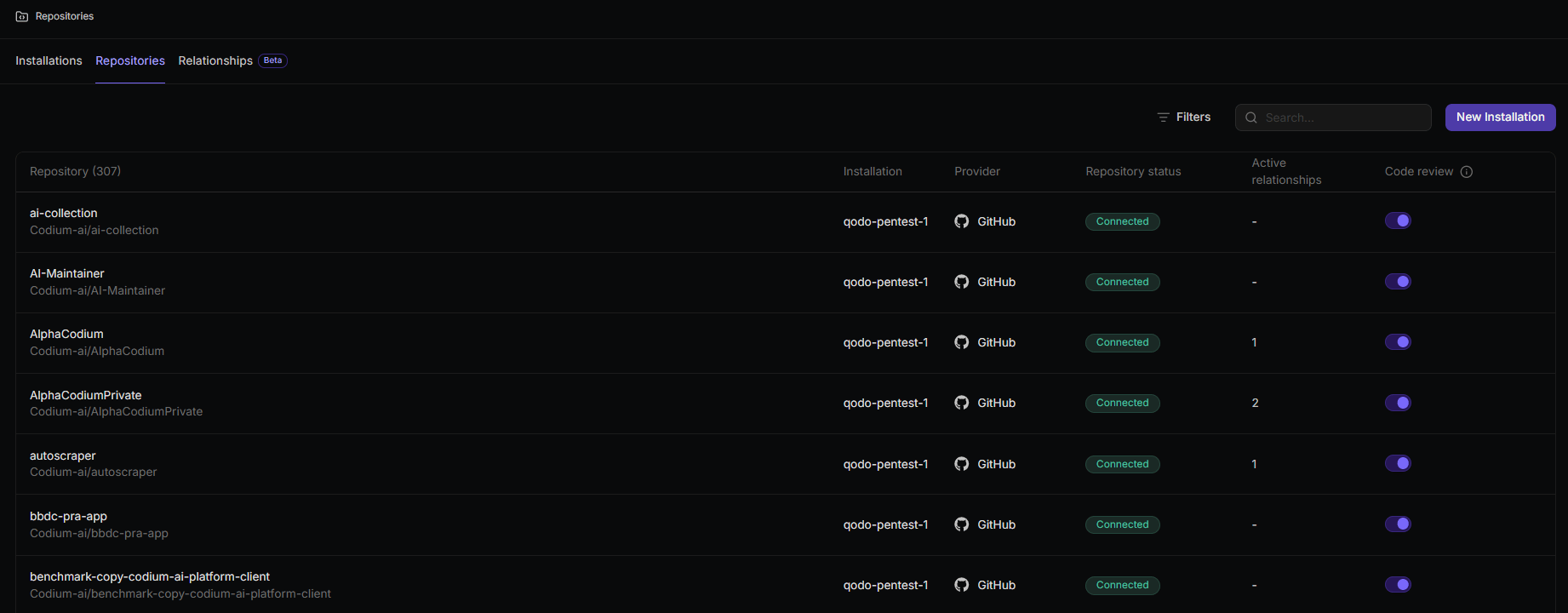
The **Repositories** page has two entry points for managing relationships:
* **Relationships tab**: View and manage all relationships across your organization.
* **Repository sidebar**: View and manage relationships scoped to a specific repository.
 ## View all relationships
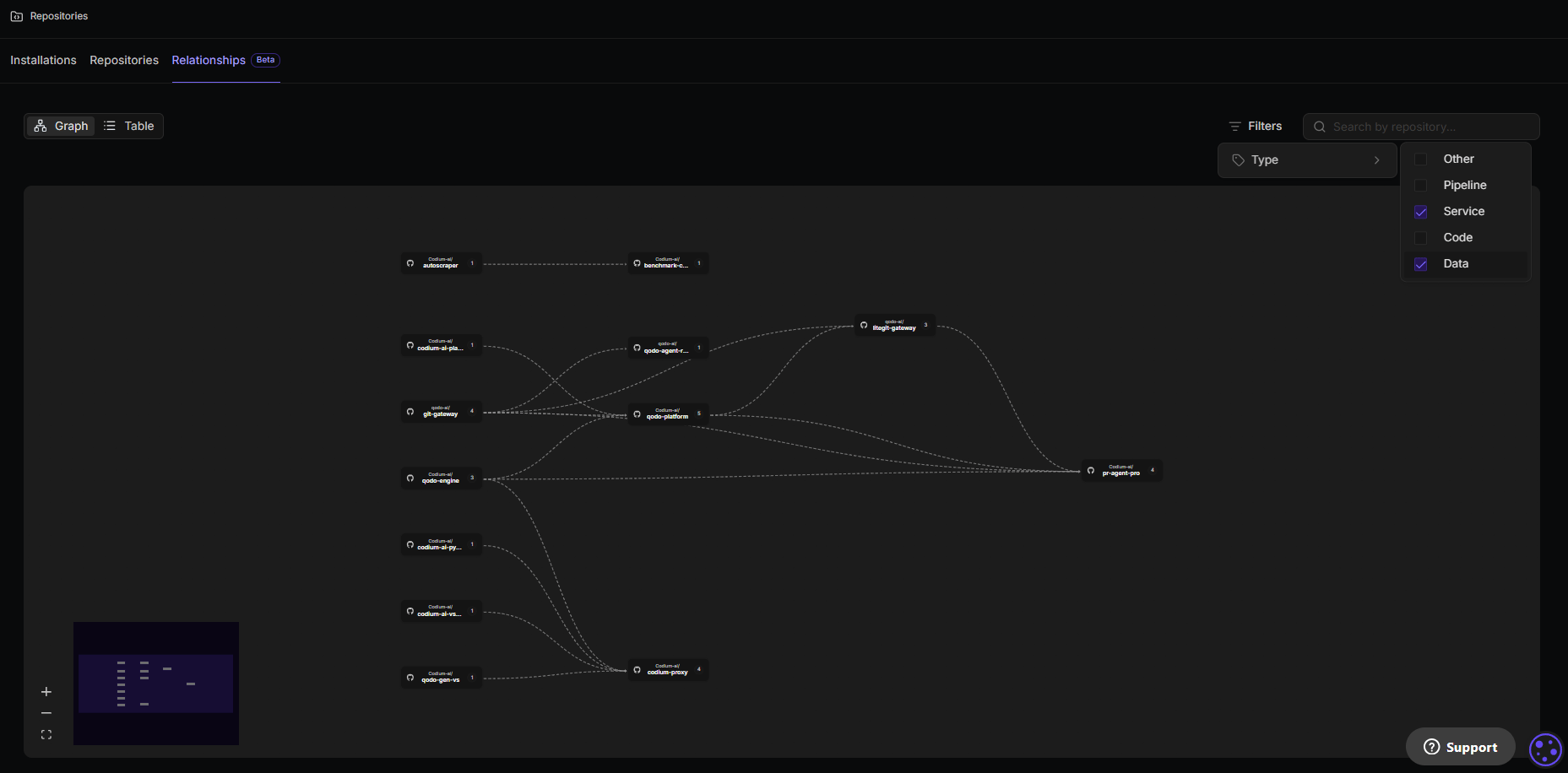
1. Go to the **Repositories** page and select the **Relationships** tab.
The tab shows all relationships defined across your organization. Toggle between **List** and **Graph** view using the controls at the top left. Use this view to audit relationship coverage across your organization.
## View all relationships
1. Go to the **Repositories** page and select the **Relationships** tab.
The tab shows all relationships defined across your organization. Toggle between **List** and **Graph** view using the controls at the top left. Use this view to audit relationship coverage across your organization.
 ## View relationships for a specific repository
1. Go to the **Repositories** page and select the **Repositories** tab.
2. Click the row of the repository you want to inspect.
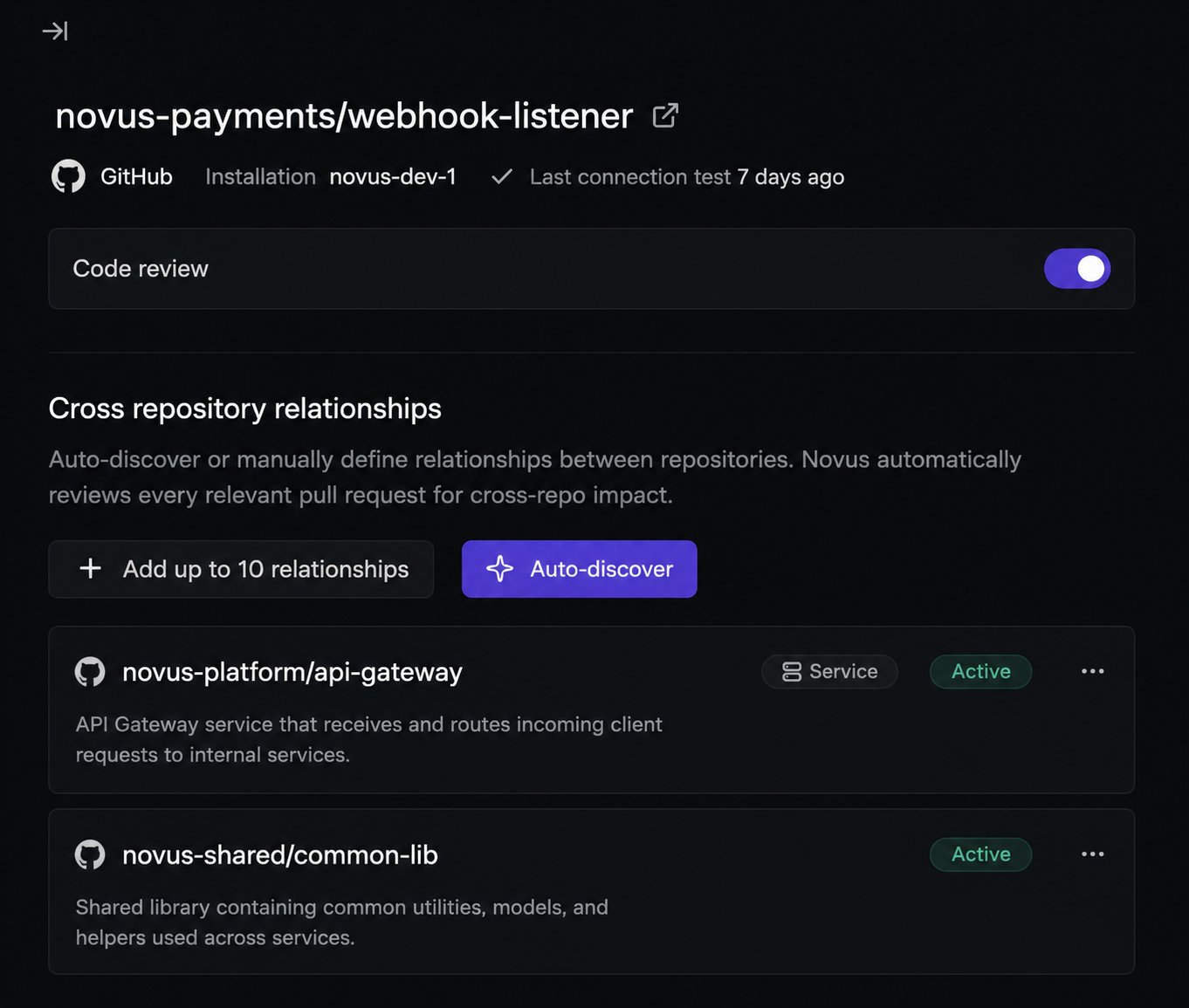
3. The sidebar opens on the right. The **Cross repository relationships** section shows all relationships defined for that repository, including the linked repository, relationship type, description, and status.
## View relationships for a specific repository
1. Go to the **Repositories** page and select the **Repositories** tab.
2. Click the row of the repository you want to inspect.
3. The sidebar opens on the right. The **Cross repository relationships** section shows all relationships defined for that repository, including the linked repository, relationship type, description, and status.
 ## Create relationships
You can create relationships in two ways: let Qodo discover them automatically, or add them manually. Both appear in the same **Cross repository relationships** section and are used the same way during review.
Relationships are non-directional. The order of Repository A and Repository B does not affect how the agent uses the relationship.
### Auto-discover relationships
Qodo can scan a repository and find related repositories for you, so you don't have to identify and add them by hand.
1. Go to the **Repositories** page and select the **Repositories** tab.
2. Click the row of the repository you want to analyze to open its sidebar.
3. In the **Cross repository relationships** section, click **Auto-discover**.
Qodo runs the discovery in the background and adds the relationships it finds. While discovery is running, the section shows a **Discovering** state, which usually takes a few minutes. You can keep working until it finishes.
## Create relationships
You can create relationships in two ways: let Qodo discover them automatically, or add them manually. Both appear in the same **Cross repository relationships** section and are used the same way during review.
Relationships are non-directional. The order of Repository A and Repository B does not affect how the agent uses the relationship.
### Auto-discover relationships
Qodo can scan a repository and find related repositories for you, so you don't have to identify and add them by hand.
1. Go to the **Repositories** page and select the **Repositories** tab.
2. Click the row of the repository you want to analyze to open its sidebar.
3. In the **Cross repository relationships** section, click **Auto-discover**.
Qodo runs the discovery in the background and adds the relationships it finds. While discovery is running, the section shows a **Discovering** state, which usually takes a few minutes. You can keep working until it finishes.
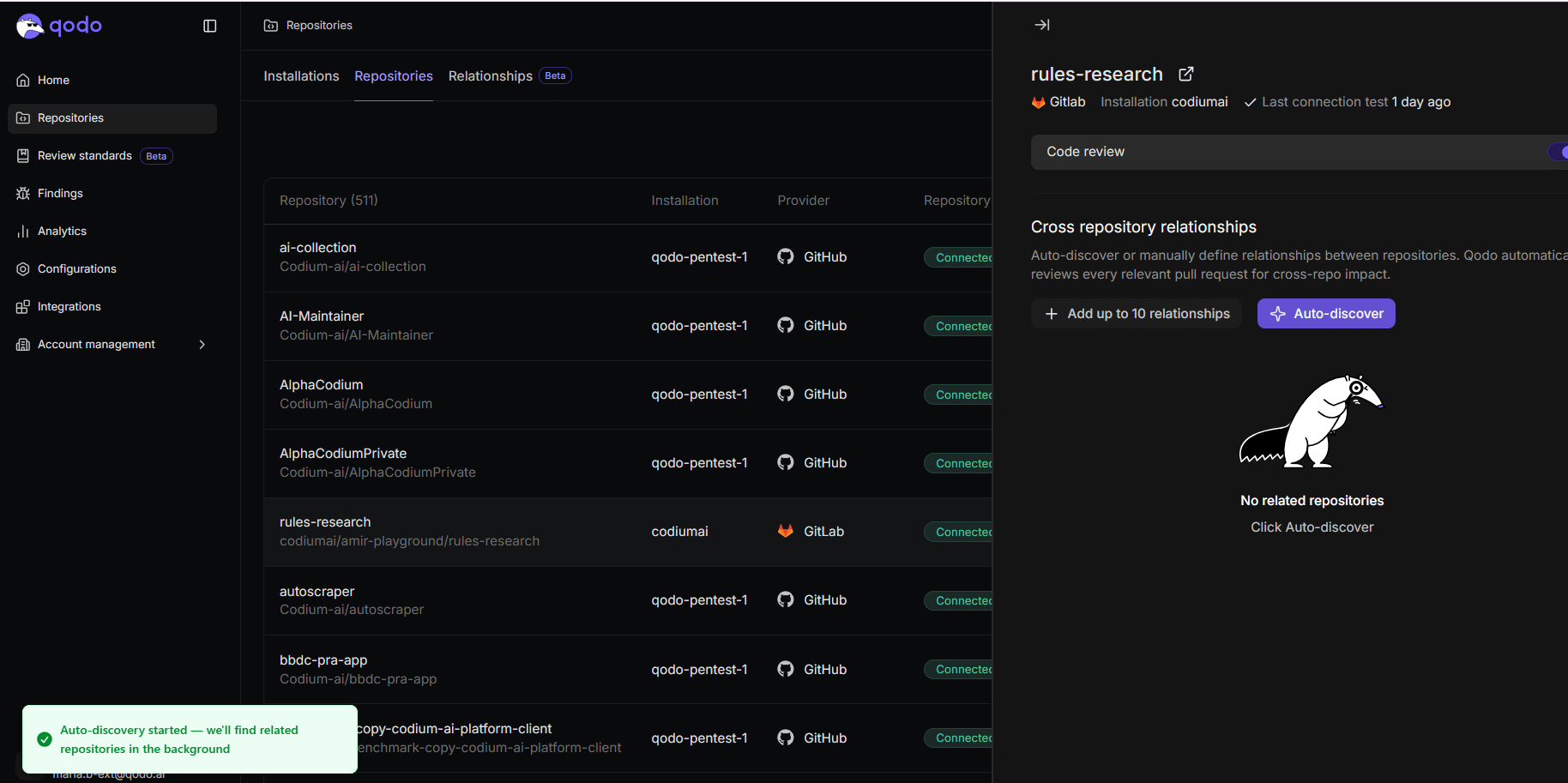 Discovered relationships appear in the **Cross repository relationships** section as Qodo finds them, labeled **Auto-discovered** to distinguish them from relationships you added manually. If auto-discovery does not find any relationships, Qodo shows a **No relationship found** message.
Unlike manually added relationships, auto-discovered relationships are not subject to the 10-relationship-per-repository limit.
Discovered relationships appear in the **Cross repository relationships** section as Qodo finds them, labeled **Auto-discovered** to distinguish them from relationships you added manually. If auto-discovery does not find any relationships, Qodo shows a **No relationship found** message.
Unlike manually added relationships, auto-discovered relationships are not subject to the 10-relationship-per-repository limit.
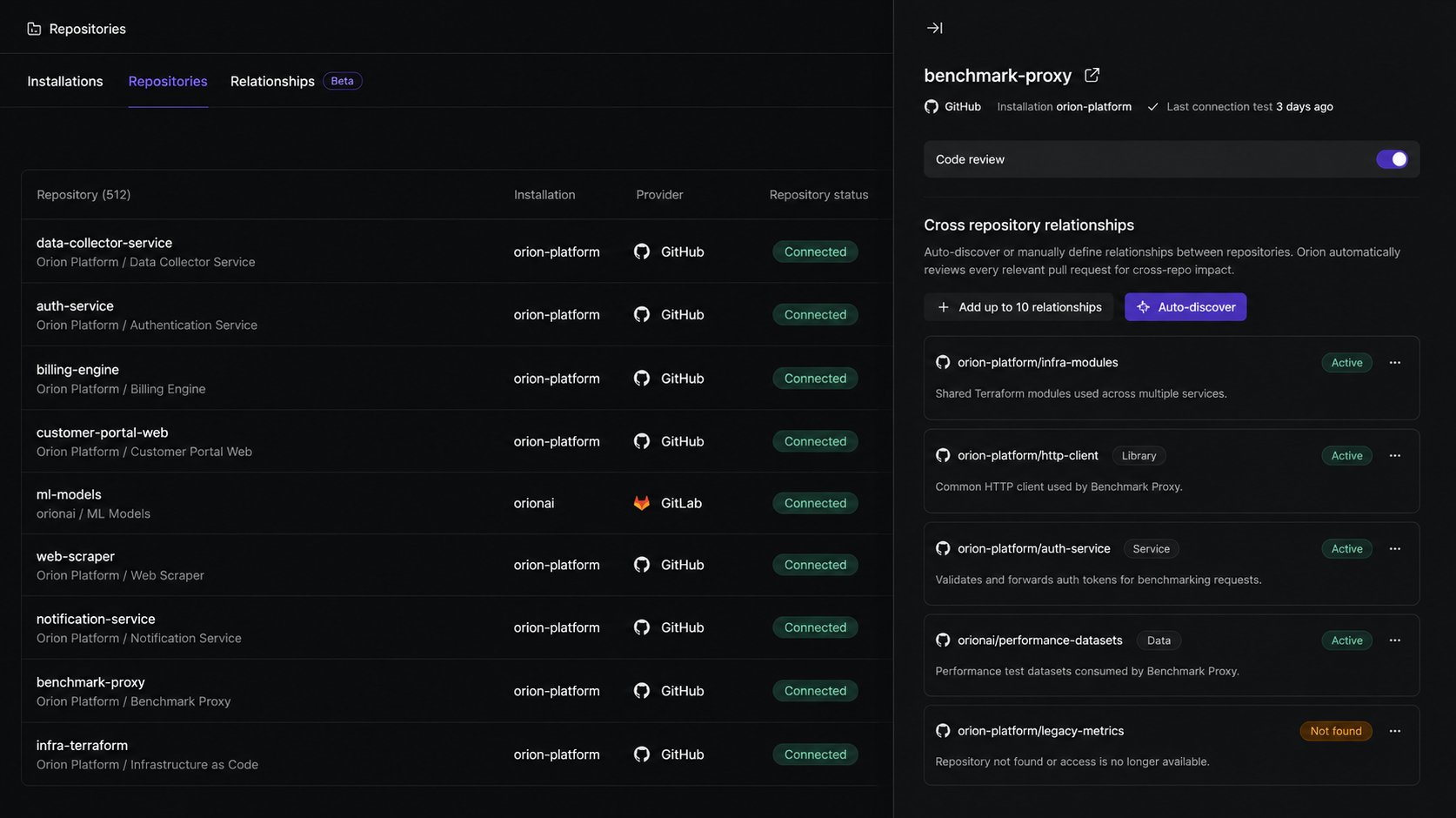 Only one discovery run can be active per repository at a time. If you start auto-discovery while a run is already in progress, Qodo shows that auto-discovery is already in progress for the repository.
### Add relationships manually
You can also add relationships yourself from a repository's sidebar.
1. Go to the **Repositories** page and select the **Repositories** tab.
2. Click the row of one of the repositories to open its sidebar.
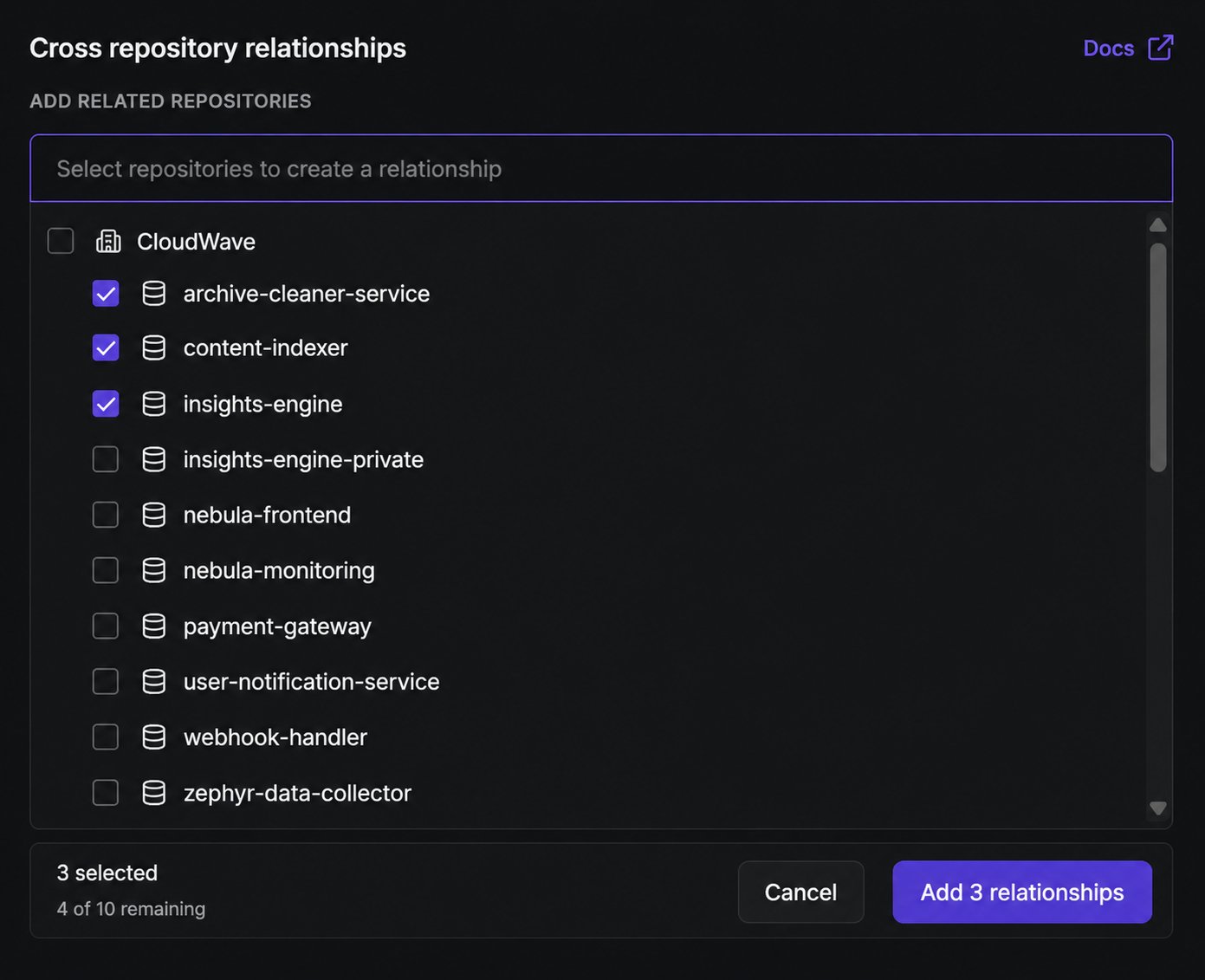
3. In the **Cross repository relationships** section, under **Add related repositories**, select the **Select repositories to create a relationship** field.
4. Select the repositories to link. Each repository supports up to 10 relationships.
5. Click **Add relationships**.
Only one discovery run can be active per repository at a time. If you start auto-discovery while a run is already in progress, Qodo shows that auto-discovery is already in progress for the repository.
### Add relationships manually
You can also add relationships yourself from a repository's sidebar.
1. Go to the **Repositories** page and select the **Repositories** tab.
2. Click the row of one of the repositories to open its sidebar.
3. In the **Cross repository relationships** section, under **Add related repositories**, select the **Select repositories to create a relationship** field.
4. Select the repositories to link. Each repository supports up to 10 relationships.
5. Click **Add relationships**.
 ## Relationship statuses
Whether a relationship is auto-discovered or added manually, Qodo processes it and shows one of the following statuses:
| Status | Description |
| ------------- | ------------------------------------------------------------------------------------------------------------------------------------------------------------------------------------------------------------- |
| **Pending** | Qodo is analyzing the repositories and building the relationship context. This typically takes a few minutes. |
| **Active** | The relationship is confirmed and in use. Qodo checks this relationship on every relevant PR. |
| **Not found** | Qodo could not determine a connection between the two repositories. You can add custom instructions to guide the analysis and retry. See [Retry a relationship connection](#retry-a-relationship-connection). |
| **Error** | Something went wrong during processing. [Retry the relationship connection](#retry-a-relationship-connection) from the three-dot menu, or delete and recreate it. |
For a description of each relationship type, see [Cross-repository code review](/governance/cross-repo-code-review#relationship-types).
Once a relationship is active, Qodo checks it on every subsequent PR. By default, Qodo targets the main branch of each connected repository. To point the review at a different branch or pull request, include a link to that branch or PR (in the other repository) in your PR description, or in a ticket linked to the PR. Existing open PRs are not retroactively updated.
## Retry a relationship connection
If a relationship shows **Not found** or **Error**, Qodo could not establish the connection on its own. You can provide additional context to guide the analysis and retry:
1. Click the three-dot menu on the relationship.
2. Select **Retry with custom instructions**.
3. In the **Retry with custom instructions** dialog, describe the dependency between the two repositories. These instructions give the agent additional context to guide the relationship analysis.
4. Click **Retry**.
## Relationship statuses
Whether a relationship is auto-discovered or added manually, Qodo processes it and shows one of the following statuses:
| Status | Description |
| ------------- | ------------------------------------------------------------------------------------------------------------------------------------------------------------------------------------------------------------- |
| **Pending** | Qodo is analyzing the repositories and building the relationship context. This typically takes a few minutes. |
| **Active** | The relationship is confirmed and in use. Qodo checks this relationship on every relevant PR. |
| **Not found** | Qodo could not determine a connection between the two repositories. You can add custom instructions to guide the analysis and retry. See [Retry a relationship connection](#retry-a-relationship-connection). |
| **Error** | Something went wrong during processing. [Retry the relationship connection](#retry-a-relationship-connection) from the three-dot menu, or delete and recreate it. |
For a description of each relationship type, see [Cross-repository code review](/governance/cross-repo-code-review#relationship-types).
Once a relationship is active, Qodo checks it on every subsequent PR. By default, Qodo targets the main branch of each connected repository. To point the review at a different branch or pull request, include a link to that branch or PR (in the other repository) in your PR description, or in a ticket linked to the PR. Existing open PRs are not retroactively updated.
## Retry a relationship connection
If a relationship shows **Not found** or **Error**, Qodo could not establish the connection on its own. You can provide additional context to guide the analysis and retry:
1. Click the three-dot menu on the relationship.
2. Select **Retry with custom instructions**.
3. In the **Retry with custom instructions** dialog, describe the dependency between the two repositories. These instructions give the agent additional context to guide the relationship analysis.
4. Click **Retry**.
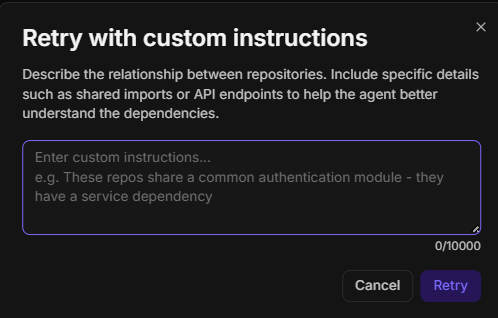 Qodo reprocesses the relationship using your instructions. If it establishes a connection, the status changes to **Active**.
## Remove a relationship
Deleting a relationship means Qodo will no longer use it to trace impact between the two repositories. If you delete a relationship by mistake, you will need to recreate it from scratch.
### From the Relationships tab
1. Go to the **Repositories** page and select the **Relationships** tab.
2. Click the three-dot menu on the relationship you want to remove.
3. Select **Delete relationship**.
4. In the confirmation dialog, click **Delete relationship** to confirm.
### From the repository sidebar
1. Go to the **Repositories** page and select the **Repositories** tab.
2. Click the row of the relevant repository.
3. In the sidebar, click the three-dot menu on the relationship you want to remove.
4. Select **Delete**.
5. Confirm the deletion.
## Export relationship details
Each relationship has a markdown file that describes the dependency in detail. To download it, click the three-dot menu on any relationship and select **Download markdown**. Use this to review what Qodo has inferred about the relationship or to share it with your team.
## Next steps
* [Cross-repository code review](/governance/cross-repo-code-review): Understand how Qodo uses relationships to detect breaking changes.
* [Manage code review across repositories](/governance/repositories): View and manage your repositories and installations.
Qodo reprocesses the relationship using your instructions. If it establishes a connection, the status changes to **Active**.
## Remove a relationship
Deleting a relationship means Qodo will no longer use it to trace impact between the two repositories. If you delete a relationship by mistake, you will need to recreate it from scratch.
### From the Relationships tab
1. Go to the **Repositories** page and select the **Relationships** tab.
2. Click the three-dot menu on the relationship you want to remove.
3. Select **Delete relationship**.
4. In the confirmation dialog, click **Delete relationship** to confirm.
### From the repository sidebar
1. Go to the **Repositories** page and select the **Repositories** tab.
2. Click the row of the relevant repository.
3. In the sidebar, click the three-dot menu on the relationship you want to remove.
4. Select **Delete**.
5. Confirm the deletion.
## Export relationship details
Each relationship has a markdown file that describes the dependency in detail. To download it, click the three-dot menu on any relationship and select **Download markdown**. Use this to review what Qodo has inferred about the relationship or to share it with your team.
## Next steps
* [Cross-repository code review](/governance/cross-repo-code-review): Understand how Qodo uses relationships to detect breaking changes.
* [Manage code review across repositories](/governance/repositories): View and manage your repositories and installations.