> ## Documentation Index
> Fetch the complete documentation index at: https://docs.qodo.ai/llms.txt
> Use this file to discover all available pages before exploring further.
# Configure Qodo using the portal
> The recommended way to manage organization-wide and repository-level code review configuration, from the Configurations page in the Qodo portal.
The **Configurations** page in the Qodo portal is organized into six tabs: [Display](/configuration/display), [Workflow](/configuration/workflow), [Context](/configuration/context), [Remediation](/configuration/remediation), [Prompts](/configuration/prompts), and [Agentic toolbox](/configuration/agentic-toolbox). Each tab groups related settings so you can quickly find and manage what you need.
To access it, select **Configurations** from the left navigation menu in the [Qodo portal](https://app.qodo.ai/).
## Configuration levels: organization and repository
By default, settings on this page apply to all repositories connected to Qodo. Use the **All repositories** selector at the top left of the Configurations page to switch between two levels:
* **Organization level** (default): Settings apply to all connected repositories.
* **Repository level**: Settings apply only to the selected repository and override the organization-level defaults in the portal.
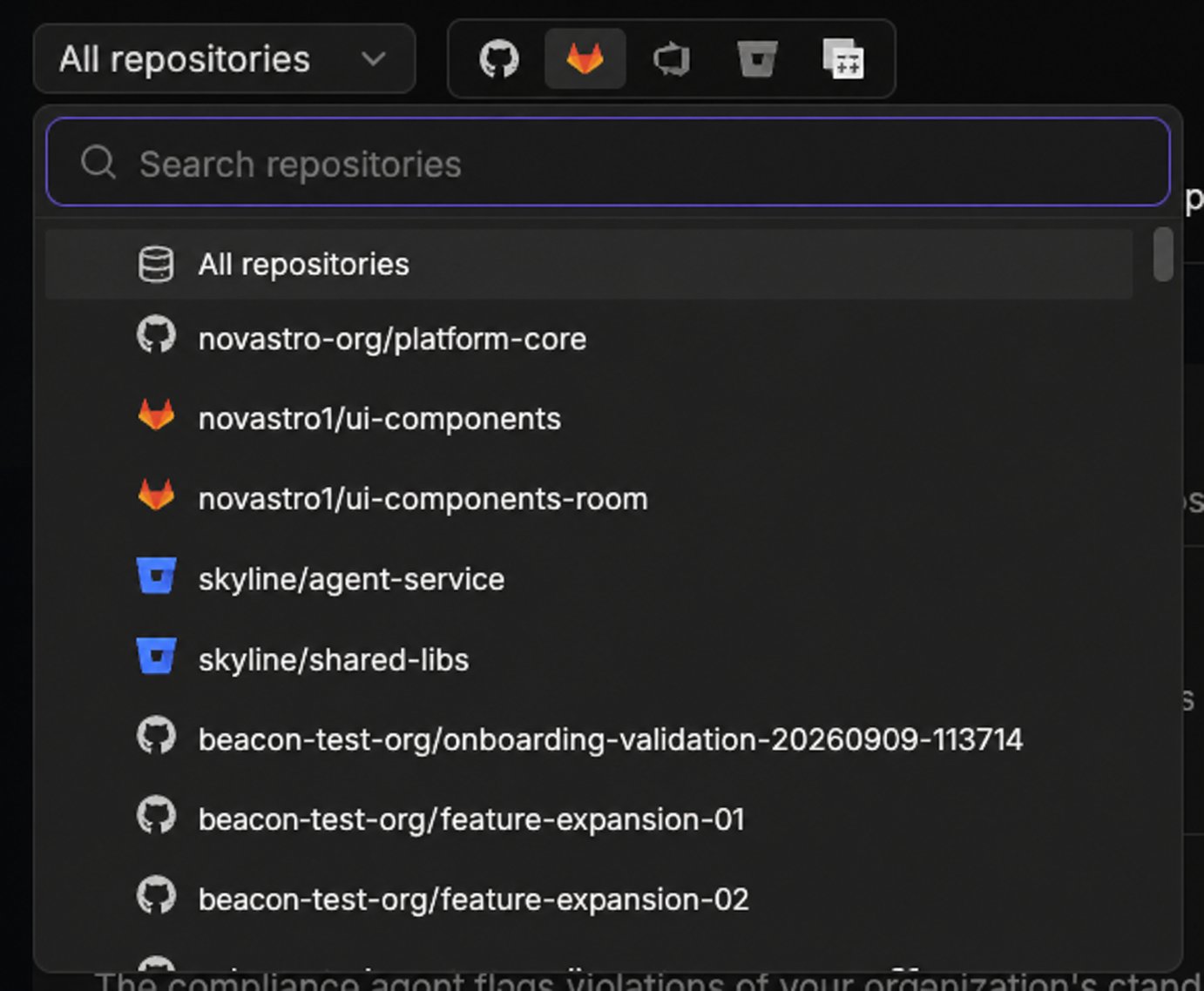 Next to the repository selector, select a Git provider icon to view the Configurations page through that provider's lens: settings the provider doesn't support appear disabled, and settings that behave differently for it show a tooltip explaining the difference. Leave no icon selected to see every setting as it applies across all connected providers.
This repository-level override applies only within the portal and does not change where portal settings sit in the overall hierarchy. Portal settings have the lowest precedence overall: configuration defined in the repository wiki, repository root, or organization settings repository (`pr-agent-settings`) takes precedence over any portal setting. See [Customize the code review experience](/configuration#configuration-precedence).
## Save or reset your changes
The following controls are available at the top right of the Configurations page:
* **Save**: Applies your changes. Shows a confirmation toast once saved.
* **Reset**: Restores settings. At the repository level, resets to the organization's settings. At the organization level, resets to Qodo's defaults.
* **Dismiss**: Appears next to Reset when you have unsaved changes, labeled with a count, for example **Dismiss (1)**. Discards those changes and reverts to the last saved settings.
## Configuration tabs
Controls how findings and review comments are structured and presented in your pull requests.
Controls when and how Qodo runs code reviews and generates PR summaries, plus the chat agent.
Controls review standards, spec and design context, cross-repository context, and web search grounding.
Lets Qodo resolve review findings for you, either on demand through chat or automatically with the Remediation Agent.
Add free-text instructions to guide how Qodo behaves during reviews.
Controls which users in your workspace can access the Qodo Agentic Toolbox.
Next to the repository selector, select a Git provider icon to view the Configurations page through that provider's lens: settings the provider doesn't support appear disabled, and settings that behave differently for it show a tooltip explaining the difference. Leave no icon selected to see every setting as it applies across all connected providers.
This repository-level override applies only within the portal and does not change where portal settings sit in the overall hierarchy. Portal settings have the lowest precedence overall: configuration defined in the repository wiki, repository root, or organization settings repository (`pr-agent-settings`) takes precedence over any portal setting. See [Customize the code review experience](/configuration#configuration-precedence).
## Save or reset your changes
The following controls are available at the top right of the Configurations page:
* **Save**: Applies your changes. Shows a confirmation toast once saved.
* **Reset**: Restores settings. At the repository level, resets to the organization's settings. At the organization level, resets to Qodo's defaults.
* **Dismiss**: Appears next to Reset when you have unsaved changes, labeled with a count, for example **Dismiss (1)**. Discards those changes and reverts to the last saved settings.
## Configuration tabs
Controls how findings and review comments are structured and presented in your pull requests.
Controls when and how Qodo runs code reviews and generates PR summaries, plus the chat agent.
Controls review standards, spec and design context, cross-repository context, and web search grounding.
Lets Qodo resolve review findings for you, either on demand through chat or automatically with the Remediation Agent.
Add free-text instructions to guide how Qodo behaves during reviews.
Controls which users in your workspace can access the Qodo Agentic Toolbox.