> ## Documentation Index
> Fetch the complete documentation index at: https://docs.qodo.ai/llms.txt
> Use this file to discover all available pages before exploring further.
# Anatomy of Qodo findings in a pull request
> Qodo surfaces code review feedback directly inside your pull requests in a way that is actionable, focused, and easy to resolve.
This guide explains how Qodo structures pull request feedback, from high-level context to individual issue findings, and how to read, prioritize, and act on it effectively.
Qodo’s code suggestions focus on what requires attention and why, with clear links back to the relevant code. Information is exposed incrementally, starting with a high-level summary and expanding into details only when needed, making it easy to ignore low-signal noise. Each finding is meant to be resolved explicitly, either by fixing the issue or dismissing it, so reviews feel finite and manageable rather than an ongoing inbox.
## High-level context
Before presenting individual issues, Qodo provides context to help you understand *what changed* and *why it matters*.
### PR description enhancement
Qodo adds an AI-generated description to the pull request that summarizes the intent and impact of the change.
* Your original PR description remains unchanged
* The generated description is appended below it
* The summary highlights key changes and potential areas of interest
This helps reviewers align quickly on the purpose of the pull request.
### Walkthroughs
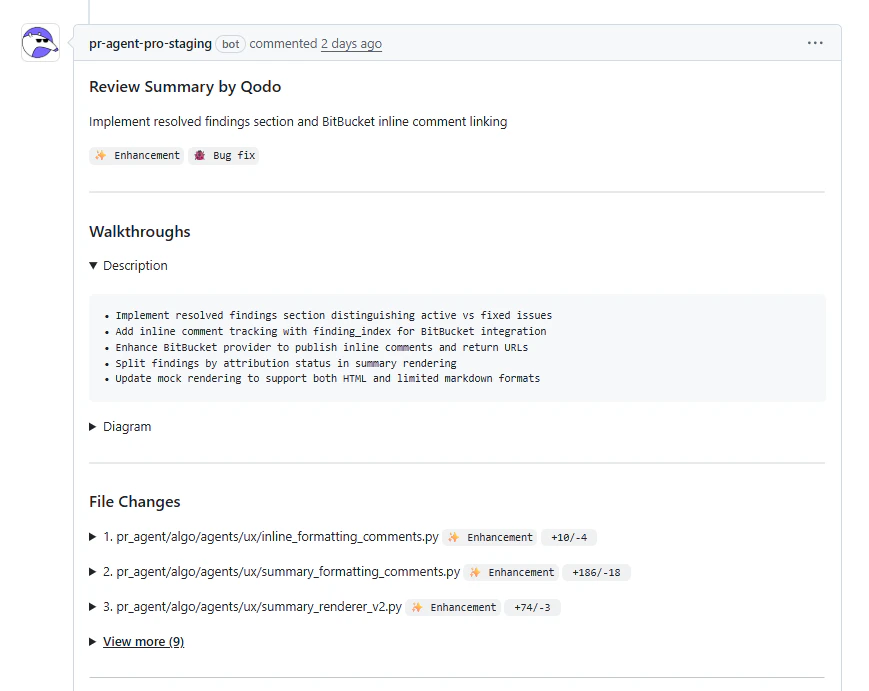
Qodo provides walkthroughs that explain the changes at a conceptual level before diving into individual issues.
**Description walkthrough**
The description walkthrough outlines the most important changes, such as:
* New functionality or methods introduced
* Refactors or behavioral changes
* Logging, security, or performance-related updates
* Risky or noteworthy patterns
This section reads like a reviewer-friendly changelog.
**Diagrams**
When applicable, Qodo includes diagrams to visually explain:
* Control flow
* Component interactions
* Execution order changes
Diagrams help reviewers understand complex logic at a glance, without reconstructing behavior from the diff.
### File changes overview
Qodo provides a file-level overview of the pull request.
For each modified file, you can see:
* The file path
* The type of change (for example, Bug Fix or Enhancement)
* Lines added and removed
This helps reviewers understand the scope of the change set before examining individual findings.
 ## Summary of findings
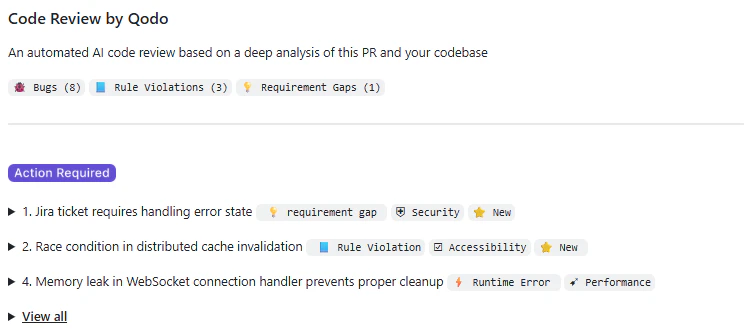
After providing context, Qodo presents a **summary of findings**, grouped by category with counts for each type.
Categories include:
* **🐞 Bugs** – Issues that may cause incorrect behavior or failures
* **📘 Rule violations** – Violations of organizational or repository rules
* **📎 Requirement gaps** – Missing or unmet business or ticket requirements
This summary gives you an immediate sense of the review’s focus and severity.
## Summary of findings
After providing context, Qodo presents a **summary of findings**, grouped by category with counts for each type.
Categories include:
* **🐞 Bugs** – Issues that may cause incorrect behavior or failures
* **📘 Rule violations** – Violations of organizational or repository rules
* **📎 Requirement gaps** – Missing or unmet business or ticket requirements
This summary gives you an immediate sense of the review’s focus and severity.
 ## Quality impact labels
In addition to categories, each finding includes a **quality impact label**. This label indicates which quality dimension is affected by the issue.
Common labels include:
* **Correctness** – Issues that may cause incorrect behavior or wrong results
* **Security** – Issues that could expose vulnerabilities or sensitive data
* **Reliability** – Issues that may affect stability, error handling, or fault tolerance
* **Performance** – Issues that impact efficiency, latency, or resource usage
* **Observability** – Issues that affect logging, metrics, or system visibility
These labels provide quick semantic context, helping you understand *what kind of quality is impacted* before diving into the full issue details.
## Severity and prioritization
Findings are grouped by **priority**, making it clear what needs attention first.
**Action required**
High-priority or blocking issues that should be addressed before merging, such as:
* Security or compliance violations
* Sensitive data exposure
* Critical correctness issues
**Review recommended**
Non-blocking issues that improve:
* Code quality
* Maintainability
* Consistency with defined standards
**Informational**
Lower-impact or informational findings that provide context or optional guidance.
This prioritization helps you focus on what matters most without losing visibility into the full set of findings.
## Issue details
Each finding can be expanded to reveal full details. You can access issues:
* From the prioritized summary list
* Inline, directly in the **Files changed** view
Regardless of how you access it, each issue presents the same structured information.
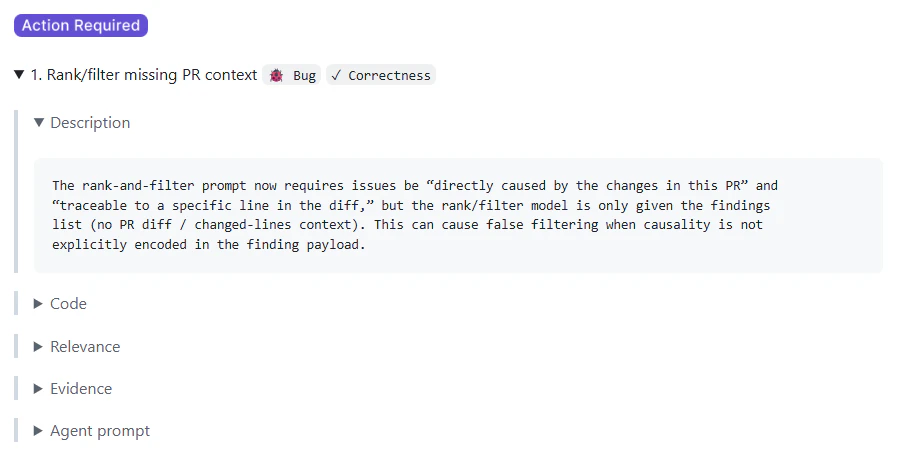
### Description
A clear, human-readable explanation of the issue and its potential impact.
## Quality impact labels
In addition to categories, each finding includes a **quality impact label**. This label indicates which quality dimension is affected by the issue.
Common labels include:
* **Correctness** – Issues that may cause incorrect behavior or wrong results
* **Security** – Issues that could expose vulnerabilities or sensitive data
* **Reliability** – Issues that may affect stability, error handling, or fault tolerance
* **Performance** – Issues that impact efficiency, latency, or resource usage
* **Observability** – Issues that affect logging, metrics, or system visibility
These labels provide quick semantic context, helping you understand *what kind of quality is impacted* before diving into the full issue details.
## Severity and prioritization
Findings are grouped by **priority**, making it clear what needs attention first.
**Action required**
High-priority or blocking issues that should be addressed before merging, such as:
* Security or compliance violations
* Sensitive data exposure
* Critical correctness issues
**Review recommended**
Non-blocking issues that improve:
* Code quality
* Maintainability
* Consistency with defined standards
**Informational**
Lower-impact or informational findings that provide context or optional guidance.
This prioritization helps you focus on what matters most without losing visibility into the full set of findings.
## Issue details
Each finding can be expanded to reveal full details. You can access issues:
* From the prioritized summary list
* Inline, directly in the **Files changed** view
Regardless of how you access it, each issue presents the same structured information.
### Description
A clear, human-readable explanation of the issue and its potential impact.
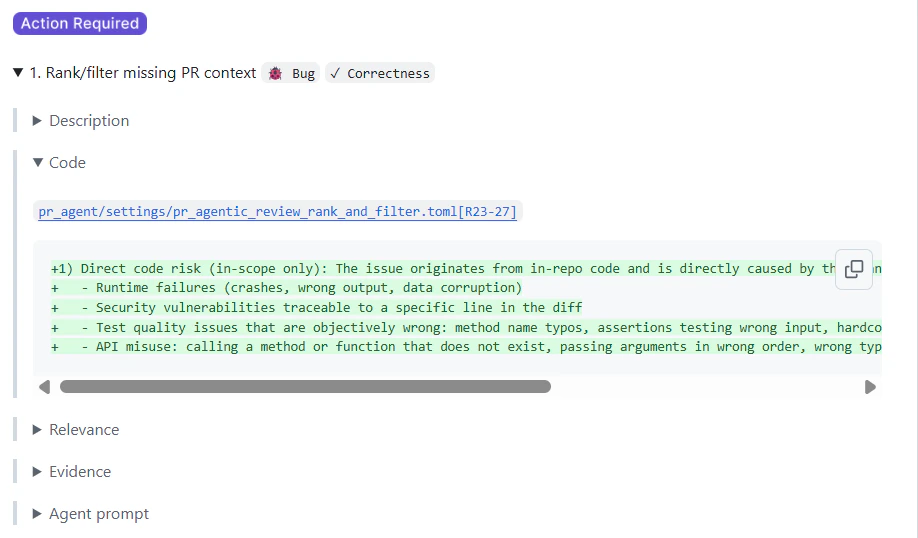
 ### Code references
* A snippet showing where the issue occurs
* Direct links to the relevant lines in the pull request
### Code references
* A snippet showing where the issue occurs
* Direct links to the relevant lines in the pull request
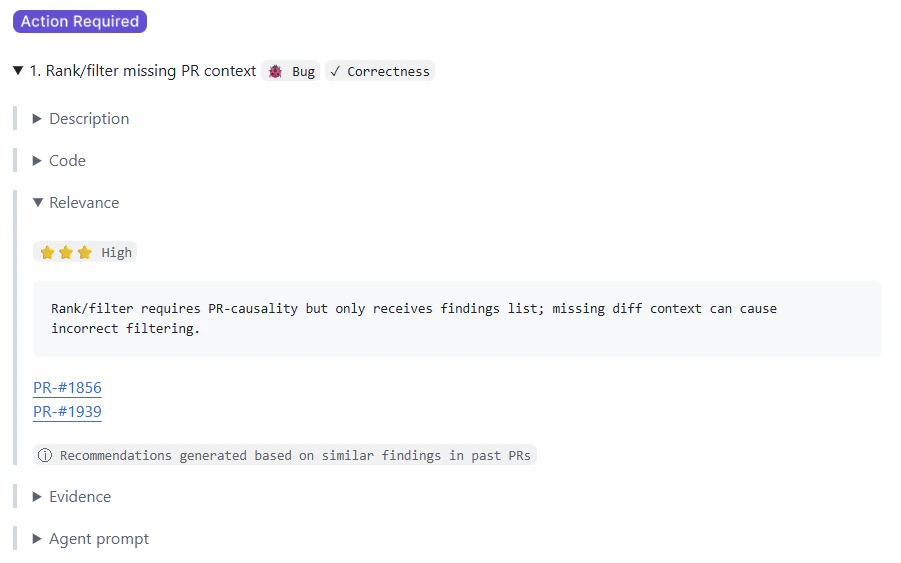
 ### Relevance
This feature is currently available in beta for GitHub and GitLab repositories. Entries are generated automatically based on [PR history.](/code-review/concepts/pr-history)
The **Relevance** section highlights related pull requests with similar findings from past reviews. This provides historical context by linking to previous PRs where a similar issue was discussed, accepted, or rejected.
Each entry includes:
* A relevance classification indicating whether the finding has high, medium, or low relevance based on how similar findings were handled in past PRs. \
⭐ ⭐ ⭐ **High** - similar findings were typically accepted/fixed \
⭐ ⭐ **Medium** - mixed or inconclusive history \
⭐ **Low** - similar findings were typically ignored
* A brief explanation of the historical pattern
* Links to relevant past pull requests
* An indicator that the insight was generated from similar findings
### Relevance
This feature is currently available in beta for GitHub and GitLab repositories. Entries are generated automatically based on [PR history.](/code-review/concepts/pr-history)
The **Relevance** section highlights related pull requests with similar findings from past reviews. This provides historical context by linking to previous PRs where a similar issue was discussed, accepted, or rejected.
Each entry includes:
* A relevance classification indicating whether the finding has high, medium, or low relevance based on how similar findings were handled in past PRs. \
⭐ ⭐ ⭐ **High** - similar findings were typically accepted/fixed \
⭐ ⭐ **Medium** - mixed or inconclusive history \
⭐ **Low** - similar findings were typically ignored
* A brief explanation of the historical pattern
* Links to relevant past pull requests
* An indicator that the insight was generated from similar findings
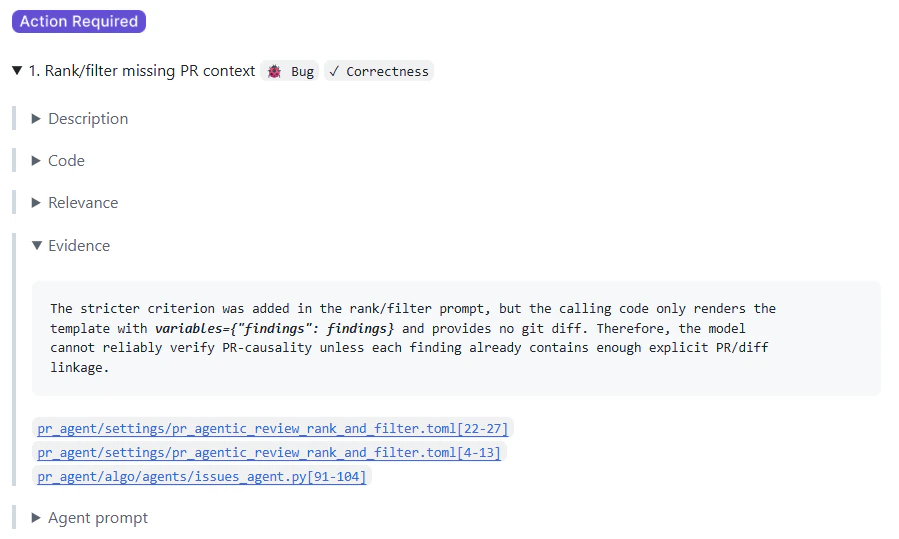
 ### Evidence
Context explaining *why* the issue was flagged, such as:
* The specific rule involved
* Linked requirements or tickets (when applicable)
This transparency makes it easier to trust and validate the feedback.
### Evidence
Context explaining *why* the issue was flagged, such as:
* The specific rule involved
* Linked requirements or tickets (when applicable)
This transparency makes it easier to trust and validate the feedback.
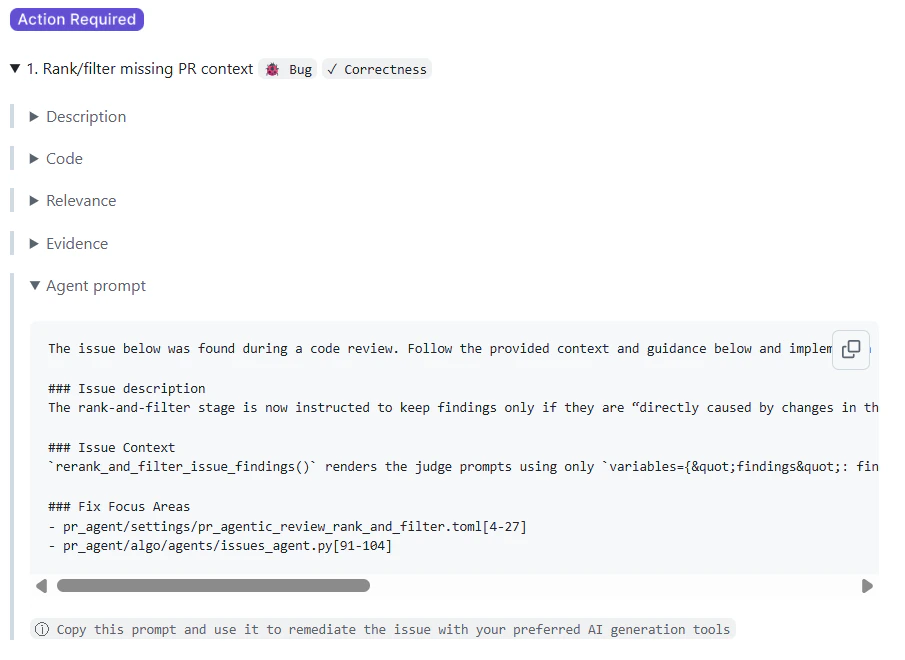
 ### Agent prompt (fix assistance)
For issues that can be fixed programmatically, Qodo provides an **agent prompt**. You can copy the prompt and use it in an AI coding tool to apply the suggested fix with full context, helping you move from feedback to resolution faster.
### Agent prompt (fix assistance)
For issues that can be fixed programmatically, Qodo provides an **agent prompt**. You can copy the prompt and use it in an AI coding tool to apply the suggested fix with full context, helping you move from feedback to resolution faster.
 ### Committable code suggestion
For small, inline findings in a single file, Qodo attaches a commit-ready fix directly to the comment. You can apply it without switching to your local environment.
* Click **Apply Suggestion** to commit the fix immediately.
* Click **Add suggestion to batch** to group multiple fixes into a single commit.
For more information, see [Commit code fixes directly in the PR](/code-review/commitable-code-suggestions).
## Track findings across your organization
Findings from all pull requests are tracked centrally in the Qodo portal. To view, filter, and monitor findings across all repositories, see [View PR findings across your organization](/governance/view-all-findings-in-organization).
## Audit trail
The Audit section shows how findings change as the pull request evolves:
* ⭐ Starred findings highlight newly added findings in the latest commit
* Findings resolved or dismissed as changes are made
* A clear view of progress across commits
This helps reviewers understand how issues were introduced and resolved over time.
## Resolved findings
As you address issues:
* Findings update as relevant code changes
* Resolved issues are reflected in the review
* Remaining items stay visible until fixed or dismissed
This supports a clear, zero-inbox workflow where reviews move steadily toward completion.
### Committable code suggestion
For small, inline findings in a single file, Qodo attaches a commit-ready fix directly to the comment. You can apply it without switching to your local environment.
* Click **Apply Suggestion** to commit the fix immediately.
* Click **Add suggestion to batch** to group multiple fixes into a single commit.
For more information, see [Commit code fixes directly in the PR](/code-review/commitable-code-suggestions).
## Track findings across your organization
Findings from all pull requests are tracked centrally in the Qodo portal. To view, filter, and monitor findings across all repositories, see [View PR findings across your organization](/governance/view-all-findings-in-organization).
## Audit trail
The Audit section shows how findings change as the pull request evolves:
* ⭐ Starred findings highlight newly added findings in the latest commit
* Findings resolved or dismissed as changes are made
* A clear view of progress across commits
This helps reviewers understand how issues were introduced and resolved over time.
## Resolved findings
As you address issues:
* Findings update as relevant code changes
* Resolved issues are reflected in the review
* Remaining items stay visible until fixed or dismissed
This supports a clear, zero-inbox workflow where reviews move steadily toward completion.