> ## Documentation Index
> Fetch the complete documentation index at: https://docs.qodo.ai/llms.txt
> Use this file to discover all available pages before exploring further.
# Billing and subscription
## Add payment method
To manage your payment method:
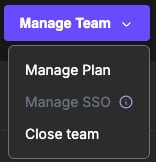
Click **Manage Team**.
From the dropdown menu, select **Manage Plan**.
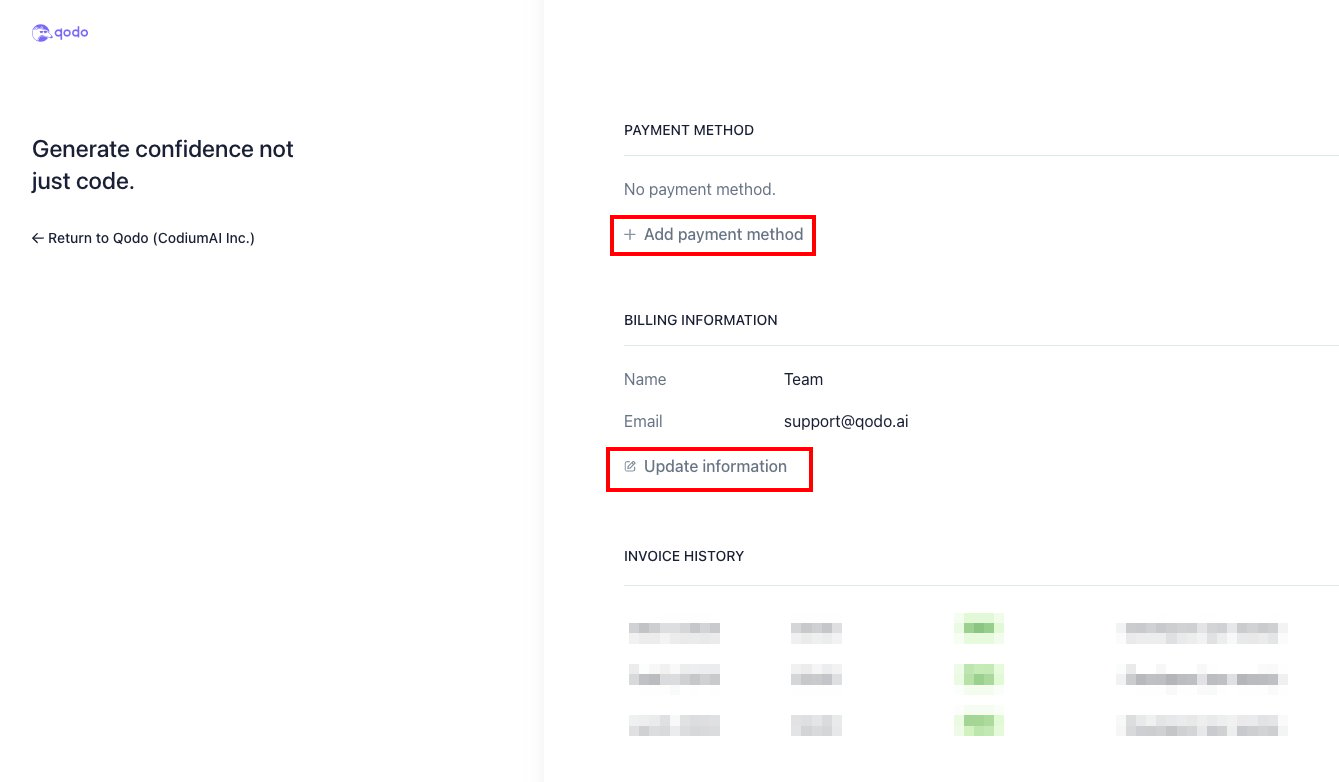
 Qodo's payment page will open, where you can add a payment method and update your billing information.
 ## Invoice history
You can access and manage your invoices on the portal.
Click the **Manage Team** button in the upper right corner of each team.
Select **Manage Plan** to view your team’s subscription details.
Scroll to the **INVOICE HISTORY** section at the bottom of the plan details to see the status of your invoices (paid or unpaid).
Locate the invoice you wish to view.
Click **Download Invoice** or **Download Receipt** next to the invoice to download it as a PDF file.
## Cancel subscription
From the dropdown menu under **Manage Team**, select **Manage** **Subscription**.
Click the **Cancel Plan** button.
Review the information displayed, including any details about the remaining subscription. Confirm by clicking **Cancel Plan**.
You will be asked to provide feedback on why you are cancelling. This step is optional.
Ensure that your subscription status in the **Billing** section reflects the cancellation.
## Invoice history
You can access and manage your invoices on the portal.
Click the **Manage Team** button in the upper right corner of each team.
Select **Manage Plan** to view your team’s subscription details.
Scroll to the **INVOICE HISTORY** section at the bottom of the plan details to see the status of your invoices (paid or unpaid).
Locate the invoice you wish to view.
Click **Download Invoice** or **Download Receipt** next to the invoice to download it as a PDF file.
## Cancel subscription
From the dropdown menu under **Manage Team**, select **Manage** **Subscription**.
Click the **Cancel Plan** button.
Review the information displayed, including any details about the remaining subscription. Confirm by clicking **Cancel Plan**.
You will be asked to provide feedback on why you are cancelling. This step is optional.
Ensure that your subscription status in the **Billing** section reflects the cancellation.